
Cancel Dunning on Past-Due Subscriptions
Last updated on Sep 19, 2026
The Cancel Dunning action lets you move a Subscription from past due back to active by stopping the dunning process. Use it when you have resolved a payment problem outside Advanced Billing and want the Subscription to stop chasing the customer.
What cancelling dunning does to the balance
Cancelling dunning stops the process. It does not write off what is owed:
- For automatic Subscriptions, the past-due amount is retained and included in the charge at the Subscription's next renewal.
- For remittance Subscriptions, any Invoices resolved by this action are no longer eligible for dunning.
- If your site uses Relationship Invoicing, the amount charged at the Subscription's next renewal may not include the past-due amount. Manually collect any uncollected amount by recording a payment on the Invoice.
When to use it
Cancelling dunning suits the case where you have decided the balance should stop being chased, most often because you have agreed to carry it to the next renewal.
If the payment method itself is the problem, see Update Subscription Payment Method so the next retry succeeds instead.
Cancel dunning on a Subscription
Important: If the customer has already paid by another route, record that payment before cancelling dunning. Cancelling dunning does not clear what is owed, so an unrecorded payment can be collected again at the Subscription's next renewal.
To cancel dunning on a Subscription
-
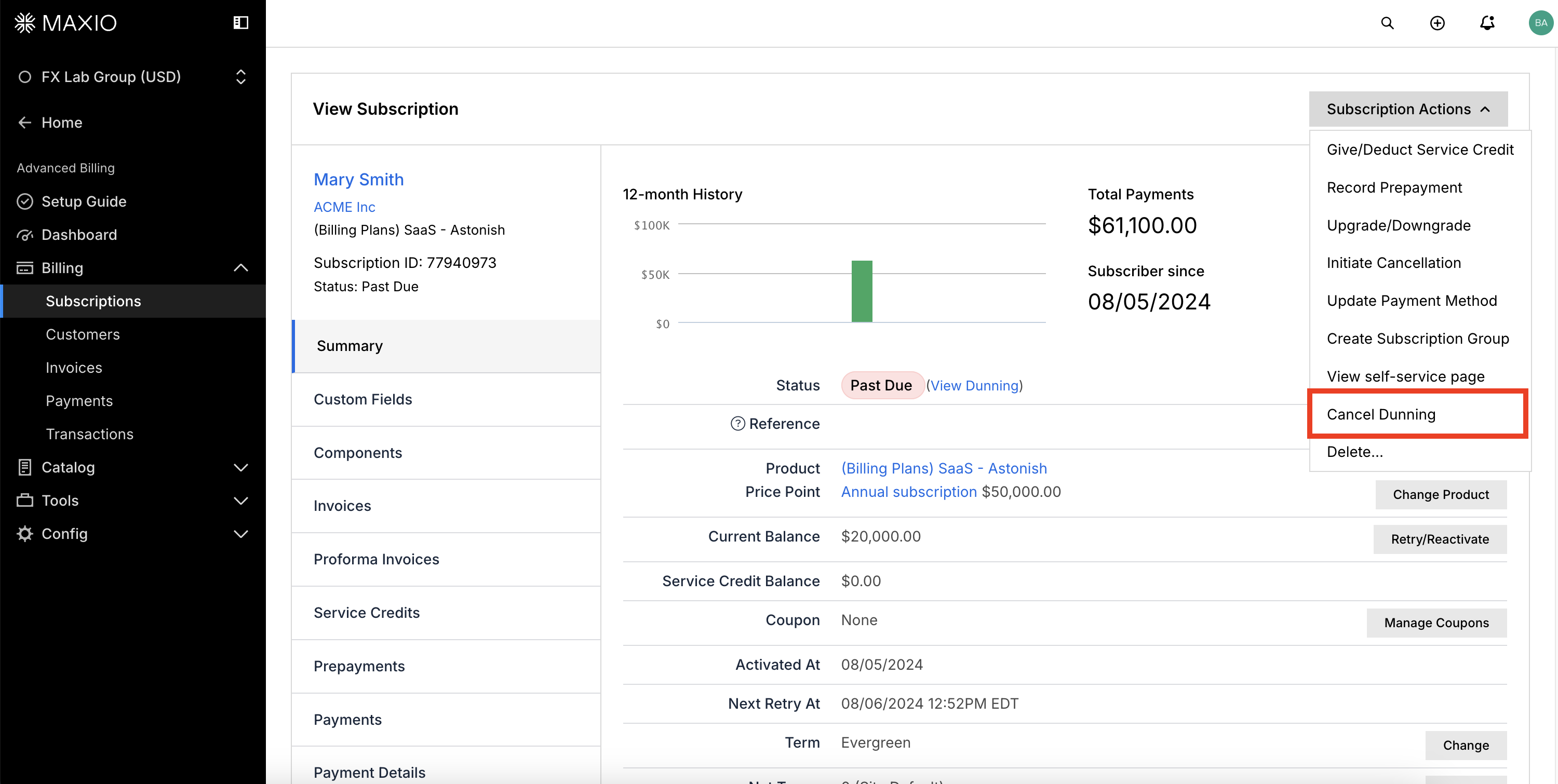
From a past-due Subscription's page, select Cancel Dunning from the Subscription Actions drop-down.
-
Review the dunning cancellation summary, then confirm by clicking Cancel Dunning.
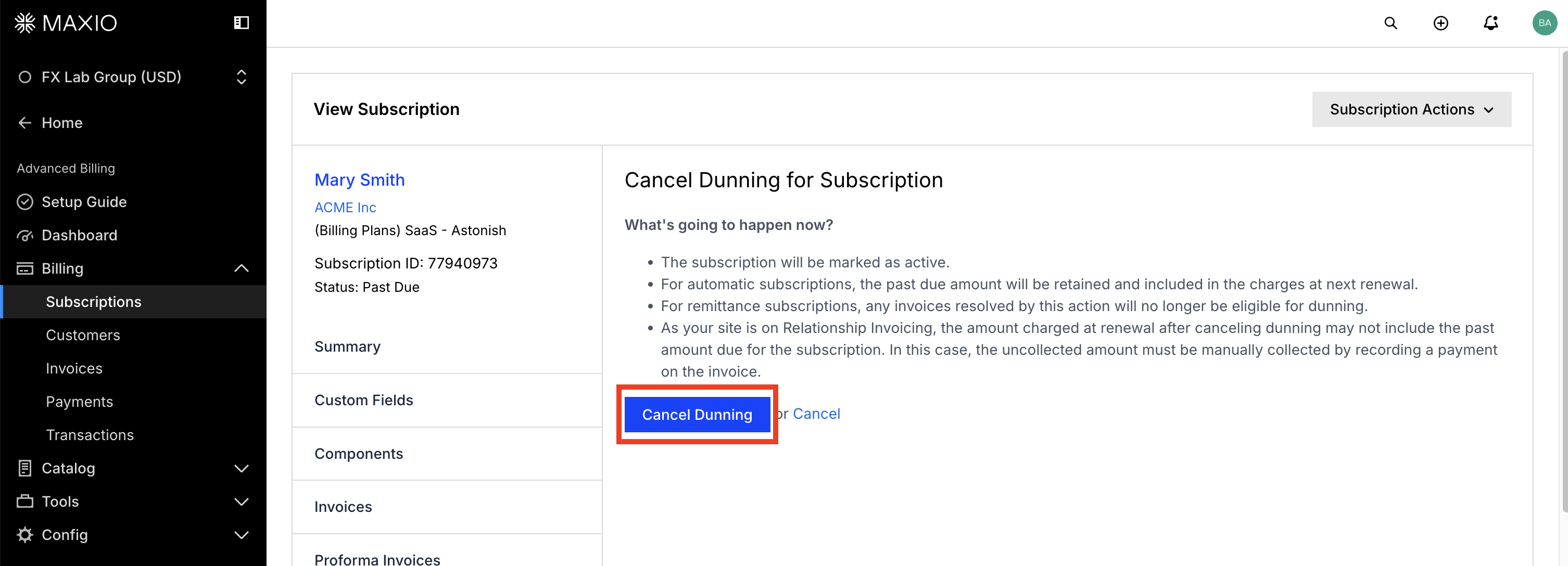
The summary screen is worth reading rather than clicking past: it states which of the outcomes above applies to this Subscription.
For a Subscription that belongs to a Subscription Group, cancel dunning from the group's primary Subscription. This cancels dunning for every Subscription in the group at once; the option isn't available directly from a non-primary Subscription's page.
Related information
For a broader look at how the dunning process runs before you get to this point, see Understanding How Dunning Works.
Still need help?
Reach out and our support team will take it from here.