
Set Up Managed Sales Tax
Last updated on Aug 28, 2026
Advanced Billing Managed Sales Tax and Advance invoicing work together to help you bill accurately and collect revenue earlier. Managed Sales Tax uses Avalara AvaTax to automatically calculate and apply tax based on the addresses of your business and your customer, with tools to configure taxable regions, mark Plans and Products as taxable, and review tax history for compliance. Advance invoicing lets you bill subscription renewal charges before the current term ends while preserving billing dates, net terms, and dunning logic, so you can validate upcoming charges, apply taxes correctly, and manage scenarios such as metered usage, credits, and subscription changes.
Important: This feature is not available for EU-hosted users. Contact support@maxio.com if you have any questions.
Available jurisdictions
The in-house Avalara connection supports tax calculation for the following regions by subdivision:
- United States
- Australia
- Canada
- European Union
Additionally, the regions below are available for selection under the "Other" section, without support for tax by subdivision:
- United Arab Emirates
- Argentina
- Brazil
- Switzerland
- Chile
- Colombia
- Egypt
- Hong Kong
- Israel
- India
- Japan
- Jordan
- Korea, Republic of
- Mexico
- Malaysia
- Nigeria
- Norway
- New Zealand
- Philippines
- Pakistan
- Qatar
- Russian Federation
- Saudi Arabia
- Singapore
- Thailand
- Turkey
- Taiwan
- Tanzania, United Republic of
- Vietnam
- South Africa
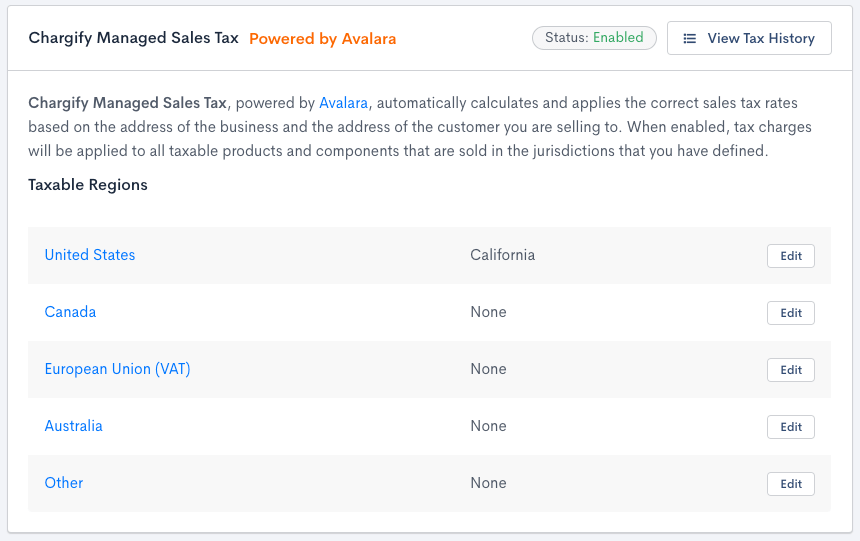
If your company needs to calculate taxes in a different country, consider looking into an account with Avalara using Link My Avalara.
Configuring Avalara sales tax
If you use Avalara tax codes, tax is occasionally charged on only a percentage of the total taxable amount. If a tax amount doesn't match what you expect, check how much of the purchase actually qualifies for taxation before assuming the calculation is wrong.
Enable Avalara sales tax
Click Enable Advanced Billing Taxes at the bottom of the Taxes page. This disables any custom taxes you've already set up, and starts a short setup flow for the rest of this section.
Set your Tax Origin Address
The first step in the setup flow defines your Tax Origin Address, your business's own address. Avalara needs a full address on file to calculate accurate tax rates.
Tax Destination Address
The same Tax Destination Address options available for custom taxes apply to Managed Sales Tax. To learn more, see Configure Taxable Products and Items.
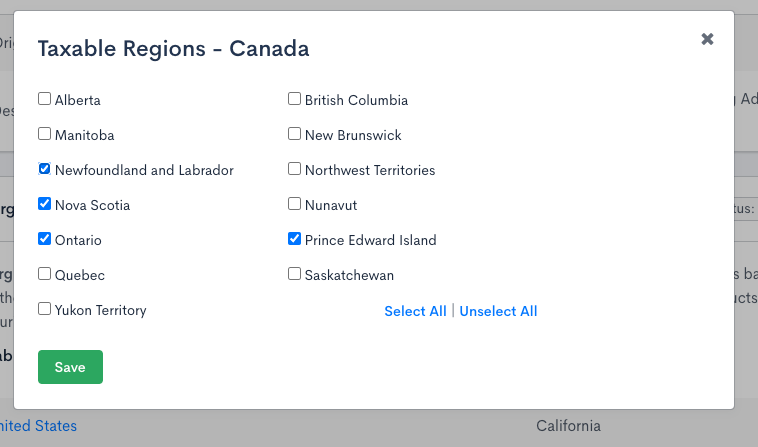
Configure your Taxable Regions
The last step in the setup flow defines your Taxable Regions. These regions inform Advanced Billing where your company wants to calculate and report tax.
Marking Plans and Products as taxable
Unless otherwise specified, all Plans and Products are not eligible for taxes. Once a tax is defined, update your existing Plans and Products so they can be taxed by editing the Plan or Product and checking Enable Taxes.
Also check Require Shipping Address (found under Require a Shipping or Billing Address) for each Plan. The customer needs a complete shipping or billing address on file for Avalara to calculate their tax.
Creating taxable Subscriptions
A Subscription can only be taxed once it has a shipping or billing address on file. The more complete and correctly formatted that address is, the more accurately Avalara can determine the customer's tax locale for each charge.
Full address required for taxable Subscriptions
Advanced Billing sends whatever shipping or billing address a Subscription has on file to Avalara for tax calculation. Provide as much of the address below as you can, formatted correctly, so Avalara can accurately determine the customer's tax locale:
- Address 1
- Address 2 (optional, use when appropriate)
- City
- State (ISO format; required only for countries with subdivisions, such as the US, Canada, and Australia; see Required state format below)
- Country (ISO format)
- Postal Code / Zip
Required country format for taxable Subscriptions
Advanced Billing requires that you use the ISO standard country codes when designating the subscriber's taxable location.
Countries should be formatted as 2 characters. For more information, see the following Wikipedia article on ISO 3166-1.
Required state format for taxable Subscriptions
Advanced Billing requires that you use the ISO standard state codes when designating the subscriber's taxable location:
- US states (2 characters): ISO 3166-2
- States outside the US (2-3 characters): to find the correct state codes outside of the US, go to ISO 3166-1 and click the link in the "ISO 3166-2 codes" column next to the country you want to populate.
Coupons and taxes
When applied together, taxes are applied to the total cost of the Subscription after the Coupon adjustment has been accounted for.
Tax history
View and export a history of all tax charges by clicking View Tax History at the top of the Taxes page.
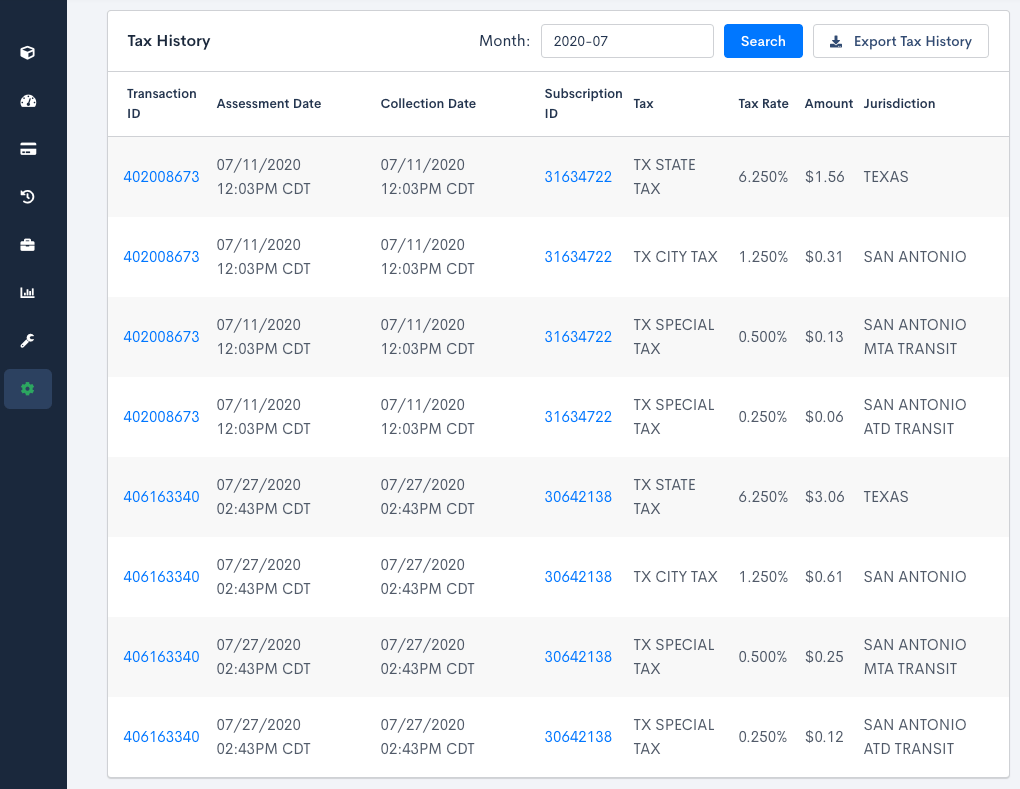
For more information on the contents of the tax exports, see Understand Data Export.
Still need help?
Reach out and our support team will take it from here.