
Change Passwords and Shared Keys
Last updated on Aug 26, 2026
This article details how to change all of your credentials in Advanced Billing. It is a good practice to periodically change your credentials, and is always recommended if you feel any of your credentials may have been compromised.
How to change your password
- Click your user icon in the upper right hand portion of the top navigation bar and select Profile.
- Fill in the Password and Confirm Password fields, then click Save Changes.
- Enter your current password to confirm the change. If you have two-factor authentication (2FA) enabled, you may also be required to enter a 2FA code.
Password requirements
Every password must be at least 12 characters long and contain both letters and numbers. This rule is required for PCI compliance and applies to every account, whether or not your account has Require Secure Passwords enabled.
If your account does have Require Secure Passwords enabled, the password must also pass a strength test. A feedback indicator under the password field shows how it scores; when the indicator is green (showing Strong or Great), the password meets the threshold.
Some things will cause the strength test to fail:
- Common dictionary words, even with letters replaced by numbers or symbols — for example, “p@s$W0RD”.
- Any part of your login, email address, name, or company name, again even with letters replaced.
How to change your site shared key (for signing webhooks and Public Signup Pages)
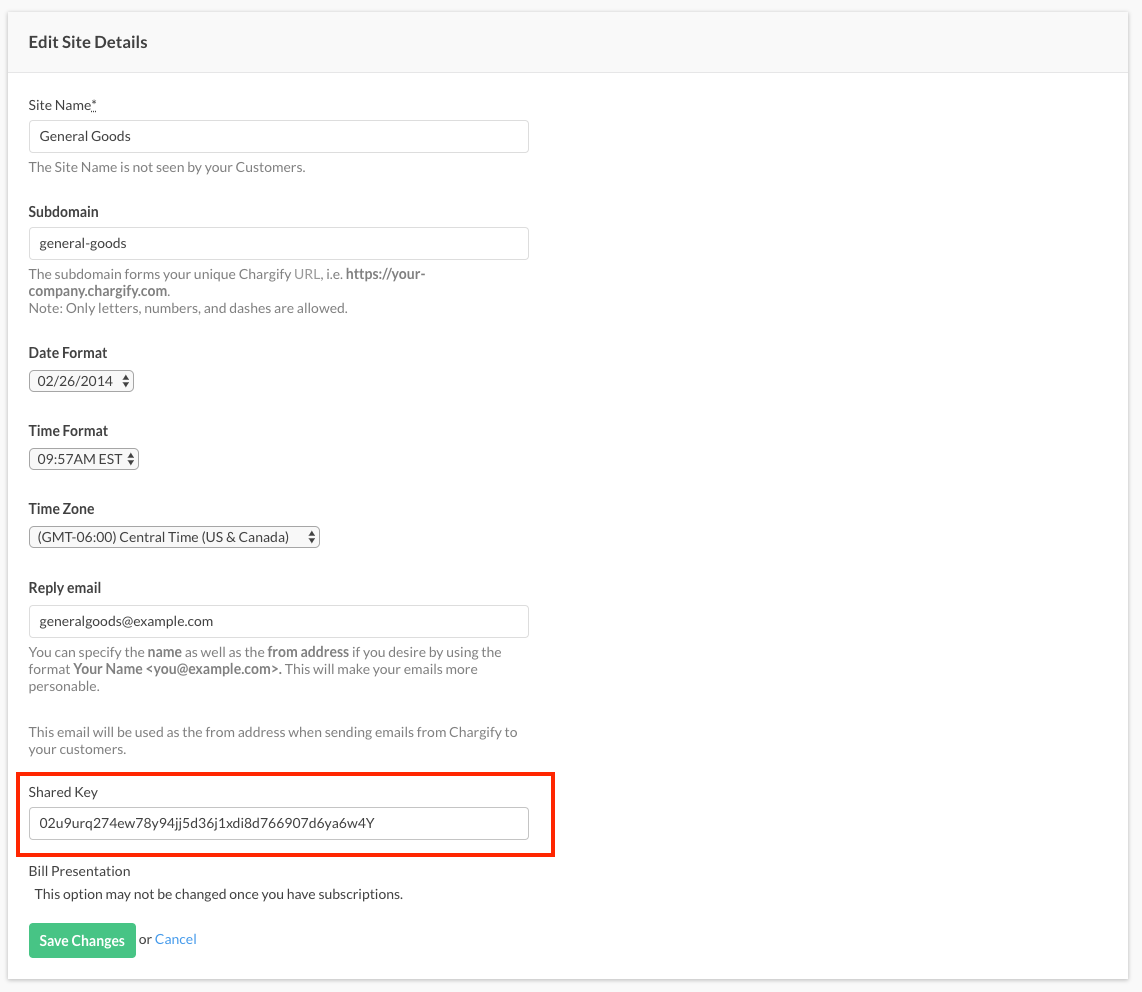
- Click the Edit link for a site.
- Fill in the Shared Key field and click Save Changes.
A shared key must be at least 32 characters long and must pass the strictest strength test in the application — stricter than the one applied to user passwords. In practice this means a long random string rather than a memorable passphrase; a passphrase will be rejected with the message “Shared key isn't complex enough. It should be a very long (32 character) random string.”
If you would rather not compose one yourself, clear the Shared Key field and save. Advanced Billing generates a new random key for you.
Advanced Billing currently only allows one active site shared key at a time - regenerating your shared key will immediately invalidate your previous one. So, to minimize the amount of time in which you cannot validate webhooks or generate valid hosted page URLs, you should take care to coordinate this change with the ability to update the key quickly in your own application code.
The site shared key is issued on a per-site basis, so you will need to change the shared key for each of your sites.
Still need help?
Reach out and our support team will take it from here.