
Setup User Access and Permissions
Last updated on Sep 9, 2026
To maintain security and uninterrupted access to the Advanced Billing application, we want to make sure our merchants’ users are up to date. If you are an owner or admin of the account, please take a moment to confirm that the “Owner” on file is an appropriate decision-making contact for your account with a valid email address. Also, take this opportunity to edit or remove any old/dormant users. Please contact us if changes need to be made or if you have any additional questions.
Keep in mind that only the owner user is able to approve of changes for the business in regards to the Advanced Billing account. In some cases, merchants will have an employee on file as the owner and when that employee leaves, there is no longer an individual who is authorized to make decisions on behalf of the account.
Additionally, Advanced Billing has an internal customer record which is used for official billing and account communication. While this is the main billing contact, Advanced Billing security standards do not consider this the decision-making agent since billing is often going to accounting or a third-party. If either of these need to be updated, then the current owner will need to contact support@maxio.com with any questions or requests to update.
User access control
Fine-grained user access control (or fine-grained UAC) is an Advanced Billing feature that allows administrators and owners to assign users a different set of access levels for each available site.
Access levels
There are 3 levels of access for user accounts:
- Owner: The first user account is the “owner” of the seller account. They have implicit administrative capabilities that cannot be revoked. If you would like to transfer ownership, contact support@maxio.com.
- Admin: Any user may be made an admin by the owner or by the other admins.
- Team Member: A user on the account without admin privileges.
Team member access controls
User access control is only applicable to users that are given the team member status. Users that are given the status of admin will have access to all sites.
Access is set separately for each site, in two parts. First, choose whether the team member can reach that site at all:
- No Access: the site is hidden from the user.
- Has view access and...: the user can view information related to the site.
Then, on top of that view access, grant any combination of these three permissions:
- Manages product catalog, settings, and integrations
- Views and exports financial metrics
- Manages subscribers and customers
These three are checkboxes rather than a single choice, so a team member can hold any combination of them. A team member with view access and none of the three ticked is read-only for that site, which is why the tables below treat Read only as its own column alongside the other three.
Adding users
You have the option of adding more user accounts (login and password) to your seller account, if you are an admin or owner, so that other people can help you with its management.
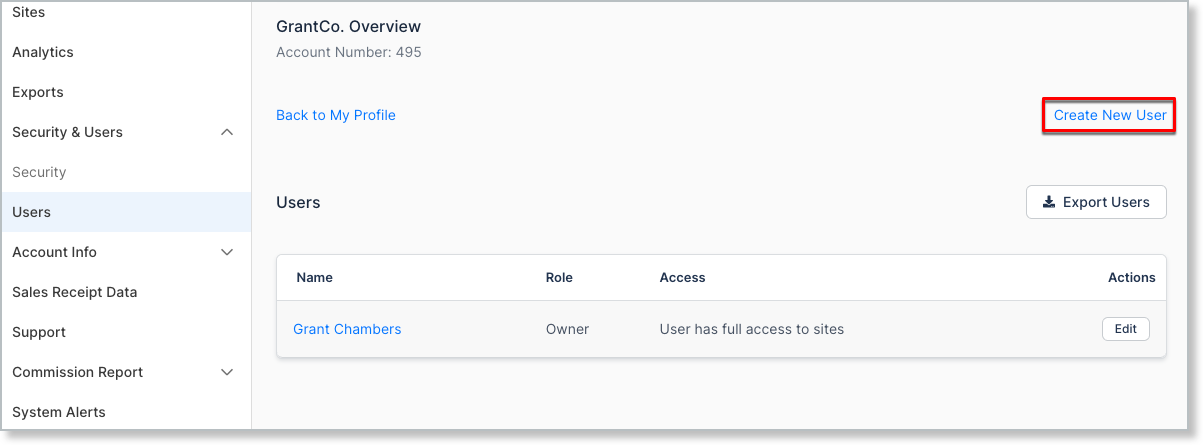
From your Seller homepage, navigate to the Users tab and click Create New User.
Unique user emails
You will receive the following warning if you are using an email that already exists in the system: Email must be unique - that value has been taken.
When adding a user to an Advanced Billing account, the user email may only be used once across all Advanced Billing accounts. If you have a situation where a person must be part of two Advanced Billing accounts, you must use a unique email for each user account.
User limit
- All Advanced Billing Developer plans have a limit of 10 users on each account.
- All paid Advanced Billing plans have a limit of 1,000 users on each account.
Export users
For easy access to user information, like user permissions, click Export Users.
A Downloads page appears. When ready, click the Download link to access the CSV export file.
Example CSV Export:

Team member settings
Team members can perform the same tasks as an admin can except as noted below:
The following is a list of merchant-based settings and access level a team member has within Advanced Billing.
- Site Access: Merchants will be able to control the sites team members access
- My account: Team members cannot enable or disable two-factor authentication
- Sites: Team members cannot clone, edit or delete a site
- API Access: All access denied
- Merchant Info: All access denied
- Security: All access denied
- Users: All access denied
- Billing & Plans: All access denied
The following lists specific site operations within a particular domain and what access team members have within Advanced Billing.
Team member site access controls
Advanced Billing allows you to control many aspects of a team member’s access in your merchant account. Additionally you can allow a team member to only access certain sites within each your merchant account.
Typically a merchant will use a combination of access controls to allow a team member to perform a specific set of tasks. Some examples are as follows:
- Give an accountant permission to export financial performance and metrics
- Give a customer support representative permission to manage subscribers and customers
- Give a developer access to manage the product catalog and integrations on a test site only.

- Site Access: A checkmark will indicate what sites the user can access.

- Manages product catalog, settings & integrations: The product tag icon indicates which sites team members may edit the product catalog, settings and integrations for in Advanced Billing

- Views and exports financial performance & metrics: The bar chart icon shows which team members have access to view and export transactions. Additionally, they will be given access to financial data on the dashboard.

- Manages subscriptions & customers: Team members are granted access to creating and editing subscriptions & customers. They can also delete customer records that have no subscriptions associated with them.
Team member access overview
Below, you’ll find an overview of Advanced Billing-related actions that are specific to the Advanced Billing application.
As a primer, if you see a X - this indicates that the team member has no access to the feature.
If you see a ✔ - this indicates that the team member has access to the feature.
Dashboard
The dashboard is the landing page for the Advanced Billing application. From within the dashboard, team members may view a number of different metrics. Additionally, webhook data and financials are displayed.
The following section details access to the panes displaying recent activity, etc:
| Section | Read only | Manages catalog & settings | Views financials | Manages subscribers |
|---|---|---|---|---|
| Overview | Views only recent activity | X | View access | X |
| Monthly Revenue and Subscriber Count | X | X | View access | X |
| Daily Subscribers Added / Lost | X | X | View access | X |
| Recent activity | X | X | View access | View |
| Webhook status | X | X | X | X |
| Signup performance | X | X | View access | X |
| Revenue performance | X | X | View access | X |
Dashboard financials
Embedded in the application, financial data is displayed. Use team member access controls to restrict access to these numbers:

| Section | Read only | Manages catalog & settings | Views financials | Manages subscribers |
|---|---|---|---|---|
| Total revenue | X | X | View access | X |
| Revenue today | X | X | View access | X |
| Subscribers | X | X | View access | X |
| Signups today | X | X | View access | X |
| Expired cards | X | X | View access | X |
| Pending renewals | X | X | View access | X |
Billing
The billing section is for subscription management. View your subscriptions, customers, transactions/payments, and invoices.
Subscriptions
| Section | Read only | Manages catalog & settings | Views financials | Manages subscribers |
|---|---|---|---|---|
| Delete payment profile | X | X | X | X |
Groups
Subscription groups are available on Relationship Invoicing.
| Section | Read only | Manages catalog & settings | Views financials | Manages subscribers |
|---|---|---|---|---|
| Group screen | View access | View access | View access | Access / Ability to edit |
| Manage group (add and remove) | X | X | X | Access / Ability to edit |
Catalog
The catalog section of the application depicts where you create and control pricing for your subscribers. Give careful consideration to who can augment pricing on your live sites.
Products
Control what team members can access in your catalog of products, components and coupons. For more information on product editing, please see our documentation on editing your catalog.
| Section | Read only | Manages catalog & settings | Views financials | Manages subscribers |
|---|---|---|---|---|
| Creating product families | X | Access / Ability to edit | X | X |
| Editing product families | X | Access / Ability to edit | X | X |
| Archiving product families | X | Access / Ability to edit | X | X |
| Creating products | X | Access / Ability to edit | X | X |
| Editing products | X | Access / Ability to edit | X | X |
| Archiving products | X | Access / Ability to edit | X | X |
| Creating components | X | Access / Ability to edit | X | X |
| Editing components | X | Access / Ability to edit | X | X |
| Archiving components | X | Access / Ability to edit | X | X |
| Creating coupons | X | Access / Ability to edit | X | X |
| Editing coupons | X | Access / Ability to edit | X | X |
| Archiving coupons | X | Access / Ability to edit | X | X |
| Exporting products | X | Access | Access | X |
Public Signup Pages
Decide what team members can access and edit your Public Signup Pages. For more information on Public Signup Page editing, please see Understand Public Pages.
| Section | Read only | Manages catalog & settings | Views financials | Manages subscribers |
|---|---|---|---|---|
| Create Public Signup Page | X | Access / Ability to edit | X | X |
| Update all layouts | X | No access | X | X |
| View | X | Access / Ability to edit | X | X |
| Edit | X | Access / Ability to edit | X | X |
| Disable | X | Access / Ability to edit | X | X |
Insights
| Section | Sub Section | Read only | Manages catalog & settings | Views financials | Manages subscribers |
|---|---|---|---|---|---|
| MRR | X | X | View access | X | |
| Revenue retention | X | X | View access | X | |
| Churn | X | X | View access | X | |
| Paid subscribers | X | X | View access | X | |
| Finance Report | X | X | View access | X | |
| Display usage / Hide usage | X | X | View access | X | |
| MRR exports | X | X | View access | X |
Tools
Advanced Billing’s tools section deals explicitly with email, webhook and site activity. For more information on webhook tools, please see Monitor and Resend Webhooks.
| Section | Sub Section | Read only | Manages catalog & settings | Views financials | Manages subscribers |
|---|---|---|---|---|---|
| Activity | View access | View access | View access | View access | |
| Email Insights | X | View access | X | X | |
| Webhooks panel | X | View access | X | X | |
| Resend webhooks | Access to resend webhooks | ||||
| Webhook testing | X | Access to send webhook tests | X | X |
Config
Settings
Settings access should be limited to trusted team members. For more information on how to customize settings for your site, please view our documentation on settings.
| Section | Read only | Manages catalog & settings | Views financials | Manages subscribers |
|---|---|---|---|---|
| Gateway configurations | X | Access / ability to edit | X | X |
| Advanced Fraud Protection Settings | X | Access / ability to edit | X | X |
| ACH/eCheck | X | Access / ability to edit | X | X |
| Fields | X | Access / ability to edit | X | X |
| Webhooks | X | Access / ability to edit | X | X |
| Retries / dunning | X | Access / ability to edit | X | X |
| Retries / dunning ACH | X | Access / ability to edit | X | X |
| Churn reason codes | X | No access | X | X |
| Public Page Default Settings | X | Access / ability to edit | X | X |
| Self Service Page URLs | X | View access | X | X |
| Billing Portal | X | Access / Ability to edit | X | X |
| Emails | X | Access / ability to edit | X | X |
| Status emails | X | Access / ability to edit | X | X |
| Statements | X | Access / ability to edit | X | X |
| Invoice billing | X | Access / ability to edit | X | X |
| Components | X | Access / ability to edit | X | X |
| CSV exports | X | Access / ability to edit | X | X |
| Multi-Currency | X | Access / ability to edit | X | X |
Integrations
| Section | Read only | Manages catalog & settings | Views financials | Manages subscribers |
|---|---|---|---|---|
| API Keys | X | ✔ | X | X |
| zferral | X | ✔ | X | X |
| Xero | X | X | X | X |
| Mailchimp | X | ✔ | X | X |
| Twilio | X | ✔ | X | X |
| QuickBooks Online | X | X | X | X |
| Salesforce | X | X | X | X |
Referrals
| Section | Read only | Manages catalog & settings | Views financials | Manages subscribers |
|---|---|---|---|---|
| View referral history | X | ✔ | X | X |
| View referrals overview | X | ✔ | X | X |
| Modify coupon / credit settings | X | ✔ | X | X |
| Disable referrals | X | ✔ | X | X |
Custom taxes
| Section | Read only | Manages catalog & settings | Views financials | Manages subscribers |
|---|---|---|---|---|
| Create new tax | X | ✔ | X | X |
| Edit tax | X | ✔ | X | X |
| Delete taxes | X | ✔ | X | X |
| Enable | X | ✔ | X | X |
| Disable | X | ✔ | X | X |
Still need help?
Reach out and our support team will take it from here.