
How do I export all my data?
Last updated on Aug 26, 2026
Applies to: Maxio Core
You can export complete datasets or selected columns from most lists in Maxio Core.
Answer
- Navigate to any list (for example, Customers, Transactions, Invoices).
- Select Export All Columns to download every available field, or Export Displayed Columns for your current view.
- Download immediately or find queued exports under Admin → Export Results.
You can also export monthly revenue reports via the Reports tab.
To export a complete set of data, you will need to perform several exports. For each list in Maxio Core, there are two different Export options: Export Displayed Columns and Export All Columns. Depending upon the depth of detail you need to extract from Maxio Core, you can choose one option or the other for each list of financial records.
 Select Export All Columns to export every field available for the financial record
 Select Export Displayed Columns to export every field that is visible for the financial record from your current list view. Use the Column Selector to add or remove columns from your list view, and by extension, from the export.
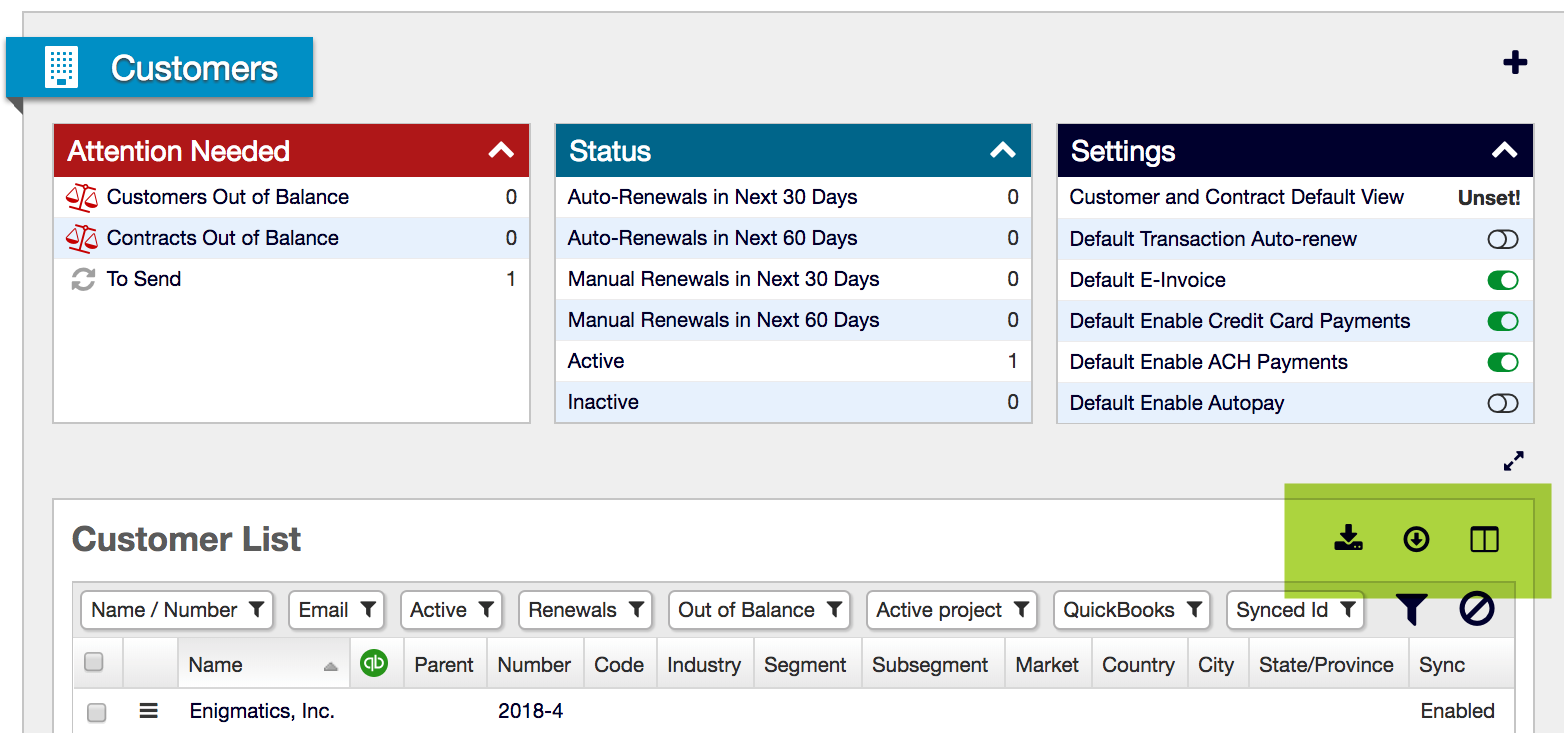
Export results will either be extracted immediately and downloaded to your computer or queued, in which case you must go to Admin > Export Results to check the status of your export and when completed select to download the saved file.
Customers
Customers > Export
The Customer Export will export the information you see when you create or edit a customer. Attached files are not included. To download files attached to the Customer, navigate to the Customer and the Attachments tab and click to download files. If you have more than 50 pages of customers, contact support@maxio.com to have your files extracted in batch.
Transactions
Admin > Registers, then select a Register, then the Export menu
You can also export Transactions from the Transaction list accessible from the main menu, but there is a limitation on the number of records that will be exported.
The Transaction export includes all the fields you see when you create a Transaction, all the Contract fields, and a number of, but not all, the Customer fields.
Invoices
Invoicing > Invoices List > Export
Exported Invoices include the Invoice level information, some Customer fields, all Contract fields, but not the Invoice Line Item information.
Invoice Line Items
Invoicing > Invoice Line Items List > Export
Exported Invoice Line Items include the Invoice Line Item details, Invoice Information, some Customer fields, all Contract fields, and detailed information on linked Transactions. Invoice Line Items export also includes all Invoice data.
Revenues
If you want the individual monthly revenue records per Transaction, then follow these directions.
Reports > Add Report > Basic
- Uncheck Sum
- Check Include Revenue
- Check Include Decimals
- Chose Transaction: Number, Transaction: Start Date, Transaction: End Date, Transaction: Amount from Additional details section.
- Use custom dates to select a date range before and after all Revenues (suggested: Start = January, 2000; End = December = 2027)
- Set Periodicity to Monthly
- Submit
- Export Transactions
- Within the CSV, scroll down to Revenue Entries.
Reports
All Finance and Analytics reports also include an Export option. You can export summary information such as Revenue Schedules, Deferred Revenue Schedule, or Invoice Schedules in aggregate, as well as analytics data using this option.
Still need help?
Reach out and our support team will take it from here.