
How do I resend an Invoice so it autopays?
Last updated on Aug 26, 2026
Applies to: Maxio, e-Bill
Invoices sent when AutoPay is off won’t charge the customer automatically. You can resend them with AutoPay enabled.
Answer
- Enable AutoPay on the customer’s profile.
- In the e-Bill Billing Profile, click Begin AutoPay.
- Delete the previous e-Bill (this will not delete the invoice).
- Resend the e-Bill to automatically trigger payment.
Why resending alone doesn't work
In this situation, the Customer's Autopay setting was off even though their credit card or ACH info was on file at the time an Invoice was emailed from Maxio. The auto-payment was NOT made as a result. If you edit the Customer and enable Autopay AND you select Begin Autopay using the Customer menu e-Bill Billing Profile, simply resending the invoice will not result in a payment being made. You must delete the e-Bill and resend.
Step by step
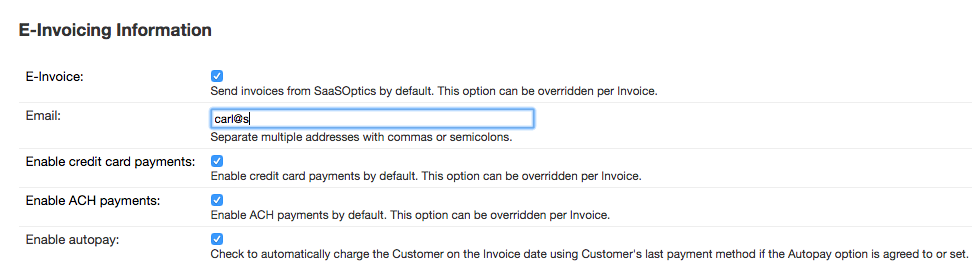
- Enable Autopay by Editing the Customer.
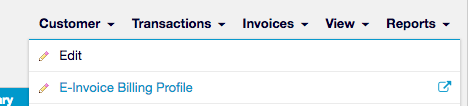
- From the Customer menu, select the e-Bill Billing Profile as shown below.
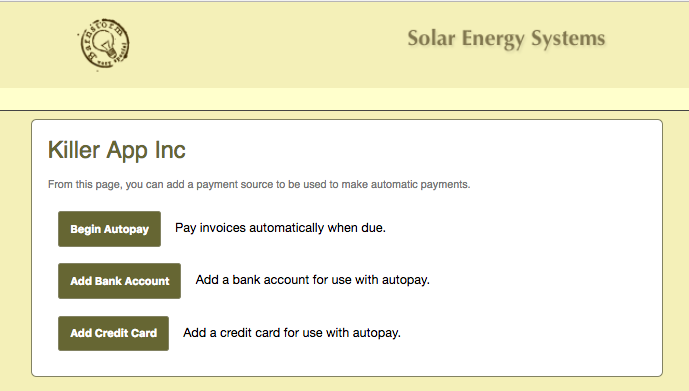
Then click the Begin Autopay button (or add credit card or ACH info and then click this button):
- Then, from the View Invoice screen, delete the e-Bill. This does NOT delete the Invoice in Maxio, only the Customer's version on the billing server.
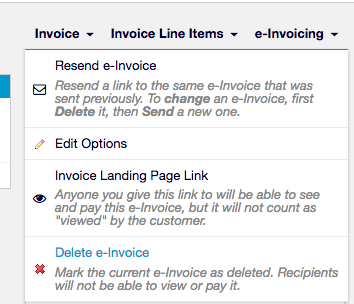
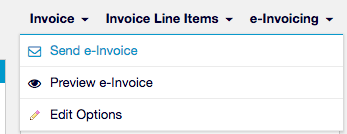
- Then, select the Send Invoice option from the same menu:
Still need help?
Reach out and our support team will take it from here.