
Test Your Advanced Billing Implementation
Last updated on Aug 27, 2026
Use these testing scenarios to confirm your implementation behaves the way your real customers experience it. Test each of your use cases from start to finish: simulate the customer signup, exercise the subscription through its changes, and follow it to the subscription's end. Testing chronologically this way surfaces the nuances of your signups, subscription management, invoices, and payment collection, so you can correct them before a customer finds them.
Test subscription creation
Start with a single test subscription that mirrors a real use case. Every scenario below builds on it.
- Feature
- Subscription signups
- You Need
- A completed implementation, for your given signup method(s)
- Code
- None
- Difficulty
- ◉◎◎◎◎
Create a subscription
Create the subscription with your implemented signup method, not through the Advanced Billing interface. Using your own signup path is what exercises the implementation you are testing.
Use real data for each of the following, so the values you check later are meaningful:
- Email address, for an inbox you can actually open
- Shipping address
- Billing address
- Products and Components
- Discounts
- Custom Fields
- Any other element your specific use case depends on
Review the new subscription
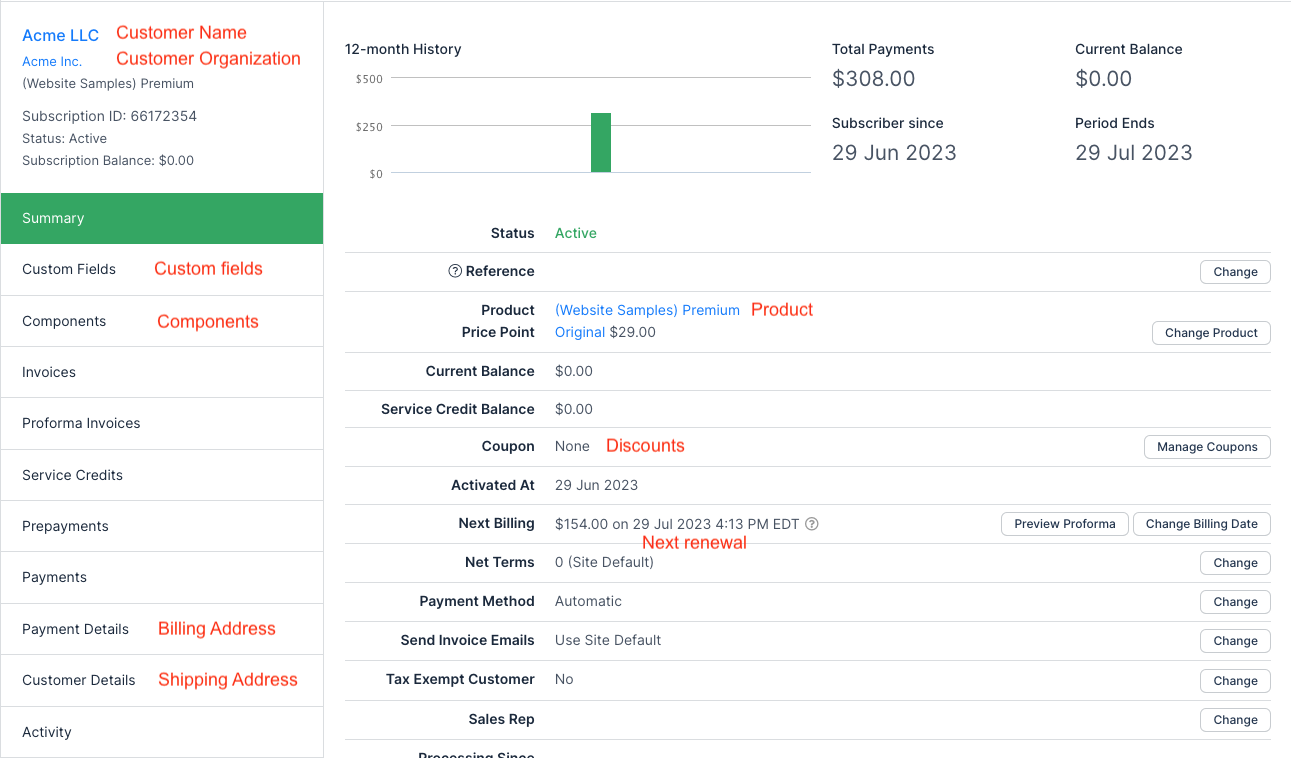
Open the subscription's Summary tab. The most common data points to check for accuracy are outlined in red below. Check anything else your implementation depends on as well.
Test invoicing and payment collection
Using the same test subscription, confirm that the first invoice is correct and that future invoices reflect the changes you expect.
- Feature
- Invoices
- You Need
- A completed implementation
- Code
- None
- Difficulty
- ◉◎◎◎◎
Review the signup invoice
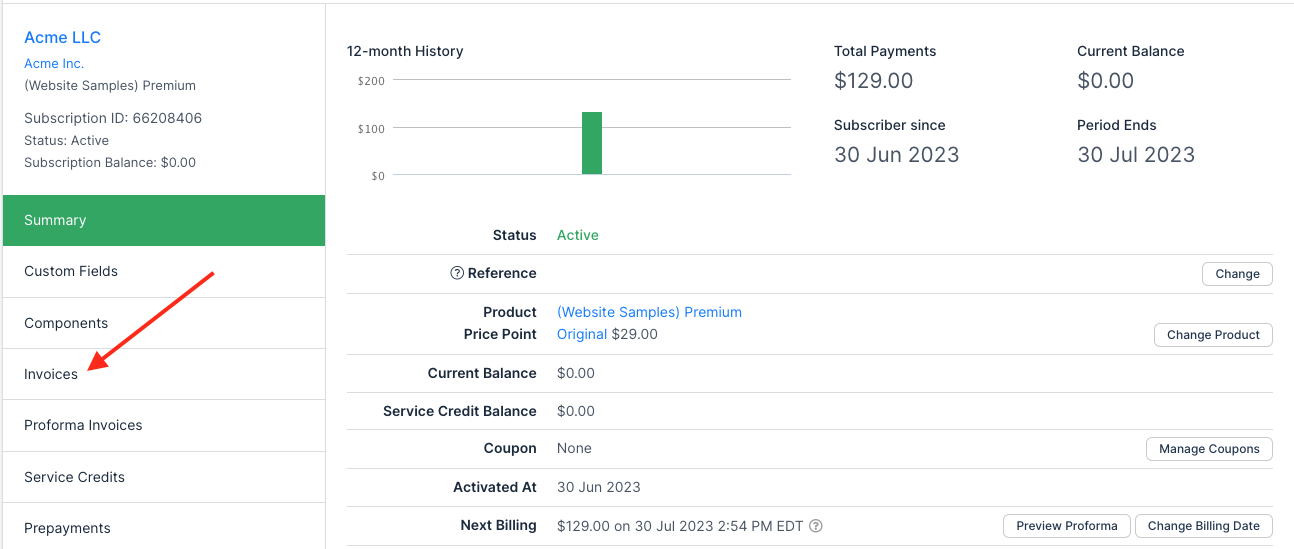
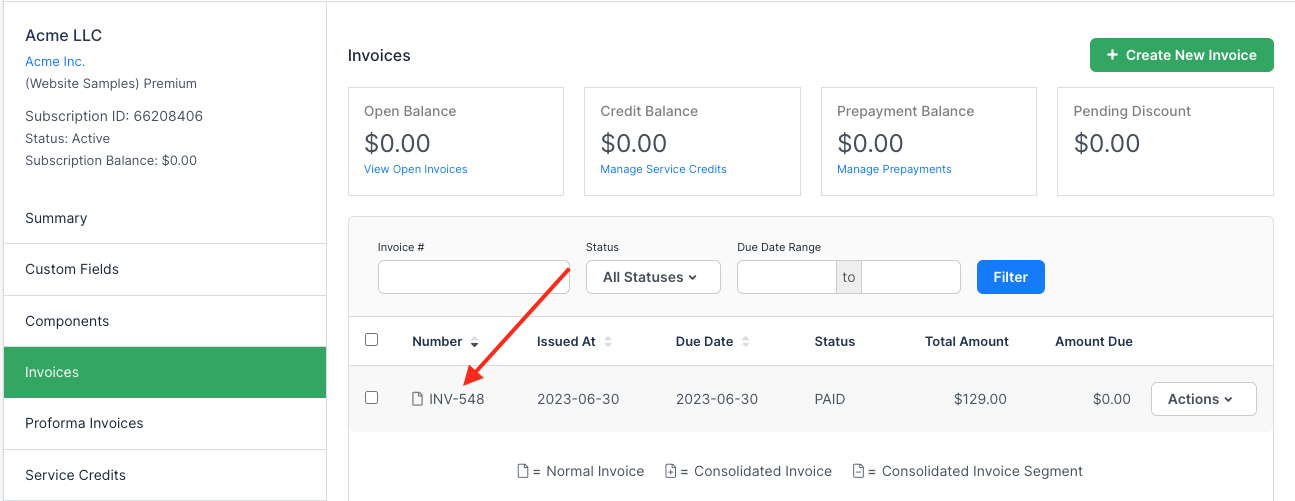
Select Invoices, then select the specific invoice.
Review the most common fields, outlined in red below. Depending on your use case, you may also want to check Custom Fields, VAT display, Tax display, Coupons, Service Credits, and Prepayments, none of which appear in this example.
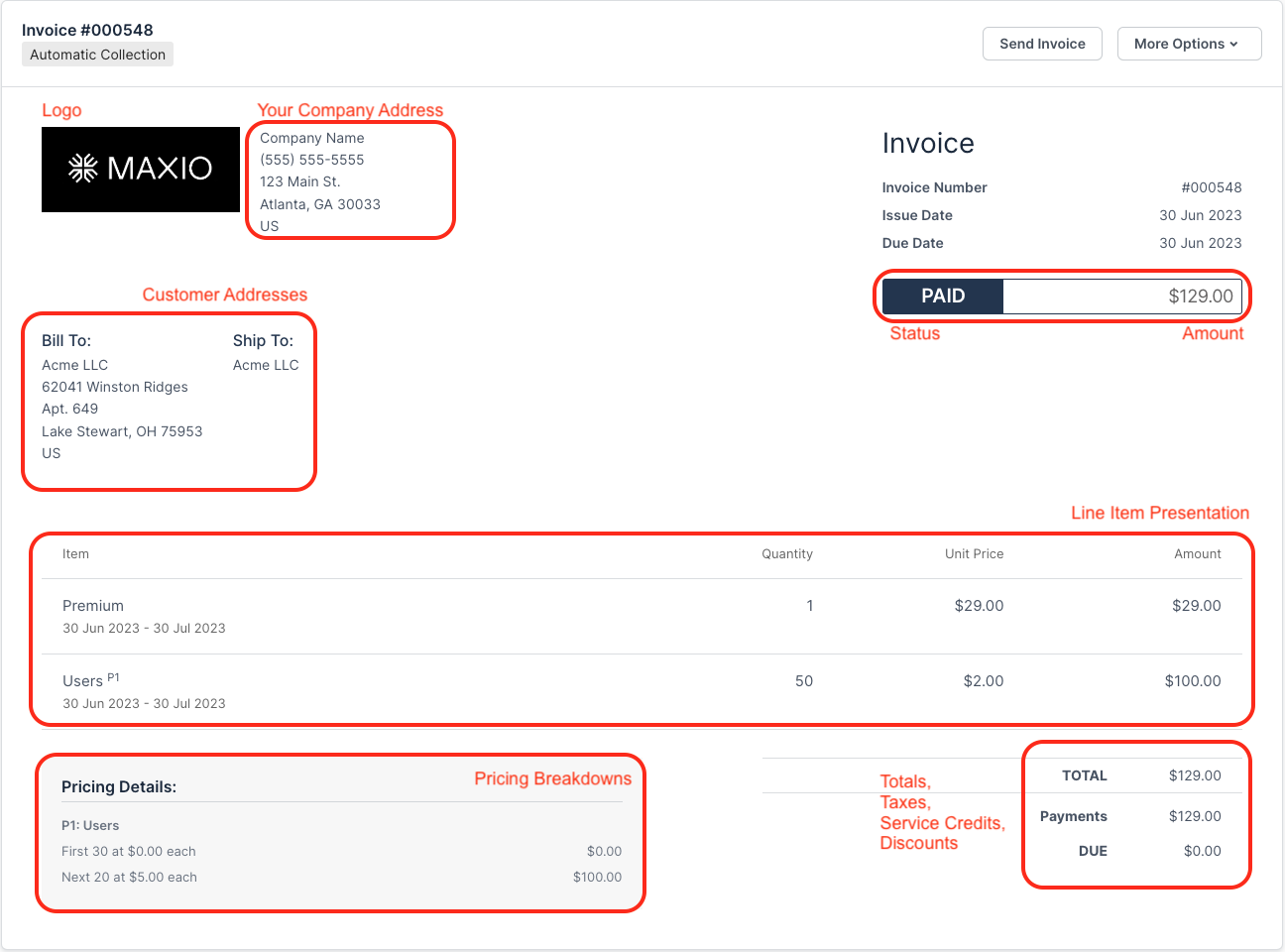
For a settings-based field that looks wrong, such as the company address, correct the setting and re-check. For a customer-based field that looks wrong, trace it back through your implementation to find the cause.
Preview the next invoice
Preview the next invoice to confirm every monetary value is correct before your customer sees it.
To preview the next invoice
- Return to the subscription's Summary tab. The preview control lives on the Summary pane, not on the Invoices tab.
- Select Preview Proforma.
- Make a change to the subscription that simulates a monetary change relevant to your use case, such as recording usage, upgrading a Component, or applying a Service Credit.
- Select Preview Proforma again and compare the result against what you expect.
Repeat steps 3 and 4 for each monetary change your use case involves, until every result matches your expectations.
Test your signup page
Confirm each of your use cases behaves correctly on both a successful signup and a failed one.
- Feature
- Signups
- You Need
- Access to test your signup process
- Code
- None
- Difficulty
- ◉◎◎◎◎
Test your signup process for all use cases
Simulate the signup process from start to finish for each of your use cases, using the signup method you implemented. If you use Public Signup Pages, for example, simulate both a successful signup and a failed one, then check the categories below that apply to you.
Simulate a successful signup, then confirm the following:
- Payment: The payment page loads correctly in your workflow.
- Workflow: The user lands on the right page afterward.
- Emails: The signup email arrives.
- Your app: Your database, user access, and webhooks all update.
- Integrations: The expected data reaches your third-party system.
Simulate a signup failure, typically a payment decline, then confirm the following:
- Error handling: The error message displays correctly.
- Emails: No emails are sent.
- Your app: No user record or app access is created.
- Integrations: No partial or orphaned data reaches your third-party system.
To simulate a decline, you need a card number your gateway treats as a failure. For the success and decline card numbers for your gateway, see the Integrate Payment Gateways help article.
Test the Billing Portal
Confirm your customers can log in to the Billing Portal and take exactly the actions you intend them to.
- Feature
- Billing Portal
- You Need
- A Billing Portal link
- Code
- None
- Difficulty
- ◉◎◎◎◎
Test the login flow
Your login flow depends on the implementation method you chose. For the available options, see the Implement Billing Portal Login for your Customers help article.
Review the portal
View the Portal as your customer sees it and confirm you can perform the actions you expect. Compare the Portal view against the Features checkboxes in your Portal settings, and adjust the settings until the two agree.
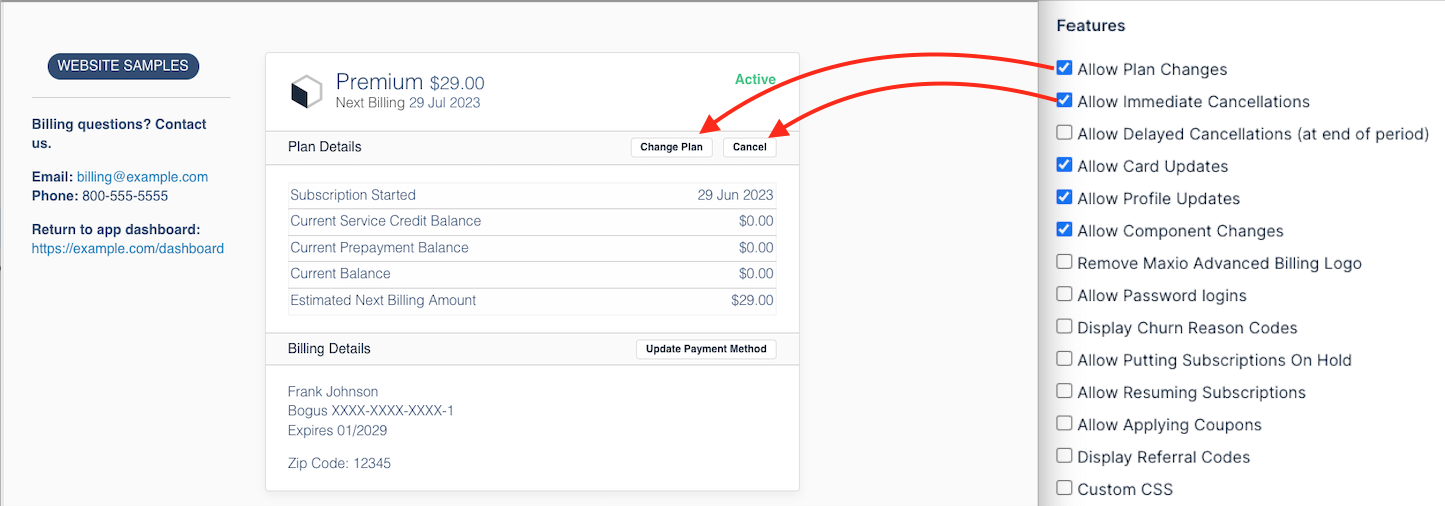
Update the subscription
Test each update your customer can make. The example below walks through a single plan change, to show the test, refine, and re-test cycle you apply to the rest.
To test a plan change
-
In the Portal, select Change Plan.
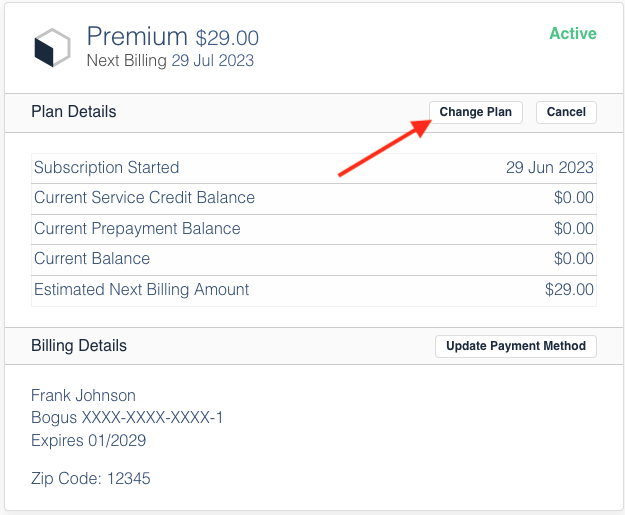
-
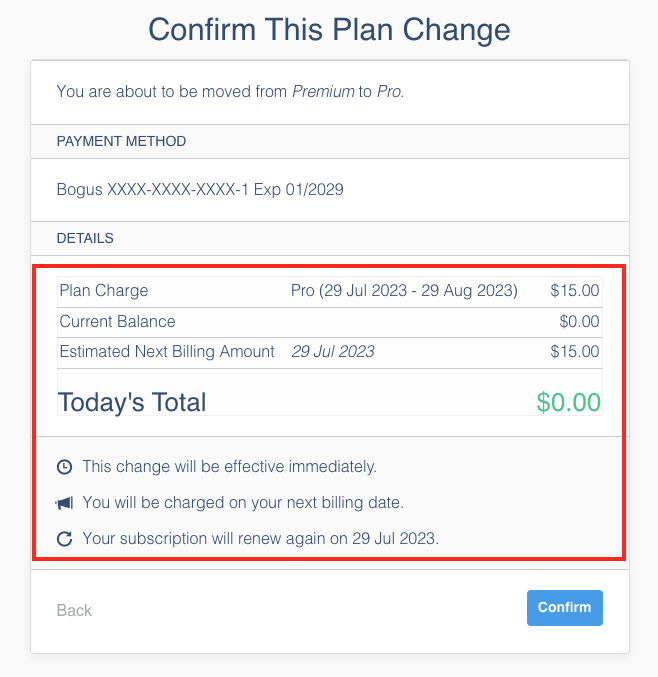
Choose the plan to change to. This example downgrades from Premium at $29 per month to Pro at $15 per month.
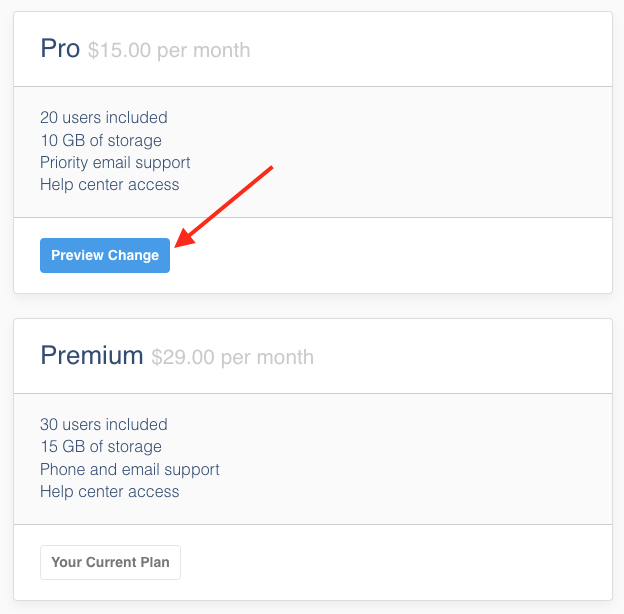
-
Review the monetary values. This change applies a prorated credit, which suits some use cases but not others.
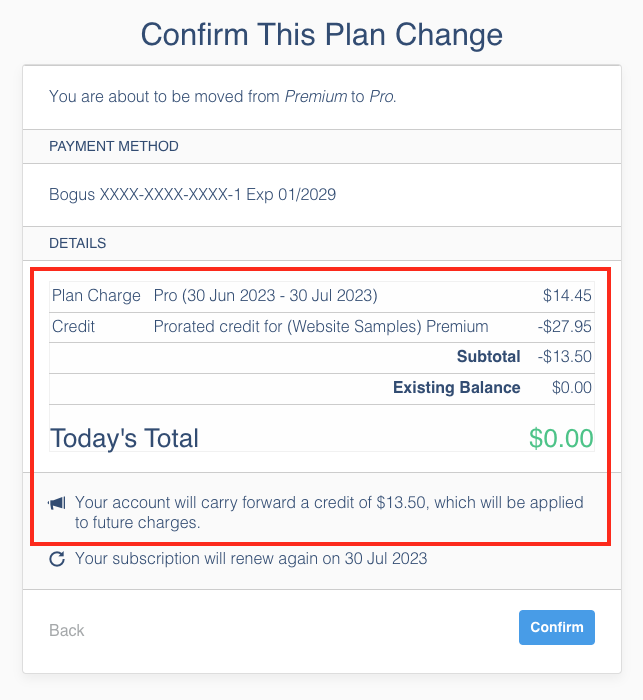
-
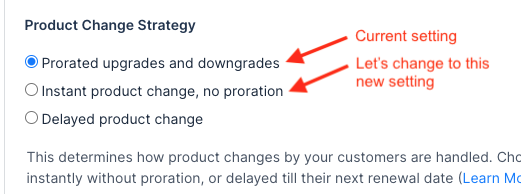
If the result isn't what you want, change the setting behind it. Go to Config > Settings > Billing Portal and find Subscription Product Change Strategy. In this example it is set to Prorated upgrades and downgrades, so switching it to Instant product change, no proration removes the proration.
-
Refresh the Portal's plan change page and confirm the new price.
Subscription Product Change Strategy offers four options, and you can override the default for subscriptions in a specific state. For the full set, see the Configure the Billing Portal help article.
Work through the final testing checklist
You have likely covered much of the following during your implementation. Use it as a final checklist, and for each item test every one of your use cases exactly as you expect it to work for real customers.
- Feature
- All
- You Need
- A finished implementation
- Code
- None
- Difficulty
- ◉◎◎◎◎
Make changes to the subscription
Exercise subscription management from both your staff perspective and your end customer's, using your implemented subscription management method and login method. Mirror your real use case in each case.
Test these monetary actions:
- Product changes
- Component quantity changes
- Applying Service Credits
- Applying Prepayments
- Manual payment of an invoice
- Any other monetary action your use case involves
Test these non-monetary actions:
- Billing date changes
- Updating Payment Profiles
- Subscription holds and cancellations
- Custom Field changes
- Any other non-monetary action your use case involves
Review invoices, emails, and dunning
The testing above already triggered a range of emails. This step reviews their presentation and adds the cases the earlier scenarios don't reach.
Check your invoice presentation:
- Invoice presentation
- Invoice emails, for both remittance and automatic subscribers
- Invoice email language
Check these emails:
- New signup emails
- Receipt emails, after a successful payment
- Cancellation emails, by cancelling a subscription
- Expiring card emails, by setting a card expiration date in the current month
- Payment update emails
- Any others your use case involves
Check your retries and dunning:
- Dunning emails, by deleting the card on an existing automatic subscription so its next payment fails, or by issuing an invoice with net 0 terms so it becomes overdue immediately
Test your integrations
This is the most open-ended part of your testing. Validate all incoming and outgoing data that populates CRMs, GL integrations, your app, and any external data storage or externally hosted pages.
Check your native integrations:
- All relevant workflows, for every installed integration
- Subscription creation and activation in your CRM
- Any other relevant items
Check your external systems:
- All incoming data is accurate
- Hosted data related to financial operations and reporting
- Any other relevant items
Check your application:
- User access and paywalls
- Subscription state changes against app access, such as canceled and past due subscriptions
- Invoice viewing
- Any other relevant items
Related information
To understand the Test Gateway and the dummy card values it accepts, see the Understand the Test Gateway help article.
To design the subscription management flow these tests exercise, see the Design your Subscription Management Flow help article.
Still need help?
Reach out and our support team will take it from here.