
Authorize.Net Gateway Setup Guide
Last updated on Aug 26, 2026
Connect Authorize.Net to Advanced Billing to process credit card and ACH transactions. If you don't already have an Authorize.Net account, sign up for one before you begin.
API login ID, transaction key, and payment pre-authorizations
Advanced Billing requires the following to communicate with your Authorize.Net account:
- API Login ID and Transaction Key: Within your Authorize.Net account, go to Account > Settings > API Credentials & Keys > API Login ID.
- Payment Pre-Authorizations Disabled: An optional toggle on the connection form. Leave this off unless you specifically need to disable pre-authorizations for this gateway.
Once you have your credentials, enter them into your Advanced Billing site by going to your payment gateway settings.
Requirements
Advanced Billing test sites must use an Authorize.Net account from the domain sandbox.authorize.net. If the Advanced Billing site is live, the Authorize.Net account must have the URL account.authorize.net. A mismatch between Advanced Billing and Authorize.Net account types results in authentication errors within Advanced Billing.
Note: Authorize.Net's own gateway settings page describes the test-mode account as a
test.authorize.netdeveloper account rather thansandbox.authorize.net. Confirm the current domain in your Authorize.Net account settings if you run into a mismatch.
- Customer Information Manager (CIM) must be turned on.
- You do not need the Automatic Recurring Billing (ARB) feature.
- You need a merchant account with a compatible bank. If you need an Authorize.Net account and a merchant account, contact one of Advanced Billing's partners for help getting set up.
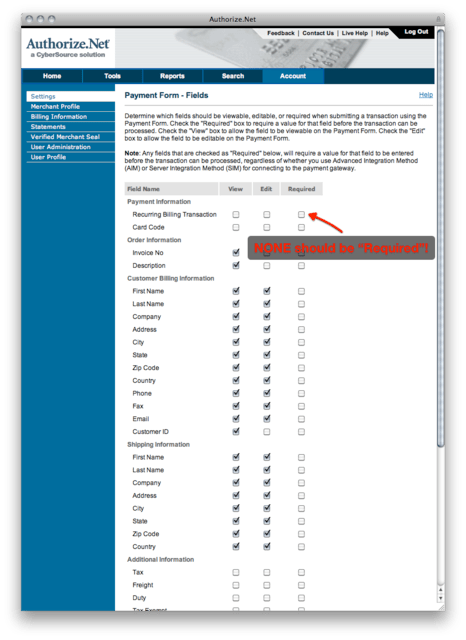
- Avoid marking settings as Required under Payment Form. The default setting for most of these checkboxes is off, and they should remain at the defaults.
- Do not change the Authorize.Net Direct Response Delimiter settings. By default, the Default Field Separator is a comma (
,) and no Field Encapsulation Character is specified. Do not change it to pipe (|). - Do not set Card Code to Required under Settings > Payment Form > Form Fields. Setting this to Required rejects any transaction where the CVV isn't provided, which causes recurring transactions to fail. Instead, mark the CVV as required in Advanced Billing: Settings > Fields > check the Required? box for CVV.
- Relax your AVS settings in Authorize.Net: Settings > Address Verification Service > under General AVS Responses, uncheck G, U, and S. These settings must be unchecked if you want to accept international payments.
Currencies and merchant location
Authorize.Net supports merchant accounts in the USA, Canada, UK, EU, and Australia, and processes payments in USD, CAD, GBP, EUR, AUD, and NZD. Authorize.Net handles one currency per gateway account, so contact Authorize.Net directly to open the accounts needed for each additional currency.
You can accept customers in any country. Prices are set in your merchant account's currency, and customers purchasing in a different currency are charged in their local currency at the exchange rate in effect at the time of the transaction.
For complete currency and merchant location support information, see the payment gateway overview page.
Data portability policy
- There is no cost associated with exporting solely customer profile/CIM data, but exporting other data may incur fees.
- Exports only occur on Wednesdays and Fridays.
- For the most up-to-date information, contact migrations@authorize.net.
Authorize.Net Account Updater
If you receive the following error for a renewal transaction in your site: Customer Profile ID or Customer Payment Profile ID not found., review the following:
- Did you, as the merchant, recently enable Authorize.Net's Account Updater Service?
- If so, ask your Authorize.Net representative whether the payment profiles in question received an ACL or CCH response when attempting to update the card.
If either of these apply, correct the error with the following steps:
- Delete the payment profile from customer details.
- Create a new payment profile for the subscription, using one of the following methods:
- Add a new card.
- Email the subscriber a link to update their payment method by sending them their Self-Service Page URL.
- Select Email customer to request payment update from the subscription's payment details.
To view a report of updated cards in your Authorize.Net account:
- Log in to your Authorize.Net account.
- Select Reports from the main toolbar.
- Select Account Updater Reports from the menu on the left.
- Select the month you want to view.
- Click Run Report.
If results are found, the first 100 records display on the dashboard. To view more than the first 100 records, use the Download to File option. Select the record for the month you want to review and click Run Report again.
Check the report for the customers you're seeing this error with. Search the report for either of these statuses:
- CCH: Contact Card Holder. A change has occurred; contact the card holder for updates.
- ACL: Account Closed. The account has been closed; contact the card holder for a new card.
Source: Authorize.Net's Account Updater documentation.
Authorize.Net disabled payment profiles
Advanced Billing checks for the Customer Profile ID error described above and automatically disables the payment profile if this happens. A disabled payment profile can only be deleted, and can't be the active payment profile on a subscription. Advanced Billing also generates a user notification about the impacted subscription and payment profile.
A payment profile can also become disabled if the stored Advanced Billing information doesn't correspond to any information on the gateway side, for example from an errant credit card information import.
Authorize.Net eCheck/ACH
For more information on Authorize.Net's eCheck/ACH feature, see Understand eCheck (ACH/EFT) Payments. That article covers how eCheck/ACH functions within your Advanced Billing and Authorize.Net accounts.
Authorize.Net response reason codes
When a transaction can't be processed, Authorize.Net responds with a number of fields that help diagnose the issue. The important fields to look at in the gateway output log are response_code, response_reason_code, and response_subcode. response_code and response_reason_code are useful for diagnosing an issue. See Authorize.Net's current response codes for the possible combinations and their descriptions.
A number of combinations don't have any descriptive text at all:
| Response Code | Response Reason Code |
|---|---|
| 1 | 1 |
| 2 | 2 |
| 2 | 3 |
| 2 | 4 |
In these cases, the error is usually (not guaranteed) that the merchant isn't allow-listed for that customer's card. The customer most likely needs to call their issuing provider to resolve the decline.
Authorize.Net AVS and anti-fraud settings
Authorize.Net has a comprehensive article that explains all of the AVS settings. Review it to familiarize yourself with the AVS codes. This is especially helpful when examining transaction responses from Authorize.Net.
Authorize.Net response delimiter settings
Advanced Billing requires that you not change the Authorize.Net Direct Response Delimiter settings. If you do, some transactions that rely on AVS may fail. Additionally, if these settings are changed, some successful transactions may refuse to allow refunds, generating the error "The credit card number is invalid."
Restore your default Direct Response Delimiter settings
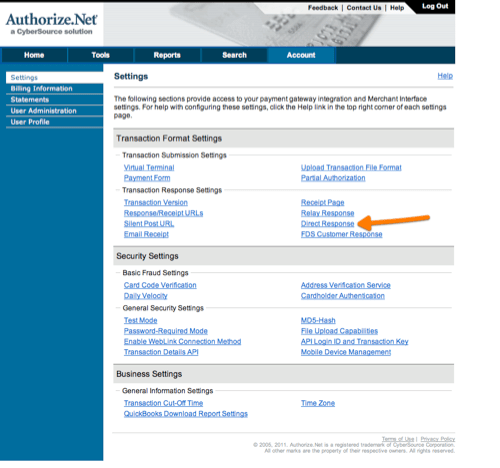
- Log in to your Authorize.Net control panel and click Settings.
- From the Settings screen, select Direct Response.
- Make the following selections under Direct Response Delimiter. These are the defaults:
- Delimited Response: Yes
- Default Field Separator:
,(comma) - Field Encapsulation Character: (none)
If you've been affected by this problem, particularly if you receive the error "The credit card number is invalid" when attempting to issue a refund, contact Advanced Billing support for help.
Authorize.Net transaction failures
If your transactions fail with "The transaction was unsuccessful" or "{field} is required," investigate which settings are causing this within the Authorize.Net interface.
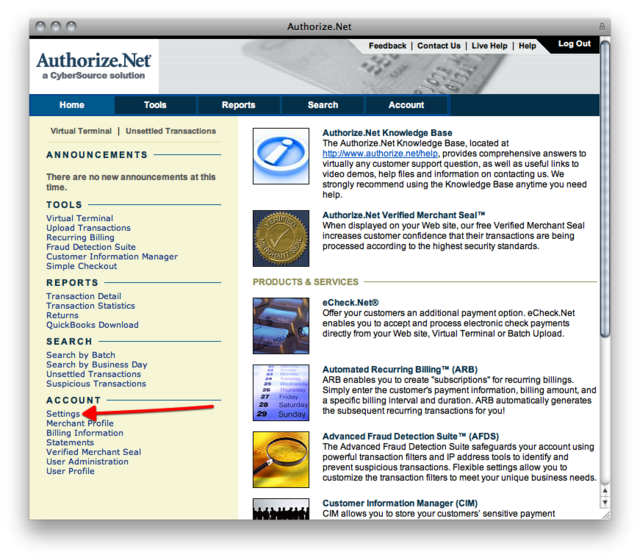
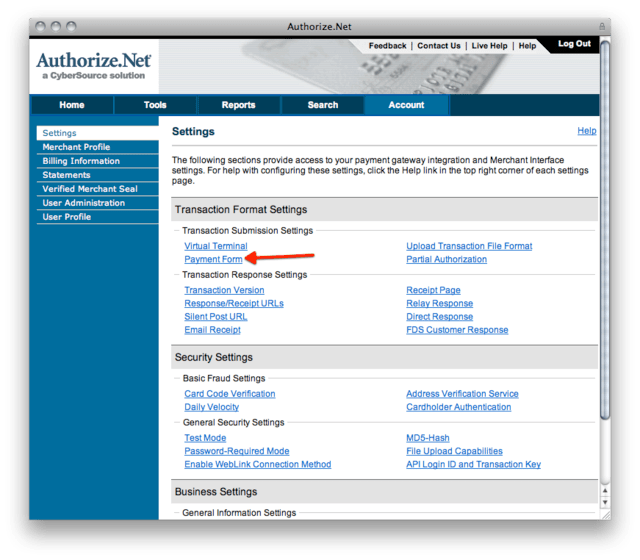
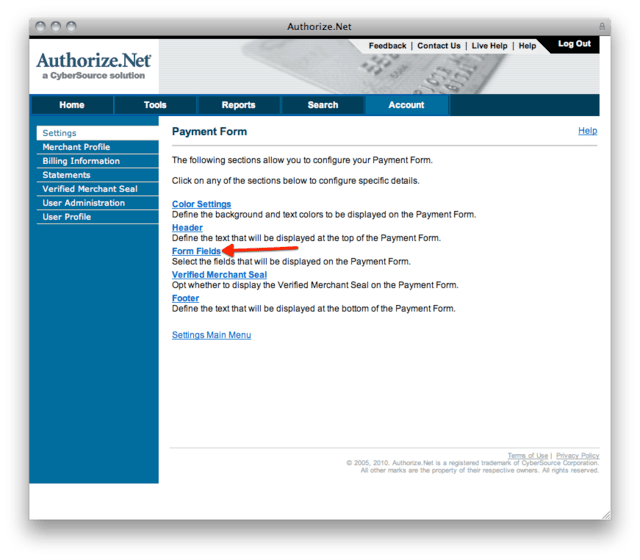
One reason is that your Authorize.Net configuration might be requiring certain fields that are part of the Authorize.Net Payment Form settings. These settings also affect API transactions, and all should be unchecked.
Authorize.Net Payment Form field settings
Still need help?
Reach out and our support team will take it from here.