
Collect Payments on Behalf of a Customer with Surcharging
Last updated on Sep 19, 2026
Process credit card payments on behalf of a customer directly from an invoice, with full surcharge transparency. When you record the payment, a Surcharge Amount line and an inline disclosure notice show what the customer owes before you submit the payment.
How it works
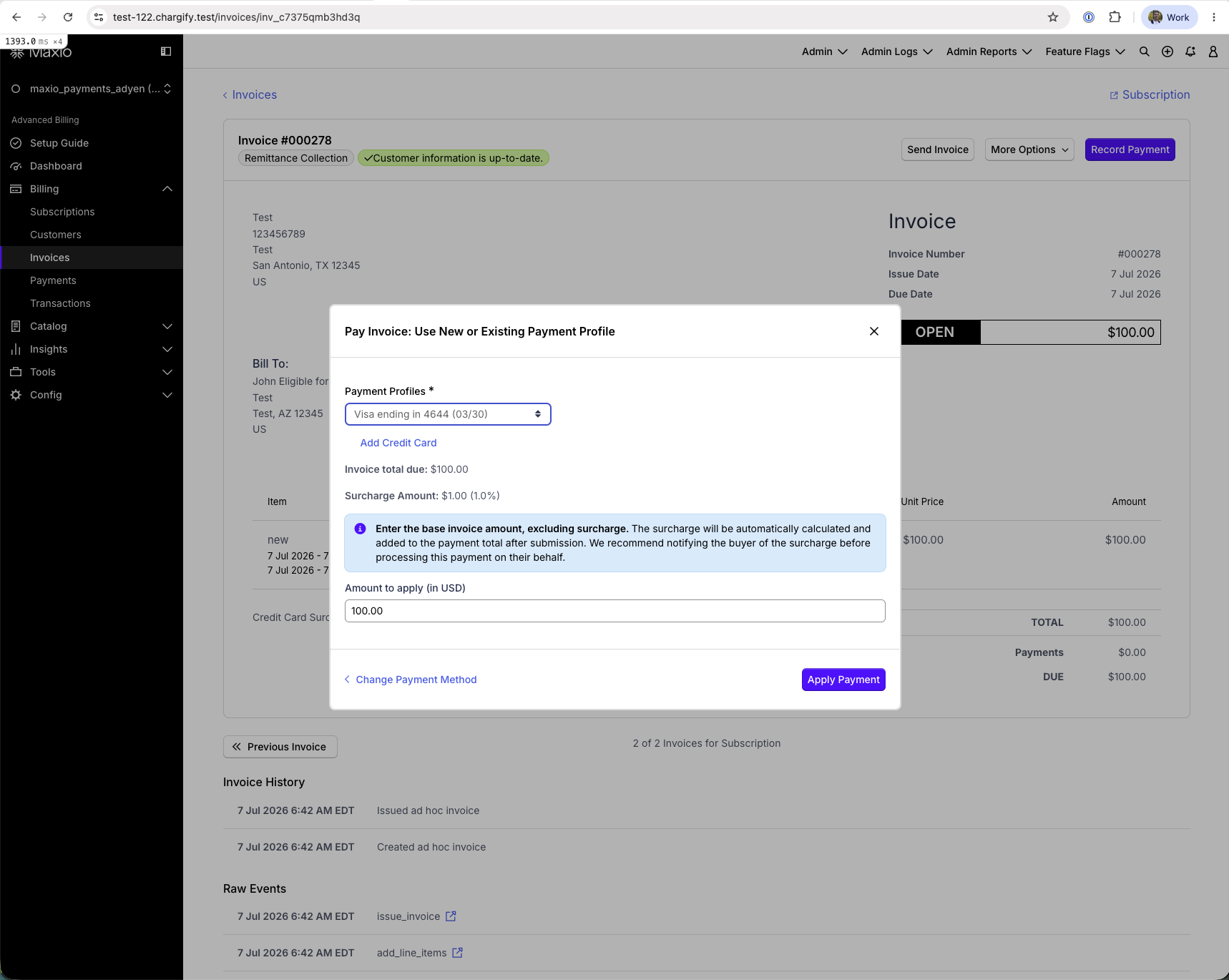
When you record a credit card payment for an invoice, and both surcharging and the buyer's billing address qualify, Advanced Billing calculates the surcharge automatically and shows:
- A Surcharge Amount line with the dollar amount and percentage that will be added, based on the invoice total and the card's brand and billing address
- An inline notice: "Enter the base invoice amount, excluding surcharge. The surcharge will be automatically calculated and added to the payment total after submission. We recommend notifying the buyer of the surcharge before processing this payment on their behalf."
The Surcharge Amount and notice only appear when surcharging is enabled, the payment method is a credit card, and the buyer's billing address qualifies for surcharging. They don't appear for ACH or other non-credit-card payment methods, or for a credit card with a non-qualifying billing address.
Before you begin
Make sure the following are in place before processing a payment with surcharging.
- Surcharging must be enabled for your account. See Enable Credit Card Surcharging in Maxio Payments.
- You must have Advanced Billing admin panel access to record payments on behalf of customers.
Collect a credit card payment with surcharging
The steps below assume the invoice is open and the buyer's card and billing address already qualify for surcharging.
WARNING: Enter the base invoice amount only. Advanced Billing calculates and adds the surcharge automatically. Entering an amount that already includes the surcharge charges the customer for it twice.
To collect a credit card payment with surcharging
-
Go to Billing > Invoices and open the invoice you're collecting payment for.
-
Select Record Payment.
-
Choose an existing credit card Payment Profile, or select Add Credit Card to add a new one. If the buyer's billing address qualifies for surcharging, the Surcharge Amount and the disclosure notice appear.
-
Note the Surcharge Amount shown, so you can share it with your customer before finalizing.
-
Inform your customer of the surcharge amount before proceeding with the payment.
-
In Amount to apply, enter the base invoice amount only, excluding the surcharge.
-
Select Apply Payment. The surcharge is calculated and added to the total.
Related information
For an overview of how surcharging works, see Understand Credit Card Surcharging.
For a full list of surcharging setup and reference materials, see Credit Card Surcharging Resources.
Still need help?
Reach out and our support team will take it from here.