
Configure and Manage Surcharge Settings
Last updated on Aug 31, 2026
Configure credit card surcharge rules in Maxio Payments by country, state, and card brand. Customize checkout disclosure language, review surcharge setting changes, and use interchange and scheme fee averages to support surcharge rate decisions.
You can customize how surcharges are applied:
- Geographic rules: Set rates at the U.S. national level or by individual state. States and U.S. territories inherit the country-level rate until you customize them; territories can only be turned on or off and always follow the country-level rate, while states can be switched to their own State Rules.
- Card brand rules: Define rates by card brand, including Visa, Mastercard, American Express, Discover, or other cards.
- Disclosure language: Customize the messaging shown to buyers during checkout.
- Interchange and scheme fee averages: Review trailing average fee data by card brand and jurisdiction to help inform surcharge configuration decisions.
Surcharge amounts are included in the invoice total that syncs to your connected accounting integration (NetSuite, QuickBooks, Xero, Intacct, or Rillet). Contact Maxio Support if you need surcharge amounts broken out as their own line item in your general ledger.
After surcharging is enabled, you can manage your configuration directly in Maxio Payments.
To manage your surcharge configuration
- Navigate to Maxio Payments.
- Open the Surcharge Settings page.
- Define and customize your surcharge rules and disclosures.
- Review all changes in the changelog.
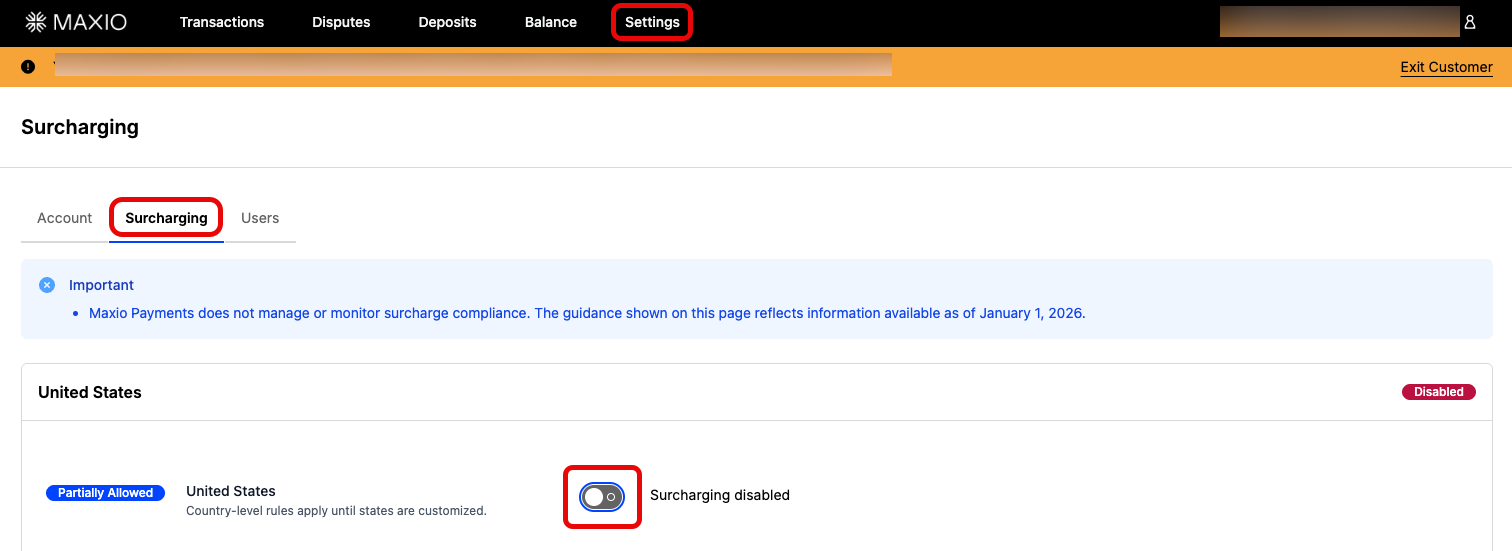
Enable surcharging at the country level
If the country-level toggle is off, surcharging is deactivated.
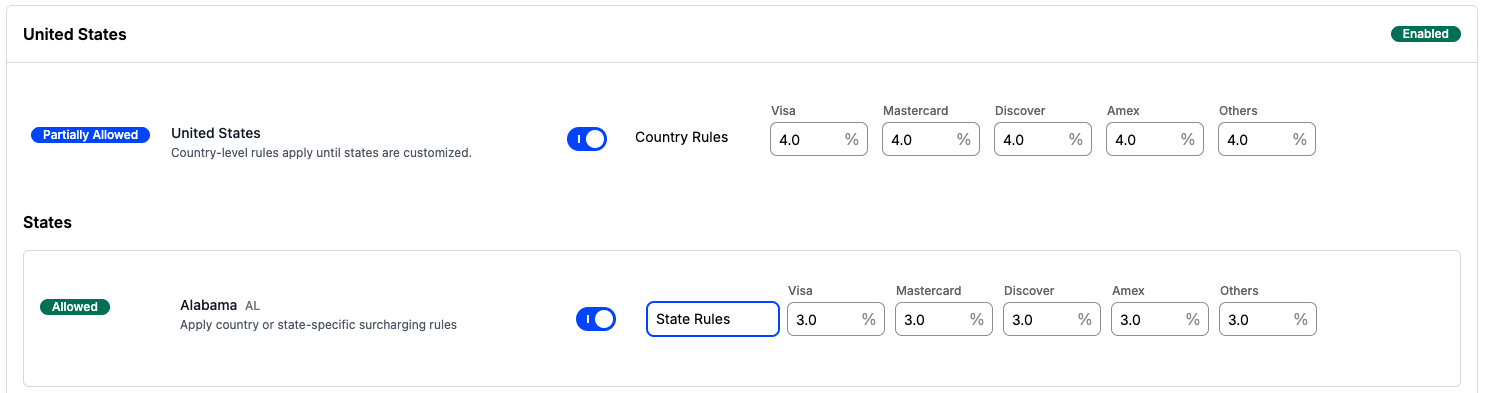
Configure state and card-brand-specific surcharge rates
Each card brand's rate, at both the country and state level, has a maximum of 4%.
Use state-level settings to control where surcharges apply:
- If the state-level toggle is off, surcharging does not apply to buyers with credit card billing addresses in that state.
- If the state-level setting is set to Country Rules, the country-level settings apply.
- If the state-level setting is set to State Rules, the state-level settings apply.
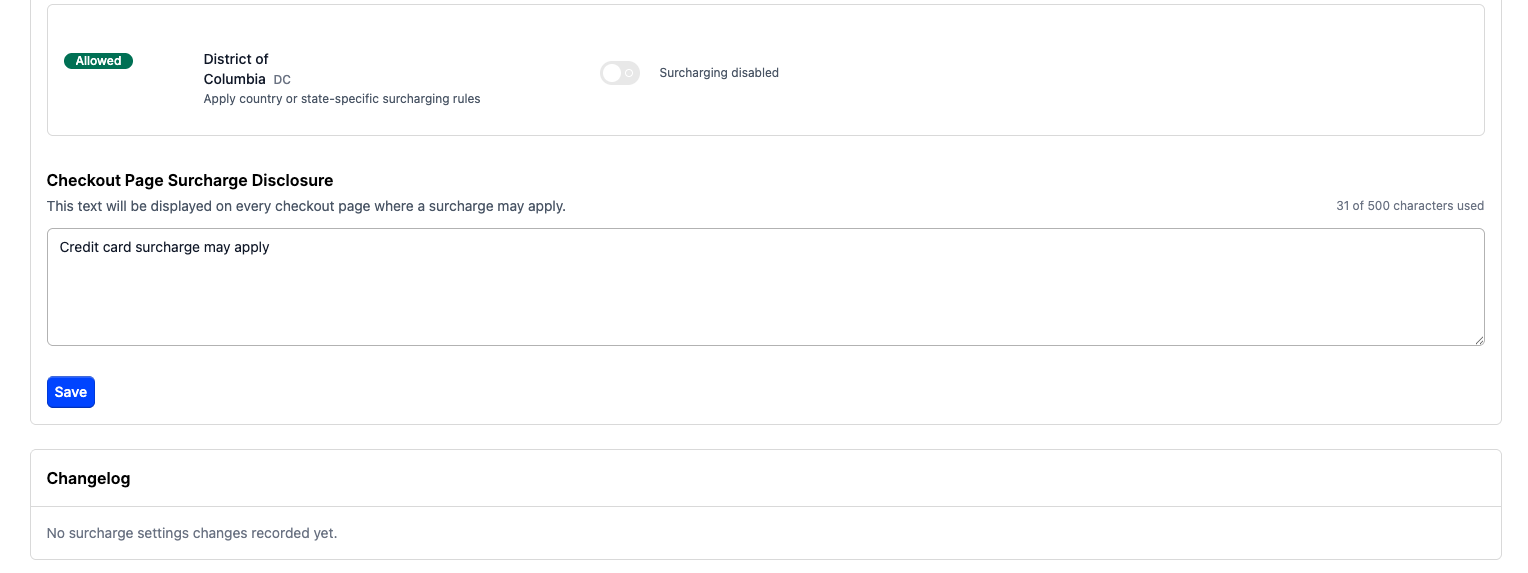
Set the checkout page surcharge disclosure language
Customize the disclosure language shown to buyers during checkout.

Review surcharge settings in the changelog
Review all edits to surcharge settings in the changelog section.
Review interchange and scheme fee averages
Important: Interchange and scheme fee averages are informational only. You are responsible for ensuring your surcharge configuration complies with applicable laws, card network rules, and processor requirements. Maxio recommends consulting legal counsel before applying or changing surcharge rates.
For each state or U.S. territory, Maxio Payments shows an estimated average cost of credit card acceptance next to each card brand's rate field. Use these estimates to help inform surcharge rates based on your business requirements and applicable regional regulations. This average is not available at the country level, only for individual states and territories.
Maxio Payments calculates a trailing 90-day average of interchange and scheme fees for each supported card brand and jurisdiction. These estimates are refreshed daily.
If there is not enough transaction data for a specific card brand in a jurisdiction, the field shows Calculating… until enough data is available.
View interchange and scheme fee averages
Interchange and scheme fee averages appear alongside each card brand's rate field on the Surcharge Settings page.
To view interchange and scheme fee averages
- Navigate to Maxio Payments.
- Open the Surcharge Settings page.
- For a state or U.S. territory, review the Avg percentage shown beneath each card brand's rate field.
- Use the averages by card brand and jurisdiction to help determine an appropriate surcharge rate for that area.
- Review the Important banner at the top of the page for details about what's included in the estimated rates.
Exempt product families from surcharging
You can exclude specific product families from surcharging entirely, using settings in both Maxio Payments and Advanced Billing.
To exempt a product family from surcharging
- In Maxio Payments, navigate to Settings > Surcharging.
- Turn on Exempt selected product families from surcharging.
- In Advanced Billing, open the product family you want to exempt.
- Clear Enable surcharging for this product family.
Subscriptions in that product family are never surcharged, even if the buyer's billing address and payment method would otherwise be eligible.
Related information
For an overview of how surcharging works, see Understand Credit Card Surcharging.
For steps to turn surcharging on for the first time, see Enable Credit Card Surcharging in Maxio Payments.
Still need help?
Reach out and our support team will take it from here.