
Build and Price a HubSpot Deal
Last updated on Aug 24, 2026
Build a HubSpot deal using your synced Advanced Billing product catalog, then optionally generate a HubSpot quote from it. This covers the deal-building stage before you preview and create the subscription.
Add line items from the product catalog
A deal needs an associated billable Contact before you can create a subscription from it after the deal closes. You can create a deal directly from a Contact record or from the Sales view.
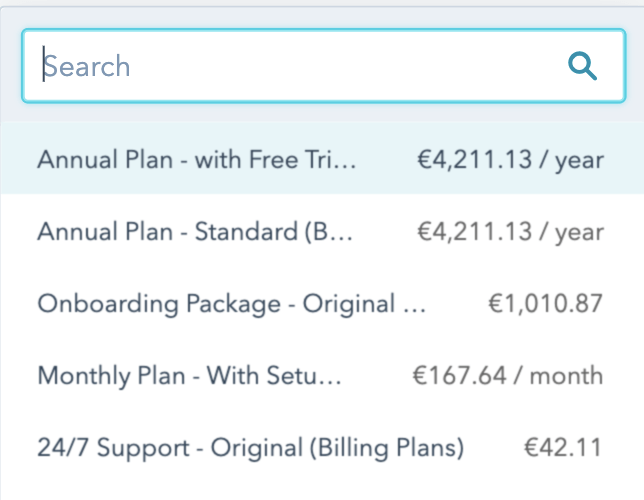
Add line items to the deal from your synced Advanced Billing catalog in either of these ways:
- From the deal's own line-item creation interface, using its searchable drop-down of synced products, components, price points, and coupons.
- From the HubSpot Product Library interface, which also lets you organize a large catalog into folders for easier navigation.
The Billing Frequency of each line item is automatically populated based on how it's set up in the Advanced Billing product catalog. Advanced Billing components may sync as one-time line items depending on the component type and how it's mapped.
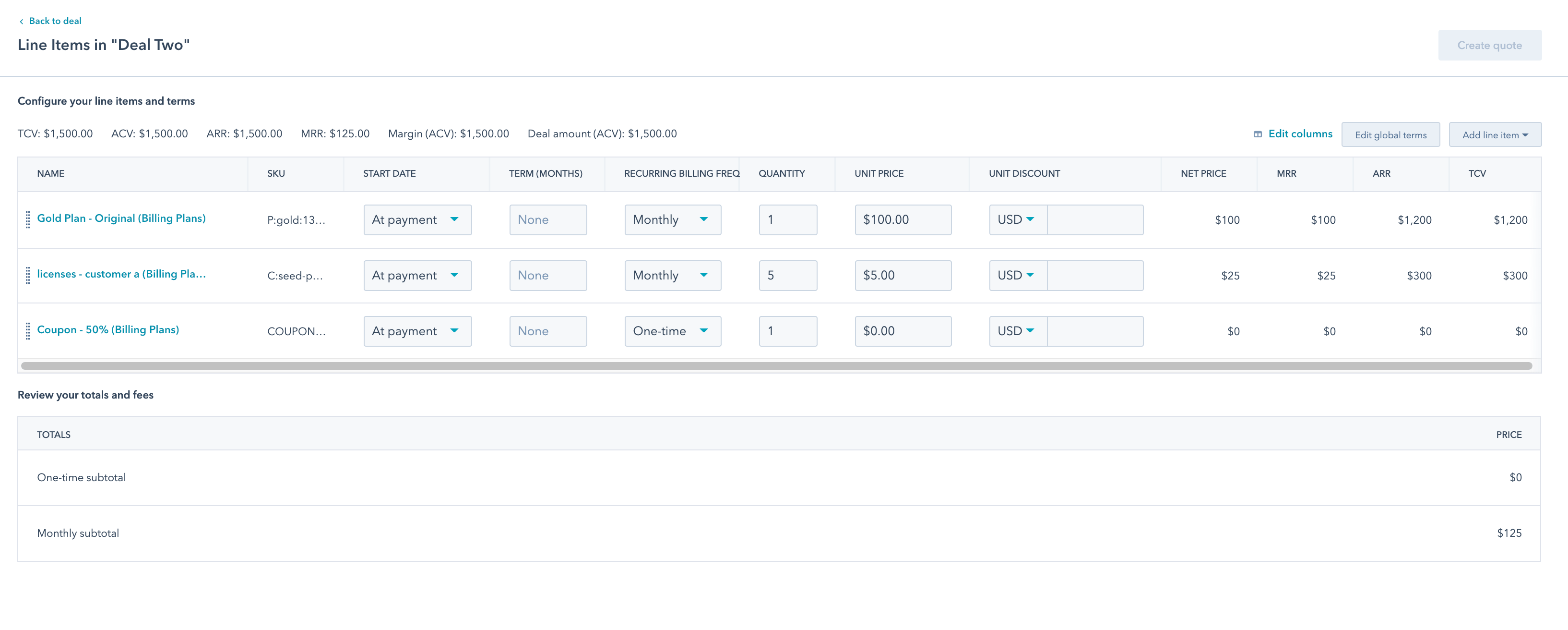
Editing a line item's price directly on the deal in HubSpot does not carry over to the resulting subscription — subscription creation always uses the price from the catalog item you selected, matched by its product/component and price point IDs. To charge a different price, use Set Custom Pricing on a HubSpot Deal instead.
Set the deal currency
For deals using a currency other than your default, set the deal's Currency property.
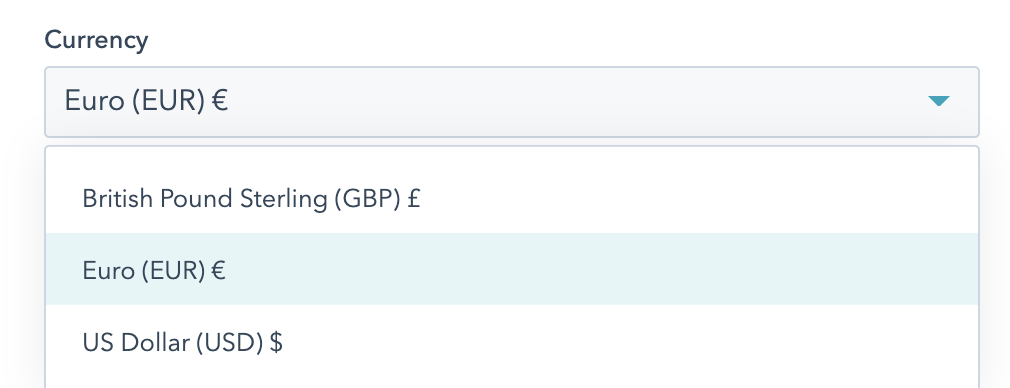
The integration then prices the deal's line items, the product catalog view, and any HubSpot quote in that currency.
Set fields on the deal's Contact or Company record
A few Advanced Billing-specific fields sync onto the billing Contact (or Company, if Use Contact and Company IDs is enabled) rather than the deal itself:
- Tax Exempt: a yes/no setting. If left blank, the integration treats it as No.
- CC Emails: a text field for additional contact emails, separated by commas.
- VAT Number: an optional field for a VAT number, if applicable.
- Any Advanced Billing custom fields tied to the Customer resource, if they existed at the last custom-fields sync.
Create a HubSpot quote from the deal's line items
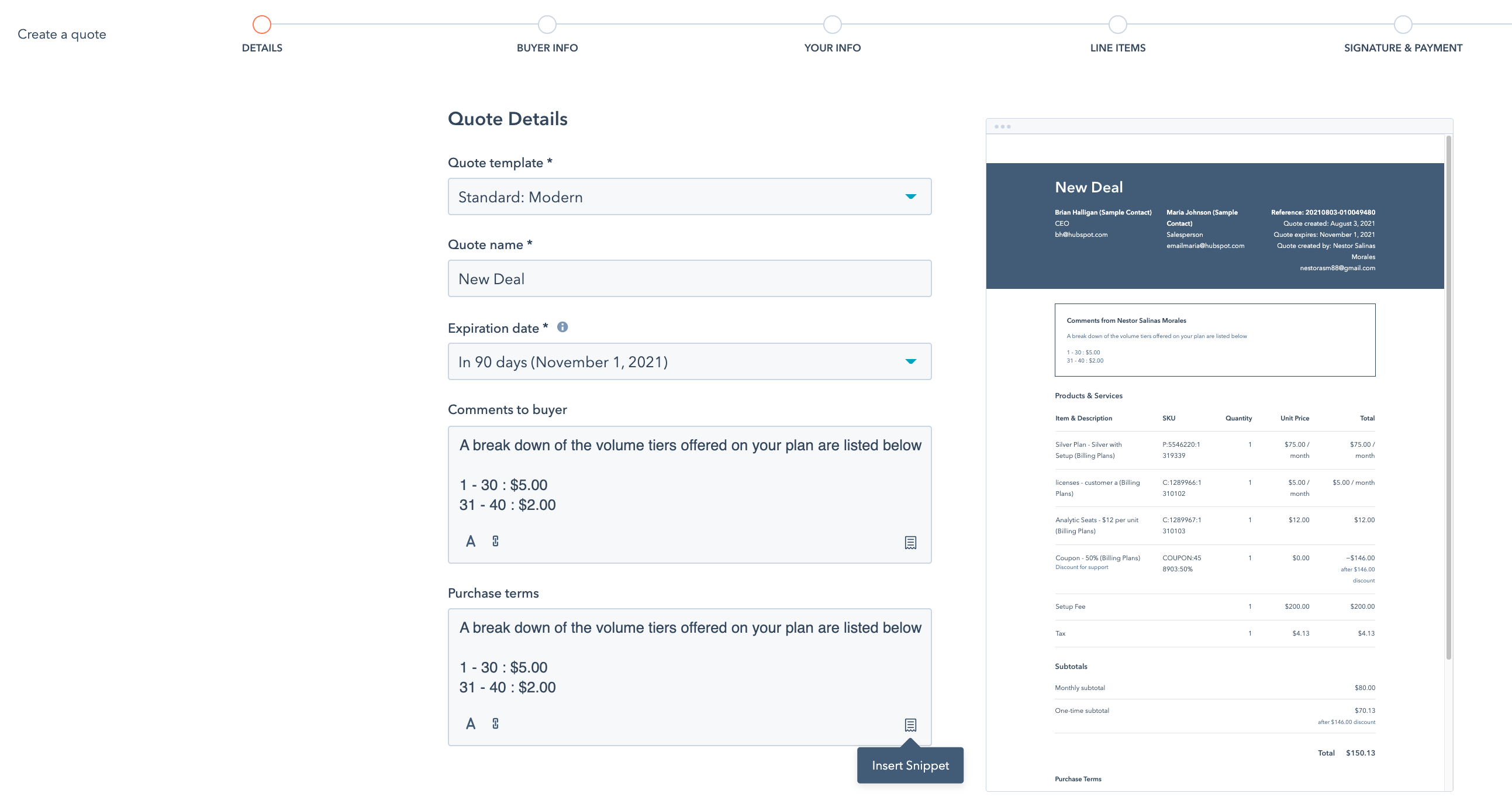
Because the integration uses HubSpot's native line-item functionality, you can create a HubSpot quote directly from a deal's associated line items, the same way you would for any other deal.
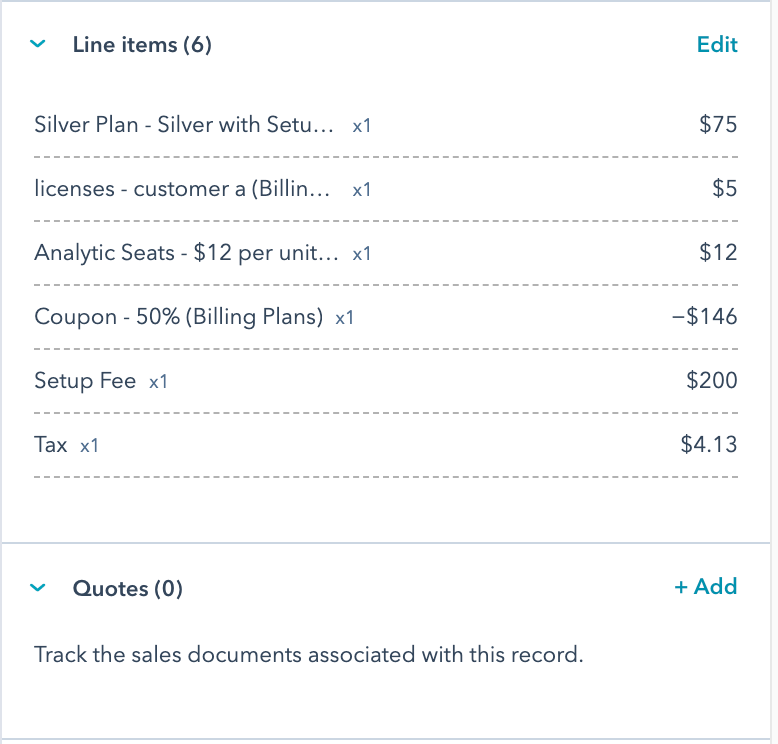
If you want the quote to reflect Setup Fee or Tax line items, sync the deal with Advanced Billing first — see Create an Advanced Billing Subscription from a HubSpot Deal. A coupon line item appears on the quote once you've added it to the deal from the Product Library.
Create the quote from the Quotes section of the deal record. Once created, you can share a link to the quote, download it as a PDF, or connect your email account in HubSpot to send and log it directly.
Add purchase terms with HubSpot snippets
Snippets aren't something the integration creates or manages — create and apply them directly in HubSpot's own snippet tool. Purchase terms can reflect the volume, tiered, or stair-step pricing thresholds set up in your Advanced Billing product catalog.
Next steps
Continue to Create an Advanced Billing Subscription from a HubSpot Deal.
Related information
To negotiate a price different from your catalog pricing, see Set Custom Pricing on a HubSpot Deal.
Still need help?
Reach out and our support team will take it from here.