
Manage an Advanced Billing Subscription from HubSpot
Last updated on Aug 26, 2026
View and manage an Advanced Billing subscription's day-to-day activity directly from its Maxio CRM card on a HubSpot Contact, Deal, or Company record.
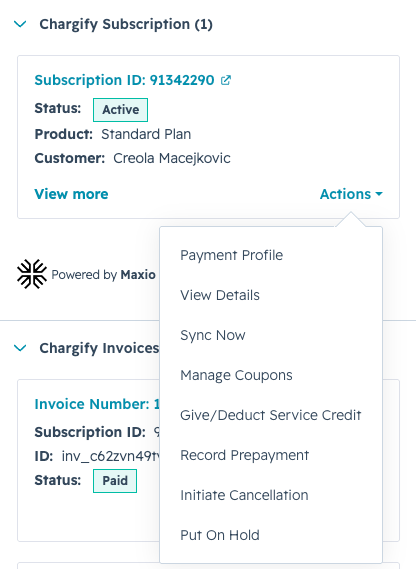
The Powered by Maxio label confirms that the billing information shown in the card is provided by Maxio through the integration.

View subscription details
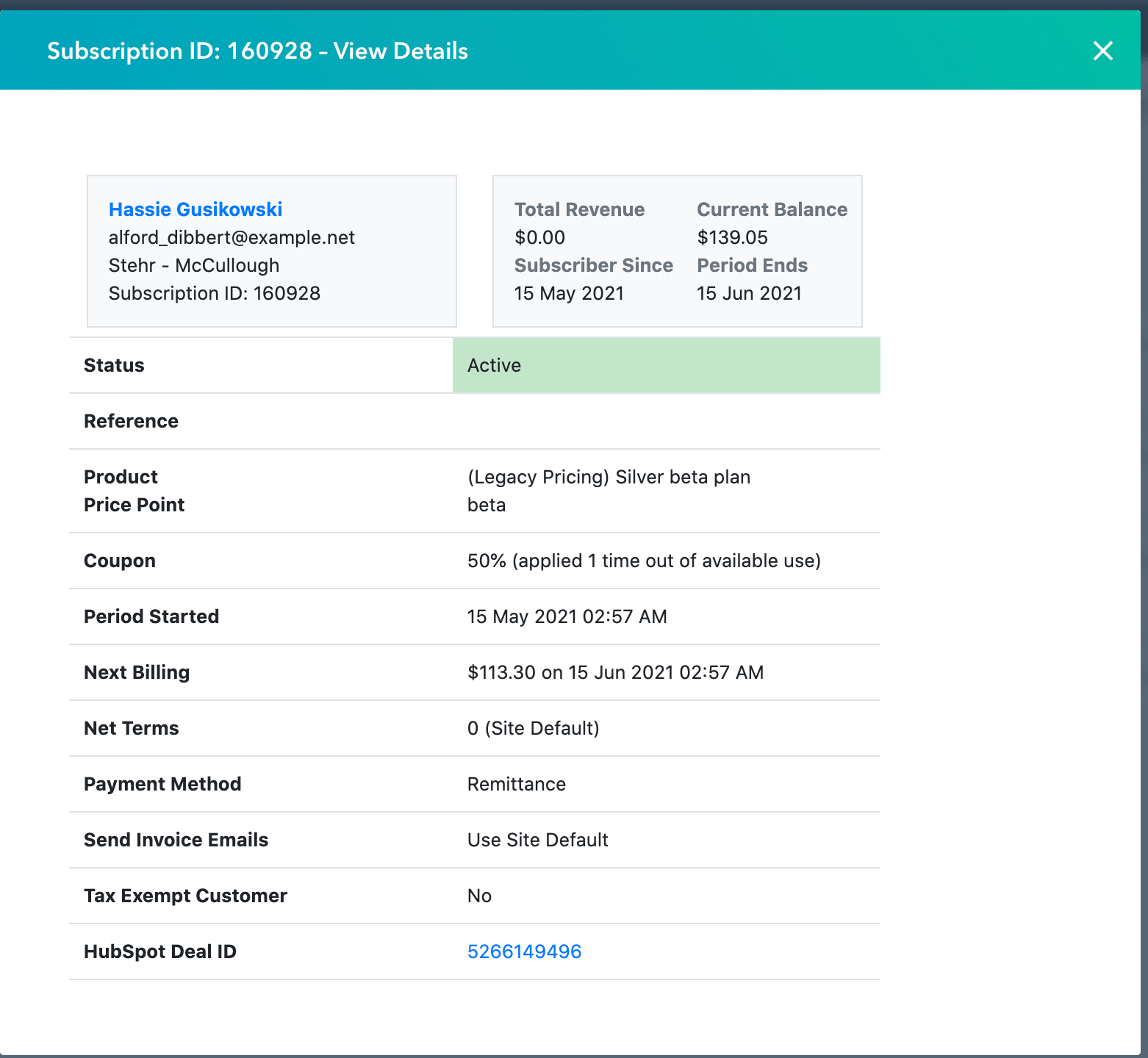
Open View Details on the Maxio CRM card to see the subscription's status, Total Payments, current balance, next billing amount and date, net terms, subscriber-since date, and current period end date.
View invoice details
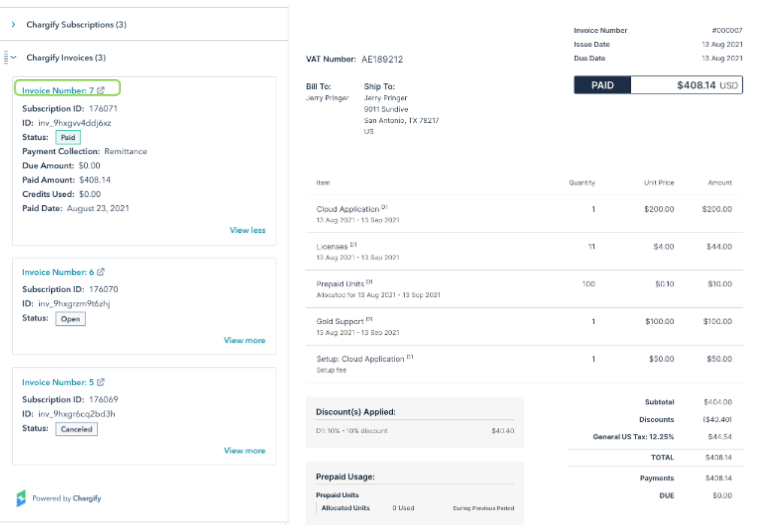
From the same card, view an invoice's number, status, payment collection method, amount due, paid amount, credits used, and a public link to the invoice. The paid date only appears once the invoice is actually paid.
Take action on a subscription
The card's Actions menu always includes View Details, Sync Now, and Manage Coupons. The rest are optional, and your admin can turn each on or off in Configure HubSpot Integration Sync Options. Some also only appear for a subscription in a particular state:
| Action | Only appears when |
|---|---|
| Activate | The subscription is Awaiting Signup |
| Payment Profile | Always, if enabled |
| Give/Deduct Service Credit | Always, if enabled |
| Record Payment | Always, if enabled |
| Reactivate Subscription | The subscription is Canceled or Trial Ended |
| Initiate Cancellation | The subscription is any state other than Canceled or Trial Ended |
| Resume Subscription | The subscription is On Hold |
| Put On Hold | The subscription is Active or Trialing |
| Upgrade/Downgrade | The subscription is Active or Trialing |
| Clear Pending Cancellation | The subscription has a pending cancellation scheduled |
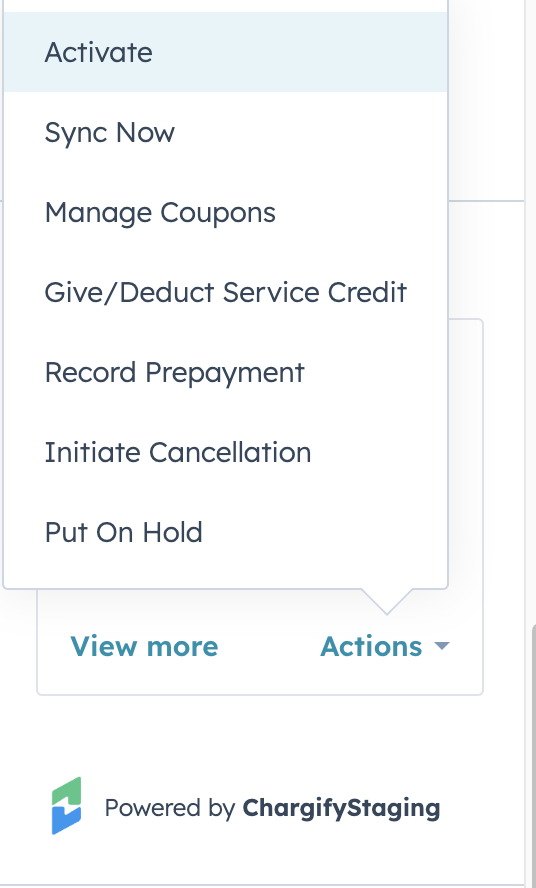
To activate a subscription from HubSpot
- Sync the subscription with Advanced Billing.
- Confirm the subscription's status is Awaiting Signup.
- Complete the customer's payment profile. This step isn't required for subscriptions using remittance collection.
- Open the subscription card.
- From the Actions menu, select Activate.
Track subscription activity on the timeline
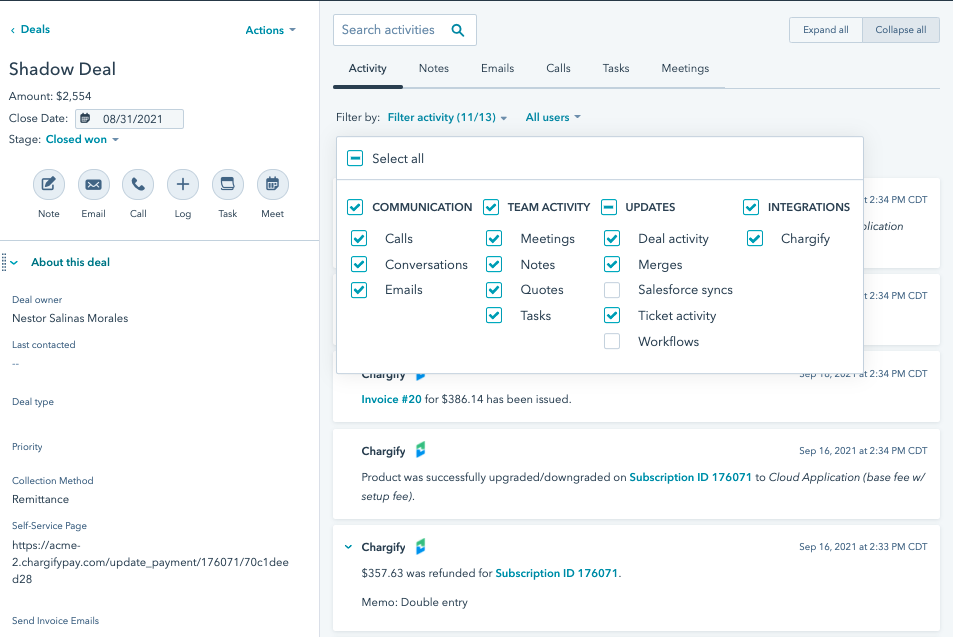
Enabled timeline events post directly to the Contact, Deal, and Company timelines as Advanced Billing activity happens, such as payments, renewals, and invoices. See Enable timeline events for the full list and what each one shows.
Add the Subscription Status column to your deal view
Add this column to the deal index page so you can see subscription state without opening each deal. This is only available if your integration syncs Subscription Status.
To add the Subscription Status column to your deal view
- In HubSpot, go to Deals under the Sales drop-down menu.
- On the deal index page, click Edit Columns in the top-right corner.
- In the Search columns field, type Advanced Billing Subscription Status.
- Select the column to add it to your view.
- Click Save.
Related information
For the full list of Advanced Billing subscription statuses, see Sync HubSpot and Advanced Billing Fields.
Still need help?
Reach out and our support team will take it from here.