
View URLs for Customer-Facing Pages
Last updated on Sep 19, 2026
Use the View Link or View URL options to quickly access live, customer-facing pages configured in Advanced Billing. These options open the exact URL Customers use, allowing you to verify the page, copy the link, or share it externally.
These options are available for the following page types:

These links can be used for:
- Testing how the page appears to Customers
- Sharing a direct signup or portal link
- Verifying correct configuration before going live
Important: Use caution when sharing Billing Portal links, as they provide access to Customer billing details.
If a page's URL hasn't yet moved to the
chargifypay.comdomain, the pop-up shows a legacy URL notice: the old URL will keep working for now, redirecting transparently to the new one, but only for a grace period before it's removed.
For the Billing Portal
Get a specific Customer’s Billing Portal link to verify their access or share a management link with them directly.
Where to find it:
-
Go to Catalog > Billing Portal.
-
Locate the Customer you want to manage.
-
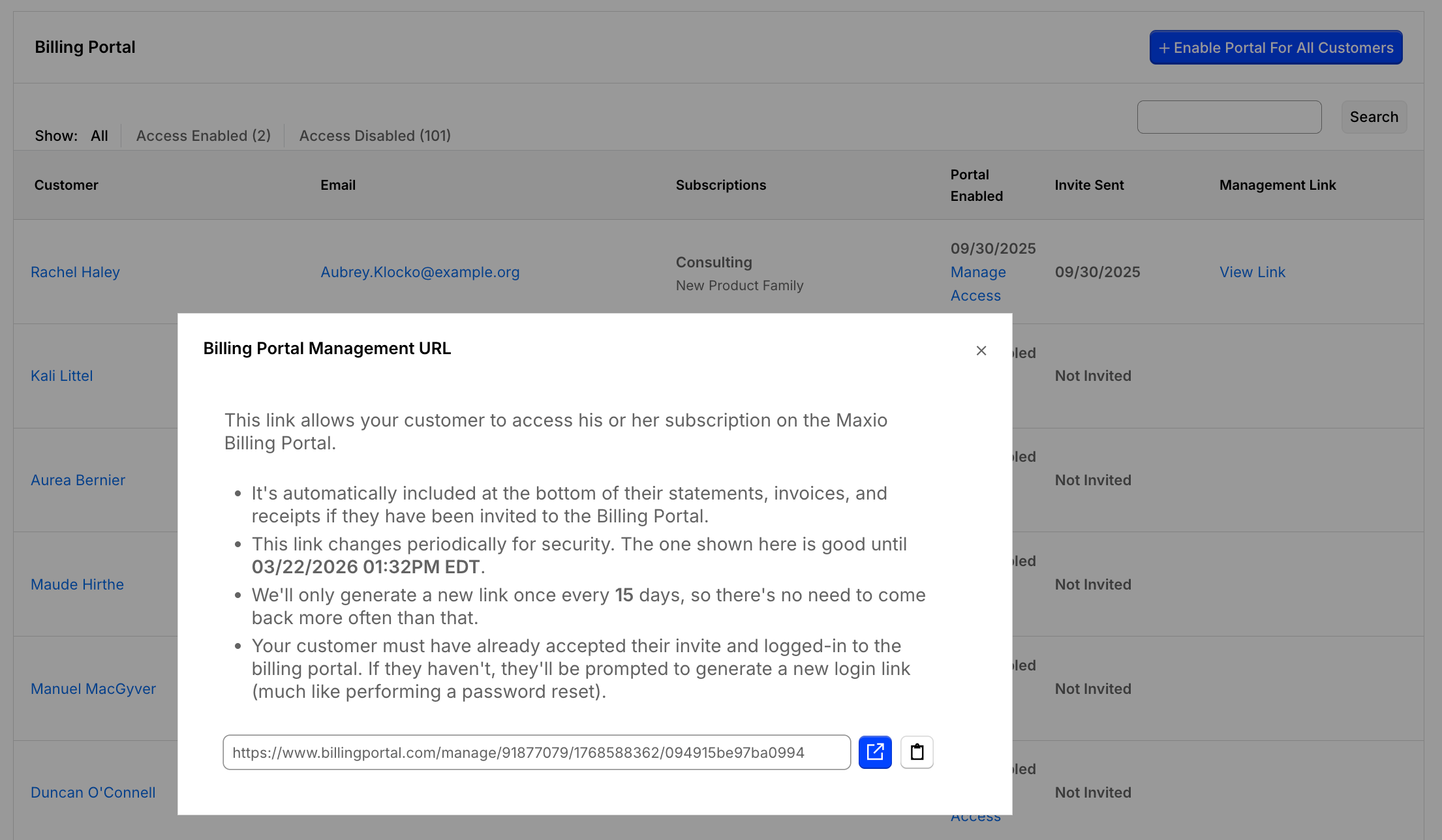
In the Management Link column, click View Link.
-
From the pop-up:
- Click the Link icon to open the link in a new browser tab;
- Or, click the Clipboard icon to copy the URL to the clipboard.
What it does:
- Opens the Customer’s Billing Portal link.
- Useful for verifying portal access or sharing a management link with the Customer.
For Public Signup Pages
Get the live URL for a specific Public Signup Page to test it yourself or share it with prospects.
Where to find it:
- Go to Catalog > Public Signup Pages.
- Select the Public Signup Page you want to review and click the View URL link.
- From the pop-up:
- Click the Link icon to open the link in a new browser tab;
- Or, click the Clipboard icon to copy the URL to the clipboard.
What it does:
- Opens the live Public Signup Page for the selected configuration.
- Allows you to test the Customer experience or share the signup link with prospects.
For Offer Signup Pages
Get the live URL for a specific Offer Signup Page to confirm it appears correctly before sharing it.
Where to find it:
- Go to Catalog > Offer Signup Pages.
- Select the Offer Signup Page and click the View URL link.
- From the pop-up:
- Click the Link icon to open the link in a new browser tab;
- Or, click the Clipboard icon to copy the URL to the clipboard.
What it does:
- Opens the offer-specific signup page that includes pricing, trial, coupon, or promotion details.
- Helps you confirm that the offer appears correctly before sharing it.
Related information
For other Public Signup Page actions, like viewing settings, editing, disabling, or deleting a page, see Manage Public Signup Pages.
To create an Offer Signup Page, see Create and Manage Offer Signup Pages.
Still need help?
Reach out and our support team will take it from here.