
Troubleshoot the Salesforce Integration and FAQs
Last updated on Aug 30, 2026
Common issues encountered when using Custom Offer Signup Pages, syncing data, or getting Maxio Support access to your Salesforce org, along with what to check to resolve them.
Signup page shows "Authorization Required"
If a Custom Offer Signup Page shows an "Authorization Required" error, the Site Guest User doesn't have a license for the Chargify NG package.
To assign a license to the Site Guest User
- From Setup, select the User Interface tab, then select Sites.
- Click into your site using the link in the Site Label column.
- Click Public Access Settings.
- Click View Users.
- Click the Site's Guest User to open the user details page.
- Scroll down to Managed Packages.
- Click Assign Licenses.
- Assign the Chargify NG license.

Signup page shows a payment method error
A Custom Offer Signup Page can show an error stating that the chosen payment methods and/or payment gateways aren't properly configured in Advanced Billing, and directing the Customer to contact your Sales team for a new URL.
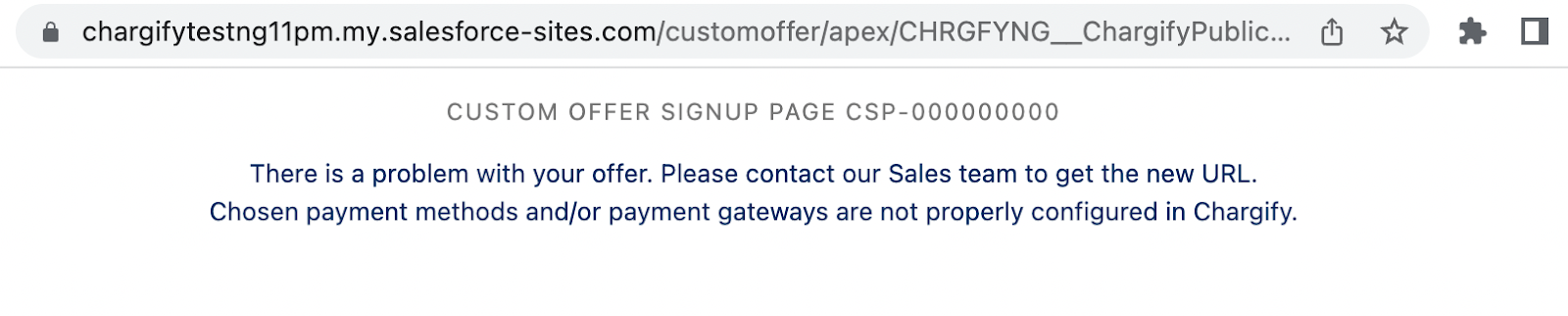
Check the following, based on the payment method the offer uses:
- Credit Card - Confirm a payment gateway is configured in Advanced Billing to handle credit card payments, and that it supports the currency of the offer. If the COSP Template specifies a particular Credit Card gateway handle, that gateway must support Credit Card payments. If you use the Maxio Payments gateway, the COSP Template must also have a Maxio Payments terms URL populated.
- ACH - Confirm a payment gateway is configured in Advanced Billing to handle ACH payments, and that it supports the currency of the offer. If the COSP Template specifies a particular ACH gateway handle, that gateway must support ACH payments.For gateways other than Stripe, the Customer needs the Verified for ACH/eCheck Payments checkbox populated on their Salesforce Account. For Stripe, that checkbox isn't required, but the Subscription needs to be set to Remittance, Trial, or zero amount.
- Direct Debit - Confirm a payment gateway is configured in Advanced Billing to handle Direct Debit payments, and that it supports the currency of the offer. If the COSP Template specifies a particular Direct Debit gateway handle, that gateway must support Direct Debit payments.
Signup page shows a generic offer error
When Subscription creation fails on a signup page, the Customer sees an error message, and Salesforce logs an event with details to the Advanced Billing Event Log. A rendering error is also shown to the Customer and logged the same way. Possible messages include:
- "There was a problem with decoding data from your offer link. Please contact our Sales team to get the new URL." - Typically means the link is broken, with empty or missing data.
- "There is a problem with your offer. Please contact our Sales team to get the new URL." - Can mean the Subscription Preview or the Signup Page record was deleted from Salesforce, or that an unexpected error occurred.
To append an error log to the end of the default or custom error message, check the Show_Error_Log__c field on the Signup Page record.
General sync issues
If you run into issues with the integration generally, start with the Advanced Billing Event Logs object in the Salesforce managed package. It shows which Lead, Account, Contact, or Opportunity records hit errors during insert or update, whether through a webhook or the API.
If you need more help, contact support@maxio.com and include the version of the package you're using.
Account sync fails after multiple Contacts are linked
If more than one Contact on the same Account has been linked to Advanced Billing (via Link Maxio AB Customer), a later sync for that Account can fail with an error status. This happens when the integration can no longer resolve a single match by email between the Account's linked Contacts and the Advanced Billing Customer.
To resolve it, use Migrate Maxio AB Contact to consolidate the Account back down to one linked Contact. See Migrate a Contact to a different Account.
Salesforce ID isn't populated on a Customer record
Advanced Billing backfills a Customer's Salesforce ID automatically, once, during customer sync or when the Salesforce package is installed or updated. If a Customer record still shows no Salesforce ID after that, an admin with access to the Salesforce Developer Console can run the backfill manually.
To run the backfill manually
-
In Salesforce, open Developer Console > Debug > Execute Anonymous Window.
-
Paste and run:
apexCHRGFYNG.ChargifyBatchUpdateSFAccountIdInAB.executeBatch(new CHRGFYNG.ChargifyBatchUpdateSFAccountIdInAB());
Grant Maxio Support access to your Salesforce org
Maxio Support may sometimes ask for direct login access to your Salesforce org to troubleshoot an issue. This isn't specific to the integration, and Salesforce's own process for granting temporary support access may vary depending on your org's settings.
To grant Maxio Support access
- Navigate to My Settings in Salesforce.
- In the left column, select Personal > Grant Account Login Access.
- Enable Maxio Support, selecting a duration from the dropdown. We recommend one week.
- Click Save.
If you can't complete these steps, one of the following may apply:
- A system administrator disabled the ability for non-admins to grant access.
- Your user account doesn't have a license for the package.
- The package is licensed to the entire org, so only admins with the Manage Users permission can grant access.
- The org preference Administrators Can Log in as Any User is enabled.
For more on granting login access, see Salesforce's documentation.
Still need help?
Reach out and our support team will take it from here.