
Configure Bundled Invoices in e-Bill
Last updated on Aug 29, 2026
Bundled invoicing in Maxio enables you to streamline customer invoices by combining or bundling line items. This simplifies the process while ensuring precise transaction breakdowns for financial reporting. This guide offers clear steps for creating and managing bundled invoices, including setting up themes, customizing line item descriptions, and defining default behaviors.
Bundled Invoicing is a feature of Maxio's e-Bill only.
Choose the setup that matches your situation:
- I bundle infrequently, so minimal setup is required. Create a Theme optimized for bundled invoicing and use it as needed.
- I predominantly sell a single bundle. If most of your invoices include bundled items, configure Maxio to maximize efficiency and reduce manual effort.
- I sell many different bundles. Maxio's invoice combine options simplify creating optimized invoices but do not allow for fully custom Bundle solutions or predefined component setups. If the bundled invoicing capabilities do not meet your needs, contact support@maxio.com to request enhancements or explore additional options.
Configure bundled invoicing
Setting up bundled invoicing takes three pieces: a Theme that hides the fields you don't want shown on a combined line, a default description to use when line items are combined, and an e-Bill default that ties the two together.
To configure bundled invoicing
- Create a Theme with Show Item Name turned off.
- Add a Billing Line Item Description to use for the default bundled scenario. Be sure to NOT include variables.
- Set your default behavior for e-Bills, including the Combine Line Items method and the Default Combine-All Description you created in the previous step.
When creating or editing individual invoices, open the e-Bill Data tab to select a different combination method and/or change the description directly. The Combine Line Items drop-down defaults to Inherit, which follows your account's e-Bill default; choose one of the other options below to override it for that invoice only.
View the resolved combine setting
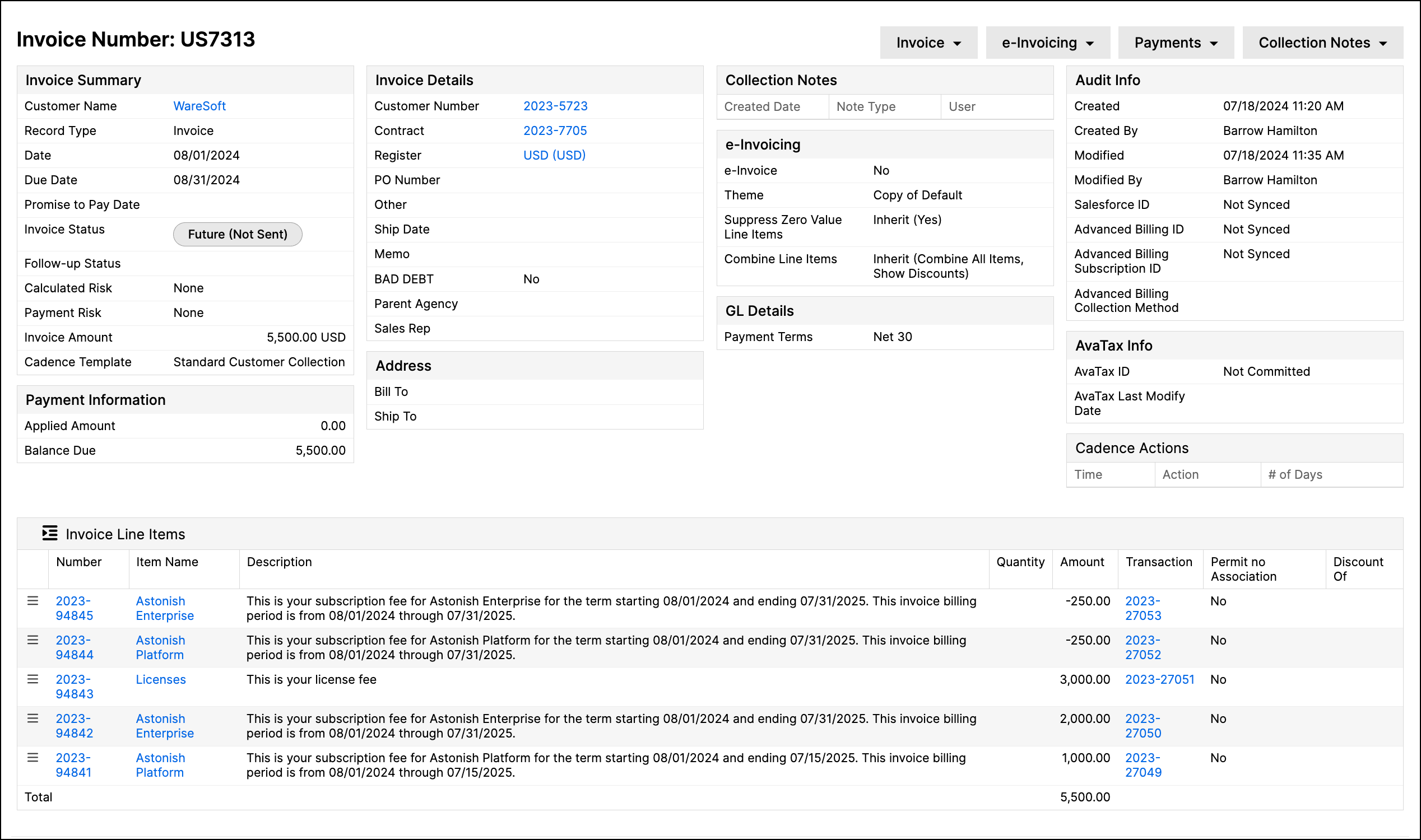
An invoice's e-Bill section on its Read view shows the Combine Line Items value that was actually applied, along with the combined description when one was used. If the invoice is set to Inherit, this shows the account default in parentheses, for example Inherit (Combine Like Items), so you can confirm which behavior an invoice used without checking your account settings separately.
Combination options
The examples below illustrate how different bundling options affect the same invoice. Note that the Combine All example uses a different Theme. These visuals demonstrate how Maxio applies bundling to invoice data.
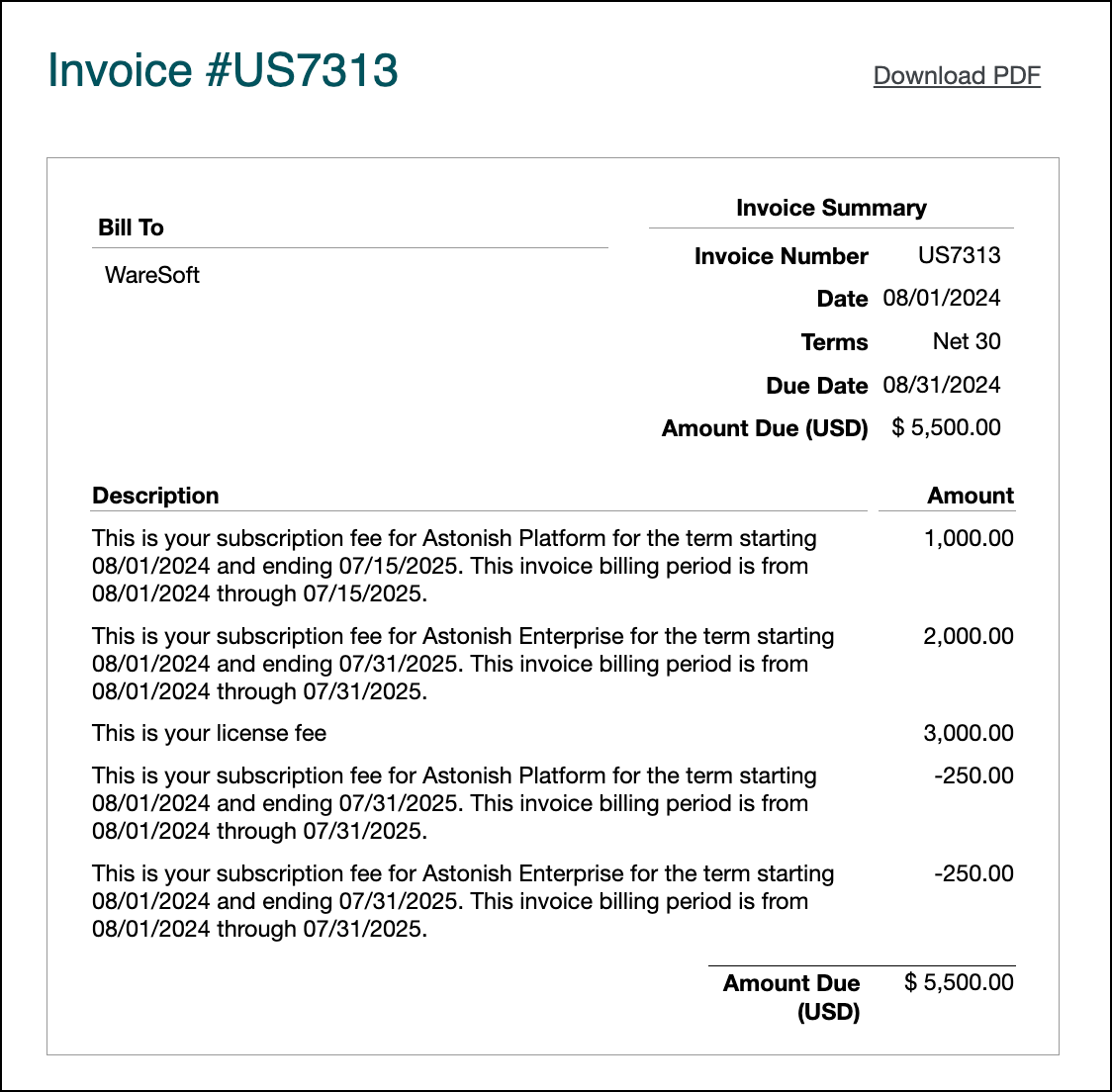
No option
Line items are always distinct and are not combined.
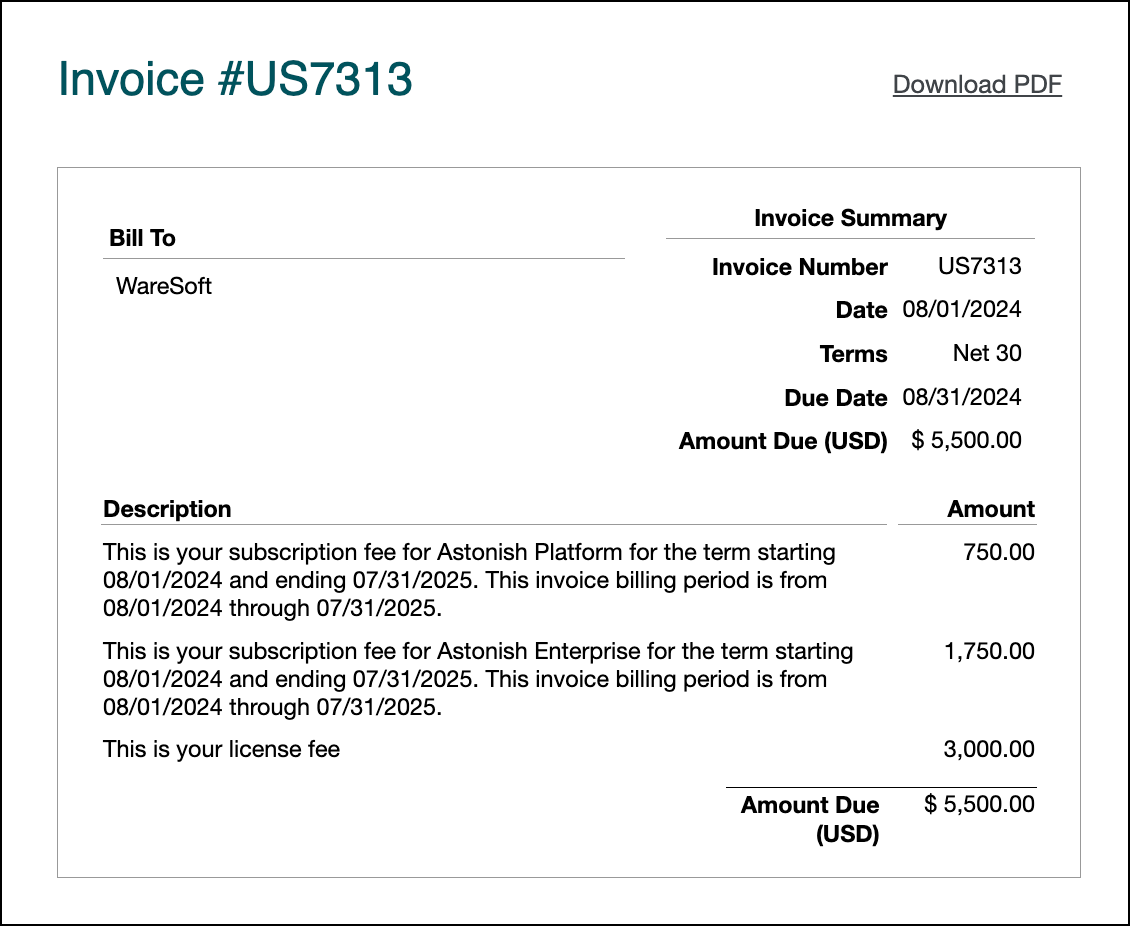
Combine like items
Combine Invoice Line Items with the same Item, summing amounts and quantities. The description will default to the most recently created line item.
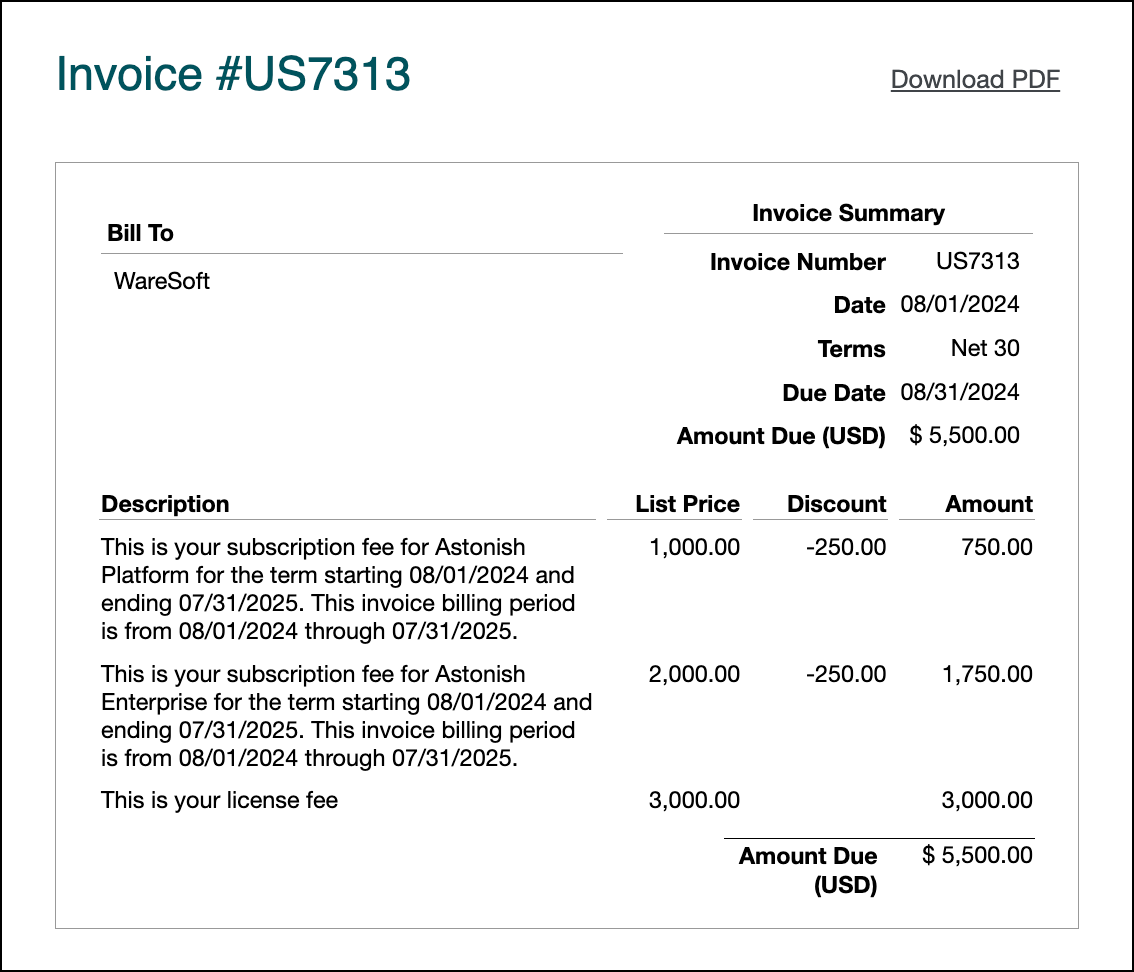
Combine like items, show discounts
Combine Invoice Line Items with the same Item that have positive values. Similarly, combine those with negative values and display them in a Discount column.
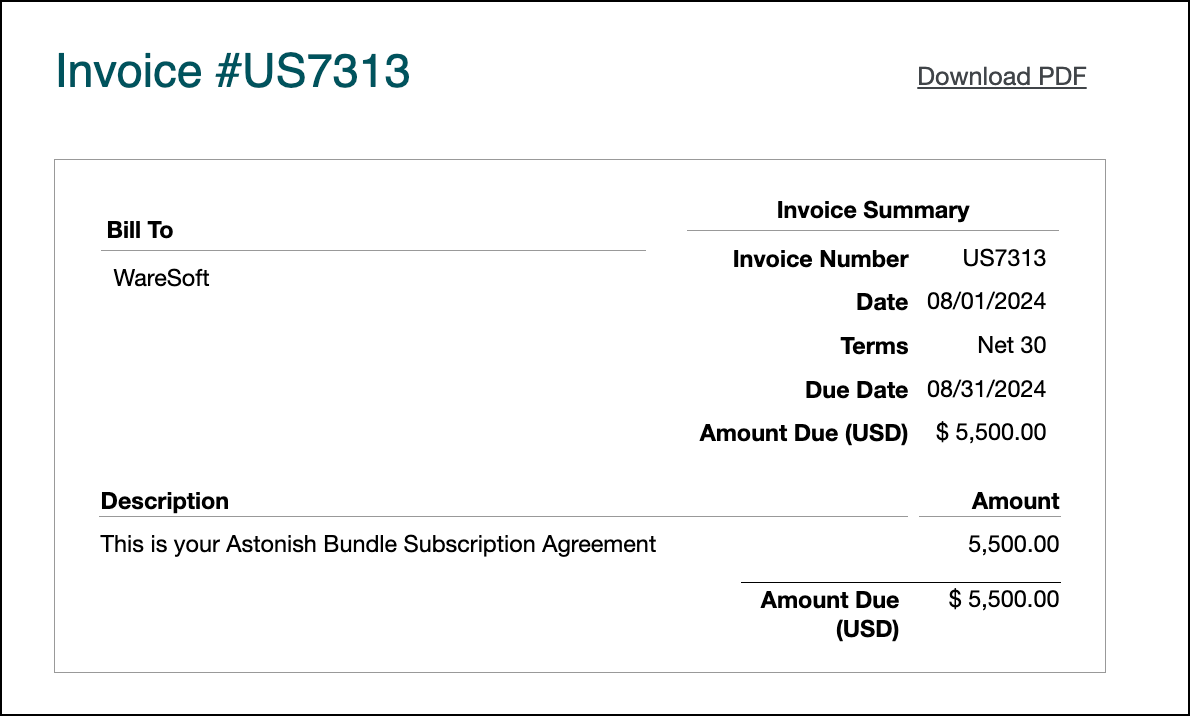
Combine all items
Combine all Invoice Line Items into a single amount. The amounts are added, and the description is set manually in the relevant field. Variables are not supported. Ensure the Theme excludes the Item or QTY fields for this option.
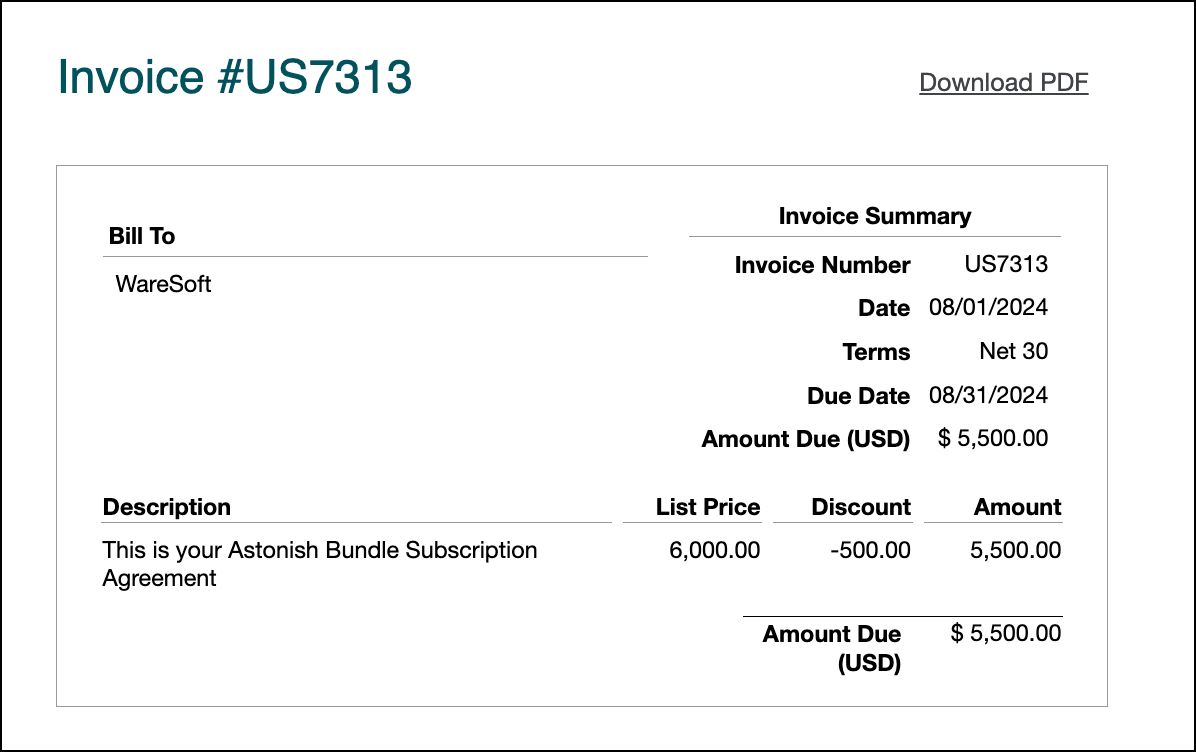
Combine all items, show discounts
Combine all positive-value Invoice Line Items and display negative-value Invoice Line Items as a Discount column.
Still need help?
Reach out and our support team will take it from here.