
Using Purchase Order Numbers
Last updated on Sep 3, 2026
The Purchase Order Number (PO Number) field in Maxio helps ensure accurate Invoice tracking, supports audit requirements, and improves visibility for Customers during the billing process. The PO Number field is alphanumeric in Maxio and appears on the Invoice Data tab of the Invoice view. If enabled, the PO Number also appears in the Invoice Summary section of the e-Bill sent to your Customer.
If you use QuickBooks Online and the Purchase Order Number is missing from the Invoice view, refer to the QuickBooks Online and PO Numbers section. If the Purchase Order Number is visible in the view but does not appear on your e-Bills, see the e-Bill and PO Numbers section.
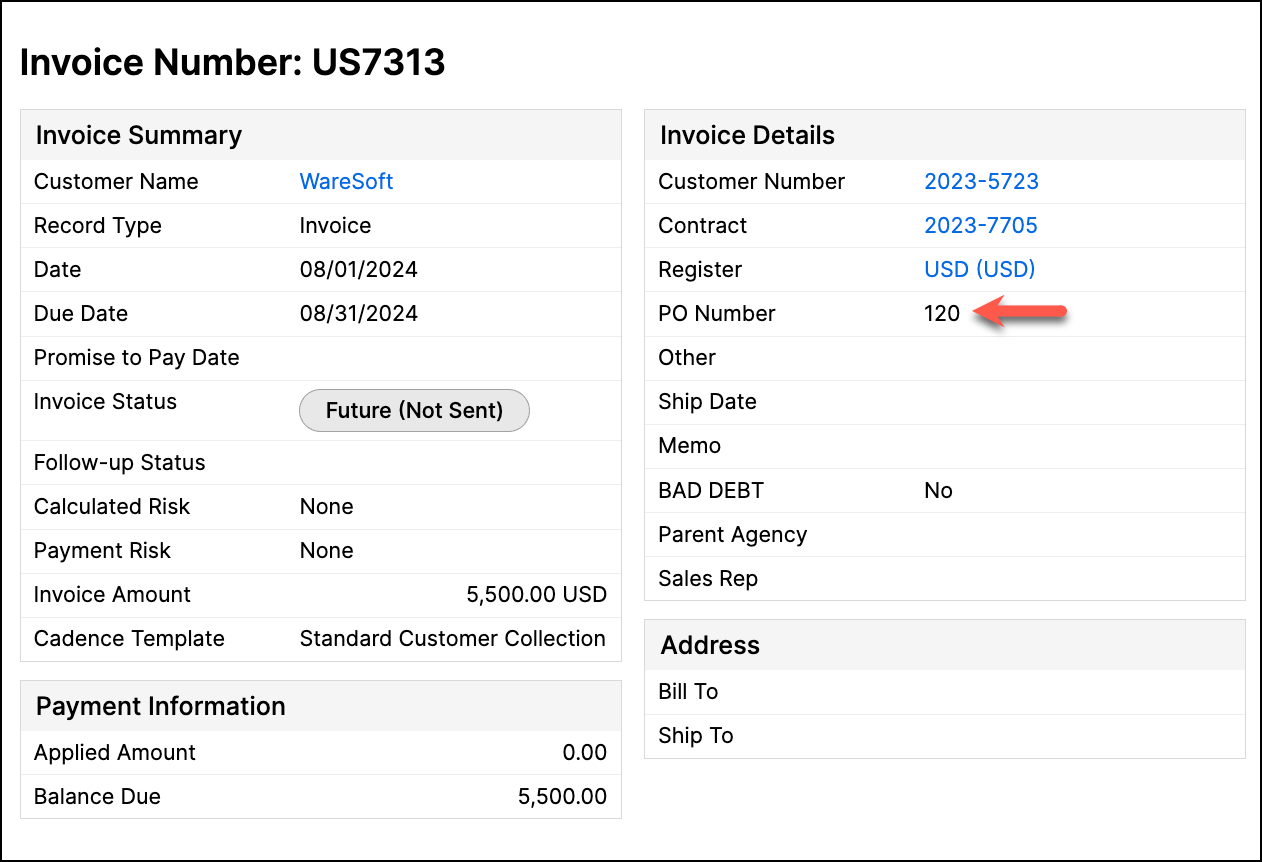
Adding PO numbers to Invoices
You can add PO Numbers to your Invoices as part of most Invoice creation processes in Maxio, including:
- Creating Transactions and Invoices through the Add Transactions option.
- Processing Sales Orders synced from Salesforce.
- Creating a new Invoice in Maxio.
- Editing an existing Invoice in Maxio.
- Syncing an Invoice from QuickBooks Desktop with the PO Number field populated.
- Generating an Invoice for a Project that has its own PO Number set — see Project-level PO numbers below.
Project-level PO numbers
A Project can have its own Purchase Order Number, set on the Project's edit form (see Edit project details). When Maxio generates a new Invoice for a Transaction linked to that Project, the Invoice inherits the Project's PO Number automatically, as long as the Invoice doesn't already have a PO Number of its own — for example, one you typed in manually while generating the Invoice, or one already present on an existing Invoice being reused. That existing value always takes precedence over the Project's default.
If the Transactions being combined into a single Invoice belong to more than one Project, Maxio doesn't guess which Project's PO Number to use — the Invoice is created with a blank PO Number instead, the same as if neither Project had one set.
Changing a Project's PO Number after it already has linked Invoices doesn't update those Invoices automatically; you're asked to confirm the change separately. See Edit project details for how that confirmation works.
QuickBooks Online and PO numbers
For users integrating QuickBooks Online, the PO Number field is only available if you designate a QuickBooks custom Invoice field to map the PO Number to. Set this using Store PO Number in QuickBooks Custom Field in your QuickBooks Integration Settings (Admin, Integration, QuickBooks, Update Settings).
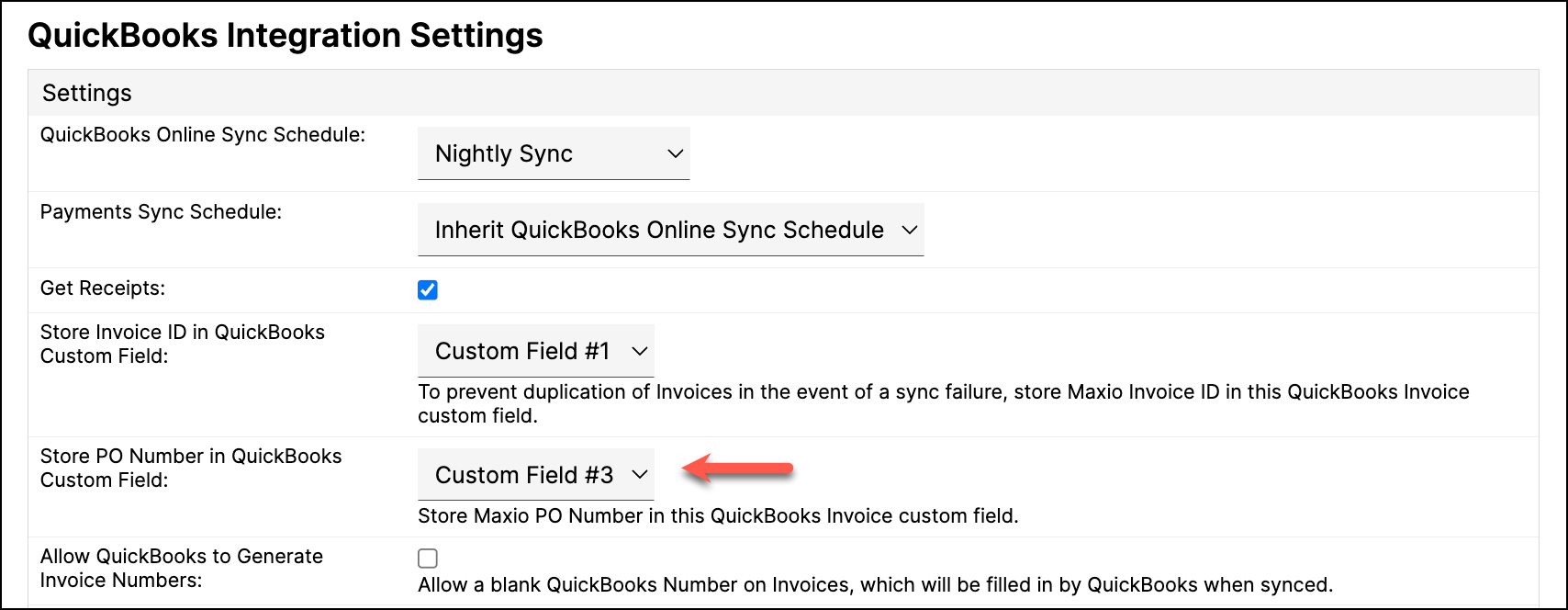
Important: If you do not select a custom field in your integration settings, the Purchase Order Number field will not appear on your Maxio Invoices. This restriction only applies to QuickBooks Online — it doesn't affect QuickBooks Desktop or other general ledger integrations.
e-Bill and PO numbers
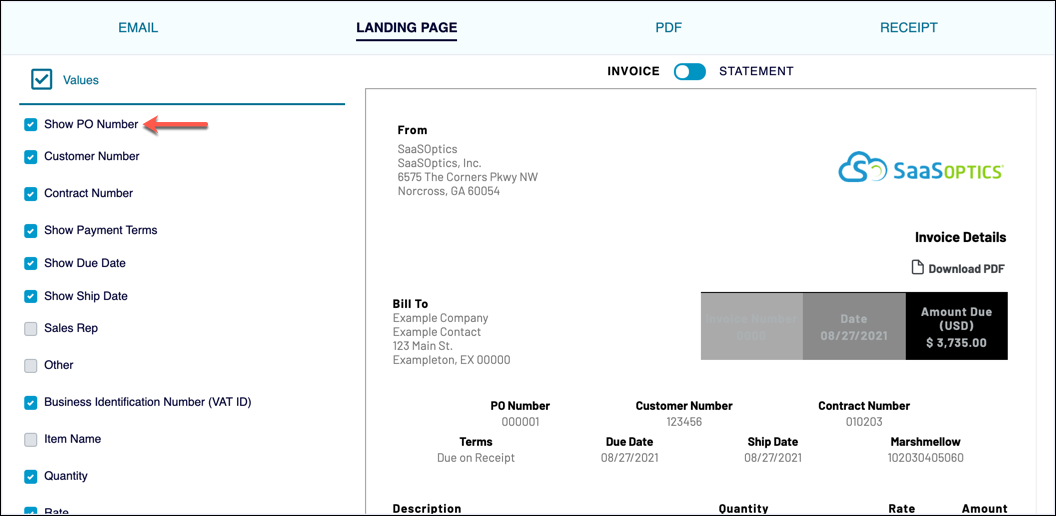
Maxio e-Bills support customizable themes to align your Invoices with your brand. By modifying your e-Bill themes, you can include or exclude specific fields, including the PO Number.
To include a PO Number in e-Bills, select Show PO Number in the Values list under the Landing Page tab of the e-Bill theme. If you use multiple themes, you must enable this option for each theme where the PO Number should appear.
Related information
To group several invoices into a single e-Bill for a customer, see Configure Bundled Invoices in e-Bill.
To set a default PO Number for every Invoice generated for a Project, see Manage Project Details and Milestones.
Still need help?
Reach out and our support team will take it from here.