
Items in Maxio Platform Include the Parent Item or Product Name in QuickBooks
Last updated on Sep 19, 2026
In QuickBooks, you can nest Items or Products under a parent item — for example, a sub-item named Astonishme nested under a parent Item named Astonish. Nesting is a QuickBooks feature, so how QuickBooks itself organizes and labels a nested Item is controlled entirely on the QuickBooks side.

When a nested Item like this syncs to Maxio Platform, the sub-item's name appears with the parent name and a colon, such as Astonish: Astonishme, instead of showing only the sub-item's own name.
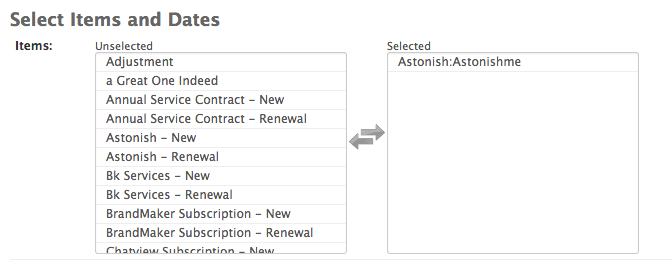
Why sub-item names include the parent name in Maxio Platform
When an Item syncs from QuickBooks to Maxio Platform, Maxio stores the full name QuickBooks provides for that Item rather than only the sub-item's own name. If QuickBooks has nested the Item under a parent, the name QuickBooks sends already includes the parent name and a colon, and Maxio Platform saves that full name as-is instead of trimming it down.
How QuickBooks itself decides to nest Items and format a nested Item's name with a colon happens entirely inside QuickBooks — Maxio Platform is only reflecting whatever full name QuickBooks provides.
Rename the Item in Maxio Platform
If you do not want the parent name included as part of the Item name in Maxio Platform, you can edit the Item's name directly in Maxio Platform. For instance, to have Astonish: Astonishme display in Maxio Platform as Astonishme, edit the Item in Maxio Platform and change its name.
Editing the Item's name in Maxio Platform does not change the Item in QuickBooks, and it does not change the sub-item's relationship with its parent Item. When Maxio Platform syncs a renamed Item back to QuickBooks, it sends only the new name you entered, not a parent reference, so QuickBooks continues to relate the Item to its parent exactly as it did before.
Deactivate the parent Item to remove it from selection lists
If you do not want the parent Item to appear as a selection option when creating Transactions or Invoices, make the parent Item Inactive in Maxio Platform. Inactive Items cannot be used to create new Transactions in Maxio Platform, though every Item, active or not, remains available in reports.
Related information
The Item name stored in Maxio Platform can also fall out of sync with QuickBooks for a different reason; see Item's Name in Maxio Core Does Not Match the Name in QuickBooks.
For general steps on adding, editing, and deactivating Items in Maxio Platform, see Understand Items.
Still need help?
Reach out and our support team will take it from here.