
QuickBooks Sync Issue: A suitable address could not be found for this Invoice
Last updated on Aug 28, 2026
When Maxio tries to sync an Invoice to QuickBooks, the sync can fail with this issue:
A suitable address could not be found for this Invoice.
This means Maxio could not find any address, on the Invoice or on the Customer or Contract behind it, with both a country and a zip code filled in. Without one, AvaTax has nothing to calculate sales tax against, so Maxio skips the Invoice out of the sync batch until an address is added.
Why AvaTax cannot find a usable address for the Invoice
Before sending an Invoice to QuickBooks, Maxio hands AvaTax an address to calculate sales tax against. It looks for that address in a set order, controlled by the account's AvaTax destination-address setting (Shipping or Billing, Billing or Shipping, Shipping only, or Billing only). Under the default Shipping or Billing order, Maxio checks, in turn: the Invoice's own shipping address; then the shipping address on the Invoice's Contract (its QuickBooks Job Profile) or, if the Contract has none, the shipping address on the Customer's QuickBooks Billing Profile; then the Invoice's own billing address; then the billing address on that same Contract or Customer profile.
An address only counts as usable if it has both a country and a zip code populated. If none of the addresses checked in that order have both fields filled in, Maxio cannot calculate sales tax for the Invoice, raises this sync issue, and moves on to the next Invoice in the batch. This check applies the same way whether the Invoice is syncing to QuickBooks Online or QuickBooks Desktop.
Add or validate an address on the Invoice
Fix the missing address directly on the Invoice, then validate it with AvaTax.
The Invoice's Address Data tab holds separate Billing Address and Shipping Address panels, each with its own Validate with AvaTax button, as shown below.
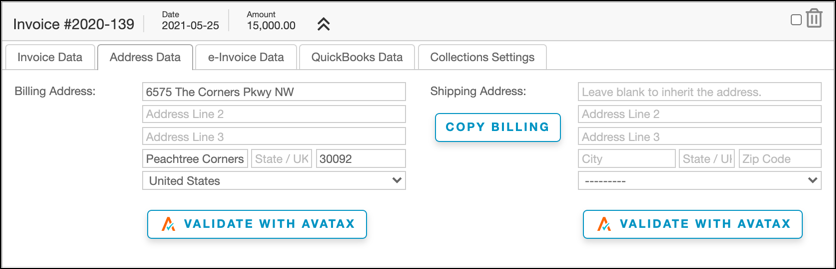
To add or validate the Invoice's address
- Click the Invoice number linked in the sync issue message to open the Invoice, then edit it.
- Open the Address Data tab. If the address type your account uses for tax calculation (Billing, Shipping, or both) is blank, enter one.
- Click Validate with AvaTax for that address to confirm it resolves to a real, taxable location.
- Once validation succeeds, return to the QuickBooks sync page and sync again.
Prevent missing addresses on future Invoices
When an Invoice has no address of its own, Maxio falls back to the address on its Contract's QuickBooks Job Profile or, failing that, its Customer's QuickBooks Billing Profile. If neither of those has a validated address either, every future Invoice tied to that Contract or Customer is likely to hit this same sync issue. Adding and validating a billing address, a shipping address, or both, on the Customer's or Contract's QuickBooks profile prevents it from recurring for that Customer's Invoices going forward.
Related information
For steps to enter and validate an address with AvaTax on a Customer, Contract, or Invoice, see Validate Addresses with AvaTax.
Still need help?
Reach out and our support team will take it from here.