
Understand Billing Portal Invitations
Last updated on Aug 28, 2026
Invite your subscribers to the Billing Portal automatically at signup, or manually whenever you're ready, then track who's accepted and who still needs access from one management screen.
Choose how to invite subscribers
You control how subscribers first learn about the Billing Portal: invite them automatically as soon as they sign up, or send invitations manually on your own schedule. Once invited, a subscriber can access the portal going forward using any of the methods described in Understand Billing Portal Authentication.
Invitation link expiration
The invitation email is valid for 48 hours after it's sent.
Once accepted, the Billing Portal management link remains available for 65 days by default. Set this expiration from Advanced Billing by going to Config > Settings > Billing Portal tab, then scrolling to Billing Portal Link Expiration Time.
Automatic invitations
With automatic email invitations enabled, Maxio sends an email invitation to your new subscribers. This email contains a link that gives the subscriber automatic access to manage their Subscription.
Manual invitations
If manual invitations are enabled, a subscriber must be added manually to the Billing Portal. Enable an individual subscriber by selecting Enable Portal Access at the bottom of a Subscription's Summary page. See Subscription Summary Overview for more on enabling a subscriber's access from there.
Invitation email content
If you've enabled the Billing Portal, it's important to customize the invitation email. See Invitation email content for more.
Billing Portal customer list management
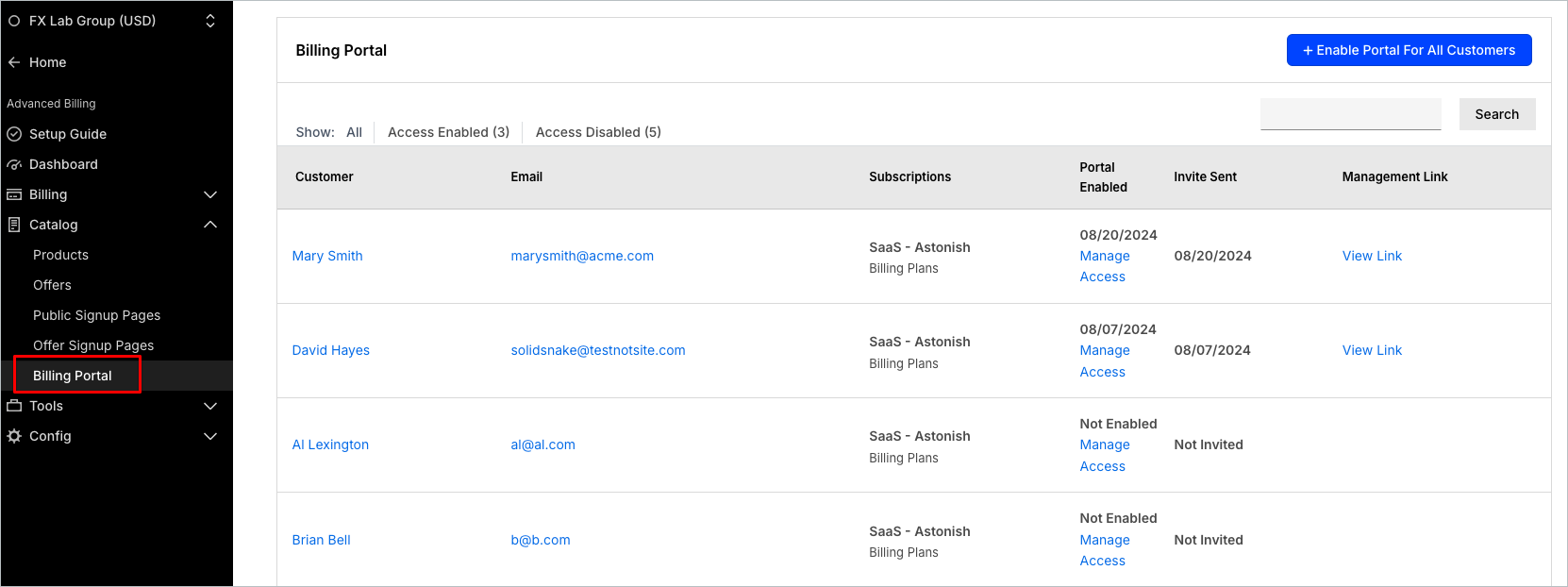
Merchants can view a complete list of who's currently invited to use the portal, and whose access hasn't been enabled yet, from the Billing Portal screen under Catalog in Advanced Billing.
Customer search
Search for a particular subscriber by entering their customer name.
Access filters
Filter for Access Enabled or Access Disabled to view the group and count of Customers by their current portal status.
View link
Select View Link for a Customer to see a popup displaying the management link for their Subscription.
Manage access
Select Manage Access for a particular Customer to be redirected to their Subscription.
Enable portal for all customers
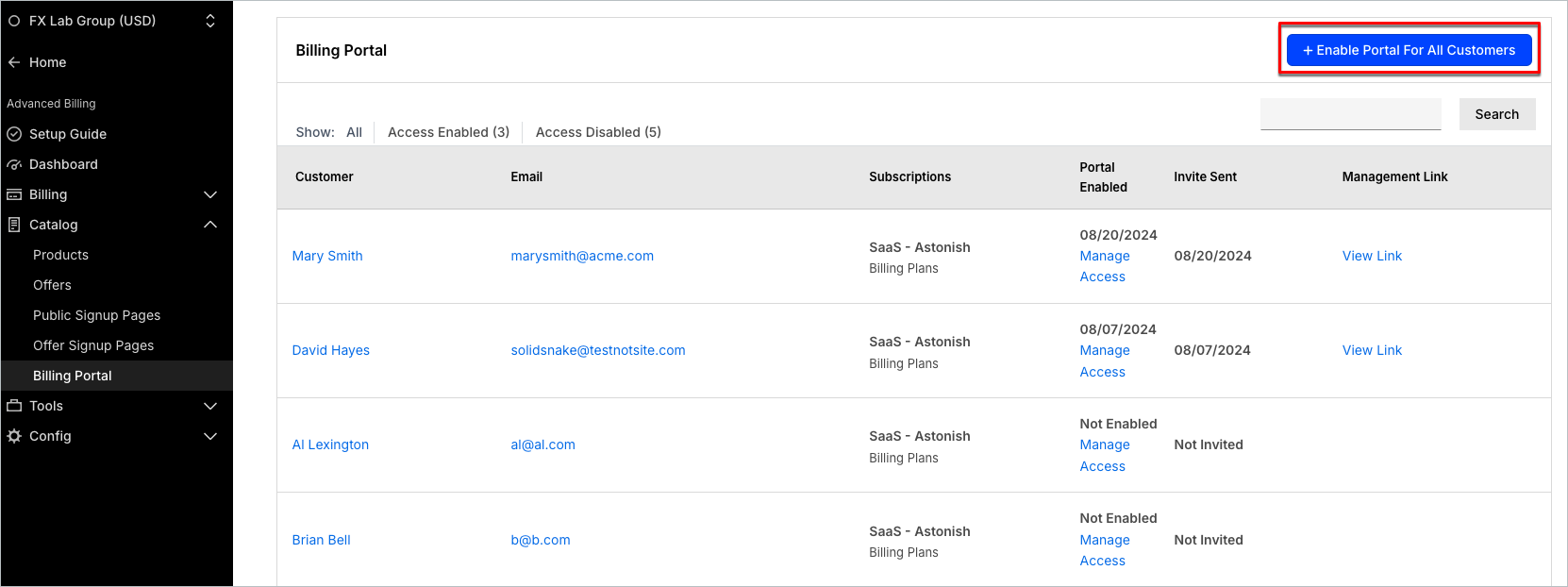
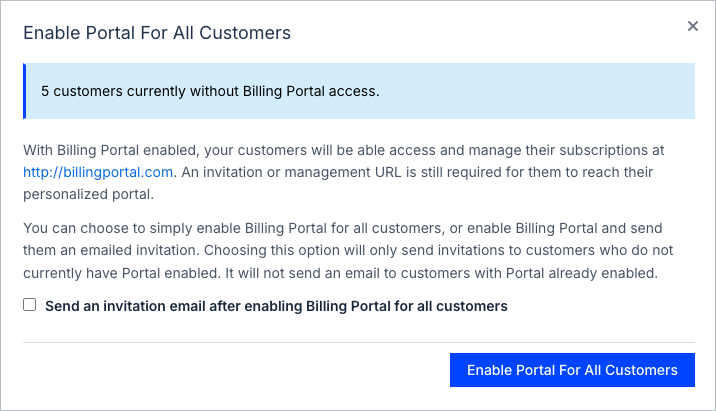
From the management portal, enable the Billing Portal for all Customers who have live Subscriptions. This doesn't enable access for Customers whose Subscriptions are in an end-of-life state, and Maxio automatically filters for eligible Customers with no or revoked access.
Choose to send an invitation email as the specified Customers are given Billing Portal access, or send the invitation manually from the Subscription later. Choosing to send an invitation only emails Customers who don't already have Billing Portal enabled.
Related information
See Understand the Billing Portal for an overview of what the Billing Portal does and who it's for.
See Explore Billing Portal Topics for the full set of Billing Portal setup, access, and support articles.
See View Live Pages for another way to look up a Customer's exact Billing Portal URL.
Still need help?
Reach out and our support team will take it from here.