
Manage Products in the Billing Portal
Last updated on Aug 28, 2026
Let subscribers view and edit the Products on their Plan directly from the Billing Portal, including quantity-based, on/off, and one-time Products.
View products
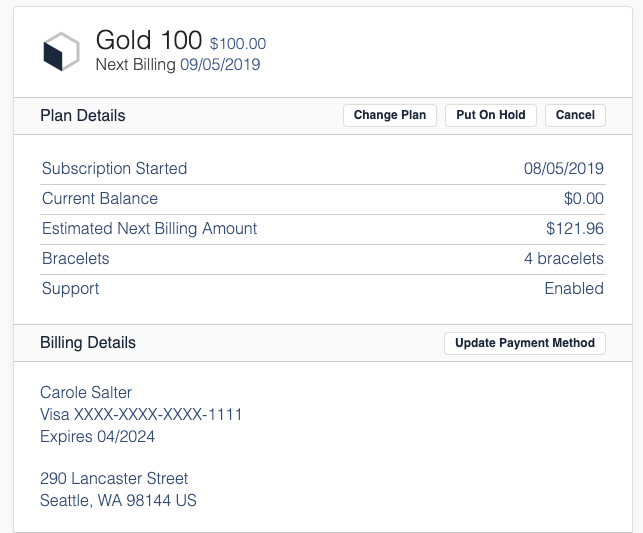
If a subscriber has purchased Products, they can view the currently allocated amounts under Plan Details in the Billing Portal. In the screenshot below, Carole Salter's Plan Details show 4 Bracelets and Support enabled.
Edit products
Subscribers can modify quantity-based, on/off, and one-time Products. Metered Products can't be edited within the Billing Portal.
In the Billing Portal, you can give a subscriber the option to edit the number of Products they've purchased.
Configure products for editing in the Billing Portal
When setting up Products in Advanced Billing, designate whether an individual Product is allowed to be edited in the Billing Portal. This is controlled via the checkbox under User Access.
Configure Billing Portal settings to allow product updates
In addition to allowing edits to the Product itself, enable Allow Product Changes in the Billing Portal settings.
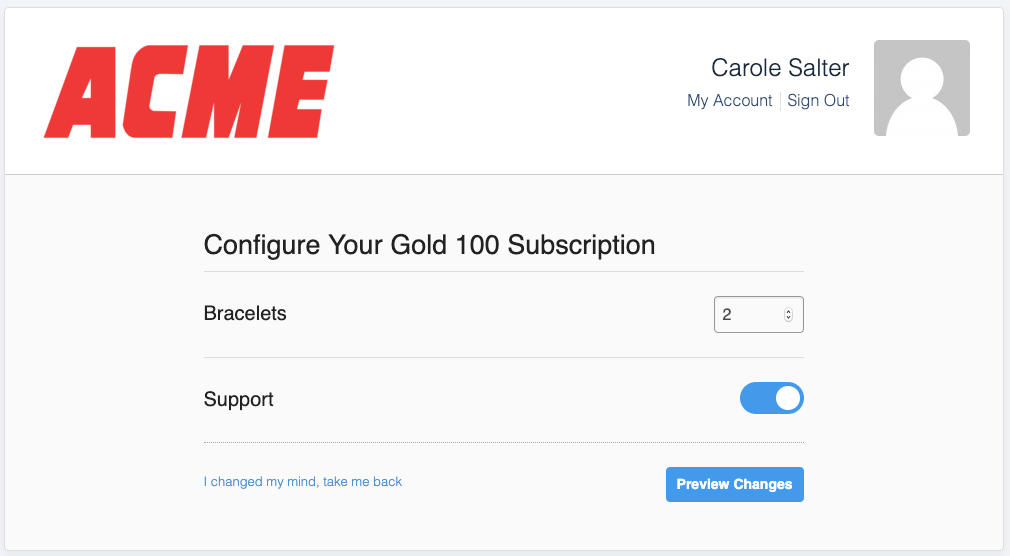
Once these two options are enabled, your subscriber can change their Products. In the example below, only Bracelets and Support can be edited in the Billing Portal.
Preview product changes
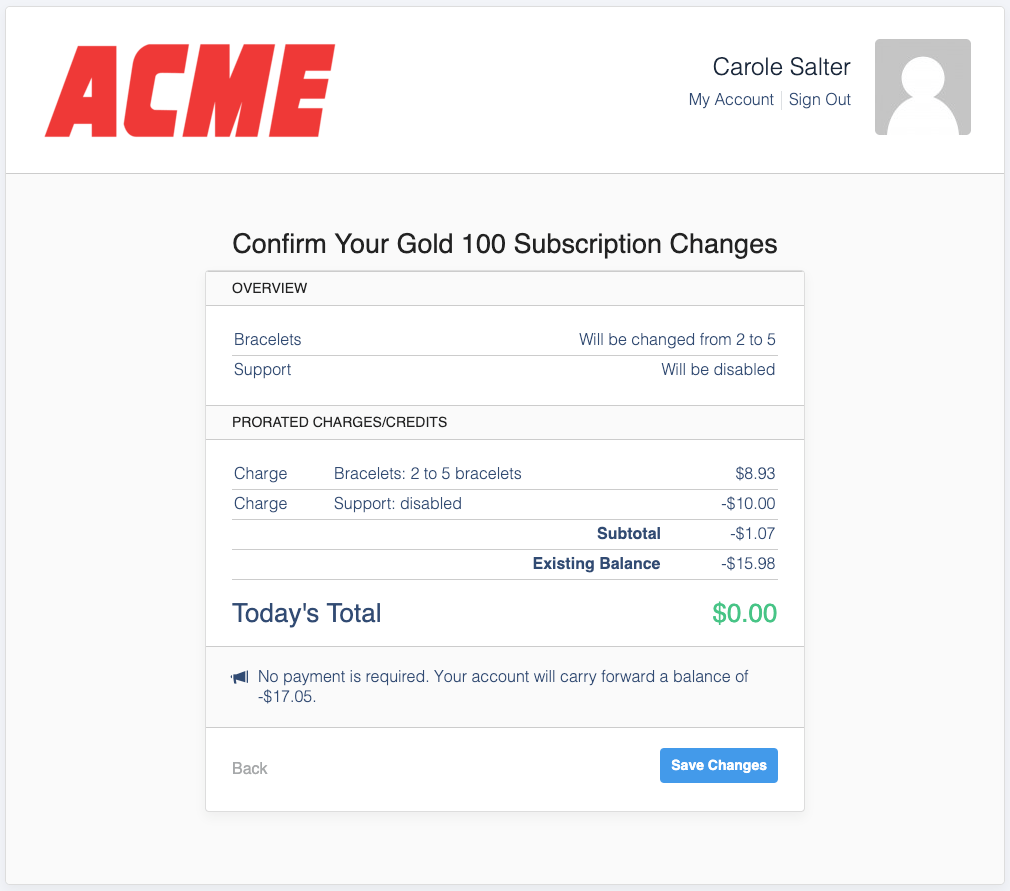
Once a subscriber selects additional Products to add to their Subscription, they're presented with a preview of any charges applied to the card on file.
This example shows a Product change request with proration. It displays the amount of proration applied, and when the card on file is charged.
Understand proration for product changes
When subscribers change associated Products, the proration applied stems from your site's default Product settings.
Related information
See Configure Product Settings for more on your site's default proration settings.
See Understand How Products Are Billed for the different proration options.
See Configuring Billing Portal Options for how to enable Product changes in the Billing Portal.
See Understand the Billing Portal for an overview of what the Billing Portal does and who it's for.
See Explore Billing Portal Topics for the full set of Billing Portal setup, access, and support articles.
Still need help?
Reach out and our support team will take it from here.