
Set Up Project Templates
Last updated on Sep 19, 2026
Project Templates are used during the initial creation of a Project as the "base model" upon which a new Project is built.
View Project Templates
Go to Projects, then click Templates to open the Project Templates page. The page displays a list of all existing Templates in your account; click the name of an existing Template to modify or delete it.

Please be aware that this article is related to Maxio Platform's Projects functionality. Projects in Maxio Platform allow you to gradually build out Contracts for any Sales Orders that have been booked with incomplete or yet-to-be-determined elements.
Create a Template
You can create as many Templates as are needed, each with its own Milestones and Triggered Actions.
To create a Project Template
- From the Project Templates page, select Add Project Template.
- Enter a Name for the Template and click Save.
- On the Template's detail view, select Add Milestone to add each Milestone the Template needs, along with its Triggered Actions.
Milestones and Triggered Actions
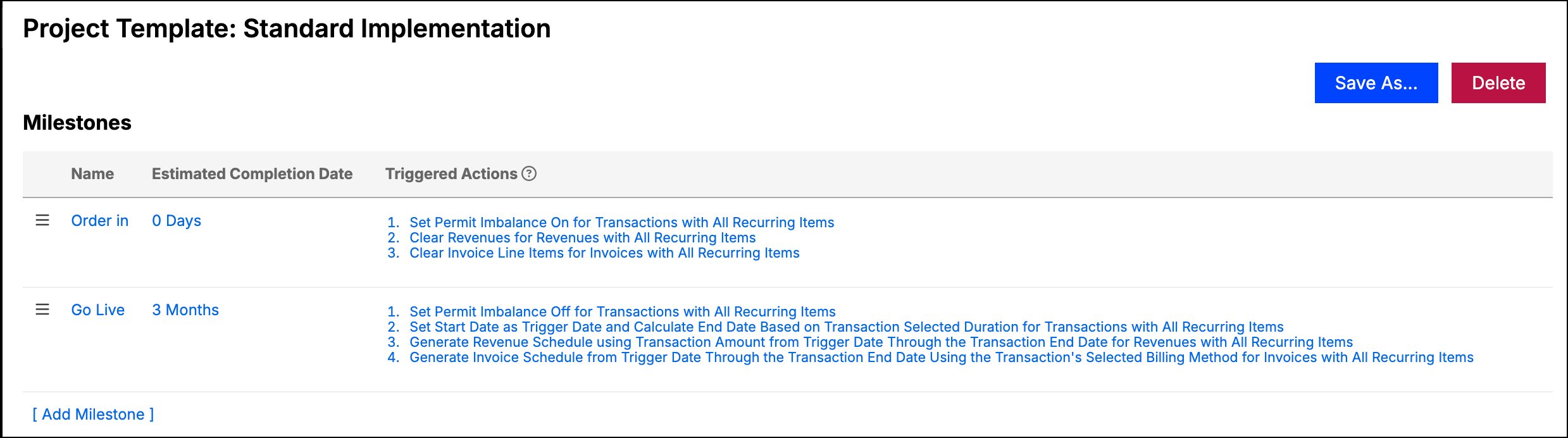
A Milestone is an event-driven marker that triggers a set of specified actions (Triggered Actions) at a specified point in time (Trigger Dates), letting you create and update Invoices, Revenue Entries, and Transaction information for Contracts with yet-to-be-determined elements. As new details of a Contract are unveiled or key Contract-related events take place, mark the corresponding Milestones complete to "fire" their Triggered Actions.
The individual Template view displays all the Milestones contained within the Template, and lets you select Save As... to clone the Template under a new name. When Milestones are added to, edited, or deleted from a Template, Projects that have already been created are not affected by these changes. Likewise, modifying the Milestones on an individual Project doesn't affect the Template it was created from. Each Project's Milestones are its own once the Project exists.
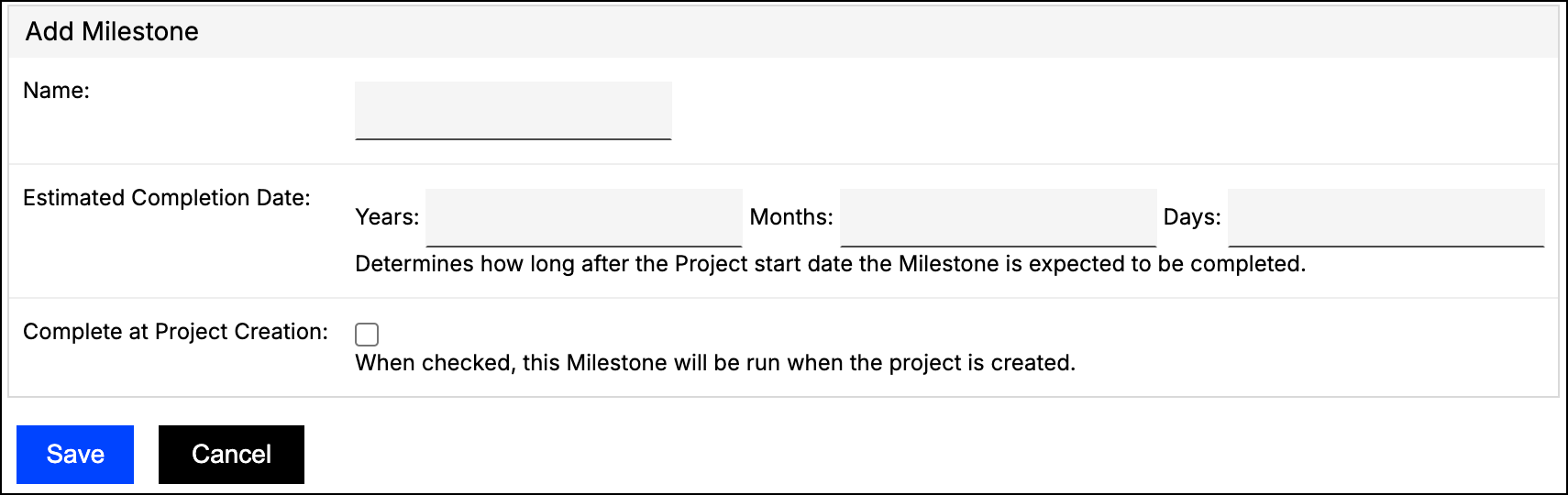
Add Milestone
Add a Milestone to define an event that fires one or more Triggered Actions.
| Field | Description |
|---|---|
| Name | The name of the Milestone being created, which typically correlates with a real-life event.
|
| Estimated Completion Date | Enter an offset, in Years, Months, and/or Days, after the Project Start Date. This determines how long after the Project Start Date the Milestone is due to be completed. The Due Date appears as a reminder in the Projects List and the Project view. When a Due Date has passed, a warning icon appears next to that Project in the Projects List. If left blank, the Milestone is considered due on the same day as the Project Start Date. |
| Complete at Project Creation | Check this box for the Milestone to be automatically marked as complete upon Project creation, which fires the Triggered Actions when you save the Project. This feature is often used for an "Order In" or "Contract Signed" Milestone. |
Triggered Actions
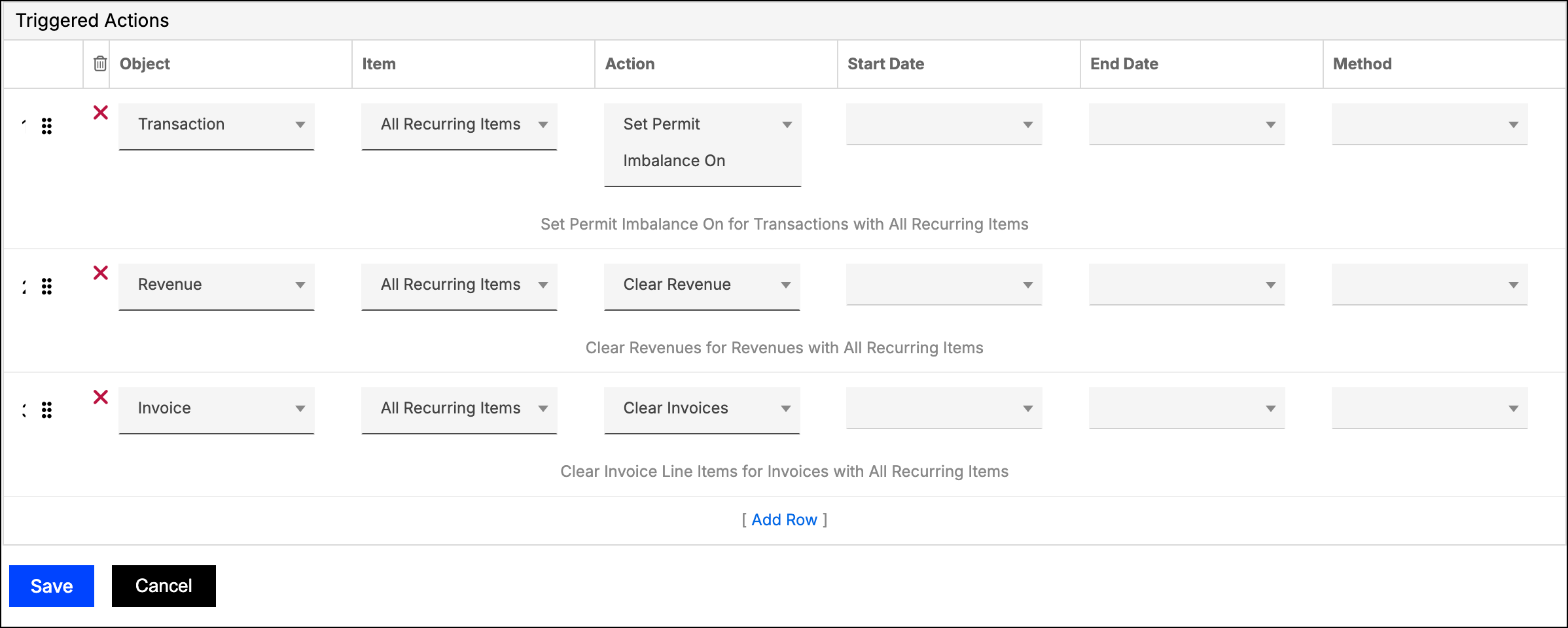
A Milestone's Triggered Actions fire in the order shown; drag and drop to reorder them.
| Column | Description |
|---|---|
| Object | Select a type of financial record to perform a specific action upon.
|
| Item | Choose an Item or category of Items to which the Triggered Action applies. Any Transactions in the Project that use this Item are subject to the Triggered Action upon the completion of the Milestone.
|
| Action | Choose which Action to perform on the selected Object when the Milestone is marked complete. If your selected Action requires a percentage, amount, Start Date, End Date, or Method to be specified, enter an input for those fields before you can save the Milestone. |
Delete a Template
Deleting a Project Template deletes all of its Milestones (and their associated due dates and Triggers). This action cannot be undone. Existing Projects created using the Template are not deleted or altered.
Related information
You can learn more about Projects in Understand Projects.
To filter Transactions by Project Template, see Track Projects and Transactions from the Landing Page.
Still need help?
Reach out and our support team will take it from here.