
Choose Accepted Card Brands
Last updated on Aug 28, 2026
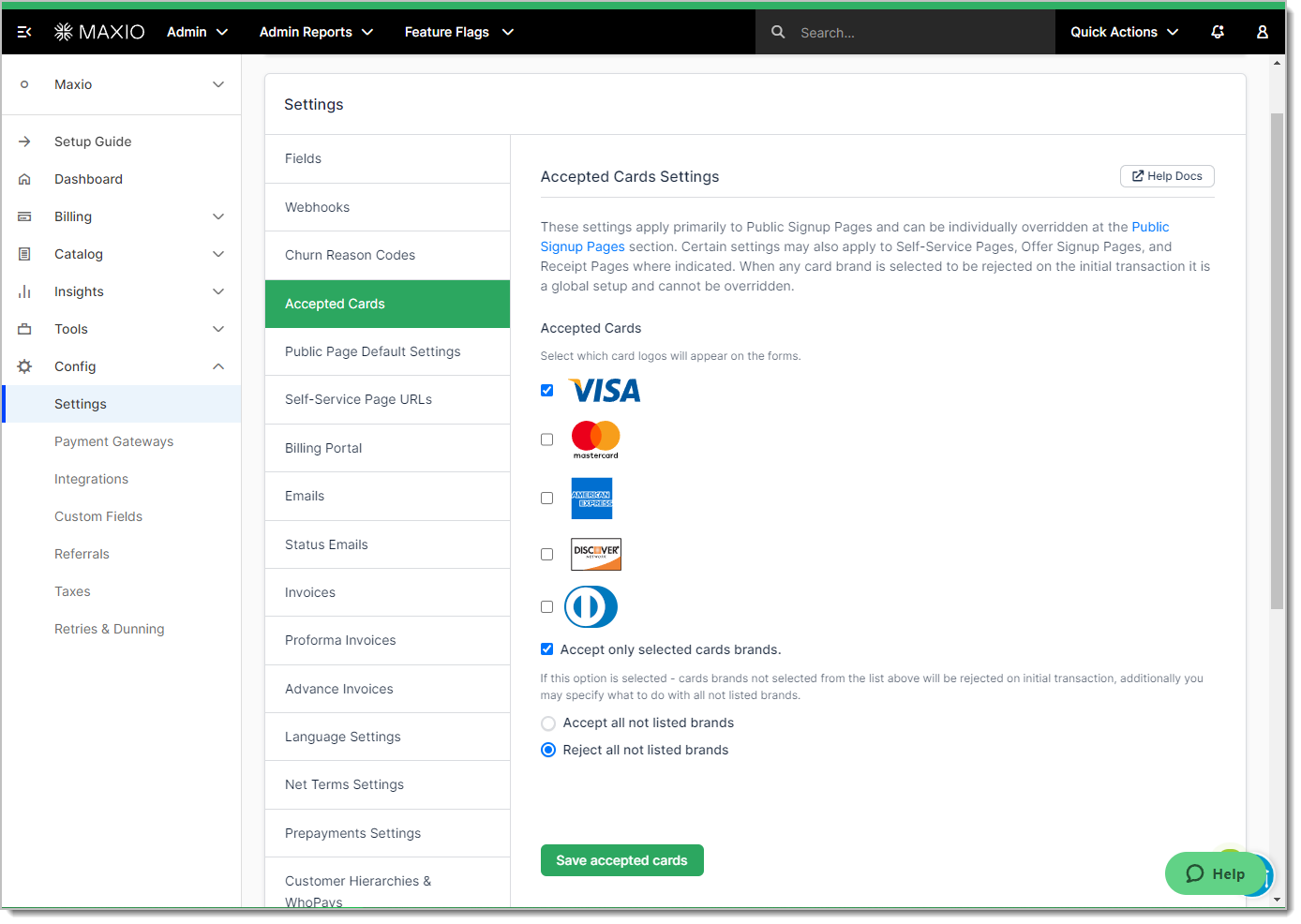
Select which card brands your Public Pages accept from the Accepted Cards settings. These settings apply primarily to Public Signup Pages and can be individually overridden in the Public Signup Pages section. Certain settings may also apply to Self-Service Pages, Offer Signup Pages, and Receipt Pages, as indicated. Rejecting a card brand on the initial transaction is a global setting and can't be overridden for an individual page.
Select accepted card brands
To choose which card brands your Public Pages accept
- Navigate to Config > Settings > Accepted Cards.
- Select the checkbox next to each card brand you want to accept: Visa, Mastercard, American Express, Discover, or Diners Club.
- Optional: Select Accept only selected card brands to reject any brand you didn't check on the initial transaction. Then choose Accept all not listed brands or Reject all not listed brands for brands outside this list entirely.
- Select Save accepted cards.
What to expect
Saving these settings changes which card logos appear on your Public Pages. By default, customers can still pay with any card brand regardless of which boxes are checked. Selecting Accept only selected card brands is what actually blocks payment with an unlisted brand.
When a customer tries to pay with a rejected brand, they see an error naming an accepted alternative.

Related information
See Understand Public Pages for an overview of Public Signup Pages and Self-Service Pages.
See Configuring Public Page Default Settings for the other default settings that apply across every Public Page.
Still need help?
Reach out and our support team will take it from here.