
Configure Proration Schemes for Products
Last updated on Aug 27, 2026
Advanced Billing supports prorated charges for quantity-based and on/off Products. Depending on your proration scheme, changes to the allocated quantity during a billing period can result in either a charge or a credit to the Subscription. You can also choose not to apply proration.
Important: To add charges for a Customer's Products, you must report the Product's status or quantity to Advanced Billing. See Understand How Products Are Billed for how Product Allocations work.
Proration period
Proration is based on the length of the current billing period for the Subscription, not the Product's own configured billing period.
For example, if a Subscription's current period runs January 1 to February 15 (an extended period), and a Product is allocated on January 15, proration applies to the remaining 30 days of that billing period, not to 15 days.
If you modify the current billing period's end date, you may need to manually calculate and apply prorations for that billing period. The same applies if a trial period doesn't match the Product's billing period length.
Proration upgrades and downgrades
When you change the allocation of a quantity-based Product, Advanced Billing determines whether the change is an upgrade or a downgrade:
- Upgrade - The new computed cost is greater than the previous cost.
- Downgrade - The new computed cost is less than the previous cost.
Proration schemes
The action Advanced Billing takes when a prorated allocation occurs is defined by the proration scheme. The default scheme is configured at the Site level under Config > Settings > Products.
You can also select the proration scheme when creating the allocation. Because it may not be clear in advance whether a change results in an upgrade or downgrade, you must define both upgrade and downgrade schemes at the time of allocation.
This setting can be overridden by the Product proration setting.
To configure the default proration scheme
- Navigate to Config > Settings > Products.
- Select the appropriate global Product setting.
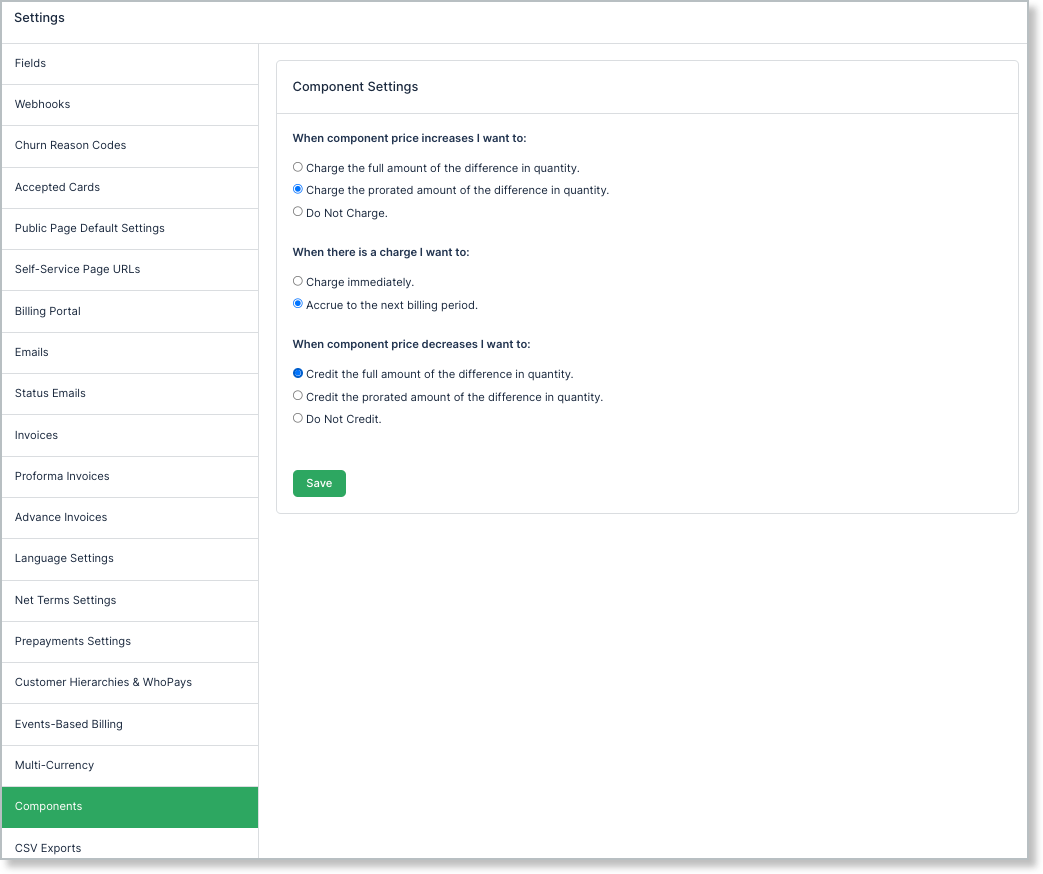
Proration scheme types
Advanced Billing groups proration schemes into four types, covering upgrades, failed upgrade charges, dunning, and downgrades.
Upgrade scheme
Choose how an upgrade's price difference is charged:
- Charge the full amount of the difference in quantity - Adds a charge for the full price difference.
- Charge the prorated amount of the difference in quantity - Adds a charge for the prorated price difference.
- Do Not Charge - No charge is added.
Accrue upgrade scheme
Choose when Advanced Billing attempts an upgrade charge:
- Charge immediately - Attempts to charge the Customer immediately. If the charge fails, it is accrued until the next renewal.
- Accrue to the next billing period - Attempts the charge at the next renewal.
Dunning scheme
Choose what happens if a mid-period allocation charge fails:
- Leave the charges on the Subscription to pay at renewal - If a mid-period allocation charge fails, the charges are accrued to renewal.
- Initiate dunning for the Subscription - Initiates dunning if a mid-period allocation charge fails.
Downgrade scheme
Choose how a downgrade's price difference is credited:
- Credit the full amount of the difference in quantity - Adds a full credit for the amount owed.
- Credit the prorated amount of the difference in quantity - Adds a prorated credit.
- Do Not Credit - No credit is added.
Proration credit calculation
Proration uses the current Product price and current tax rates to calculate the difference between the existing quantity and the new quantity. If pricing or taxes have changed, or if the previous allocation was not charged, you may need to manually calculate and apply a charge or credit to the Subscription.
If Product allocations are changed on a Subscription in an end-of-life state, such as Canceled, the quantity is updated but there is no financial impact. No charge or credit is added to the Subscription.
Related information
To see how these schemes apply when you actually change a quantity, see Configure Quantity Proration for Product Updates.
Still need help?
Reach out and our support team will take it from here.