
Configure Quantity Proration for Product Updates
Last updated on Aug 29, 2026
Updating a Product quantity in Advanced Billing affects how charges appear on an Invoice. It's important to understand how Update Quantity differs from Record Usage, especially when working with quantity-based and metered Products.
Important: To charge a Customer for a Product, you must report the Product's quantity or usage to Advanced Billing. See Understand How Products Are Billed for how Product Allocations work.
Each Advanced Billing Site defaults the upgrade proration setting to Prorate and Accrue.
Update Quantity vs. Record Usage
The action you use depends on the Product type:
- Update Quantity applies to quantity-based Products.
- Record Usage applies only to metered Products.
- Metered Products reset to zero at the beginning of each billing period.
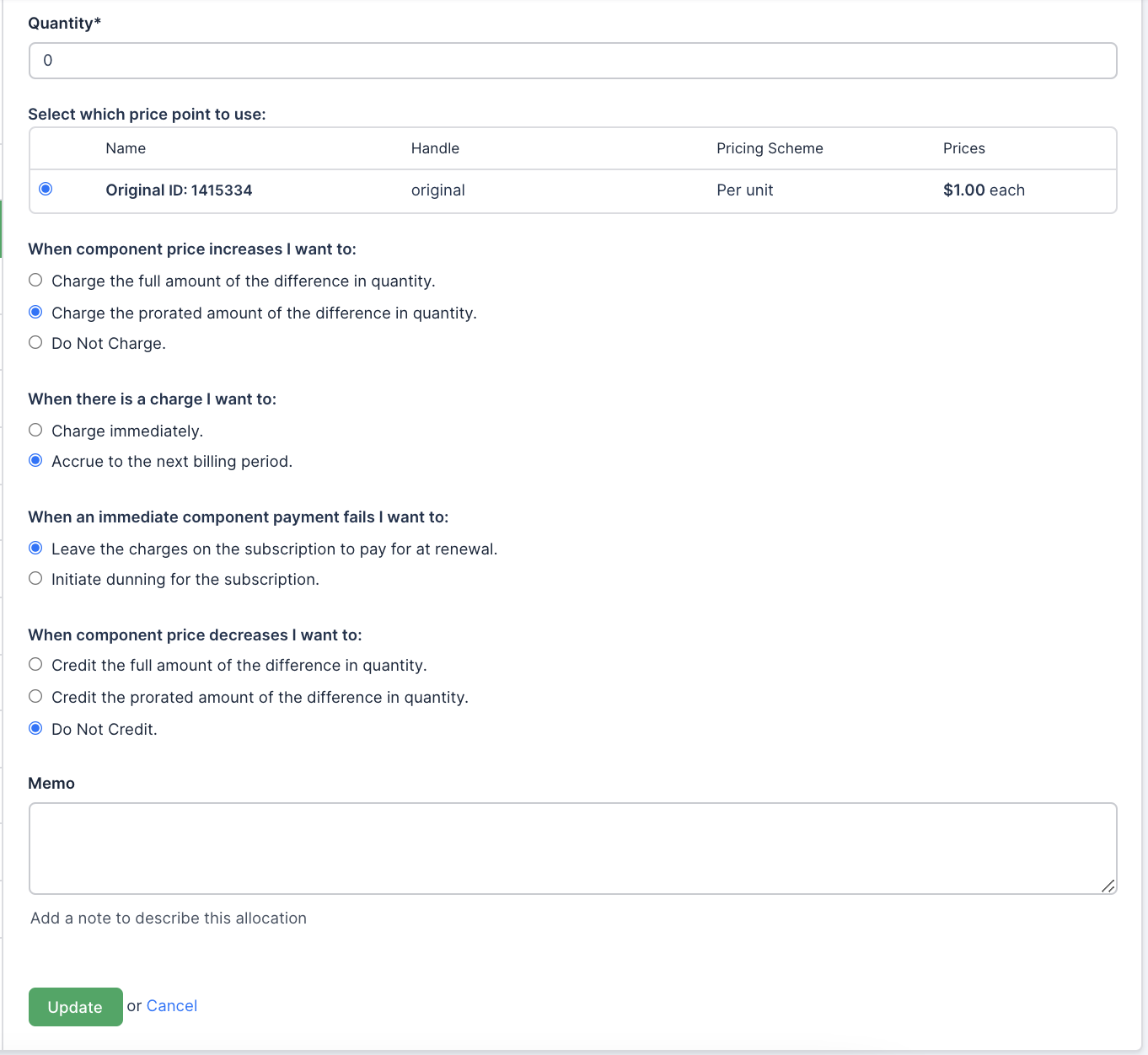
Update quantity and proration
When you update the quantity of a quantity-based Product using the Update Quantity action, you can choose to charge a prorated amount by selecting the Charge the prorated amount of the difference in quantity option.
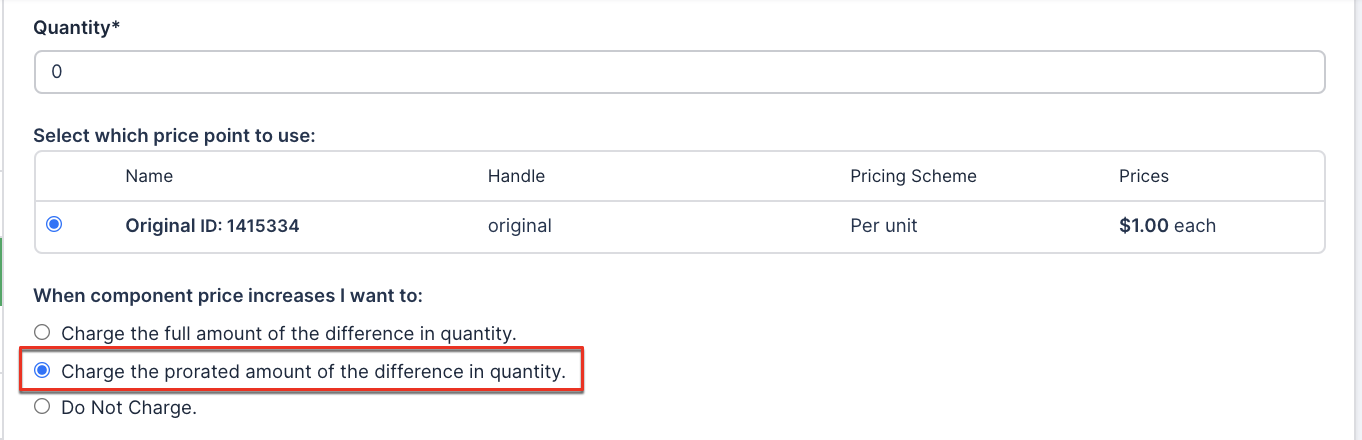
The following formula applies when proration is enabled:
Delta Quantity × Price × % of Period
Where:
Delta Quantity= New Quantity − Old Quantity% of Period= (Current Timestamp − Start of Period) ÷ Original Period Length
How proration appears on the Invoice
On the Invoice:
- Quantity =
Delta Quantity × % of Period - Unit Price =
Price
Proration example
Given:
- The Update Quantity action changes the quantity from 20 to 25.
- The change occurs 49.9% into the billing period.
- The price per unit is $20.
Result:
The Invoice displays:
- Quantity = 2.495 (5 × 49.9%)
- Unit Price = $20
- Total = $49.90 ($20 × 2.495)

Display prorated price instead of prorated quantity
By default, proration adjusts the quantity on the Invoice Line Item.
To display a prorated Unit Price instead
- Navigate to Config > Settings > Invoices.
- Under Invoice Customization > Line Item Elements, select Display Prorated Price Invoice Lines.
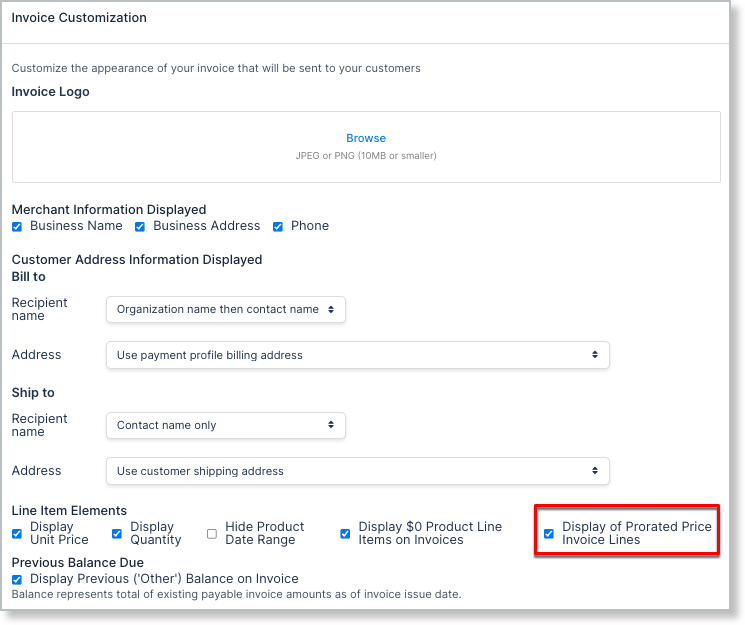
When this setting is enabled, the proration percentage applies to the Unit Price instead of the quantity.
- Quantity =
Delta Quantity - Unit Price =
Price × % of Period
Using the same example:
- Quantity = 5 (25 − 20)
- Unit Price = $9.98 ($20 × 49.9%)
- Total = $49.90 (5 × $9.98)
In both scenarios, the total charge on the Invoice is $49.90. Only the presentation of the Invoice Line Item differs.
Related information
For how the proration schemes referenced above are configured, see Configure Proration Schemes for Products.
Still need help?
Reach out and our support team will take it from here.