
Track Product Usage for a Subscription
Last updated on Sep 8, 2026
View detailed Product usage history for a Subscription directly from the Subscription's Product details page, to review historical allocations, usage activity, and billing-related changes for metered and prepaid Products.
Important: To add charges for a subscriber's Products, you must report each Product's status or amount to Advanced Billing. See Understand How Products Are Billed for how Product Allocations work.
To view a Product's history
- Navigate to the desired Subscription.
- Locate the Product under Product Details.
- Click Actions > View History.
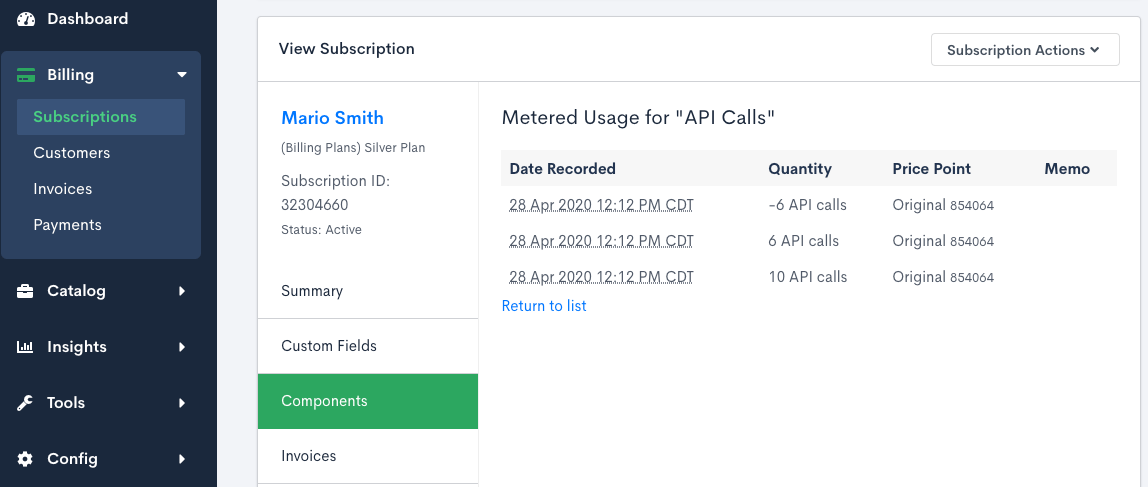
- Select View Usage History to see the past month's usage for that Product.
The exact button text may vary depending on the Product type. For example, metered Products display usage history specific to reported quantities.
If the Subscription belongs to a Subscription Group using consolidated invoicing, mid-period Product allocation charges that are accrued to the next billing period appear on the next consolidated group invoice. Charges marked to be charged immediately generate standalone invoices.
Prepaid Product history
For prepaid Products, the history page opens with two tabs: Activity and Purchase Ledger.
Activity tab
The Activity tab clearly distinguishes between:
- Prepaid - newly purchased allocations
- Used - units recorded against available allocations
This distinction helps you track allocation purchases and consumption over time.
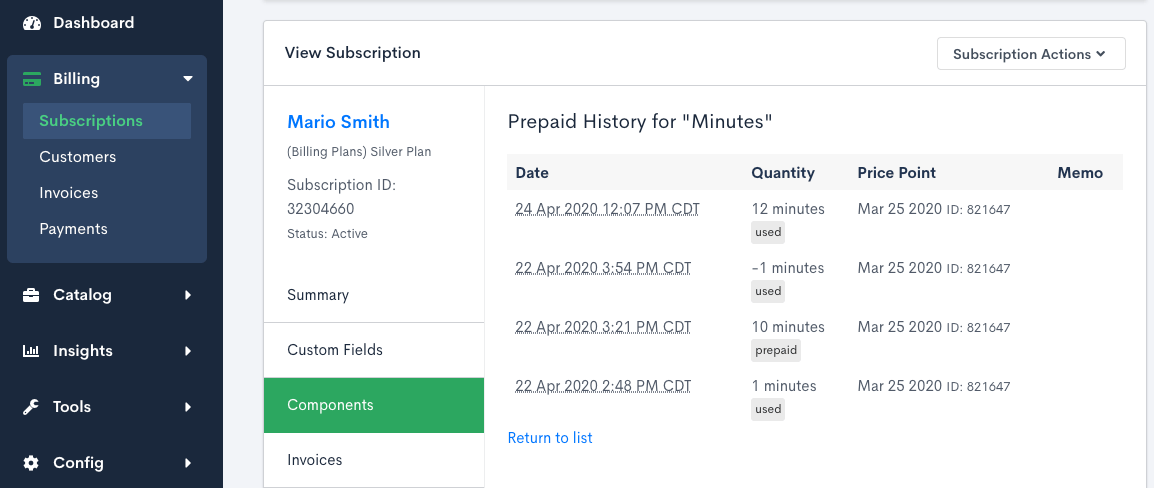
Prepaid history separates purchased allocations and used units. In this example, 10 allocations were purchased and 12 units were used in total.
Purchase ledger tab
The Purchase Ledger tab lists one row per prepaid purchase (allocation), most recent first, so you can see exactly what was bought and how it's being used:
- Date - when the allocation was purchased
- Quantity - the number of units purchased
- Type - whether the allocation is Recurring (granted automatically each billing period) or One-time (a manual top-up)
- Status - Open or Expired
- Price Point - the Price Point the allocation was billed at
- Expiration - the date the allocation expires, if it has an expiration
- Used / Remaining - how many units have been consumed, and how many are left; an expired allocation shows its unused units as expired instead of remaining
- Cost - what the allocation cost
If the Subscription has used more than its purchased allocations, a highlighted Overage row with its cost appears at the top of the first page.
The ledger loads 50 rows per page by default. Use the page size control to switch between 25, 50, and 100 rows per page, and use the pager to move between pages.
Related information
For how consolidated invoicing affects a Subscription Group, see Understand Subscription Groups.
Still need help?
Reach out and our support team will take it from here.