
Manage Advanced Billing API Keys
Last updated on Sep 19, 2026
Create, describe, and delete the credentials your integrations use to connect to Advanced Billing: API keys, which authorize server-side calls to the Maxio API, and a Maxio.js Key Pair, which lets your own pages tokenize payment details in the browser. Both live under Config > Integrations, and both are managed the same way.
View your API keys
To view your current API keys, select Config > Integrations > API Keys.
Keep the following in mind when working with API keys:
- You can have up to 10 API keys per site.
- Managing API keys requires the account permission labeled manages product catalog, settings, and integrations. Admins have this by default, and you can grant it to a team member from their user record. See the Manage Advanced Billing Users help article.
- Each key is masked down to its first five characters. If you have this permission, click the copy or reveal icon next to a key to copy it or see it in full.
- Each key also shows when it was Created and when it was Last Used. A key that hasn't been used in the last 45 days shows Unused in past 45 days.
Create an API key
Each API key is created independently, so you can issue a separate key per integration and retire one without disturbing the others.
To create an API key
- Select Config > Integrations > API Keys.
- Click New API Key.
- (Optional) Enter a Description recording how the key is used. A description helps your team manage and audit each key, and you can change it later.
- Click Create.
Maxio then shows the new key in full, alongside a ready-made Authorization Header you can paste straight into a request. Copy what you need, then click I Have Copied My API Key. If you miss it, you can still reveal and copy the key later from the API Keys list.
Change an API key description
Adding or updating a description helps your team manage and audit the use of each API key.
To change an API key's description
-
Click the Actions button next to the API key, then click Edit.
-
Enter the description and click Save.
Delete an API key
WARNING: Deleting an API key is permanent. You can't recover the key afterward, and any integration still using it stops working.
To delete a key you no longer need, click Actions > Delete next to it, then confirm the deletion.
Manage your Maxio.js Key Pair
Maxio.js (formerly Chargify.js) uses a Key Pair instead of an API key. The public key identifies your site to the browser, and the private key signs the security token that authorizes each tokenization request.
To view your current Key Pair, select Config > Integrations > Maxio.js.
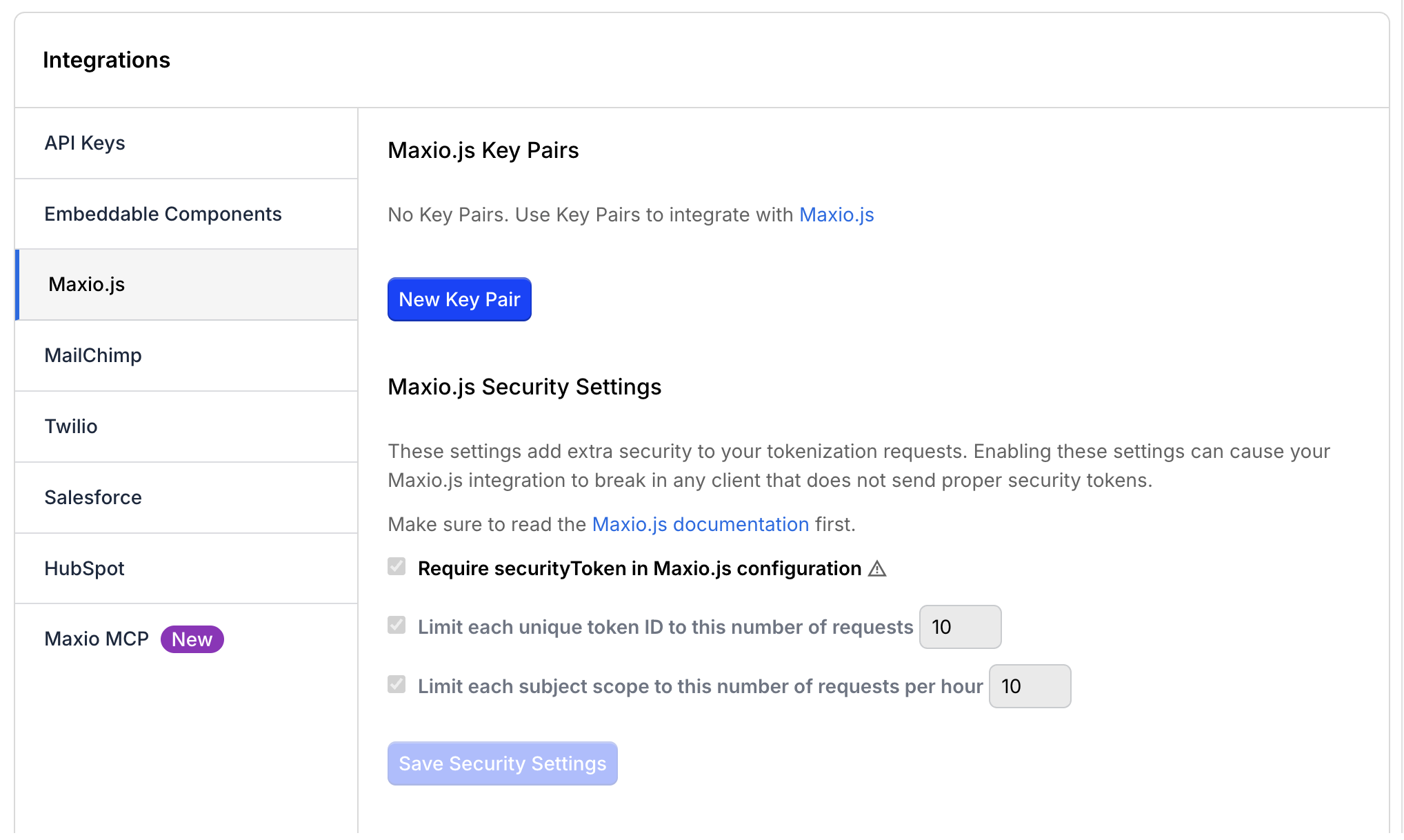
Keep the following in mind when working with a Key Pair:
- You can only have one Key Pair per site. Regenerating it deletes the existing Key Pair.
- The public key is shown in full, but the private key is hidden. Click reveal... next to Private Key to display it.
- You can delete the Key Pair if it's no longer in use.
WARNING: Deleting or regenerating a Key Pair is permanent. You can't recover the old Key Pair, any integration still using it stops working, and if you use Embeddable Components, deleting the Key Pair disables that integration.
To create your first Key Pair, click New Key Pair. To replace an existing one, click Regenerate Key Pair.
Configure Maxio.js security and display settings
The same Config > Integrations > Maxio.js page also has two additional settings:
- Require securityToken in Maxio.js configuration - Turn this on to require every Maxio.js request to include a valid security token, signed with the private key from your Key Pair. This setting also lets you set rate limits per token ID and per subject scope. Click Save Security Settings to save your changes.
- Disable browser autofill in hosted payment fields - Turn this on to prevent browsers from autofilling hosted payment fields on your Public Signup Pages. This setting is only available if you use Maxio.js with Public Signup Pages.
Related information
For details on how to use your Key Pair, see the Understand Maxio.js help article.
For details on how to use API keys in your own requests, see the Maxio Developer Portal.
Still need help?
Reach out and our support team will take it from here.