
Configure Revenue Alerts
Last updated on Sep 19, 2026
Set up a Revenue Alert to get notified when a subscription's MRR crosses a threshold you set, so you can catch a customer whose spend is quietly sliding before the cancellation arrives. Whenever a subscription's MRR changes, Advanced Billing compares the movement against your alert settings and notifies you if it crosses that threshold.
Who can set an alert
Revenue Alerts require the account permission described as views and exports financial metrics, and each user configures their own alerts. Your settings don't affect what anyone else receives.
How the calculation works
Revenue Alerts monitor changes in a subscription's MRR. That MRR value is made up of revenue from Products, On/Off Components, Quantity-Based Components, Metered (Usage) Components, and Event-Based Components. One-time charges and ad-hoc invoices are ignored, so neither ever triggers an alert. See the Create an Ad-Hoc Invoice help article.
When you set a duration, the percentage change is calculated as:
((Current MRR - Starting MRR) / Starting MRR) * 100Current MRR is the value at the moment of the revenue movement, and Starting MRR is the value at the beginning of the duration you specified. Advanced Billing calculates both the percentage change and the movement amount from those two figures, and rounds the percentage to one decimal place.
If a subscription's Starting MRR is zero, the percentage change is reported as 0 rather than an error. An alert set on percentage alone won't fire for a subscription growing from nothing, so use an amount threshold if you need to catch those.
Configure your settings
Revenue Alert settings live under Tools > Revenue Alerts in the sidebar.
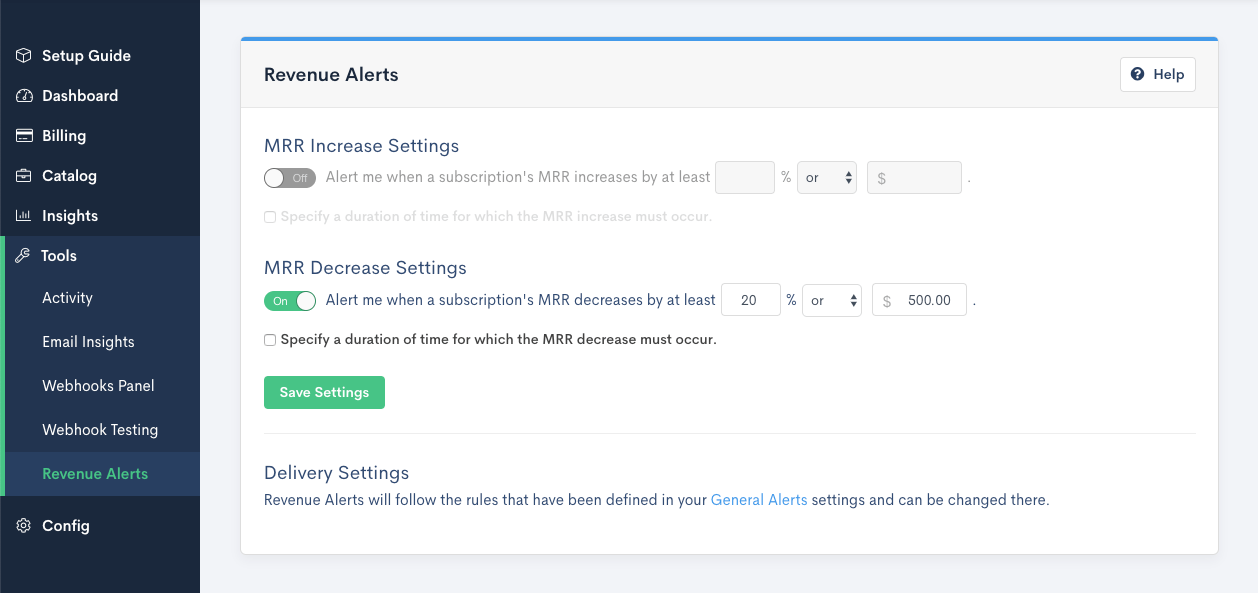
The page has two separate panels, one titled MRR increase Settings and the other MRR decrease Settings, each built from a fill-in-the-blank sentence rather than a set of separate fields. Set up one, both, or neither, depending on which direction of movement you want to catch.
Each panel's sentence lets you set:
- Percentage - The MRR change percentage that triggers the alert. Must be greater than zero.
- Amount - The MRR movement amount that triggers the alert. Must be greater than zero.
- Operator - Whether both the percentage and the amount must be met (and), or either one is enough (or).
You must set a percentage, an amount, or both. Saving with neither returns Please specify a percentage or amount.
Monitor change across several months
You can optionally have the alert measure change over a number of months rather than at a single moment. This is useful for spotting a decline that plays out across several billing periods, where no single month's drop would cross your threshold.
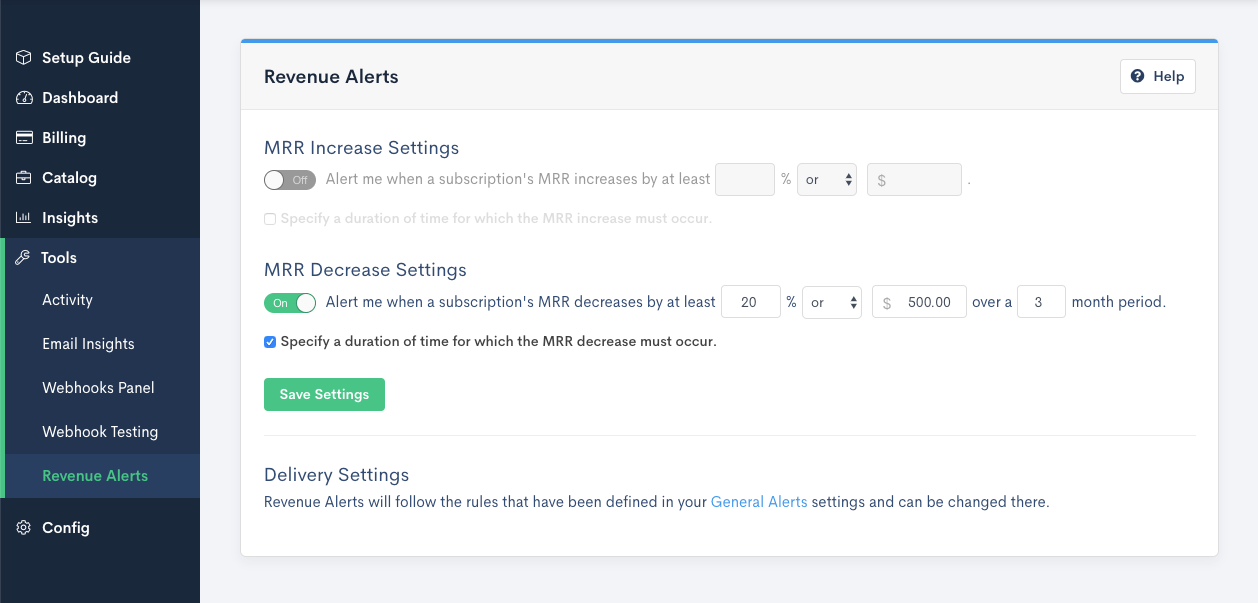
Important: The duration must be between 1 and 9 months. Entering anything outside that range returns Month must be between 1 and 9.
Receive your alerts
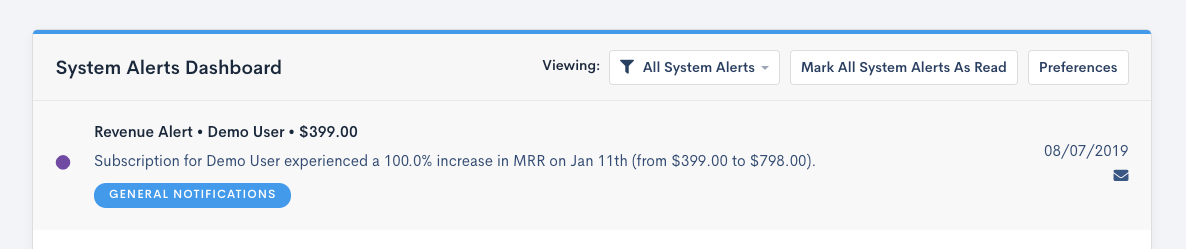
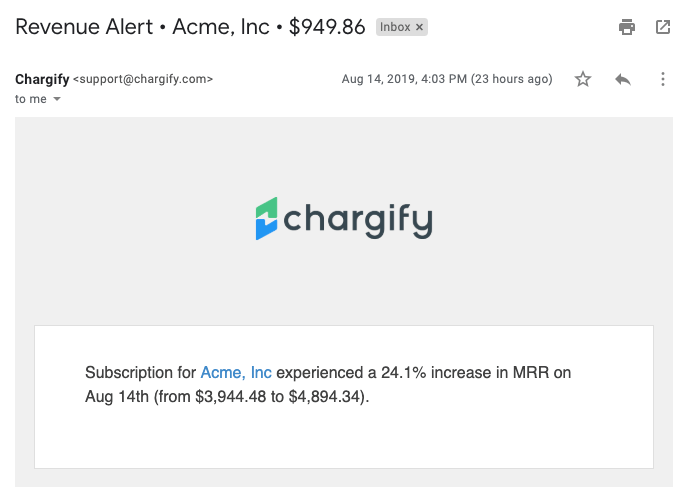
Revenue Alerts are delivered by email and as in-app notifications, following your Set Notification Preferences settings.
Catch potential churn
Multi-month durations are what make Revenue Alerts useful for spotting churn early, because gradual decline rarely trips a single-month threshold.
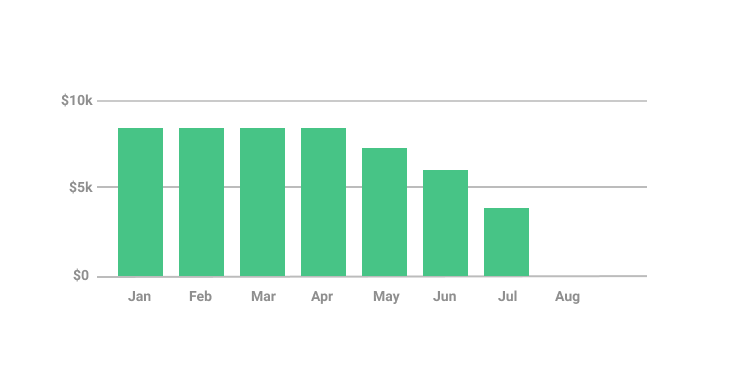
In the subscription above, revenue falls roughly 15% month over month across the four months before an August cancellation. No single month is dramatic. Across Q2 as a whole, though, MRR dropped by about 50%.
An alert watching for a 20% decrease month to month would never have fired. One watching for a 40% decrease over three months would have.
Related information
To see the activity these alerts are drawn from, see Review Site Activity.
For the metrics view the same figures appear in, see Read the Site Dashboard.
To control who on your team receives them, see Manage Advanced Billing Users.
Still need help?
Reach out and our support team will take it from here.