
Review Site Activity
Last updated on Sep 19, 2026
Site Activity is the running log of everything that has happened on your site, filterable by event type. When a signup fails, a payment doesn't go through, or a subscription changes unexpectedly, this is where you find out what actually happened and when.
What site activity records
The events logged here are the same ones delivered by webhooks, so Site Activity is also a way to see what your webhook endpoints received.
Viewing Site Activity requires only the Read-only permission, the lowest access level, so anyone with access to the site can use it.
Where to find Site Activity
Go to Tools > Activity.
The Dashboard also shows a Recent Activity preview. You can choose which activity types that window displays, and your choice persists for the next time you open the Dashboard.
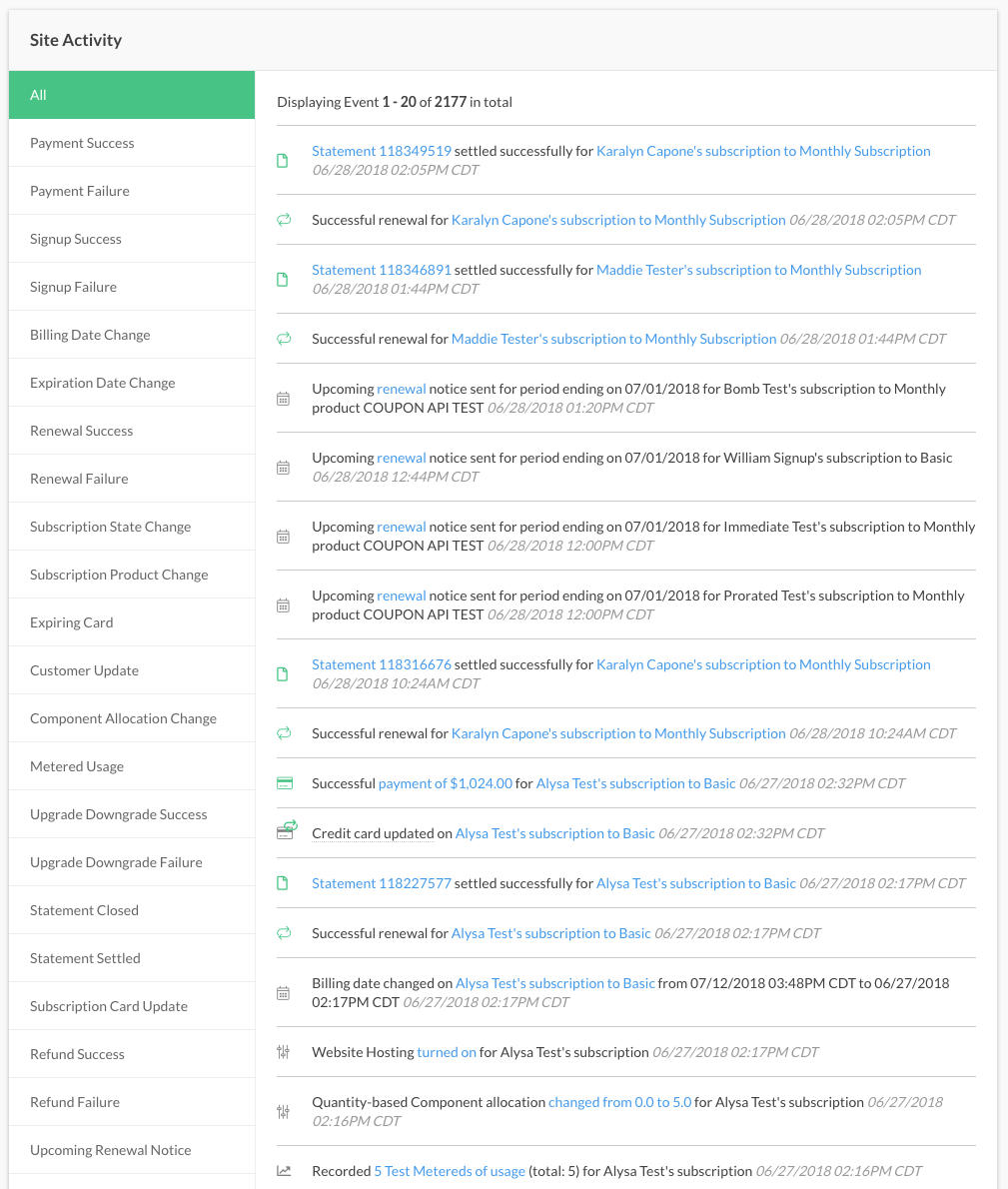
The Activity page opens on the All view. Use the list on the left to filter down to a single event type. Which types appear depends on the events your site actually produces.
When to use Site Activity
Site Activity is the fastest way to track down a failed signup, a failed transaction, or an unexpected change on a subscription.
It's also worth checking when a subscription behaves oddly. Activity logged under one of the Failure categories is often not attached to any subscription, so it doesn't show up on a subscription's own history.
Export site activity
Site Activity can be exported rather than only read on screen. The page serves the same filtered results as CSV for spreadsheet analysis, and as JSON or XML for programmatic use. Whatever filter you have applied carries into the export.
Hover for exact data
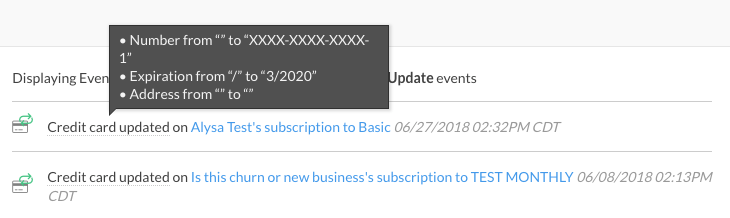
Some activity entries carry more detail than they show. Hover over an event to reveal it. Hovering over Credit card updated, for example, shows exactly which fields changed.
Show attribution
Owners and admins see a Show Attribution button above the activity list. Select it to reveal who initiated each event, and the button changes to Hide Attribution. Team members never see the button, whatever site access controls you have granted them.
With attribution turned on, an event that has an initiator shows a linked actor below its timestamp. A user appears as User # followed by that user's ID, linked to their user page. An API key appears as API key followed by the opening characters of the key, linked to your API Keys page. A change that a background job carried out still attributes back to the user or API key whose original action started that job.
Important: Not every event has an initiator. Events that Advanced Billing generates on its own — an automatic renewal, a dunning step, or a trial end notice, for example — have no person or API key behind them, so they show no actor even with attribution turned on. Events logged before attribution became available show no actor either.
Show Attribution resets to off every time you reload the page.
If you contact Maxio support about a specific event, they see an additional link on that event to trace it through Maxio's internal audit trail. That link is visible only to Maxio staff, not to you.
All
The All category shows every event logged for your site, which is the best place to start if you're not sure what you're looking for. Filter down to a specific category once you know.
The filter list on the left carries many more categories than the ones described below, covering less common events (Maxio.js tokenization, Direct Debit, prepaid balances, subscription groups, and others). For the complete list of event types Advanced Billing logs, see the Review Webhook Events help article: nearly every event documented there also appears as its own Site Activity filter category, using the same trigger.
Billing Date Change
Any activity found under Billing Date Change indicates any change to the billing date that is initiated explicitly by altering the billing date via the application or the API. A normal renewal, a period advancement, or a migration does not trigger it.
The example below illustrates how the old (from) date is indicated, as well as the new (to) date:

Component Allocation Change
Any change to a subscription’s quantity-based component allocation or enabled status of an on/off component that is made after signup.
This event isn't logged when allocations are set as part of subscription creation at signup. It fires only on subsequent changes.
Customer Created
A customer created successfully in Advanced Billing logs an event in this category.
Customer Update
Any change to the following customer fields: first_name, last_name, organization, email, reference, address, address_2, city, state, zip, country, phone, vat_number, parent_id, cc_emails, business_type.
Dunning Step Reached
Reaching any step of the dunning process logs an entry here.

Expiration Date Change
Any change to a subscription's expiration date appears under Expiration Date Change, including an update to the expires_at timestamp.
Expiring Card
A periodic event sent by Advanced Billing indicating that a card is expiring within the month.
Metered Usage
Any reported usage for a subscription’s metered components.
Resetting the unit balance to 0 at renewal logs no event.
Payment Failure
Any activity found under Payment Failure indicates that an attempt was made to process a card on file at the gateway. A payment can fail for many reasons. See the Understand Payment Failures help article.
Clicking the payment amount opens the transaction. Clicking the subscriber's name or plan opens their summary.
Payment Success
Any activity found under Payment Success indicates a successful payment by a customer. This can be via the API, application, or Billing Portal. Here is an example of the information found under Payment Success:

Clicking the subscriber's name opens their subscription. Clicking the payment amount opens the transaction record.
Refund Failure
Any activity found under Refund Failure indicates a failure was encountered while trying to process a refund through the current gateway.
Selecting the link opens the subscriber’s summary.
Refund Success
Any activity found under Refund Success indicates a successful refund has been applied to a subscription. This includes both refunds processed through the gateway and external refunds recorded outside of it.
Renewal Failure
Any activity found under Renewal Failure indicates a subscription renewal has failed, for example because the credit card is declined.
Renewal Success
Any activity found under Renewal Success indicates a successful periodic renewal has occurred.
Signup Failure
Any activity found under Signup Failures indicates any failed signup (subscription failed to begin) via the API, application, or Public Pages.
You can quickly email the subscriber, navigate to the product the subscriber failed to purchase, or inspect the transaction from this view.
Signup Success
Any activity found under Signup Success indicates any successful signup (subscription created) via the API, application, or Public Pages.
Clicking the link opens the subscription's summary.
Statement Closed
A statement closing in Advanced Billing is recorded here.
Statement Settled
Settled statements are listed here.
Subscription Card Update
Any activity found under Subscription Card Update indicates that a credit card for a subscriber was updated. This can be by the Billing Portal, Advanced Billing application or API.
Selecting the link opens the subscriber’s summary.
Subscription Product Change
Any activity found under Subscription Product Change indicates a successful change from an old product to a new product for a subscription.
Subscription State Change
Any activity found under Subscription State Change indicates that there was a state change to the subscription. Common examples are subscription state changes from active to canceled, past due to active, etc.
Transaction deletions
If a transaction is deleted from a subscription, an entry is logged in the All view, worded as "Payment/Refund of $X deleted on..." Only external payments on open statements can be deleted. Unlike the categories above, transaction deletions don't have their own filter category: you can't filter the list down to just this event type.
Trial End Notice
Activity found under Trial End Notice indicates that a trial is ending within 3 days.
Upcoming Renewal Notice
Activity found under Upcoming Renewal Notice indicates that a subscription is set to renew within 3 days.
Clicking the word renewal opens the subscriber's subscription.
Upgrade Downgrade Failure
Any failed attempt to upgrade or downgrade a subscription.
Upgrade Downgrade Success
Any successful upgrade or downgrade of a subscription.
Related information
To start the tasks you run most often from anywhere in the Site, see Use Quick Actions.
To see the metrics and charts that summarize the same Site, see Read the Site Dashboard.
To change the Site itself rather than review what happened on it, see Understand Site Settings.
To follow the same events for one subscriber rather than the whole Site, see Reviewing Subscription Activity History.
To check or change who on your account holds the owner or admin level that Show Attribution requires, see Manage Advanced Billing Users.
Still need help?
Reach out and our support team will take it from here.