
Find Subscriptions with Quick Find
Last updated on Sep 19, 2026
Quick Find locates a subscription from anywhere in your account, searching across sites rather than just the one you're in. Open it with the magnifying glass icon in the top bar, or the keyboard shortcut ⌘+K (Ctrl+K on Windows and Linux).
Which sites are searched
Quick Find searches across sites, but never mixes live and test data. From outside any site, or from a live mode site, results cover your live sites only. From a test mode site, results cover your test sites only.
You can search by:
- Name
- Customer reference ID
- Organization
- Subscription ID
What the results show
Results appear as you type, with the matching field highlighted in each row.
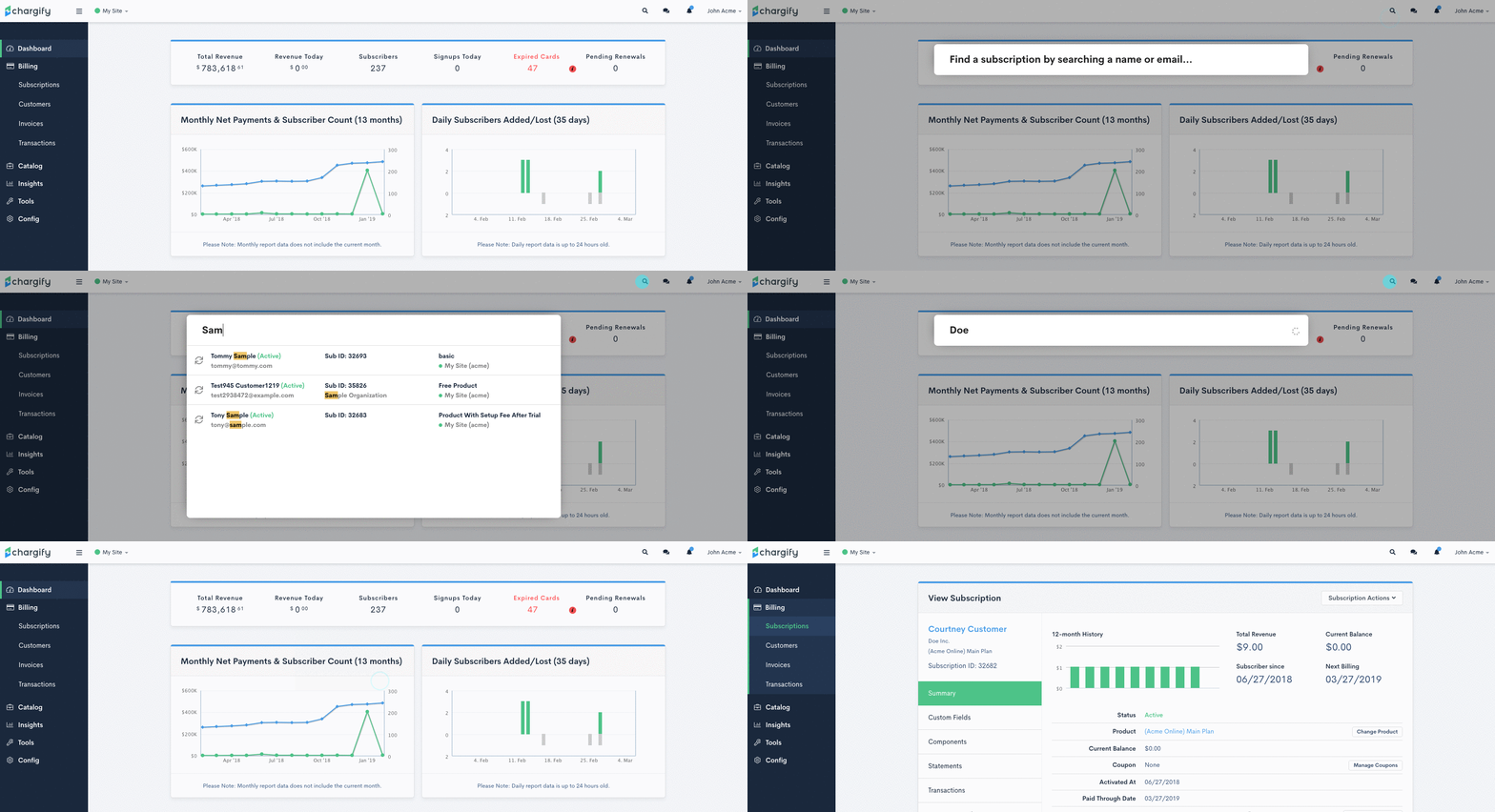
As you type, the matching text is highlighted so you can see which field matched.
Important: You can search by customer reference ID, but the reference ID isn't shown in the results, so a match on that field looks unexplained.
Each result shows:
- Customer name
- Subscription state
- Subscription ID
- Customer email
- Organization (if present)
- Product Name
- Site name / subdomain
Related information
For the tasks you start most often once you've located a site, see the Use Quick Actions help article.
Still need help?
Reach out and our support team will take it from here.