
Create an Ad-Hoc Invoice
Last updated on Sep 19, 2026
Bill a Customer for a one-time charge, service, or custom line item without tying it to a Subscription's regular billing cycle.
Create the invoice
Creating an ad-hoc Invoice takes you from a blank Draft to an issued, payable Invoice in one pass.
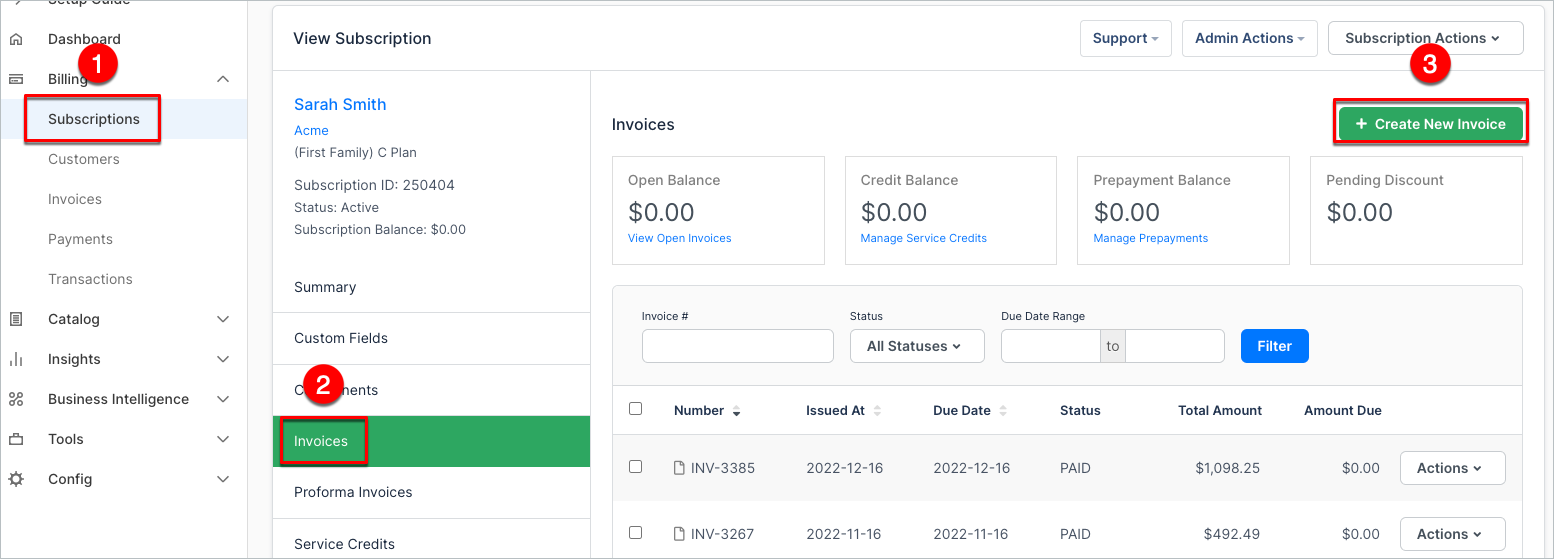
To create an ad-hoc invoice
-
Open the Subscription you want to bill, navigate to the Invoices tab, then click Create New Invoice. The Invoice is created in Draft status with pre-populated Subscriber information.
-
Optionally, click the Pencil icon to edit contact information, billing or shipping addresses, memo, or payment instructions.
-
Click Edit Dates to set the Issue Date and Due Date, and select the Net Terms.
- The Issue Date must be today (Now) or a past date. Advanced Billing doesn't allow future issue dates, because issuing an Invoice immediately makes it available for payment.
- The Due Date is calculated from the Net Terms you select (Calculate from Dates, Site Default, Due Immediately, or a fixed number of days), or you can set it directly.
-
Add a line item: enter a Name, Quantity, and Unit Price, or optionally select a Product or Component from the Catalog so Advanced Billing calculates the price for you. Add an optional Date Range to represent the service period; if you leave it blank, it defaults to today (Now). Click Add Line Item to save it, then repeat to add more.
- If taxes are enabled on your site, you may be prompted to select a Tax Type for taxable line items; see How taxes work on ad-hoc invoices.
- To edit or delete a line item, click the ... icon next to it, then select Edit or Delete.
-
Optionally, add a discount: select an existing coupon from the Catalog, or enter an ad-hoc coupon manually. A Coupon with Coupon Restrictions can't be selected from the Catalog for an ad-hoc Invoice.
-
Choose a payment collection option: remittance, or Immediately process payment method on file. If you choose immediate processing and the payment fails, choose Roll back creation of invoice or Issue invoice as "Open". If issued as Open on an Automatic Subscription, Advanced Billing attempts collection again at the next renewal; you can also collect payment manually at any time.
-
Click Issue Invoice. The Invoice status changes to Open, and it becomes available for payment.
What to expect next
Once the Invoice is issued:
- You may collect payment on it from within Advanced Billing; see Record and Manage Invoice Payments.
- If online payments are enabled, Customers may be able to pay by credit card or ACH through the shared Invoice link; see View and Share Invoice Public URLs.
- Whether an Invoice email is sent depends on your site's invoice delivery settings. Some sites send Invoice notifications automatically, while others require manual delivery; see Send the Invoice.
Related information
If Customer or Subscription details change after the Invoice is issued, see Update Customer Information on Invoices.
For what ad-hoc Invoices are, and the Close Date and tax rules that apply to them, see Understand Ad-Hoc Invoices.
Still need help?
Reach out and our support team will take it from here.