
Record and Manage Invoice Payments
Last updated on Aug 26, 2026
Apply a credit card, ACH, external, or previously recorded payment to an open Invoice, and review payment history across your site.
Record a payment
Click Record Payment when viewing an open Invoice. This button is not available on a consolidated Invoice's segment; record the payment against the segment's parent Invoice instead.
Several types of Invoice payments are supported:
- Use New or Existing Payment Profile captures payment from a credit card or ACH/bank account. Bank accounts are only an option if your configured gateway allows this and you are set up to take ACH payments.
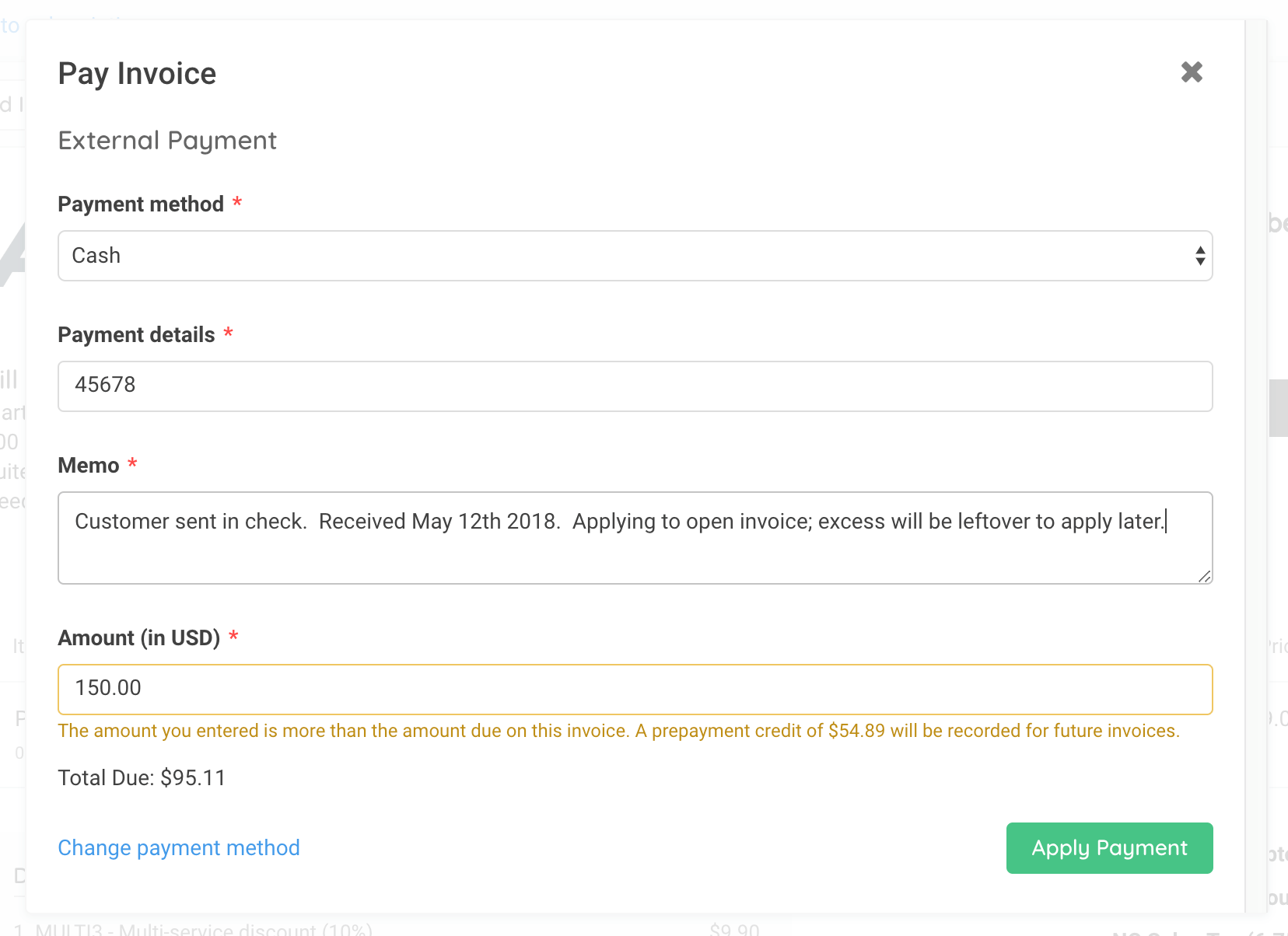
- Record External Payment is for manually entering payments that you received outside of Advanced Billing, such as from a check or other means.
- Apply Prepayment applies an existing payment balance that has been recorded on the Subscription to the Invoice. This option is grayed out unless there is an existing prepayment that can be applied.
- Apply Service Credit credits out a specified amount due on the Invoice. This option is grayed out unless there is an existing service credit that can be applied.
Record bulk payments
You may record an external bulk payment (a payment that covers more than one open Invoice) against the Subscription itself using the API. Bulk payments may only be made to un-grouped or primary Subscriptions, not to group members. See the Developer Portal for details about API calls and their returns.
For merchants on Relationship Invoicing, an external payment made via the API against the Subscription applies to the oldest open Invoice first, then proceeds to the next oldest Invoice if money remains after the previous Invoice is paid. Any Invoice paid in full via the bulk payment is marked as paid the same as a direct payment. If the payment exceeds the total of all open Invoices, a prepayment is created (see below). If the payment is insufficient to pay an Invoice in full, that Invoice is partially paid and remains open.
Example: An external payment of $100 is sent via the API to Subscription 1.
- If Subscription 1 has two $50 open Invoices, both are paid in full and marked paid.
- If Subscription 1 has two $75 open Invoices, the first (oldest) Invoice is paid in full and marked paid, and the second Invoice has a $25 payment applied toward its balance and remains open.
- If Subscription 1 has two $25 open Invoices, both are paid in full and marked paid, and a $50 prepayment is recorded on the Subscription.
View and export payment history
The details of payments for a site can be found at Billing > Payments, where you may filter the view to a particular date range.
Each individual Subscription also provides a payment listing of its own payments, showing the last 120 days by default. The View all link at the top of the screen shows the full payment history for that Subscription, with the same date-range filtering as the site-wide listing.
In each of these lists, clicking a payment's ID opens its details.
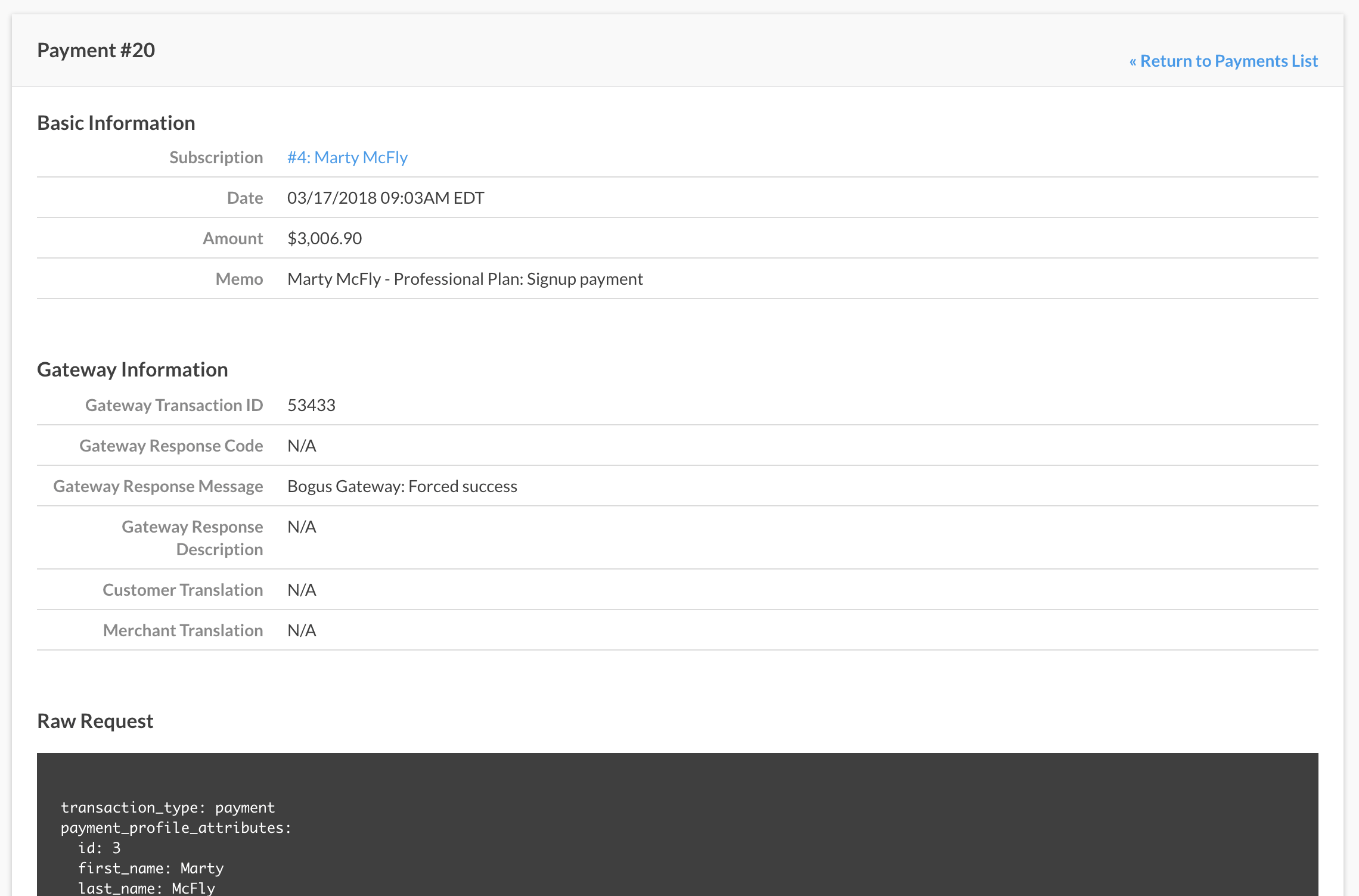
Both the site-wide and per-Subscription payment lists can be exported to CSV.
Manage prepayments
Every Advanced Billing Subscription maintains a prepayment balance that stores amounts paid above and beyond any Invoice due amounts. The prepayment amount can then be applied to subsequent Invoices.
The current prepayment balance can be seen on the invoice listing for an individual Subscription. Click Manage Prepayments near the top of that listing, or the Prepayments link in the subscription navigation, to see the details of prepayments and their applications. The prepayment listing shows the Amount of each prepayment and the Remaining amount that can still be applied to Invoices.
Click a row in the prepayment listing to see details about that prepayment and every Invoice it was applied to. From that screen, click an Invoice number (for example, INV-123) to jump directly to that Invoice.
Record a prepayment
There are two ways to record a prepayment.
To record a prepayment
- Click Record Prepayment in the Subscription Actions dropdown. Use this option when there are no open Invoices and you want to record a payment (for example, one sent to you via check) that applies to future Invoices.
- Use Record Payment on an Invoice to enter a manual payment in excess of the amount due. Use this option when there is an open Invoice you want to apply the payment to. Any amount in excess of the amount due is available to apply to future or open Invoices.
Refund a prepayment
A prepayment can be refunded to the Payment Profile that funded it, or issued as an external payment refund.
To refund a prepayment
-
Go to the Subscription you want to refund, then click the Prepayments tab.
-
Locate the prepayment to refund, click the ... icon next to it, and select Refund.
-
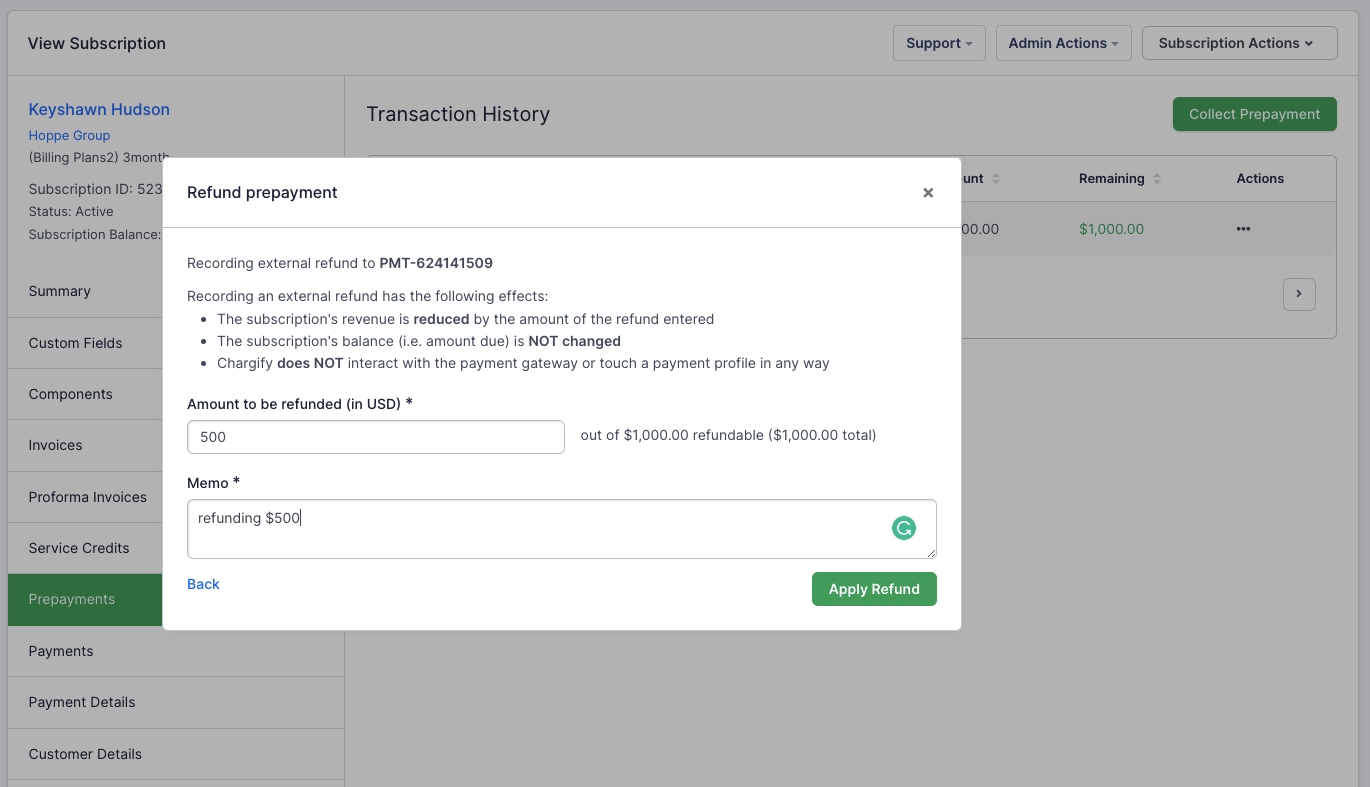
Choose whether to refund to a Payment Profile or as an External Payment. Refund Payment to Payment Profile can only be selected if a Payment Profile already in Advanced Billing was used to create the prepayment.
-
Enter the amount to refund from the prepayment.
-
Select Apply Refund to refund the prepayment.
Manage service credits
Service credits are a way to reduce the amount a subscriber owes on an open Invoice. They can be created against a Subscription and manually applied to Invoices. Some actions generate service credits on a subscriber's account, such as prorated downgrades.
Like prepayments, when a subscriber has a service credit balance, the available balance is automatically applied to an Invoice when it is issued. In this context, it functions as a payment. Service credits are applied to Invoices as credit notes, and credit notes reduce the Invoice due amount, like a payment. To manually apply an existing service credit balance to an open Invoice, click Record Payment and choose Apply Service Credit.
You can view the available service credit balance from the invoice listing for a single Subscription. A box above the listing shows the current Credit Balance and a Manage Service Credits link. Within the left-hand navigation on a Subscription, this same view of the service credit balance is available from the Service Credits tab.
The service credit listing on the Subscription also lets you click a row where a service credit has been applied, to view the related Invoice.
There are options to both add a service credit to a Subscription and deduct from the existing service credit balance. They're accessible from the Subscription Actions dropdown > Give/Deduct Service Credit, or from the Service Credits tab on the Subscription. Select whether to add or remove a credit and enter an amount; the memo field is optional.
Related information
For the rules behind credit card payment restrictions, how prepayments and service credits get consumed automatically, and how they apply to a consolidated invoice, see How Invoice Payments Behave.
Still need help?
Reach out and our support team will take it from here.