
Update Customer Information on Invoices
Last updated on Aug 26, 2026
Correct a Customer's contact details, addresses, tax information, or custom fields on an Invoice that's already been issued, so your records and downstream reporting stay accurate.
Update customer information on an invoice
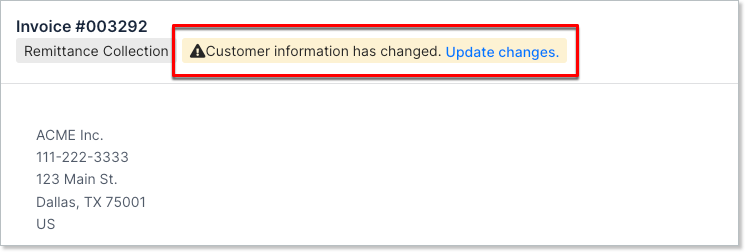
If the Customer's information, or custom fields on the Customer or Subscription record, changes after an Open Invoice is issued, Advanced Billing displays a notice when you view that Invoice.
To update customer information on an invoice
-
Open the Invoice. If the notice is present, or to check for changes at any time, select Update Customer Information from More Options.
-
Click Update changes to review a detailed breakdown of what Advanced Billing detected.
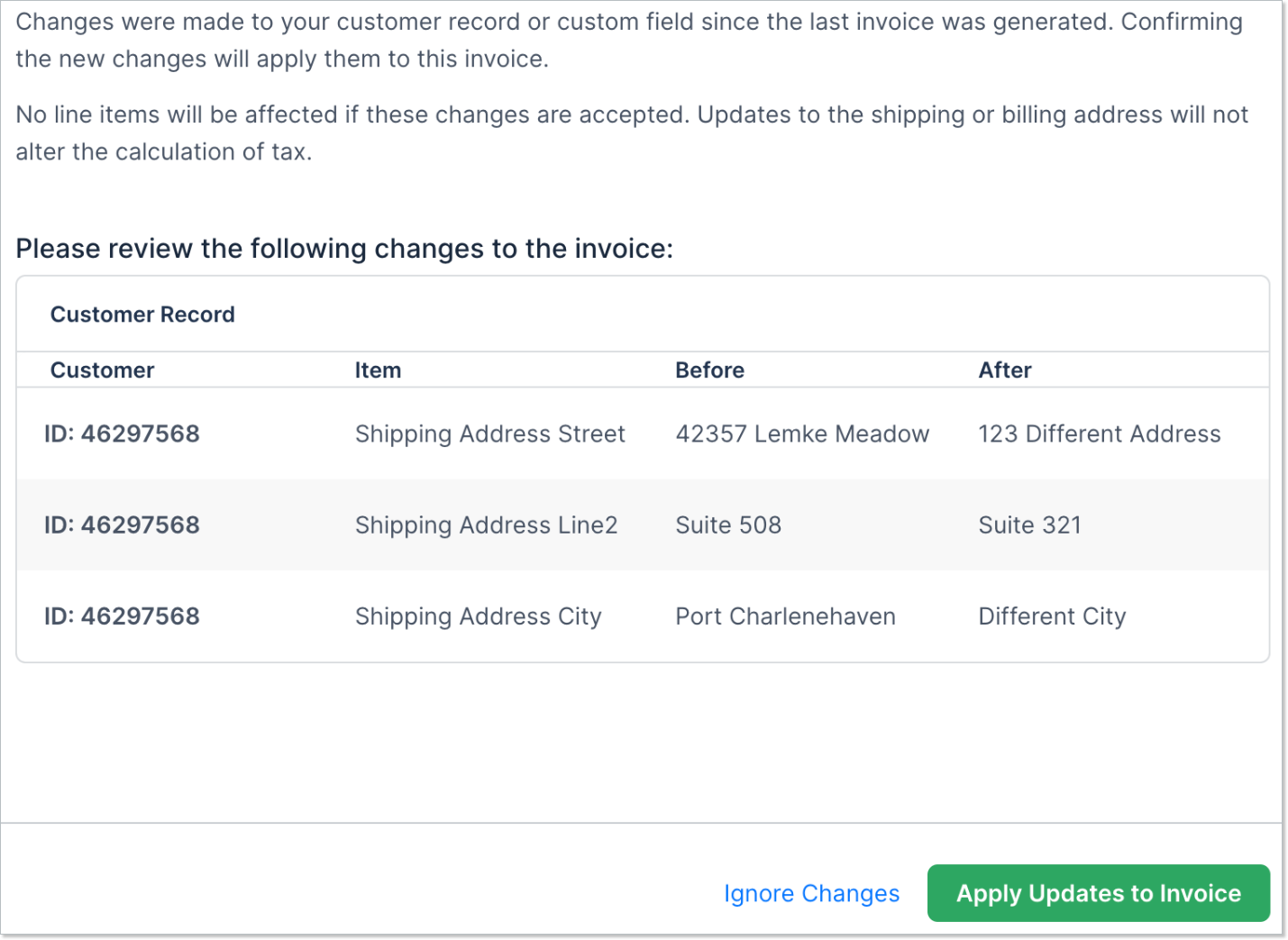
WARNING: Updates to address fields or tax IDs do not automatically recalculate the Invoice's sales tax amount. If the billing or shipping address changed, review the tax charges separately.
-
Confirm the changes are correct, then click Apply Updates to Invoice. If something looks wrong, update the Customer record instead, then check back on the Invoice for a new preview.
What updates include
The following are eligible for update:
- Customer first and last name
- Customer email and organization
- Billing address
- Shipping address
- Customer tax ID (VAT) information
- Custom fields on both the Customer and Subscription record, limited to those configured to appear on the Invoice
Line items are never affected by this update; they can't be changed once the Invoice is issued.
For a consolidated Invoice, this update isn't available on a segment (child) invoice directly. Apply the update on the parent invoice instead. Custom-field changes then cascade to its segments, but address and tax updates do not.
Some older Invoices with custom fields are missing the data Advanced Billing needs to detect whether those fields changed. When this happens, the preview shows a disclaimer that some custom field values may not have actually changed, but are re-submitted to store the missing information on the Invoice.
What to expect next
Once you submit the changes, an entry is recorded in the Invoice's history: Customer information changed. Click View Details on that entry to see a summary of what changed.
Related information
For what a consolidated Invoice's segment (child) invoices are and how they relate to the parent, see How invoice hierarchy works.
To create an ad-hoc Invoice, see Create an Ad-Hoc Invoice.
Still need help?
Reach out and our support team will take it from here.