
Update Payment Instructions and Invoice Memo
Last updated on Sep 19, 2026
Add custom text to the Invoice Memo and Payment Instructions fields so Customers see the messaging you want printed on their Invoices.
Update payment instructions and invoice memo
Both fields live in the same settings section, so you update them together.
To update payment instructions and invoice memo
-
Go to Config > Settings > Invoices.
-
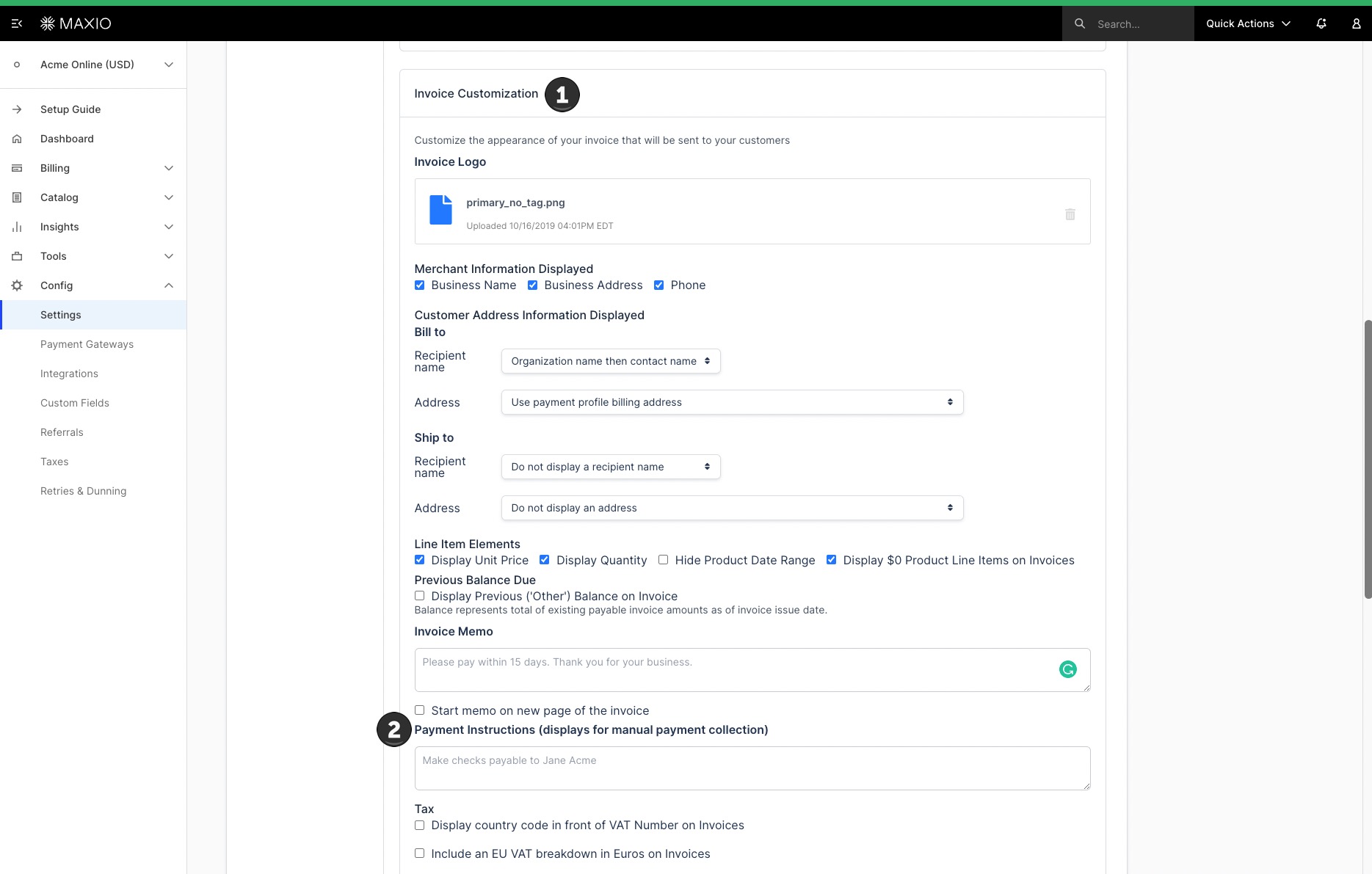
In the Invoice Customization section, locate Invoice Memo and Payment Instructions.
-
Enter your text in either field, or both:
- Invoice Memo is text that appears at the bottom of the Invoice, commonly used for notes, policies, or other account-specific messaging. Optionally check Start memo on new page of the invoice to print it on its own page.
- Payment Instructions tells the Customer how to submit payment, for example instructions to make a check payable to your business. This field only displays on Invoices using manual (remittance) payment collection.
-
Save your changes.
What to expect next
Saving these fields only affects Invoices created after you save. Invoices already issued keep whichever Invoice Memo and Payment Instructions text was in effect when they were created.
Related information
For the other fields in the Invoice Customization section, including Previous Balance Due and Credit Note display, see Display Previous Balances, Memos, Payment Instructions, and Credit Notes.
Still need help?
Reach out and our support team will take it from here.