
Consolidate Subscription Groups
Last updated on Aug 27, 2026
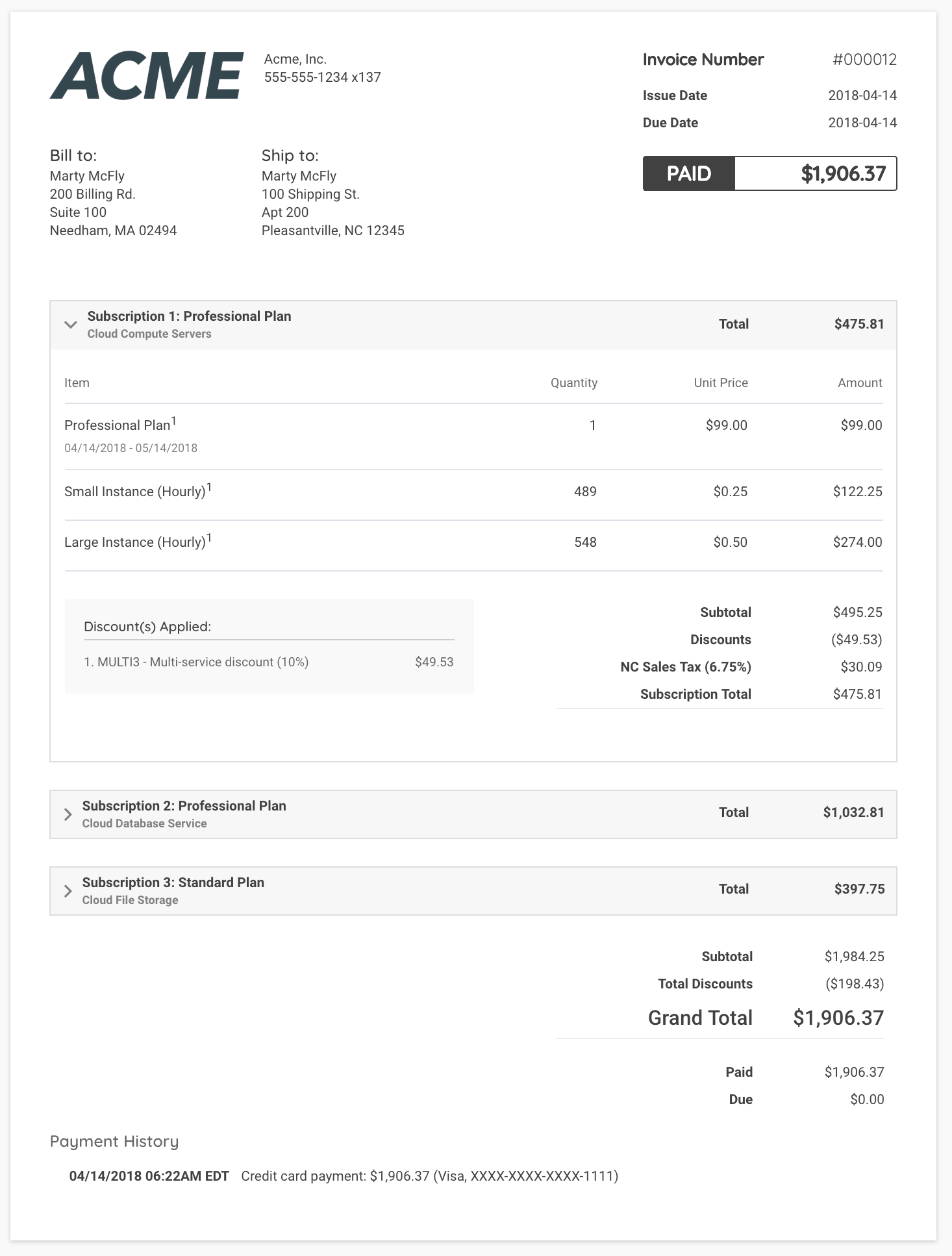
Consolidate multiple Subscriptions onto a single invoice to reduce transaction fees and simplify what Customers receive. Group Subscriptions under a primary Subscription to centralize billing, collection, and dunning.
Before you start
Each Subscription Group requires a primary Subscription, with other Subscriptions designated as member Subscriptions. The primary Subscription controls the group's billing timing, collection method, payment method, and dunning.
Keep these in mind before creating a group:
- Each Subscription can belong to only one group at a time.
- Billing dates need not match across Subscriptions.
- All Subscriptions in a group must belong to the same customer hierarchy. This is linked via a parent-child configuration in the Customer Hierarchies settings.
Create a subscription group
From existing subscriptions
To create a Subscription Group, go to the Subscriptions listing and choose a Subscription to designate as primary. From that row's Actions dropdown, select Create Subscription Group, then add the remaining Subscriptions as members.
Once created, view the group by selecting View Subscription Group from the same Actions dropdown, or by clicking the a group link on the subscription.
From new subscriptions
After you enable Customer Hierarchies, your Relationship Invoicing site's Subscription Creation screen allows grouping Subscriptions during setup.
Avoid signup charges when grouping new subscriptions
Placing Subscriptions in Awaiting Signup with a future billing date ensures no initial signup charges are generated when consolidating.
Example: You want to group three new Subscriptions under a customer.
- Set each billing date to several minutes in the future.
- Each Subscription enters Awaiting Signup status.
- Create a Subscription Group, one as primary, others as members.
- At the scheduled time, a single consolidated invoice is generated with no signup charges.
To group new Subscriptions without generating signup charges
- Create each Subscription:
- Go to the Subscription Creation page.
- Select the Product and Customer, and fill in the remaining Subscription details.
- Set a future billing date (5-10 minutes ahead).
- Save. The Subscription remains in Awaiting Signup.
- Repeat for additional Subscriptions:
- Ensure all intended Subscriptions are in Awaiting Signup with future billing dates.
- Create the Subscription Group:
- From one Awaiting Signup Subscription's row in the Subscriptions listing, open the Actions dropdown and select Create Subscription Group.
- Add the remaining Awaiting Signup Subscriptions as members.
- Reach the start date:
- At the scheduled time, Subscriptions process and trigger one consolidated invoice.
- No unwanted initial charges are generated.
Manage a subscription group
On the group screen, you can:
- View both the primary and member Subscriptions in the group.
- See the consolidated invoices generated by the group.
- Add or remove members from the group.
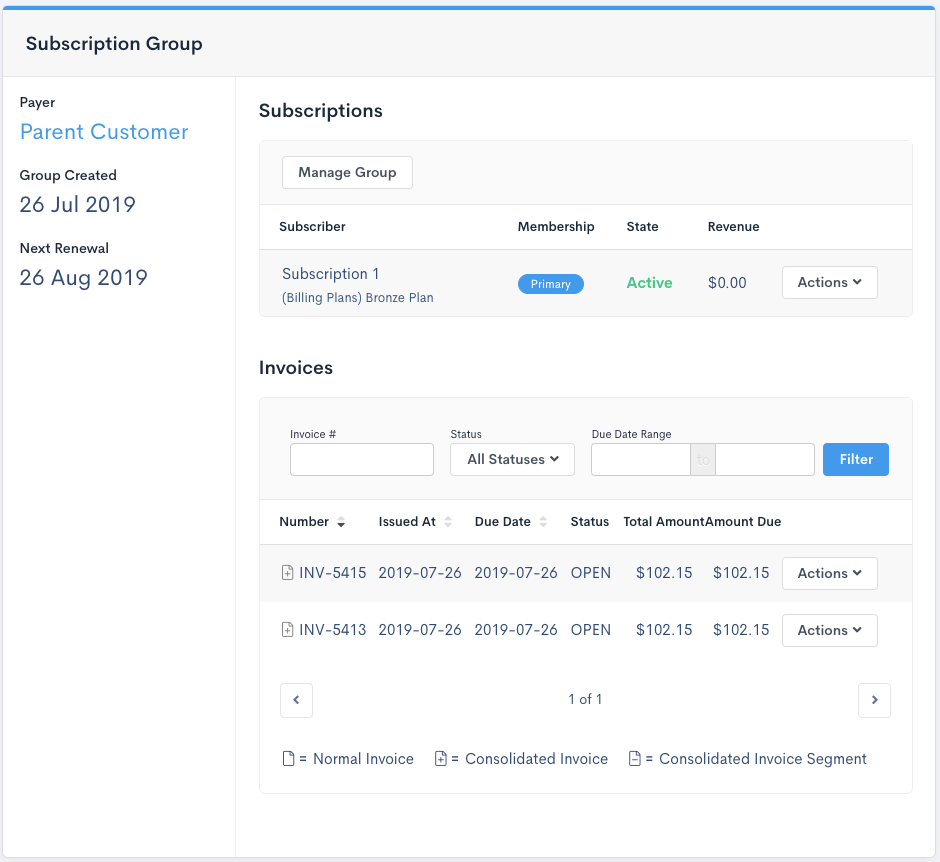
Click Manage Group to add or remove Subscriptions within the same hierarchy. Select under Available Subscriptions to add, or choose existing group members to remove. Then click Update Subscription Group to apply changes.
Changes take effect at the next scheduled processing. Any pending consolidated invoices still include segments from removed Subscriptions.
You can also generate a consolidated proforma invoice for the group from this same screen.
View consolidated invoices
You can access consolidated invoices from:
- The group screen under Invoices, which lists all consolidated invoices for that group.
- The global invoice listing, which includes both consolidated and normal invoices (invoice segments do not appear here).
From a single Subscription's invoice listing, you'll only see normal invoices and invoice segments. Consolidated invoices are only accessible via the group or global listings.
Related information
To learn about the Subscription Group concept and primary/member roles in more depth, see Understand Subscription Groups.
To understand how invoice timing and dunning work for a group, see Understand Invoice Consolidation.
To configure Customer Hierarchies before grouping new Subscriptions, see Set Up a Customer Hierarchy.
To generate a consolidated proforma invoice for the group, see Proforma Invoices for Subscription Groups.
Still need help?
Reach out and our support team will take it from here.