
Understand Enterprise Single Sign-On (SSO)
Last updated on Sep 19, 2026
Enterprise Single Sign-On lets people in your organization reach Maxio through your own identity provider, so they authenticate against the account your IT team already manages instead of holding a separate Maxio password. If your people have access to more than one Maxio organization, see Switch Organizations from Maxio Core for moving between them.
Key capabilities
Enterprise SSO changes where authentication happens and who controls it:
- Your identity provider verifies the user, so Maxio never holds their password.
- Your existing joiner and leaver process governs Maxio access, because revoking someone in your identity provider stops them signing in to Maxio.
- Your identity provider's own security policies apply, including any second-factor requirement.
How signing in changes
Maxio asks for an email address before it asks for a password. If that address belongs to a user who authenticates through your identity provider, Maxio hands the sign-in over to it rather than showing a password field. There is no separate button to select, and the user does not need to know in advance which type of account they have.
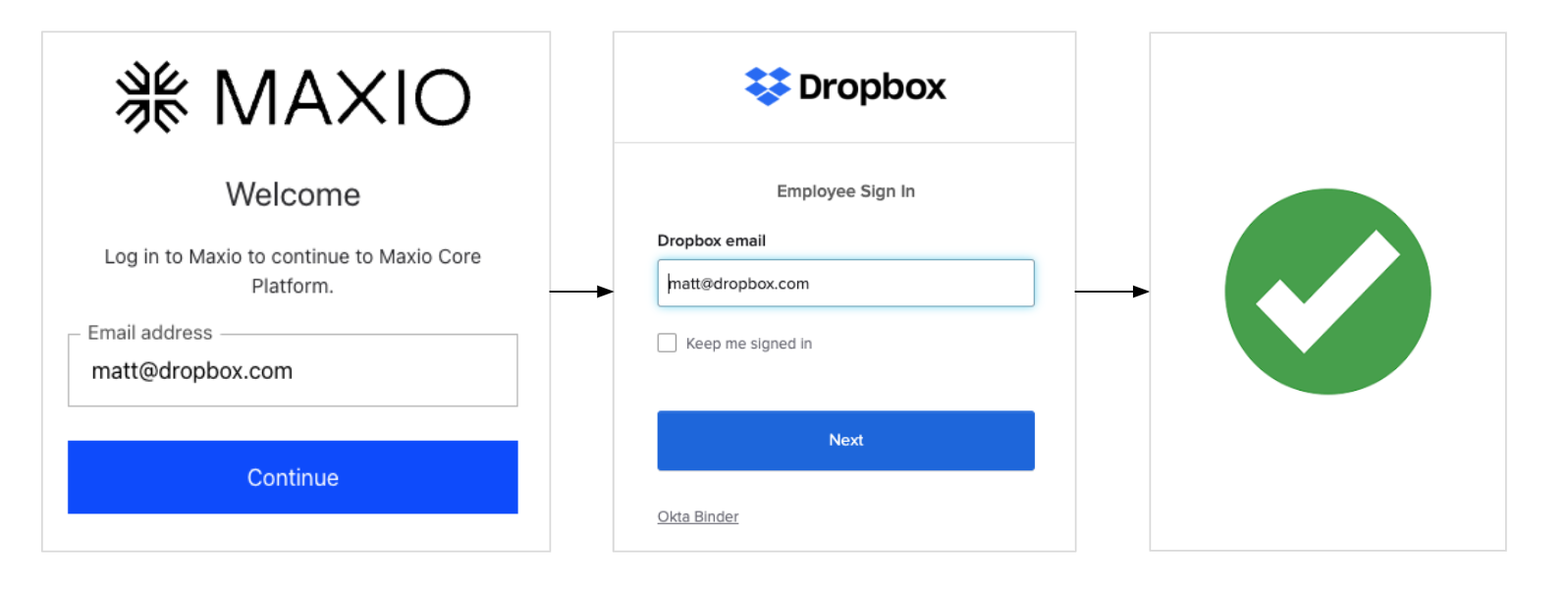
Connection types
Maxio supports three connection types, chosen when an administrator creates the connection:
| Connection type | Typical use |
|---|---|
| Okta | An organization whose identity provider is Okta. |
| Google Workspace | An organization that manages accounts in Google Workspace. |
| SAML | Any identity provider that supports SAML, where you supply a sign-in URL and a signing certificate rather than a client ID and secret. |
Two-factor authentication with SSO
Your identity provider's security policies decide whether a second factor is required and what form it takes. Maxio does not apply its own 2FA to these users, and Maxio administrators cannot turn 2FA on or off for them.
Prerequisites
Before an administrator can create a connection, three things have to be true:
- Enterprise SSO is enabled on your Maxio account. Maxio turns this on, not an administrator on your side, so contact Maxio if the setting does not appear under Admin.
- You are working in the root entity. A multi-entity account cannot configure Enterprise SSO from a child entity.
- You have administrator access to Maxio, and someone on hand with administrator access to your identity provider.
Customer responsibilities
Maxio creates the connection, but the identity provider side belongs to your team. After the connection is created, Maxio displays a callback URL that you set in your identity provider, plus an Entity ID for SAML connections. Sign-in does not work until that is in place. Your team also owns the client credentials or signing certificate, and rotating them when they expire.
Limitations
An account can hold one Enterprise SSO connection at a time. You cannot run two connection types side by side, and Maxio rejects a second connection outright until the existing one is deleted, so an organization consolidating from one identity provider to another has to delete the current connection before creating the new one.
Related information
To create the connection, see the Set Up Enterprise SSO help article.
To learn how Enterprise SSO fits into Maxio's wider sign-in experience, see the Understand Universal Login help article.
Still need help?
Reach out and our support team will take it from here.