
Understand Universal Login
Last updated on Sep 19, 2026
Maxio Universal Login gives each person one Maxio account that reaches Maxio Core and Advanced Billing, so they move between connected accounts and sites without signing in again.
What Universal Login supports
Which sign-in options your organization offers depends on its authentication settings. Universal Login can carry any of the following:
- Email and password sign-in
- Two-Factor Authentication (2FA)
- Enterprise Single Sign-On
How your account gets Universal Login
Maxio turns Universal Login on for an account. An administrator on your side cannot enable it from Account Settings, so contact Maxio to have it switched on.
Once it is on, how your users reach the activation step depends on which mode Maxio sets:
| Mode | What users experience |
|---|---|
| Enabled (via User Profile) | Nobody is prompted. A user starts activation themselves by selecting Sign in with SSO on their own user page. |
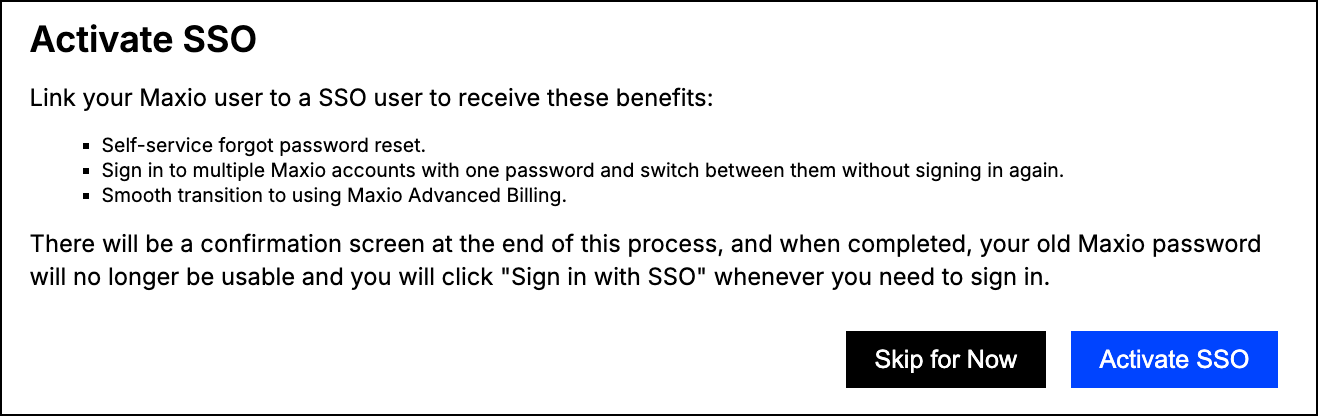
| Enabled (via Post-Login Interstitial) | After signing in, a user who has not linked yet is sent to the activation screen once. They can select Skip for Now. |
| Enabled (Activate SSO Enforced) | A user who has not linked yet is sent to the activation screen on every page they try to open, and Skip for Now is not offered. |
Link an existing profile
Linking connects the Maxio user you already have to a Maxio account.
Important: Once you link, your old Maxio password stops working. From then on you sign in through Maxio rather than with your previous Maxio Core password.
To link your existing profile
-
Sign in to Maxio.
-
Select Activate SSO.
-
Choose how to supply your Maxio account:
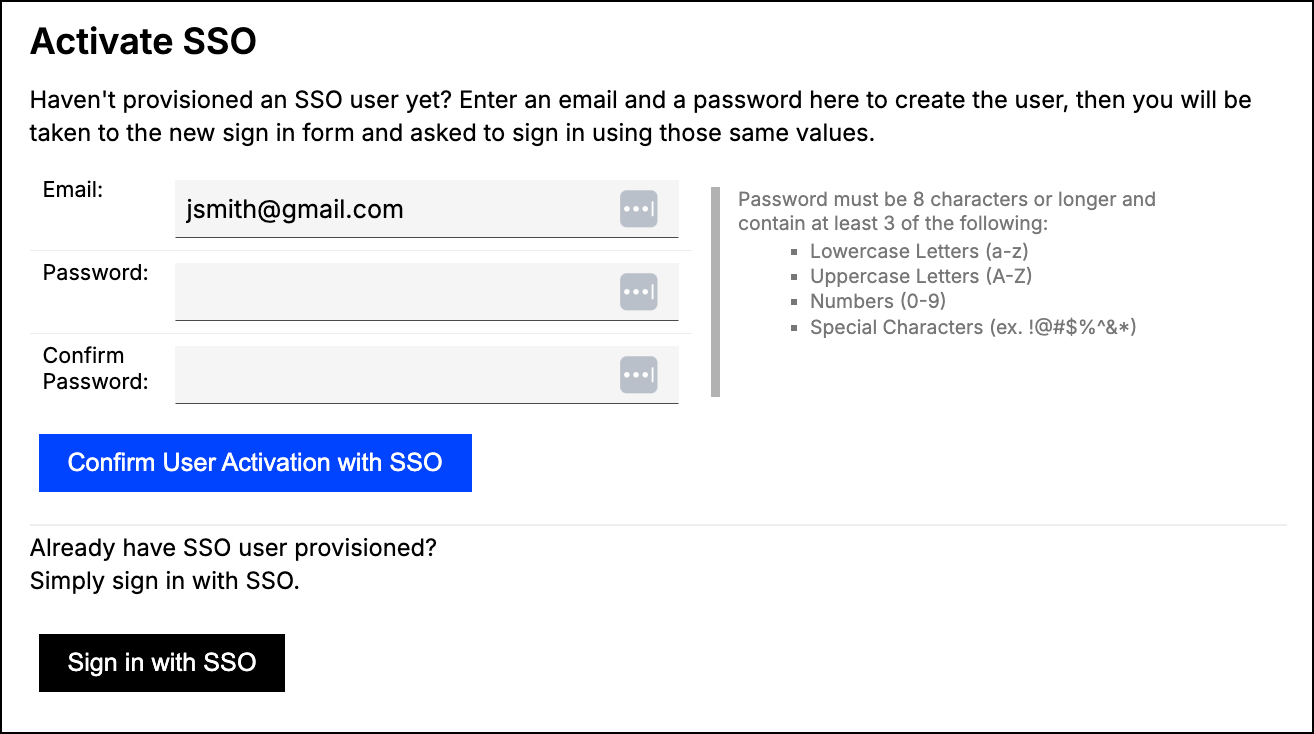
- To create one, enter an email address and a password, then select Confirm User Activation with SSO. The password must be 8 characters or longer and use at least 3 of lowercase letters, uppercase letters, numbers, and special characters.
- To use an account you already have, select Sign in with SSO.
-
Confirm that the Maxio account shown is paired with the correct Maxio user, then complete activation.
Add new users
An administrator does not have to link new people manually. Creating a user through Admin > Settings > Users > Add User creates their Maxio account and links it in the same step, so they arrive ready to sign in through Universal Login.
Sign in after linking
Enter your email address, and Maxio takes you to the right place based on that address. There is no separate sign-in option to choose.
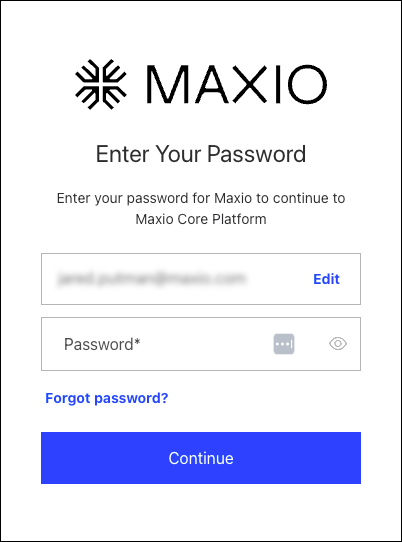
Because your account is a Maxio account rather than a Maxio Core password, you can reset it yourself with Forgot password? on this screen.
Related information
To learn what Enterprise SSO changes for your users, see the Understand Enterprise Single Sign-On (SSO) help article.
To connect Maxio to your identity provider, see the Set Up Enterprise SSO help article.
To enable or require 2FA for your users, see the Manage Two-Factor Authentication for Your Account help article.
To enroll in 2FA yourself, see the Set Up Two-Factor Authentication at Log In help article.
Still need help?
Reach out and our support team will take it from here.