
Connect Plaid to Maxio Payments
Last updated on Sep 19, 2026
Plaid lets your Customers securely connect a bank account to Maxio Payments by verifying their identity and account ownership directly with their own bank. This gives you a streamlined ACH payment option with real-time account verification, and your Customers never have to share their banking credentials directly with Maxio.
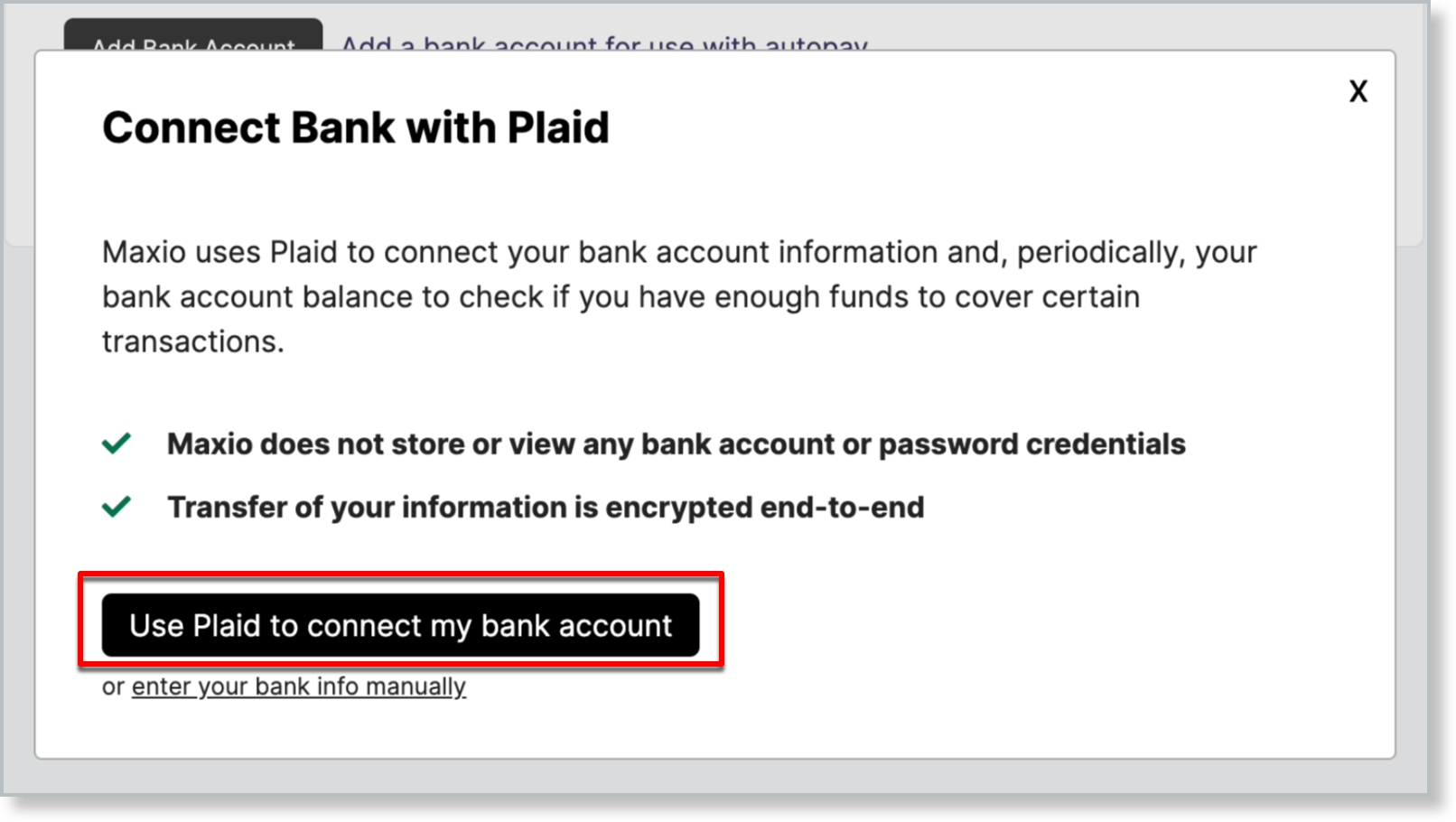
Maxio does not store or view any bank account or password credentials. Your banking information is encrypted end-to-end, keeping you and your Customers' data secure. Your Payers can turn off our use of Plaid by removing the bank account. If you elect to use Plaid to verify your Customers' bank account information, we may periodically check their bank account balance to ensure they have enough funds to cover certain Transactions.
Maxio Core
If you access Maxio Payments through Maxio Core, use the following steps to get connected.
Connect Plaid to Maxio Payments
For this integration you must have the following:
- Access to Maxio Core
- e-Bill enabled within Maxio Core
- An executed agreement with Maxio that includes Maxio Payments and Bank Authentication/Verification
Once all of these requirements are met, Plaid can be connected to Maxio Payments.
Important: Currently, this integration can only be connected by a Maxio team member. Contact your Onboarding Manager, Customer Success Manager, or support@maxio.com for further steps on getting connected.
Using Plaid and Maxio Payments
Following the initial setup, Plaid can be seamlessly incorporated into e-Bill checkout. When Customers choose to pay their e-Bill, they can follow these steps to pay with Plaid:
-
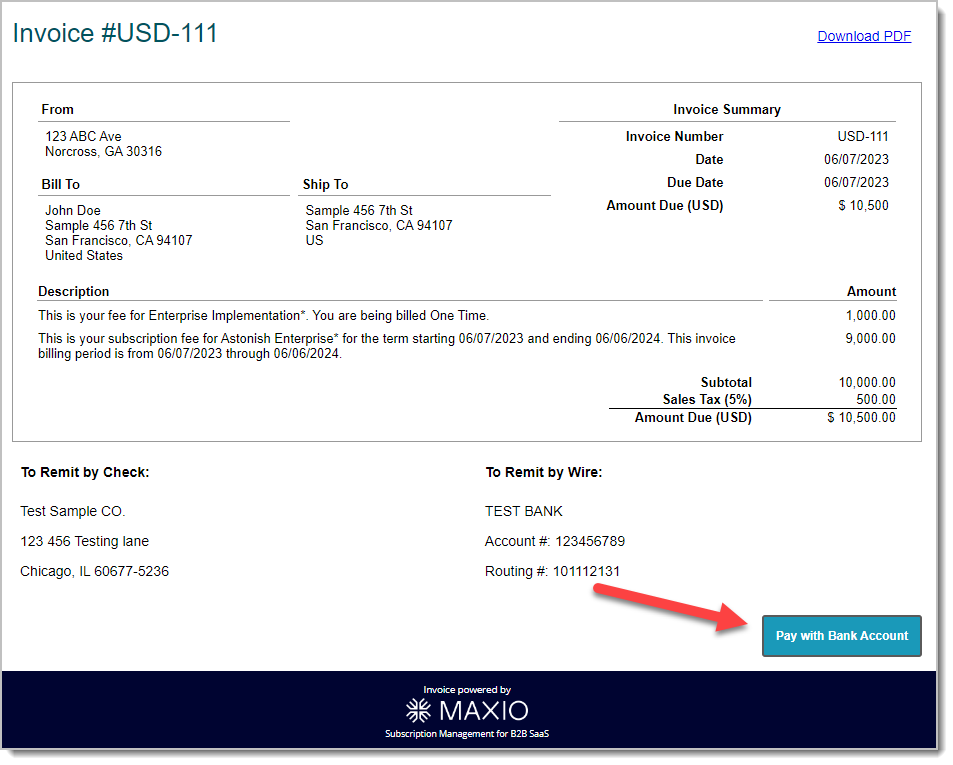
Select Pay with Bank Account, and a Connect Bank with Plaid window appears.
-
Select Use Plaid to connect my bank account.
-
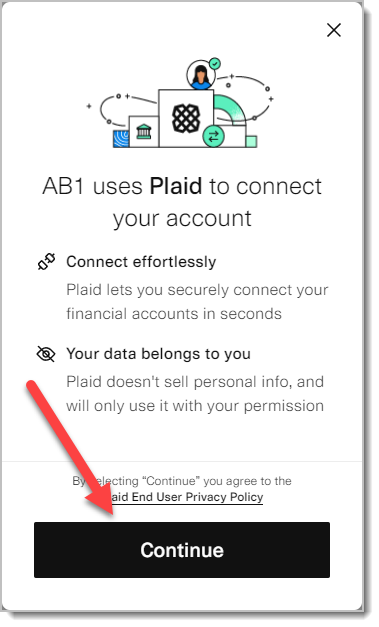
Select Continue.
-
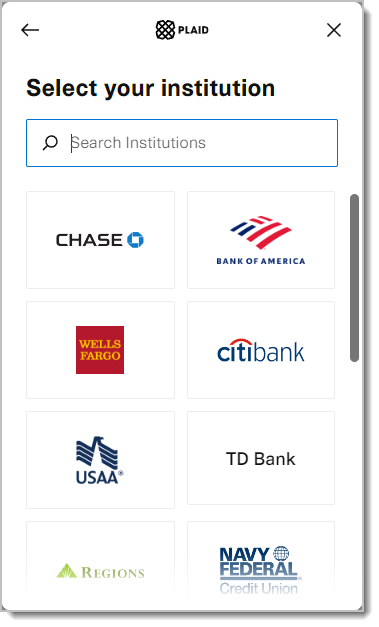
Search and select the appropriate bank account from the list of institutions.
-
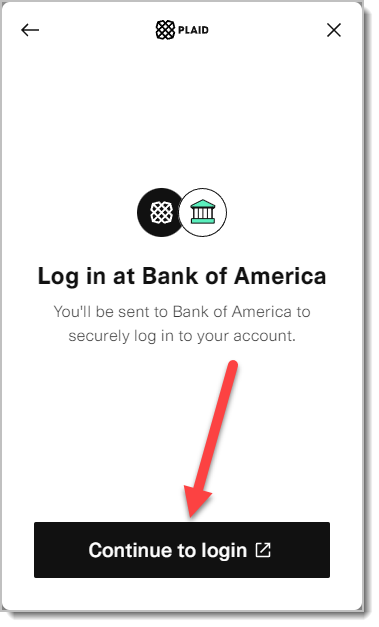
After confirming, select Continue to login.
-
Confirm your credentials and add the desired accounts to Plaid using the bank's own portal.
-
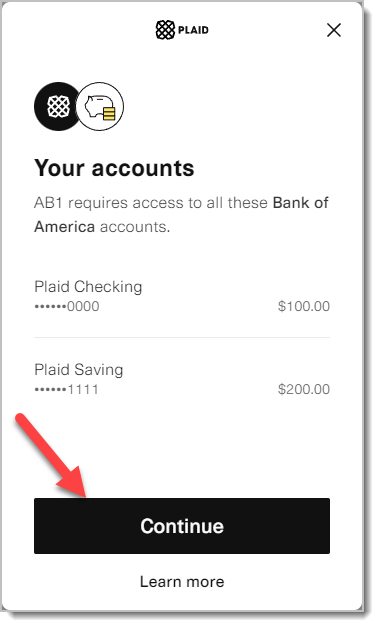
The system redirects back to the Plaid window, displaying the accounts to be added. Select Continue to confirm.
-
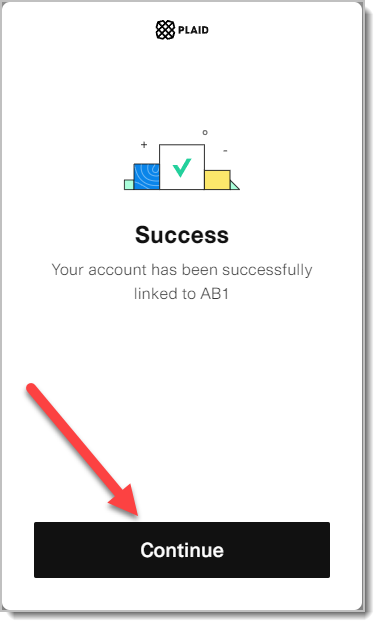
A success window appears once the account is added. Select Continue to return to the e-Bill.
-
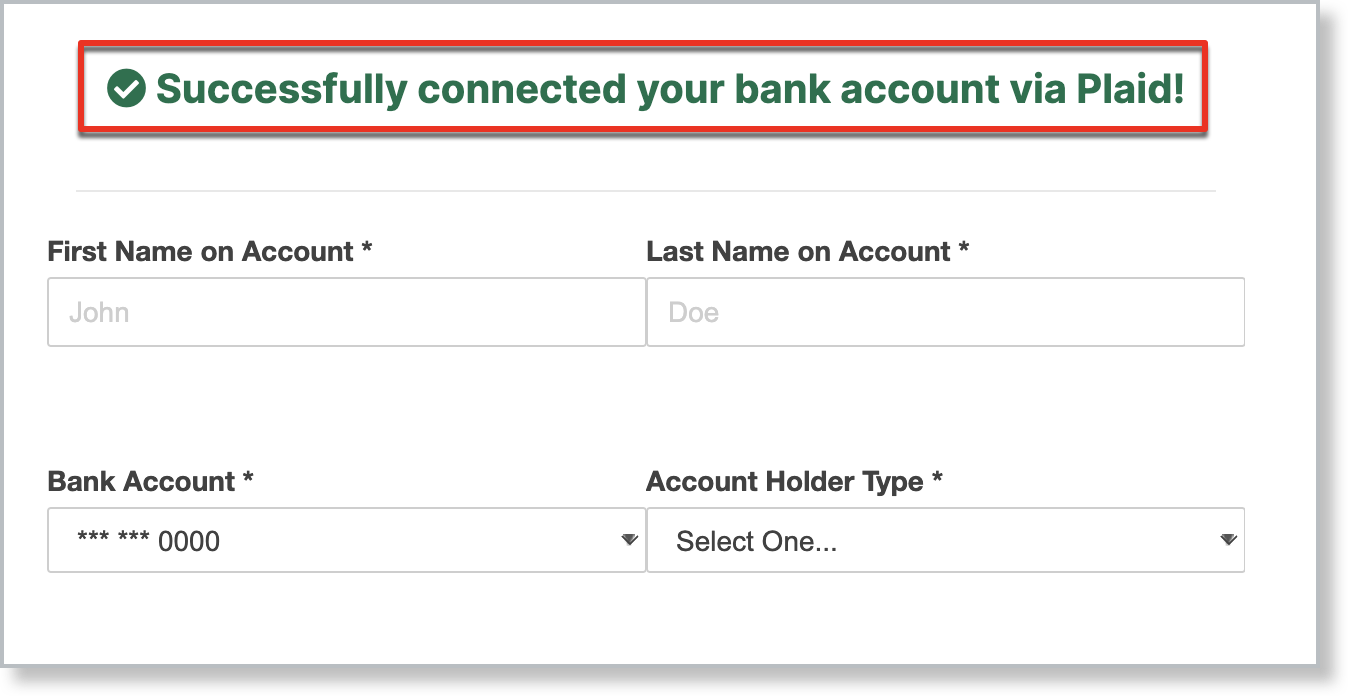
After connecting, the payment form displays a success message. Fill out the rest of this form.
-
Select the bank account from the Bank Account drop-down to add the account through Plaid.
-
Once all the fields are filled in, select Pay with Bank Account.
-
A successful submission returns a message confirming the request is processing.
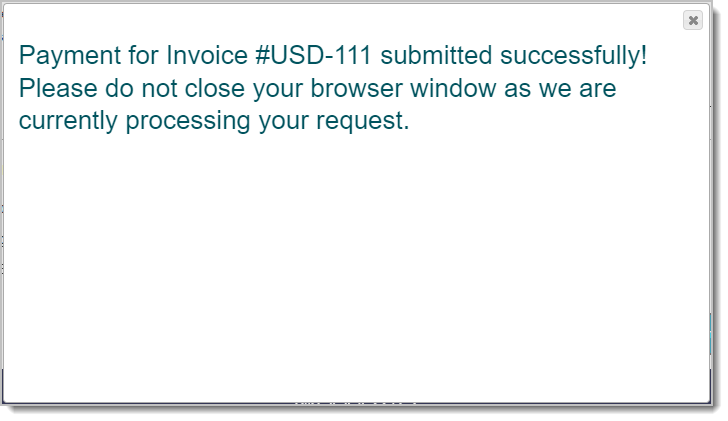
After this point, Customers can enable autopay and have the selected bank account through Plaid as the default payment account.
Advanced Billing
If you access Maxio Payments through Advanced Billing, use the following steps to get connected instead.
Connect Plaid to Advanced Billing
For this integration you must have the following:
- Access to Advanced Billing
- Access to Maxio Payments
- An executed agreement with Maxio that includes Maxio Payments and Bank Authentication/Verification
Once all of these requirements are met, Plaid can be connected to Maxio Payments.
Important: Currently, this integration can only be connected by a Maxio team member. Contact your Onboarding Manager, Customer Success Manager, or support@maxio.com for further steps on getting connected.
Using Plaid and Advanced Billing
Following the initial setup, Plaid can be seamlessly incorporated into several publicly accessible page types, as long as Direct Debit is used on the page:
- Public Signup Pages
- Self-Service Pages
- Public Invoice Pages
The setup process is the same across these page types.
To connect a bank account with Plaid
-
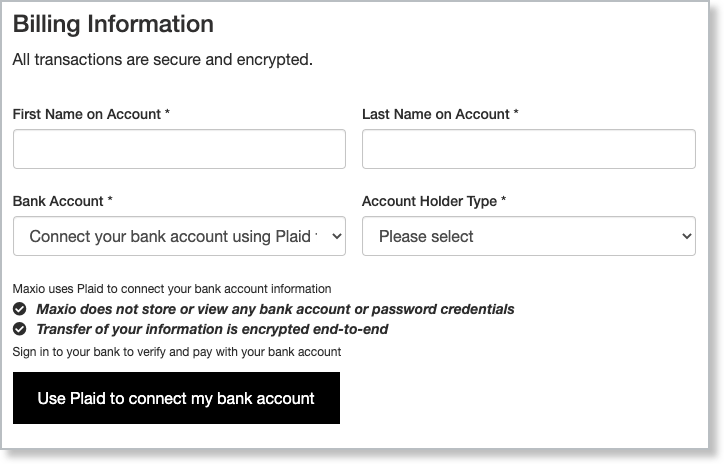
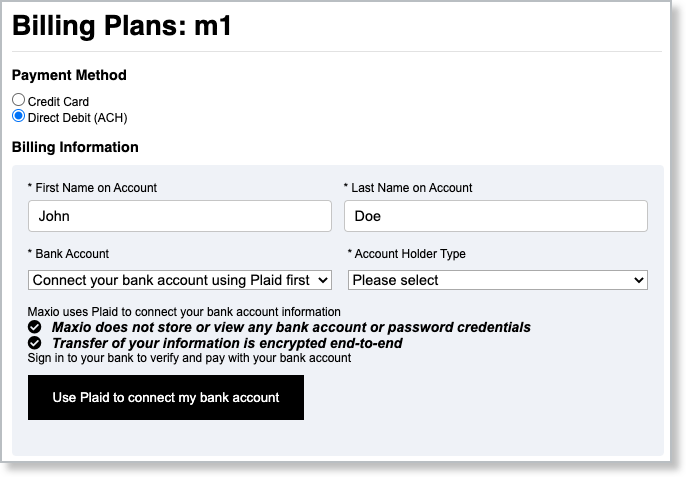
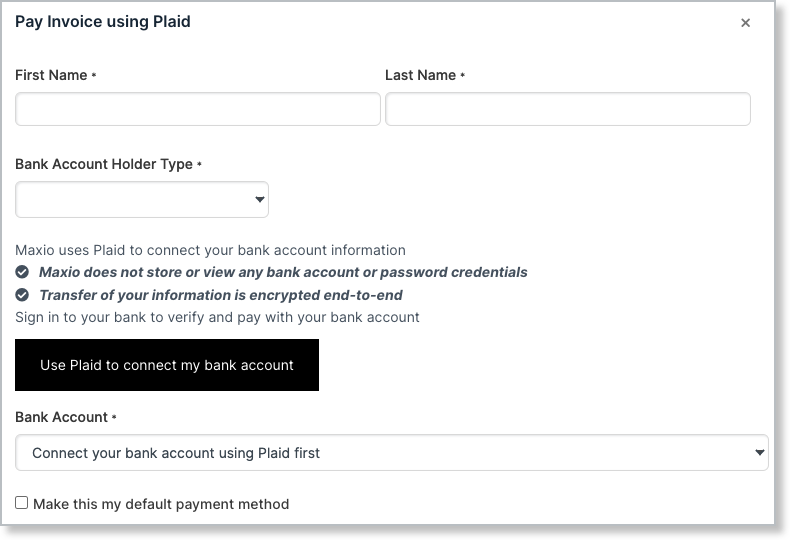
On whichever page they're using, the Customer selects Use Plaid to connect my bank account.
Public Signup Page:
-
Select Continue.
-
Search and select the appropriate bank account from the list of institutions.
-
After confirming, select Continue to login.
-
Confirm your credentials and add the desired accounts to Plaid using the bank's own portal.
-
The system redirects back to the Plaid window, displaying the accounts to be added. Select Continue to confirm.
-
A success window appears once the account is added. Select Continue to return to the public page.
-
Fill out the rest of the public page's form.
After this point, Customers on the automatic subscription type have the selected bank account through Plaid as the default payment account.
Important: Auth can only be used with checking or savings accounts, not with other types of depository accounts, such as money market accounts. Credit-type accounts, including credit cards, cannot receive payments directly via electronic interbank transfers, and Auth data cannot be used to set up credit card payments. By default, only checking and savings accounts appear when using Auth, and institutions that don't support these accounts don't appear in the Institution Select pane. When using Auth, you typically only need access to the one specific account the end user wants to use to fund the payment, rather than all checking and savings accounts they may have at the same institution.
ACH mandate authorization
When a Customer pays with, or signs up using, Direct Debit (ACH) in US Dollars on the Maxio Payments gateway, they now see an ACH mandate authorization step before their payment method is saved. This applies on the Public Signup Page and the Public Invoice Page, whether the Customer connected their bank account through Plaid or entered it directly, and it happens after the Customer selects Submit Payment or Place My Order.
A modal titled "ACH Payment Authorization and Recurring Billing Disclosure" presents the mandate text for the Customer to review, along with your business's name and contact details, the price, and the date of the first payment. The Customer selects Accept to authorize the debit and continue.
Maxio records the Customer's IP address and the exact mandate text they accepted, so the authorization behind each recurring ACH debit is retained. This supports your NACHA compliance obligations rather than satisfying them on your behalf.
This step only appears for US Dollar transactions on the Maxio Payments gateway; it does not apply to other currencies or other gateways.
Micro-deposits on the Self-Service Page
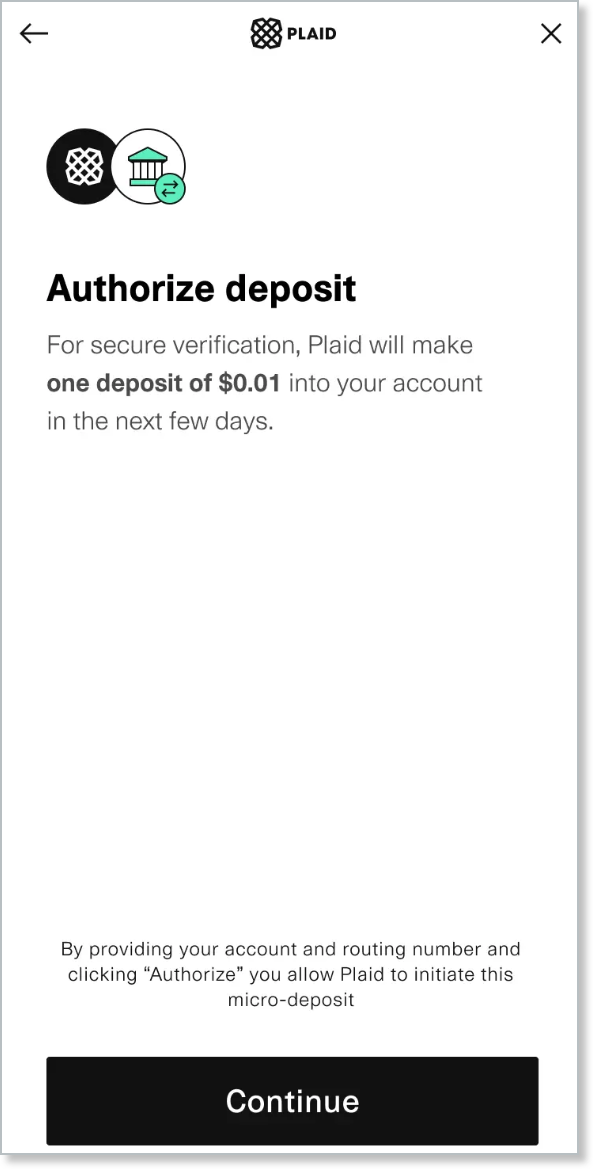
Maxio supports Plaid's micro-deposit verification feature on the Self-Service Page for Customers who must verify their bank account before making ACH payments. This lets Customers authorize their bank account using micro-deposits when their bank doesn't support Instant Authentication.
When a payer enters the Self-Service Page and chooses to authorize their bank account with Plaid, they can select micro-deposit authorization if Instant Authentication is unavailable. Once the micro-deposit process starts, the payer receives an email notification with a URL and passcode to finalize their approval.
After entering the passcode on the provided URL, the payer is redirected back to the Self-Service Page.
Related information
e-Bill must be enabled in Maxio Core before you can connect Plaid. See Set Up e-Bill for Maxio Payments.
Still need help?
Reach out and our support team will take it from here.