
Use e-Bill for Maxio Payments
Last updated on Sep 1, 2026
Once e-Bill is set up for Maxio Platform, billing, refunds, and payment cancellations all run through Maxio Payments.
Automatic billing with e-Bill
Once setup is complete, billing becomes a seamless, automatic process. When an Invoice is issued to a Customer with e-Bill enabled, the Customer receives a link to pay online by email. From there, they can pay using the options you've enabled, which sync to Maxio Payments.
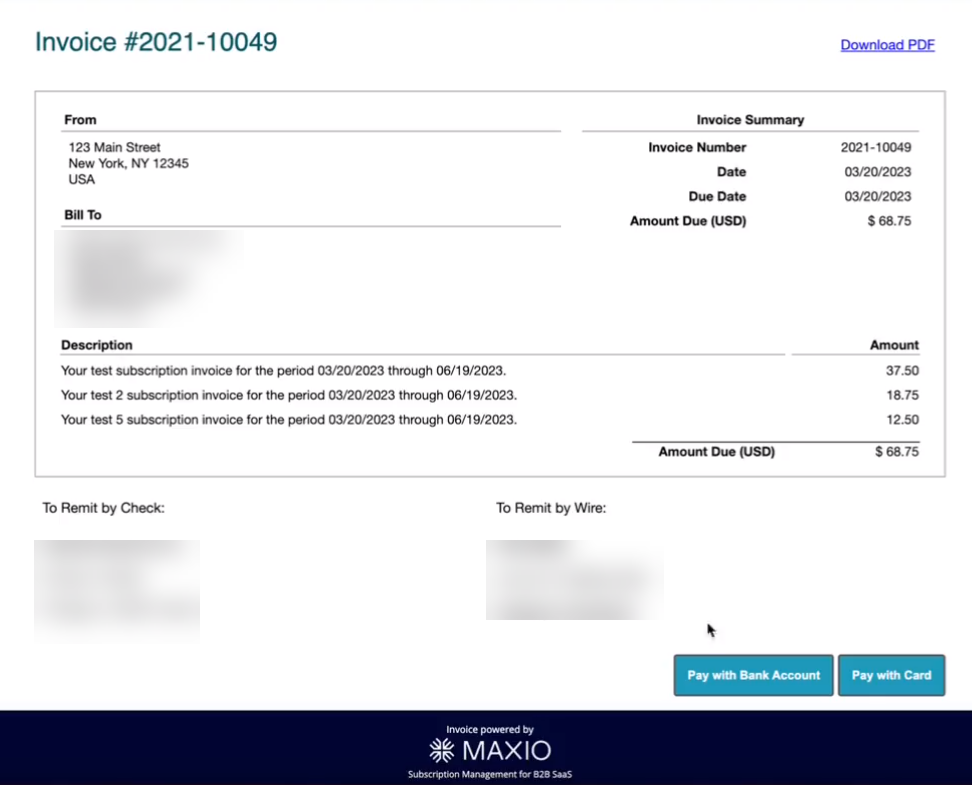
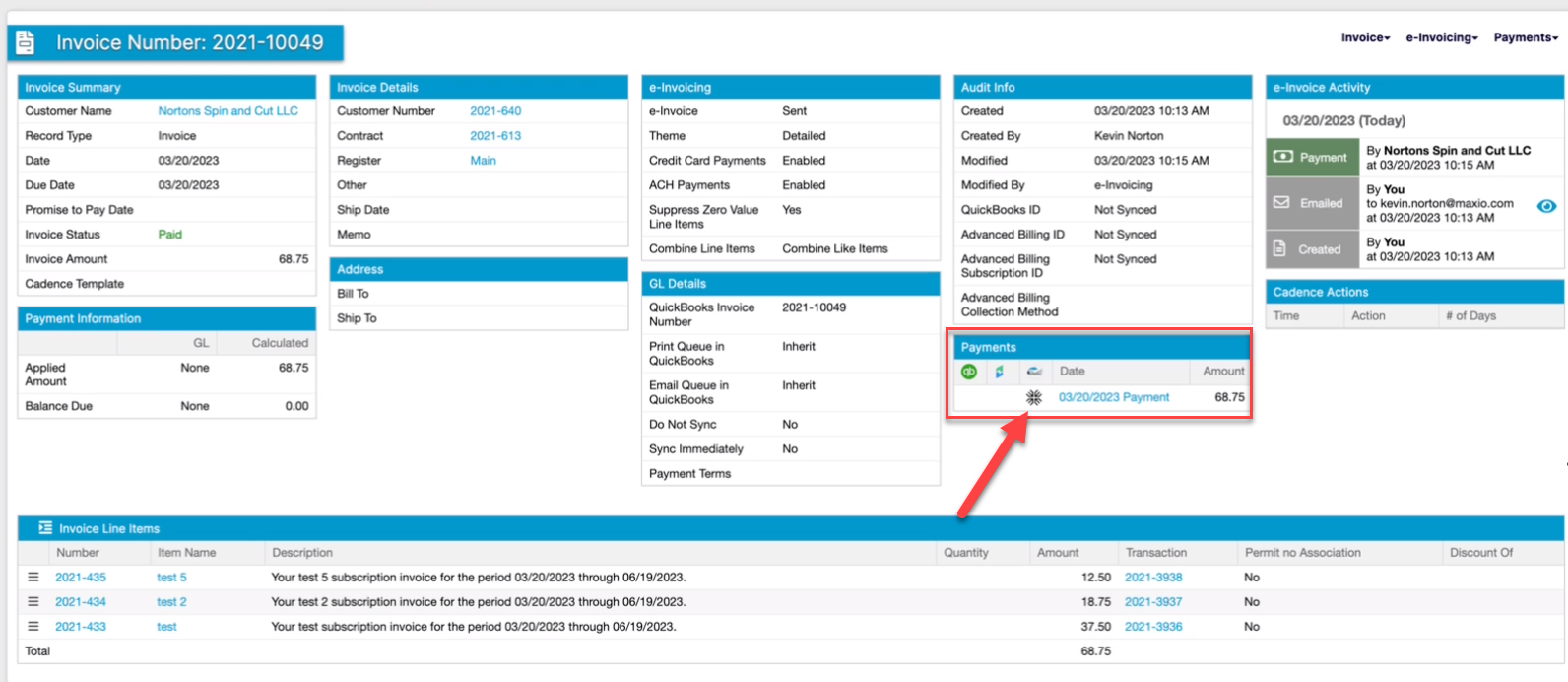
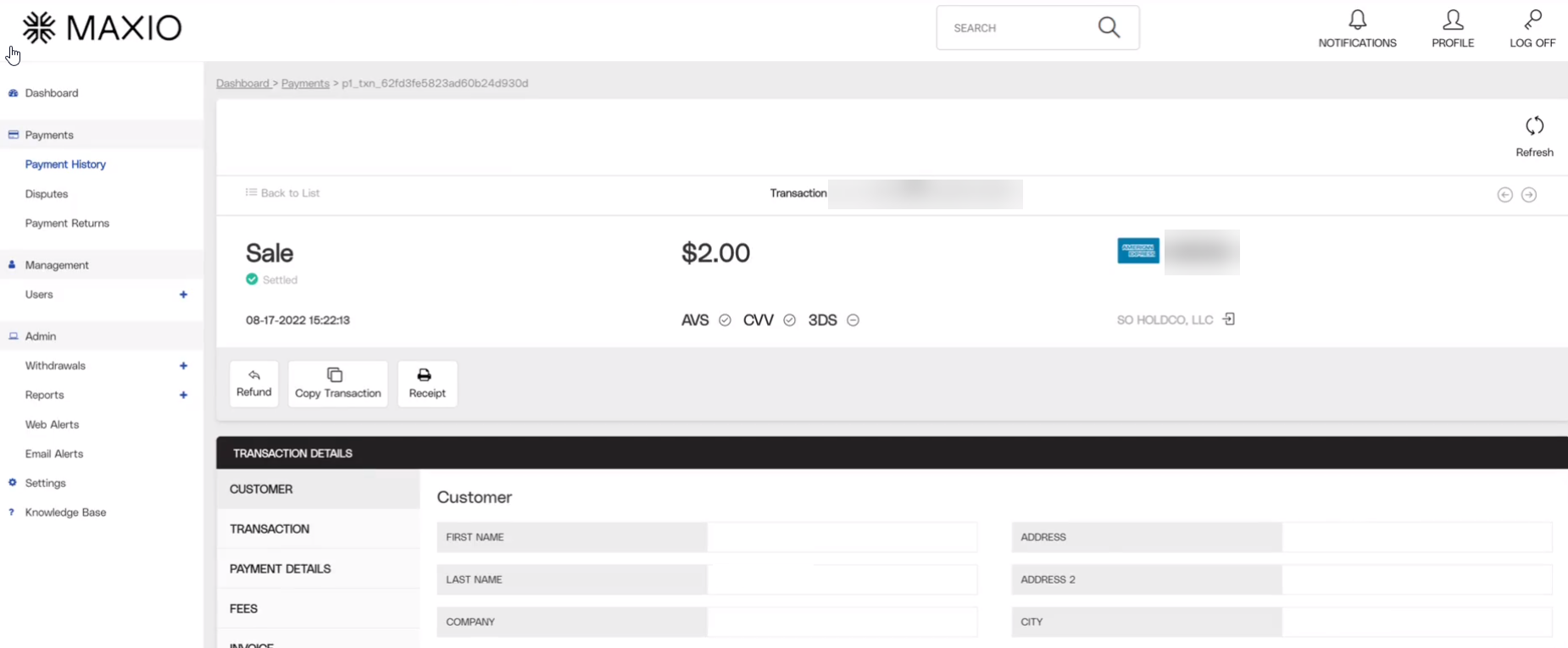
You can see and access the payment from the Invoice's own Payments section, or navigate to the corresponding Maxio Payments page for that transaction. Select the Maxio emblem under Payments to open the Maxio Payments site for that transaction (login required).
Refund an invoice payment
Refunds on an Invoice paid through Maxio Payments start with a Credit Memo, then finish in the Maxio Payments portal.
To refund an invoice payment using Maxio Payments
-
Navigate to the Invoice you want to refund.
-
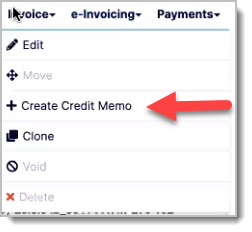
In the top menu, under the Invoice drop-down, select Create Credit Memo.
-
On the Create Credit Memo screen, enter the amount to refund as a negative amount. For example, refunding $100 requires an amount of -$100.00.
-
Select Save. This creates a new Credit Memo under the Customer's Invoice.
-
Open the Credit Memo you just created.
-
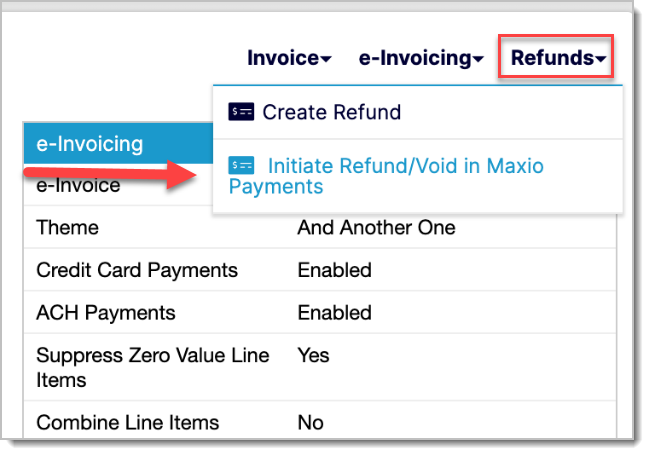
Under the Refunds menu, select Initiate Refund/Void in Maxio Payments.
-
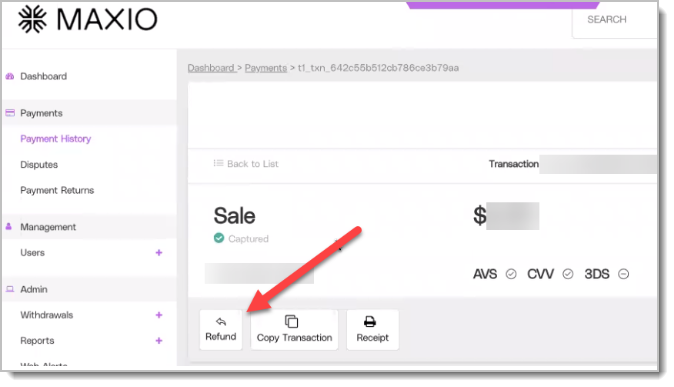
You're redirected to the Maxio Payments portal page for the sale. Select Refund.
-
Enter the amount to refund in the new window and select Save.
This refunds the amount back to the Customer's card or bank account.
Multi-currency support in Maxio Payments
Maxio Payments supports e-Bill payments in non-USD currencies, allowing international buyers to pay Invoices using their local currency by credit card.
The Maxio Payments team must manually enable multi-currency for your account. Contact payments@maxio.com to request enablement for your merchant account.
Canceling ACH and direct debit payments before capture
You can cancel eligible ACH and direct debit payments from the payment detail page during the two-hour cancellation window. The cancel option only appears for eligible payments before capture.
To cancel an ACH or direct debit payment
- Open the payment detail page for the ACH or direct debit transaction.
- Open the payment action menu.
- Select Void.
- Review the confirmation message.
- Confirm the cancellation.
After the payment is canceled, the payment is voided and the associated Invoice automatically reverts from Paid to its prior status. You can then correct the issue and reattempt payment if needed.
If the two-hour cancellation window has passed, the payment cannot be canceled from this action and must be refunded instead.
Related information
To learn how to connect Maxio Platform to Maxio Payments and enable e-Bill for a Customer, see Set Up e-Bill for Maxio Payments.
Still need help?
Reach out and our support team will take it from here.