
Troubleshoot Deposit Sync Issues with Your General Ledger
Last updated on Sep 19, 2026
If a Maxio Payments deposit fails to sync to QuickBooks or NetSuite, it can disrupt your accounting reconciliation process and may require manual intervention to close your books. This guide walks you through the most common causes of deposit sync issues, how to investigate what's preventing your deposit from syncing, and step-by-step instructions to resolve them. For how deposit syncing works and the GL-specific settings each integration requires, see Understand Deposit Syncing to Your General Ledger.
Step 1: Find the deposit that isn't syncing
Problem deposits can typically be identified in two ways: they're either missing sync IDs in your deposit list (indicating they never synced), or they appear with error messages on your general ledger integration page (indicating sync attempts failed).
Use the following steps to find the affected deposit:
-
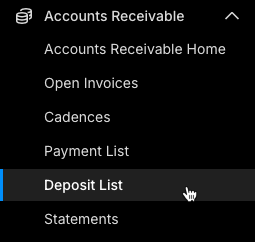
Navigate to Accounts Receivable > Deposit List.
-
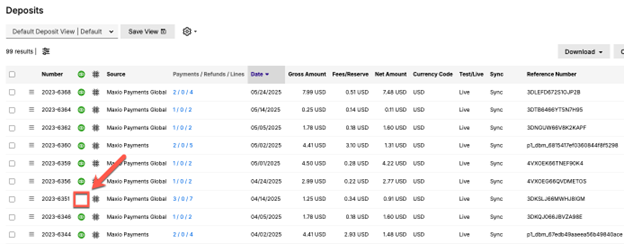
Ensure GL/ERP ID is visible in the selected columns, and look for any deposits missing the respective GL/ERP ID.
-
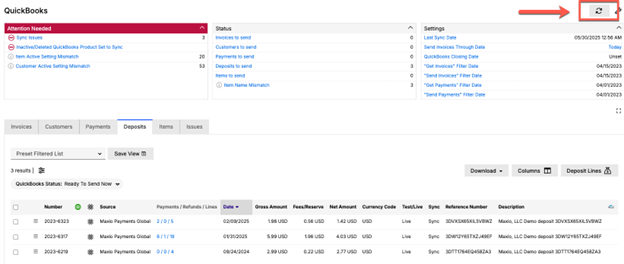
Navigate to the GL/ERP integration and select the Deposits tab. This shows you the deposits queued to sync to the GL or ERP.
-
Verify the deposit appears in the list of deposits to sync.
If the deposit identified in step 2 is missing from this list, this likely means a payment hasn't yet synced to the GL, or is missing an association to the respective deposit. See step 2 for details on how to resolve this issue.
-
Select the Sync icon to send deposits to the general ledger.
-
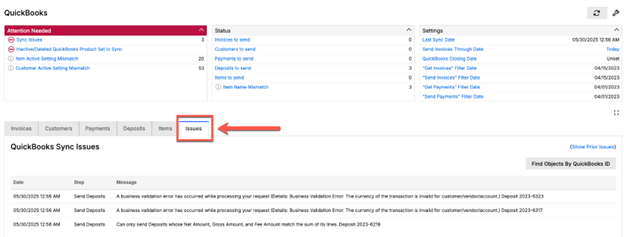
Review the list of Issues to identify if any deposit steps have error messages associated with them.
Step 2: Determine the issue preventing a successful sync
Once you've identified a problem deposit, the next step is to determine why it's not syncing. There are two main categories of sync issues: missing prerequisites (where required components haven't synced yet) and data discrepancies (where the deposit information doesn't match between systems).
Important: All objects within a deposit (payments and payment lines) must sync to your general ledger before the deposit itself can sync.
Check to ensure all these components have successfully synced to the GL/ERP:
- Payments: Each payment record is synced.
- Invoices: All invoices associated with payments are synced.
- Customers: All Customer records are synced.
- Refunds: Any refund records are synced.
How to check:
- Select the blue hyperlink on your deposit record.
- Look for icons next to each payment. Missing icons indicate unsynced records that need attention.
- Select individual payment records to check for error messages.
The following table summarizes common deposit sync issues:
| Issue | Cause | How to Fix |
|---|---|---|
| 3.1 - Missing Customer Sync | Customer records haven't synced or are set to Do not sync. | Ensure Customer records have synced and sync settings are enabled. |
| 3.2 - Missing Invoice Sync | Invoices associated with payments haven't synced to GL/ERP or are set to Do not sync. | Verify all Invoices have synced; fix any invoice sync errors. |
| 3.3 - Missing Payment Sync | Individual payments within the deposit haven't synced to GL/ERP. | Check each payment record for sync icons; resolve any payment-level sync errors first. |
| 3.4 - Amount Mismatch Error | Total of deposit lines doesn't match deposit net/gross amounts. | Compare totals between Payments Portal and Core; identify and fix discrepancies. |
| 3.5 - Missing Deposit Lines | Payment exists in Payments Portal but there is a missing corresponding deposit line in Maxio Core. | Create the missing deposit line with correct amounts and link it to the payment. |
| 3.6 - Duplicate/Incorrect Lines | Extra or wrong deposit lines causing total mismatches. | Remove incorrect deposit lines that don't correspond to actual Transactions. |
| 3.7 - GL/ERP Error Messages | Manual actions taken directly in the GL that modify the original records created by Maxio, preventing subsequent sync steps from completing. | Restore objects and amounts to their original state, or manually update the records in Maxio or the GL. |
Step 3: Resolve the issue and sync the deposit
Once you've identified the specific issue preventing your deposit from syncing, follow the detailed resolution steps below. Each issue type requires a different approach, but the goal is always to ensure the deposit data is consistent and complete across all systems.
Step 3.1 – Missing customer sync
Customer set to do not sync
Customer records haven't synced to your general ledger, or have been manually configured with Do not sync settings, which prevents any associated objects from syncing to your GL/ERP system.
To confirm, navigate to the GL/ERP homepage and select Customer set to do not sync in the Attention Needed section.
Enable Customer sync
To resolve a Customer set to Do Not Sync
- Edit the Customer and uncheck Do not sync.
- See Customers with Do Not Sync On for details.
Step 3.2 – Missing synced invoices
Item set to do not sync
Invoices associated with items set to Do not sync don't sync to the general ledger. If a deposit has one of these associated items, the deposit can't sync, since it's missing the invoice and payment.
To confirm, visit the GL/ERP homepage and select Items set to do not sync under Attention Needed.
Enable item sync
To resolve an Item set to Do Not Sync
- Update the item and uncheck Do not sync.
- See QuickBooks Item Set to Not Sync for details.
Step 3.3 – Missing payment sync
A payment hasn't synced due to a data or record error
One or more payments haven't synced, often due to data validation errors, Customer sync issues, or invoice problems.
To confirm:
-
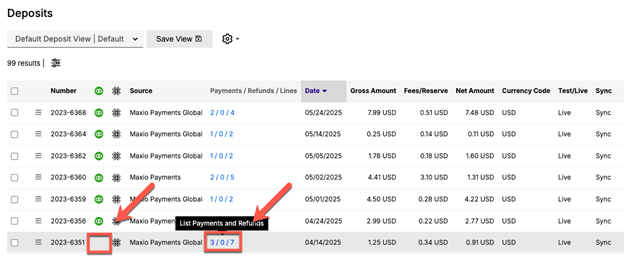
Select the blue hyperlink on your deposit record in the deposit list.
-
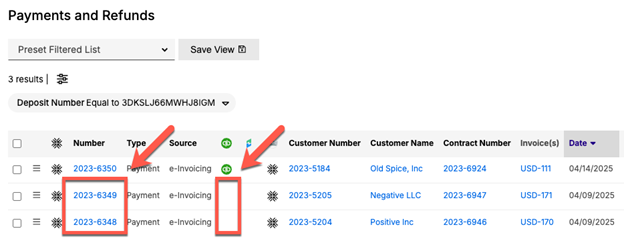
Look for missing GL/ERP icons next to payment records. Missing icons indicate payments that haven't synced.
-
Investigate and resolve any related sync issues with the payment. Then sync to the GL and check whether the deposit has queued to sync to the GL/ERP.
Resolve the payment's sync error
To resolve a payment sync error
- Select into each payment record that's missing the sync icon.
- Review the error messages displayed on the payment screen.
- Resolve common issues by:
-
Ensuring the associated Customer record has synced.
-
Verifying the invoice linked to the payment has synced.
-
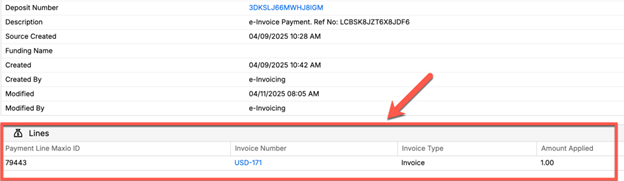
Verifying that payments are linked to the invoice (check if there is an associated payment line).
-
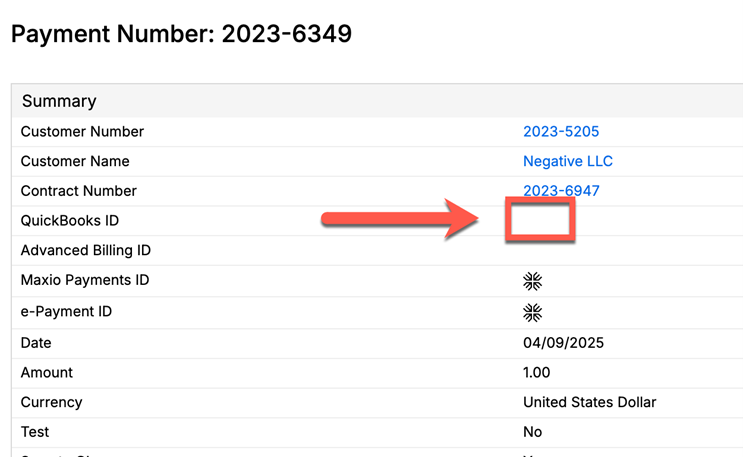
Verifying that payments have synced to the GL (check if there is an associated GL/ERP ID).
-
Once all payment-level issues are resolved, the payments sync automatically. After all associated payments have successfully synced, the deposit is queued for syncing.
Step 3.4 – Amount mismatch
Deposit lines don't match the deposit's recorded totals
Generally, this only occurs when records have been manually modified in Maxio or your GL/ERP. The error originates when the mathematical total of all individual deposit lines in Maxio Core doesn't equal the net and gross amounts recorded for the deposit, which prevents the system from syncing because it can't reconcile the discrepancy between expected and actual amounts.
You'll see this error: "Can only send Deposits whose Net Amount, Gross Amount, and Fee Amount match the sum of its lines."
Correct the mismatched deposit lines
To resolve an amount mismatch
-
Open the deposit and compare total gross, net, and fees.
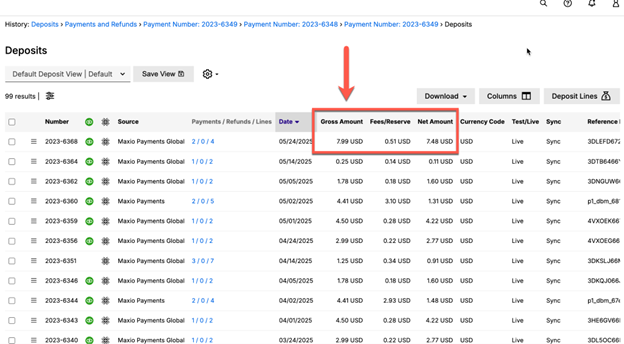
-
Check if deposit lines match the summary gross, net, and fee amounts.
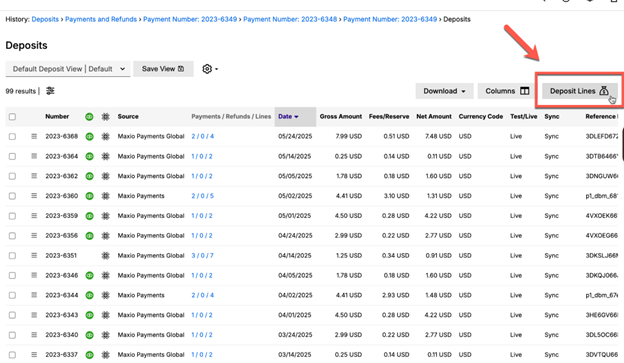
-
Correct the lines using the importer if needed. See Step 3.5 for details.
Step 3.5 – Missing deposit lines
A payment transaction has no linked deposit line
Generally, this only occurs when records have been manually modified in Maxio or your GL/ERP. The issue originates when a payment Transaction exists in the Maxio Payments Portal (indicating it processed), but the deposit line is either unlinked or missing from Maxio Core (the link between the payment and deposit).
The Deposit Lines list, reached from the Deposit Lines link on the Deposit List page, supports Saved Views. Save your own filtered comparison view of this list to speed up this check the next time you investigate a mismatch.
To confirm:
- There are amount discrepancies between Payments Portal totals and Maxio Core deposit line totals.
- Payments appear in the Portal export but there is no corresponding deposit line in Maxio Core.
- This issue often involves refunds that were disassociated from their respective credit memo or refund receipt.
Create the missing deposit line
To create a missing deposit line
- Identify the missing Transaction via comparison:
- Compare line-by-line between the Payments Portal export and Core deposit lines.
- Look for amounts in the Portal that don't have matching deposit lines.
- Note Transaction IDs and Customer information.
- Create or update the missing deposit line:
-
In Maxio Core, go to Admin > Import > Create/Update.
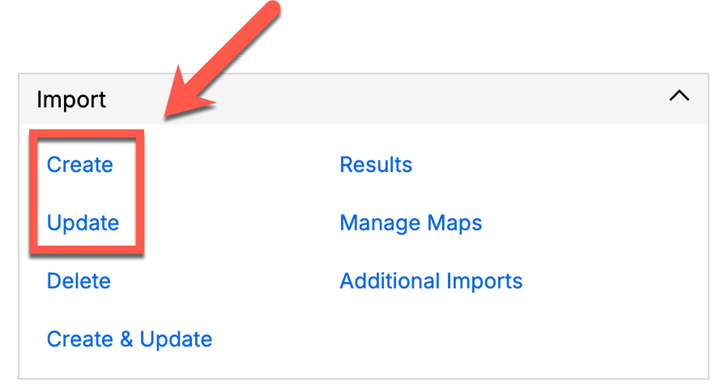
-
Select Deposit Line.
-
Link to the correct deposit number.
-
Enter the correct net and gross amounts.
-
If applicable, link to the payment number.
-
- Verify:
- Re-export deposit lines and confirm that totals now match.
- Check that the deposit appears in the sync queue.
Step 3.6 – Duplicate/incorrect lines
A payment is linked to multiple deposits
A single payment has been linked to multiple deposits. Generally, a payment is only associated with one deposit.
To confirm, navigate to the deposit list and go to the deposit number column. Look for any payment that has multiple deposit numbers listed.
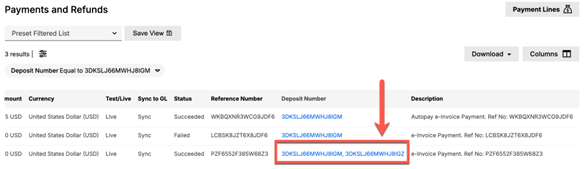
Remove the incorrect deposit line
To resolve a payment linked to multiple deposits
- Find the payment that has multiple deposits.
- Update the deposit line to only reference the correct (single) deposit:
-
From Maxio Core, go to Admin > Import > Create/Update.
-
Select Deposit Line.
-
Link to the correct deposit number.
-
If applicable, enter the correct net and gross amounts.
-
If applicable, link to the payment number.
-
Step 3.7 – GL/ERP error messages
Records were manually modified in the GL or ERP
Manual modifications made directly in your general ledger or ERP system may have altered the original records created by Maxio, causing a mismatch that prevents subsequent sync operations from completing successfully. This commonly happens when users manually edit Transactions, Customers, or Invoices directly in their GL or ERP rather than making changes through Maxio.
To confirm, look for:
- Specific error messages in the QuickBooks/NetSuite integration sync issues section.
- Deposits failing to sync with GL/ERP-specific error codes.
- Manual modifications made directly in the general ledger system.
Restore the records and retry the sync
To resolve a GL/ERP error message
- Review the specific error message:
- Navigate to GL/ERP Integration > Sync Issues.
- Note the exact error message and any reference numbers.
- Restore affected records to their original state:
- Undo any manual modifications made directly in the GL/ERP.
- Ensure records match their original Maxio-created state.
- Contact Maxio Support for assistance with complex GL modifications.
- Retry the sync:
- If necessary, clear any cached sync data.
- Retry the deposit sync after restoring the original state.
Related information
For a broader look at how Maxio Core connects to QuickBooks, see QuickBooks Integration Overview.
For a broader look at how Maxio Core connects to NetSuite, see Understand the NetSuite Integration.
Still need help?
Reach out and our support team will take it from here.