
Using Maxio Payments
Last updated on Aug 24, 2026
Use the Maxio Payments portal to view and download reports on your transactions, deposits, disputes, and account settings. See the guide for each view:
- View and Export Transactions
- View and Export Deposits
- View and Export Disputes
- Manage Your Maxio Payments Settings
Depending on your account, you may also see a Balance view in the left navigation menu. It isn't covered in this set of guides.
Signing in
To access Maxio Payments, visit payments.maxio.com. You must have an account with Maxio Payments enabled. This is a separate account from your Maxio account. After enrollment, an email is sent with login information.
Important: Maxio Payments uses multi-factor authentication (MFA) for login purposes. If this is your first time signing in or signing up, you'll need to link an authenticator app using a provided QR code. Have an MFA authenticator app ready for this process. This added security is mandatory and cannot be disabled.
Once logged in, you'll land on the Home dashboard.
Key UI features
Across most views in Maxio Payments, you'll find the following tools to help you search and manage data.

Search records
Use the Search field to quickly locate specific items by partial terms or keywords, including transaction IDs, customer names, or other details specific to the report.
Filter data
Refine the data by various field types, depending on the report you're viewing. Apply multiple filters together to narrow results down to what you need.
Sort columns
Click any column header to sort the report by that field.
Customize columns
The  button lets you select which columns appear in the report, so you can tailor the view to your workflow.
Export data
Use the Export button to download your filtered view as a CSV file. This is helpful for auditing, reconciliation, or offline analysis.
Changing password
For security purposes, Maxio Payments requires users to update their passwords every 90 days. When it's time to reset your password, you'll receive an automated email prompting you to log in and complete the update.
To update your password in the customer portal
-
Log in to your Maxio Payments account using your current credentials.
-
Select Profile from the account menu.
-
Select Change Password.
-
In the password update form:
- Enter your Old Password.
- Enter your New Password.
- Re-enter your New Password to confirm.
-
Click Update Password to complete the process.
You'll see a confirmation message once your password has been successfully updated.
If you forget your password and cannot log in, use the Forgot Password link on the login page to reset it via email.
Switch between accounts
If you have access to multiple Maxio Payments accounts across various companies, use the account switcher to move between them.
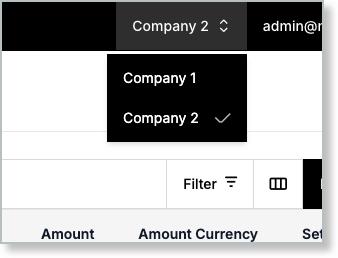
Select the company name drop-down menu in the left navigation menu and select another company to view.
Related information
For help setting up your Maxio Payments account for the first time, see Apply for the Maxio Payments Gateway.
Still need help?
Reach out and our support team will take it from here.