
View and Export Transactions
Last updated on Aug 26, 2026
Transactions capture every payment attempt processed through Maxio Payments, from successful charges to declines and refunds.
In Maxio Payments, expand Transactions in the left navigation menu and select Transaction List to see this activity.
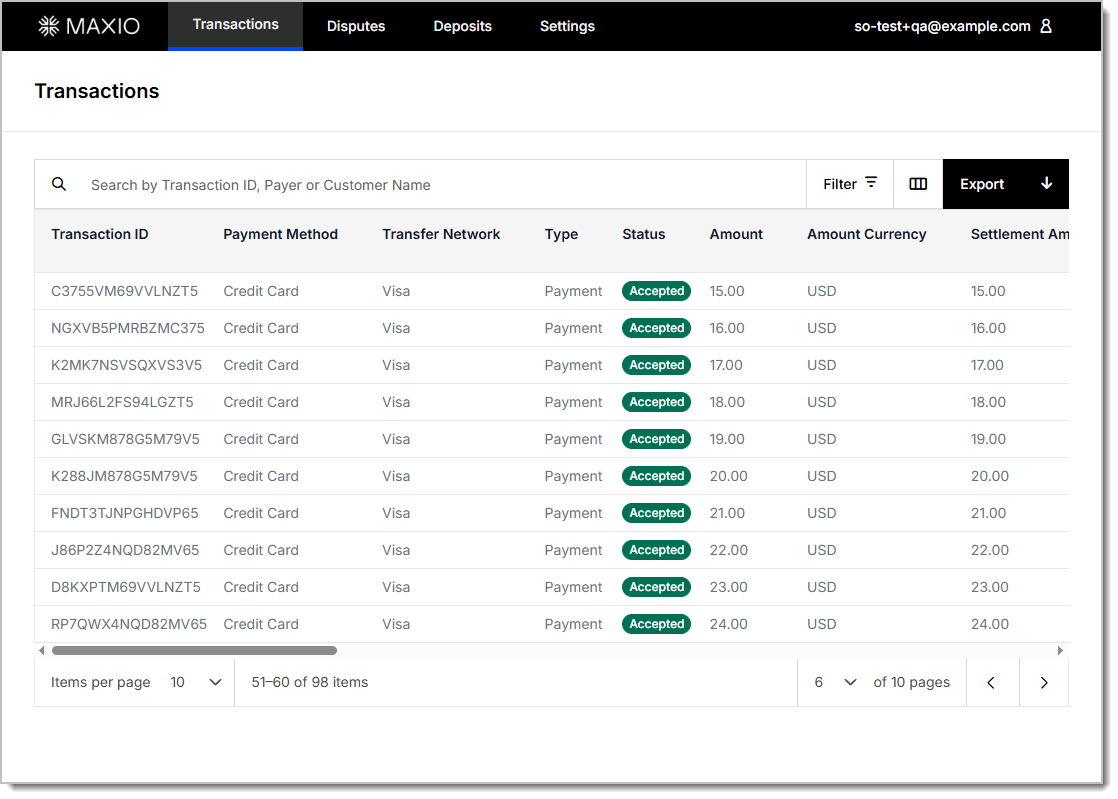
Transactions report
Filter, search, and customize this report to review your payment activity, then export it to a .csv file with your selections in place.
Transactions report columns
| Column | Description |
|---|---|
| Transaction ID | A unique identifier assigned by Maxio Payments to each transaction. |
| Payer Name | The name of the customer or entity that initiated the payment. |
| Payer Billing Street | The street address from the payer's billing information. |
| Payer House Number | The house or building number from the payer's billing information. |
| Payer City | The city from the payer's billing information. |
| Payer State | The state or region from the payer's billing information. |
| Payer Zip | The postal code from the payer's billing information. |
| Payer Country | The country from the payer's billing information. |
| Payment Method | Details the method used to make the payment, such as a Credit Card or Direct Debit. |
| Transfer Network | The financial network used to process the transaction, e.g., Visa, ACH, etc. |
| Card Type | The type of card used, such as Credit or Debit. |
| Type | The classification of the transaction: Payment, Tokenization, Refund, Chargeback, Second Chargeback, Fee, or Transfer. |
| Status | The current state of the transaction, such as Accepted, Pending, Rejected, or Cancelled. |
| 3DS Status | Shows if 3D Secure was used for fraud prevention on the transaction, such as N/A, Not Attempted, Success, or Failed. |
| Processor Rejection Code | A standardized code returned by the payment processor that indicates why a transaction failed. |
| Rejection Reason | A readable explanation of why the transaction failed, e.g., Refused or CVC Declined. |
| Rejection Reason Raw | The unfiltered error message returned from the payment network, useful for technical debugging. |
| Amount | The original amount submitted for processing, excluding fees. |
| Surcharge Amount | The additional surcharge amount applied to the transaction, if any. |
| Amount Currency | The currency of the transaction amount, e.g., CAD. |
| Settlement Amount | The final amount deposited into your account after processing is complete. |
| Settlement Currency | The currency in which the funds were settled into your account (e.g., USD). |
| Net Amount | The total amount received after fees have been deducted. |
| Total Payment Fees | The sum of all processing fees applied to the transaction. |
| Maxio Processing Fees | The fee paid to Maxio for its services. |
| Processor Fees | Fees applied by the payment processor, including currency conversion, FX fees, IC+, and flat fees. |
| Interchange and Scheme Fees | The combined total of interchange and scheme fees charged by the card network. |
| Created | The timestamp of when the transaction was initiated. |
| Customer Email | The customer's email address on file. |
| Customer Name | The customer's name on file within Maxio. |
| Customer ID | The ID of the customer within the Maxio system. |
| FX Rate | The foreign exchange rate applied to the transaction, if a currency conversion occurred. |
| Interchange Fee Name | The name of the specific interchange fee applied to the transaction. |
Exported files always include a fixed set of columns, including the full interchange and scheme fee breakdown, regardless of which columns are selected on screen.
Transaction details
Click a transaction to open its details. The page organizes information into several cards: Transaction Details (including a link to the related Deposit ID, if applicable), Cardholder Details, and Payment Details. Depending on the transaction, you may also see a Customer Details card or a list of child transactions. For settled credit card transactions, the interchange and scheme fee breakdown also appears in the Payment Details card.
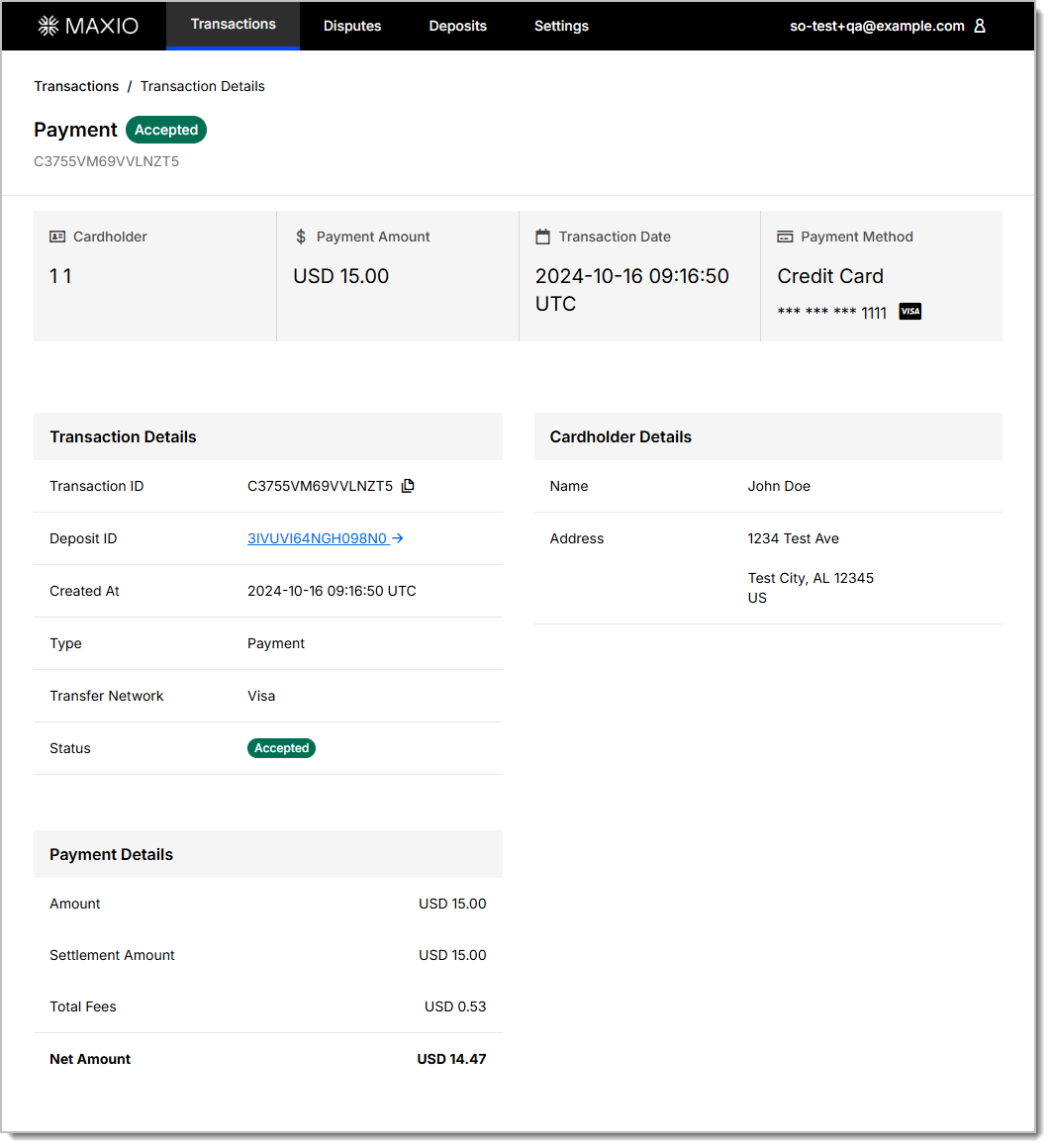
View interchange and scheme fee detail
Maxio Payments displays a detailed breakdown of interchange and scheme fees for settled credit card transactions, giving you visibility into exactly how each transaction was priced.
To view interchange and scheme fee detail
- In Maxio Payments, open a settled credit card transaction.
- Review the interchange and scheme fee breakdown on the transaction detail page. The breakdown includes the fee type (interchange fee or scheme fee), fee name, and fee amount for each individual fee.
- To see the aggregate interchange and scheme fee total across multiple transactions, add the Interchange and Scheme Fees column to the transaction list.
- Export the transaction list to analyze the fee breakdown offline. Exported files always include the full interchange and scheme fee breakdown, regardless of which columns you've added to the on-screen list.
Related information
For an overview of the Maxio Payments portal and its other views, see Using Maxio Payments.
Still need help?
Reach out and our support team will take it from here.