
View and Export Deposits
Last updated on Aug 26, 2026
In Maxio Payments, select Deposits from the left navigation menu to see how and when funds are transferred to your bank account.
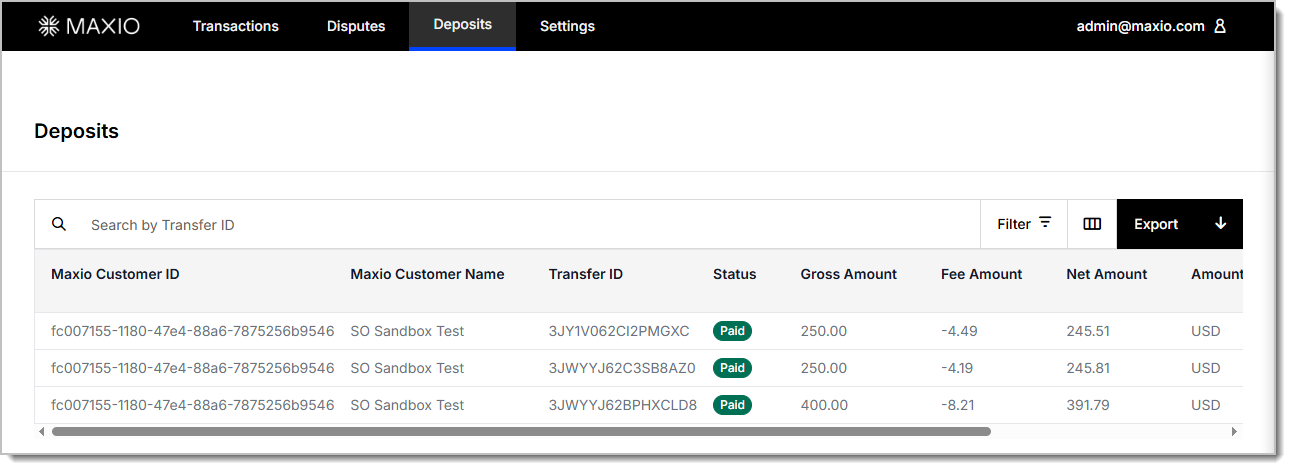
Deposits report
Filter, search, and customize this report to review your deposit activity, then export it to a .csv file with your selections in place. Each row represents a deposit that has occurred within Maxio Payments. Search by Transfer ID to find a specific deposit.
Deposits report columns
| Column | Description |
|---|---|
| Transfer ID | A unique identifier for the transfer event issued by the payment processor or network. |
| Status | The current state of the deposit, such as Paid, Pending, or Failed. |
| Gross Amount | The original transaction amount before any fees is applied. |
| Fee Amount | The total fees deducted for processing, including card network, processor, or platform fees. |
| Net Amount | The amount deposited after subtracting all fees from the gross amount. |
| Amount Currency | The currency used for the transaction or deposit (e.g., USD). |
| Booking Date | The date on which the transaction was recorded for deposit purposes. |
Deposit details
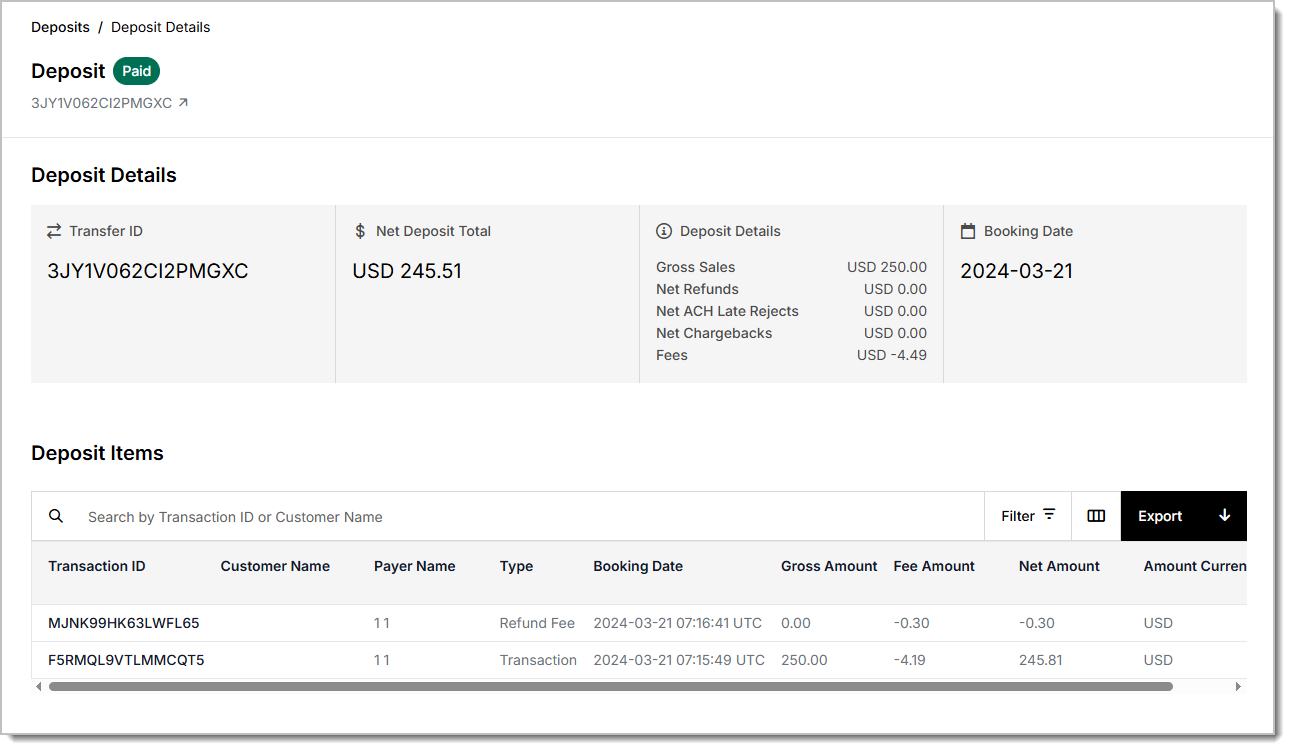
Click a deposit to open its details page and see every detail of the deposit in one place, including the Deposit Items section. Filter and export Deposit Items as its own report for offline use. You can also add the optional FX Rate column to the Deposit Items report.
Related information
For an overview of the Maxio Payments portal and its other views, see Using Maxio Payments.
Still need help?
Reach out and our support team will take it from here.