
Understand Calendar Billing
Last updated on Sep 21, 2026
Use Calendar Billing to align Subscription renewals to a specific day of the month, so billing dates stay predictable for your Customers and easier for your accounting team to manage. When enabled, all renewals follow a consistent schedule, reducing date drift and streamlining invoicing.
How billing dates drift without calendar billing
Without Calendar Billing, signups at the end of the month shift earlier over time. For example, a signup on October 31 renews on November 30, then December 30, January 30, February 28, March 28, and continues on the 28th thereafter.
When calendar billing is available
Advanced Billing supports Calendar Billing for Subscriptions when the following criteria are met:
- The Plan's billing interval is one month.
- Every allocated Component's Price Point either bills in months or has no defined billing interval. Any number of months works, such as quarterly (every 3 months) or every 4 months, though an interval longer than one month requires multi-frequency billing enabled for your Site. A Price Point that bills in days, including a weekly cadence set as 7 days, isn't allowed.
- The Subscription has no trial period.
- For API users: you must not set
next_billing_atwhen creating the Subscription. This field is typically used for importing existing Subscriptions.
How multi-month components bill
A Component doesn't have to renew every month just because the Plan does. When a Component's Price Point has a multi-month billing interval, its billing periods still snap to the Subscription's Billing Day, but only every Nth month, where N is the Component's own interval. For example, a Component billed every 3 months on a Subscription with a Billing Day of the 1st generates periods that run from the 1st of one month to the 1st of the month 3 months later, rather than renewing every month the way the Plan does.
Turn on calendar billing
You can turn on Calendar Billing in one of three ways:
- Via a Public Signup Page, use the Calendar Billing dropdown to choose a specific billing day instead of the default. See Enable calendar billing for that setting.
- Via the API, specify a calendar billing day using the
snap_dayattribute when creating the Subscription. - Via the Admin UI, select the calendar billing date when creating a Subscription.
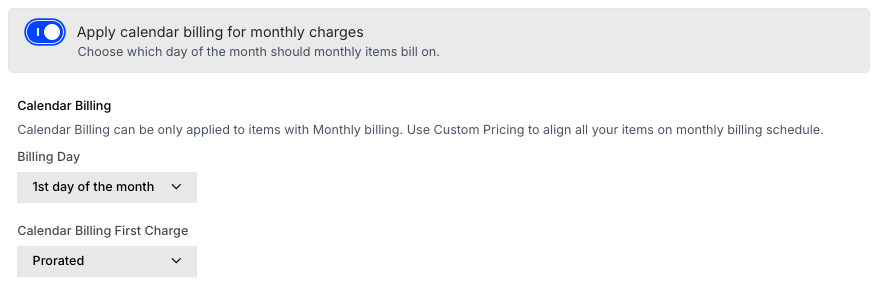
A valid Billing Day (snap_day in the API) is any number from 1 to 28, or the last day of the month (end in the API). By default, the Subscription renews at 12:00 PM in your site's time zone on that day.
You can optionally set the default renewal time to 5:00 PM instead of 12:00 PM. See Configure Calendar Billing Settings for how.
How the term end date aligns to calendar billing
When you turn on Set Calendar Billing during Subscription creation, the Term end date automatically recalculates to land on your chosen Billing Day, so the Subscription's last billing period doesn't end up split across an unrelated date.
Advanced Billing calculates the new end date by adding the Product's term length to the Term Start date, then rolling that date forward to the next occurrence of the Billing Day. For example, a Subscription with a Term Start of January 15, a 6-month term, and a Billing Day of the 1st ends on August 1 instead of July 15.
This recalculation runs whenever you turn on Set Calendar Billing, change the Billing Day, or change the Term Start or Product on the Subscription creation form.
Choose how calendar billing charges at signup
Subscriptions created with Calendar Billing enabled can be charged in one of three ways at signup:
-
Prorated: The prorated Plan price is charged immediately.
This is the universal default, but you can set a site default in Configure Calendar Billing Settings.
-
Immediate: The full Plan price is charged immediately.
-
Delayed: The full Plan price is charged with the first scheduled renewal.
Prorated calendar billing
For prorated charges, the amount depends on the signup date and time relative to the snap_day. Signups within 24 hours before the site's renewal time (12:00 PM or 5:00 PM) on the snap_day are treated as full period signups. All others are charged a prorated amount until the next snap_day.
snap_day | Signup Date | Amount Charged at Signup | current_period_ends_at |
|---|---|---|---|
| 15 | June 2, 3:00 PM | Prorated amount from 6/2 to 6/15 | June 15, 12:00 PM |
| 15 | June 14, 3:00 PM | Full amount from 6/14 to 7/15 | July 15, 12:00 PM |
| 15 | June 15, 12:01 PM | Prorated amount from 6/15 to 7/15 | July 15, 12:00 PM |
| end | June 2, 3:00 PM | Prorated amount from 6/2 to 6/30 | June 30, 12:00 PM |
| end | June 29, 3:00 PM | Full amount from 6/29 to 7/31 | July 31, 12:00 PM |
| end | June 30, 12:01 PM | Prorated amount from 6/30 to 7/31 | July 31, 12:00 PM |
Immediate calendar billing
The full amount is charged at signup regardless of the signup date. Signups within 24 hours before renewal time are treated as full period signups.
snap_day | Signup Date | Amount Charged at Signup | current_period_ends_at |
|---|---|---|---|
| 15 | June 2, 3:00 PM | Full amount | June 15, 12:00 PM |
| 15 | June 14, 3:00 PM | Full amount | July 15, 12:00 PM |
| 15 | June 15, 12:01 PM | Full amount | July 15, 12:00 PM |
| end | June 2, 3:00 PM | Full amount | June 30, 12:00 PM |
| end | June 29, 3:00 PM | Full amount | July 31, 12:00 PM |
| end | June 30, 12:01 PM | Full amount | July 31, 12:00 PM |
Delayed calendar billing
No charge is applied at signup. The first full charge occurs on the first renewal date as determined by snap_day.
snap_day | Signup Date | Amount Charged at Signup | current_period_ends_at |
|---|---|---|---|
| 15 | June 2, 3:00 PM | Nothing | June 15, 12:00 PM |
| 15 | June 14, 3:00 PM | Nothing | June 15, 12:00 PM |
| 15 | June 15, 12:01 PM | Nothing | July 15, 12:00 PM |
| end | June 2, 3:00 PM | Nothing | June 30, 12:00 PM |
| end | June 29, 3:00 PM | Nothing | June 30, 12:00 PM |
| end | June 30, 12:01 PM | Nothing | July 31, 12:00 PM |
How daylight saving time affects renewal times
If your time zone observes Daylight Saving Time (DST), renewal times may appear to shift by one hour twice a year as clocks "spring forward" and "fall back." Advanced Billing stores dates in UTC, which doesn't observe DST, so renewals occur at the same UTC time year-round even though the local time appears to change.
To maintain a consistent local renewal time, manually adjust the next billing date and time for each Subscription twice a year when DST changes, including the correct offset at the next renewal.
WARNING: Avoid scheduling billing close to midnight on the first or last day of the month. DST changes can shift the renewal across days, causing duplicate or skipped billing events.
Change a subscription's calendar billing date
If a Customer signs up via a Public Signup Page with Calendar Billing enabled, you can change the snap_day via the Admin UI. See Subscription Summary Overview for the steps.
Modifying the next billing date may result in a prorated charge if it affects the Subscription's alignment to its configured snap_day and snap time, specifically:
- The
snap_daymust match bothcurrent_period_ends_atandnext_assessment_at. - The renewal time must match the configured site time (12:00 PM or 5:00 PM).
- No interim billing date can cause a shortened or extended billing period before the next
snap_day.
Change a plan on a calendar billing subscription
Changing a Subscription's Plan while on Calendar Billing has a few restrictions:
- You cannot change a Subscription to a Plan with an expiration date. Use an upgrade or downgrade instead. See Upgrade or Downgrade a Subscription for how.
- You can change to a Plan with a trial period, but the trial is ignored unless the Subscription is already in trial.
- Additional restrictions on Prepaid Products may prevent certain Plan changes while on Calendar Billing.
Related information
Calendar Billing's first-charge options also affect delayed-signup Subscriptions; see Understand Awaiting Signup for how they interact with Awaiting Signup.
Still need help?
Reach out and our support team will take it from here.