
Configure Direct Debit Dunning
Last updated on Aug 27, 2026
Customize the retry timing, messages, and final action for Subscribers whose Direct Debit payment fails, whether your site processes Direct Debit through GoCardless, Stripe, or Maxio Payments. Focus your dunning emails on updating banking information instead of card details.
Configure a Direct Debit dunning schedule
Direct Debit lets you specify, for each dunning step, whether to retry the payment, send an email, or both. This means you can notify Customers of a payment failure by email without also retrying payment, to avoid additional gateway transaction fees.
To configure a Direct Debit dunning schedule
- Go to Config > Retries & Dunning, then select Create Schedule.
- Under Dunning Type, select Direct Debit.
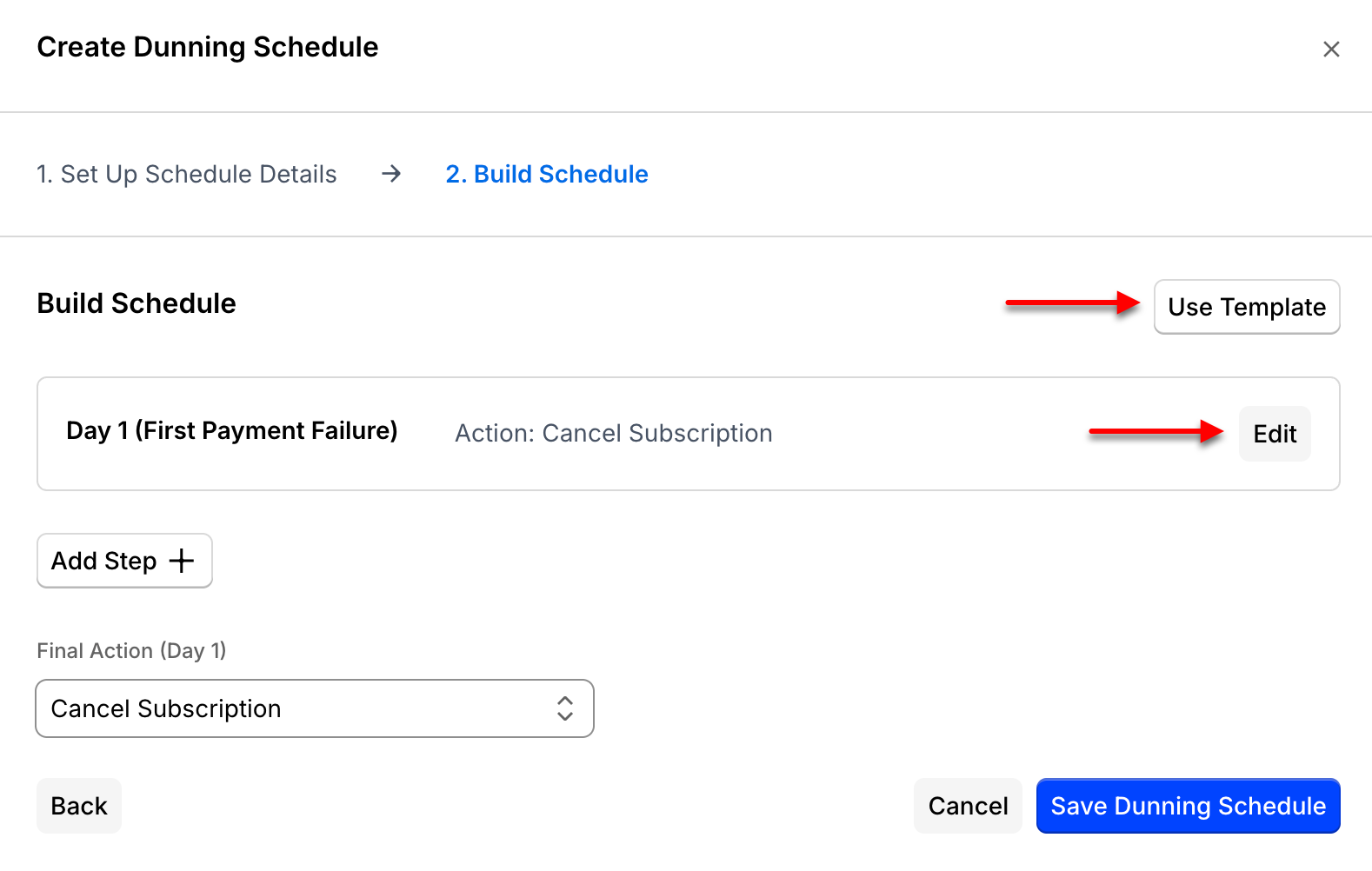
- Build a custom strategy, or select Use Template to start from the Basic or Assertive template.
Set the retry interval
Due to Direct Debit processing time, the minimum interval between retry attempts is 5 days.
When editing or adding a step, you can:
- Specify the day it executes.
- Enable or disable retrying the payment.
- Enable or disable sending an email, and configure its template.
Configure the Final Action
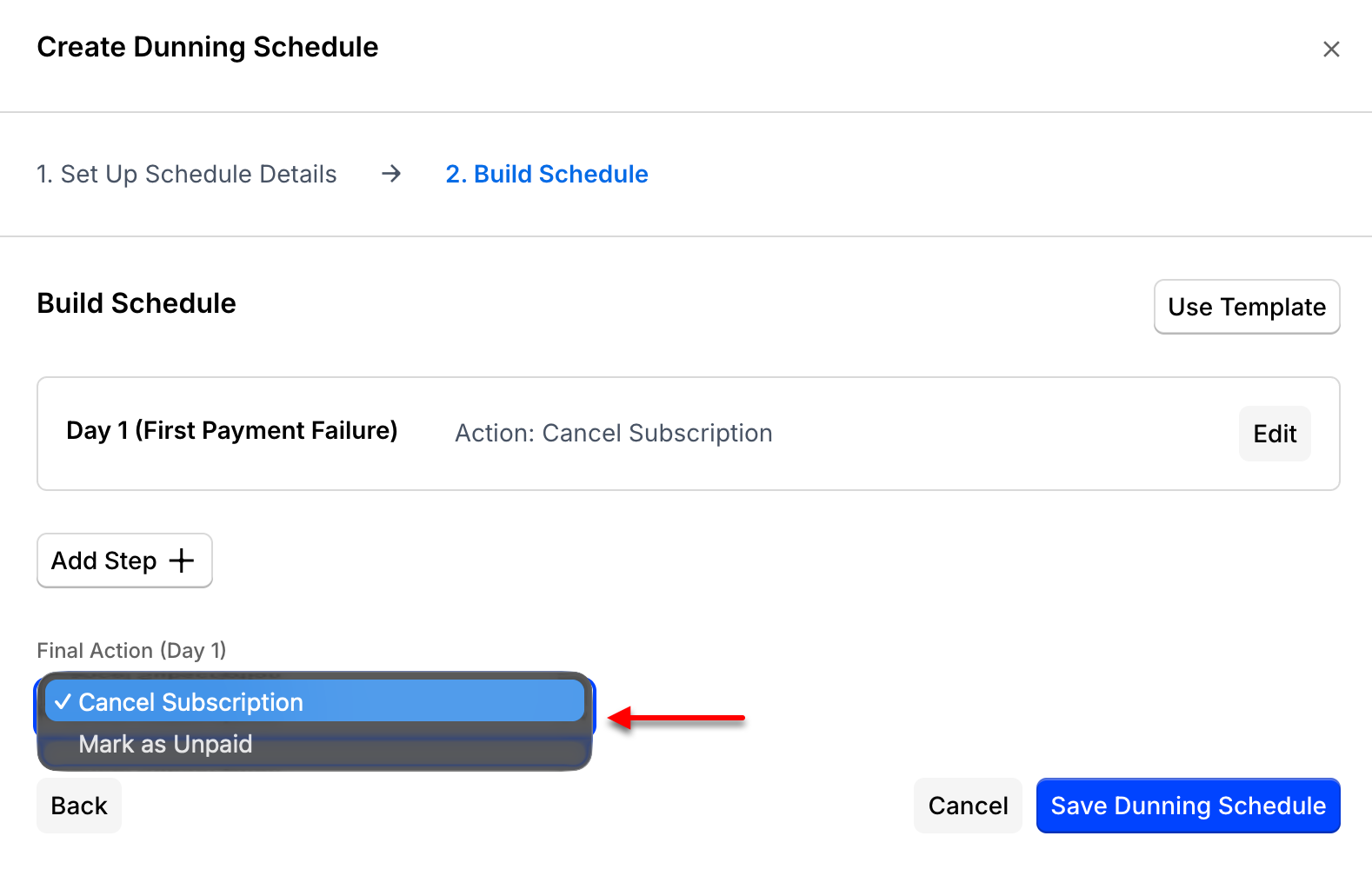
The last step in a Direct Debit schedule is its Final Action. The Final Action can't retry payment and must be either Cancel Subscription or Mark as Unpaid; if you need to notify the Customer at this step, use email only.
Select the day Advanced Billing takes the Final Action, then choose:
- Cancel Subscription: The Subscription transitions to the Canceled state and stops accruing new charges. No more attempts are made to collect the balance due. A canceled Subscription can be reactivated later using the Retry/Reactivate action.
- Mark as Unpaid: The Subscription transitions to the Unpaid state but continues to accrue new charges. No more attempts are made to collect the balance due. An unpaid Subscription can be moved back to Active by recording a payment, retrying the renewal and receiving a successful payment, or zeroing out the balance and retrying the renewal.
Dunning emails
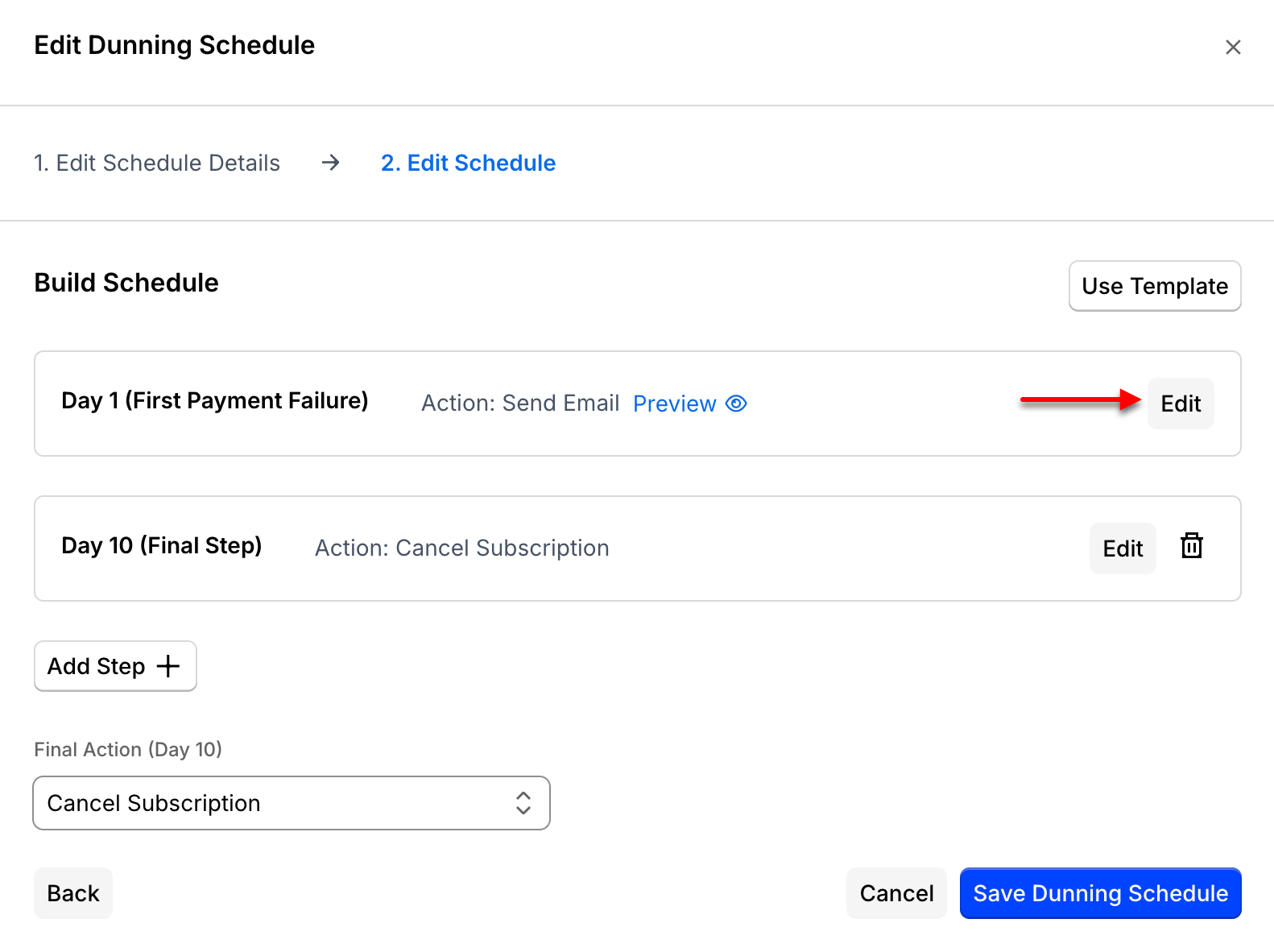
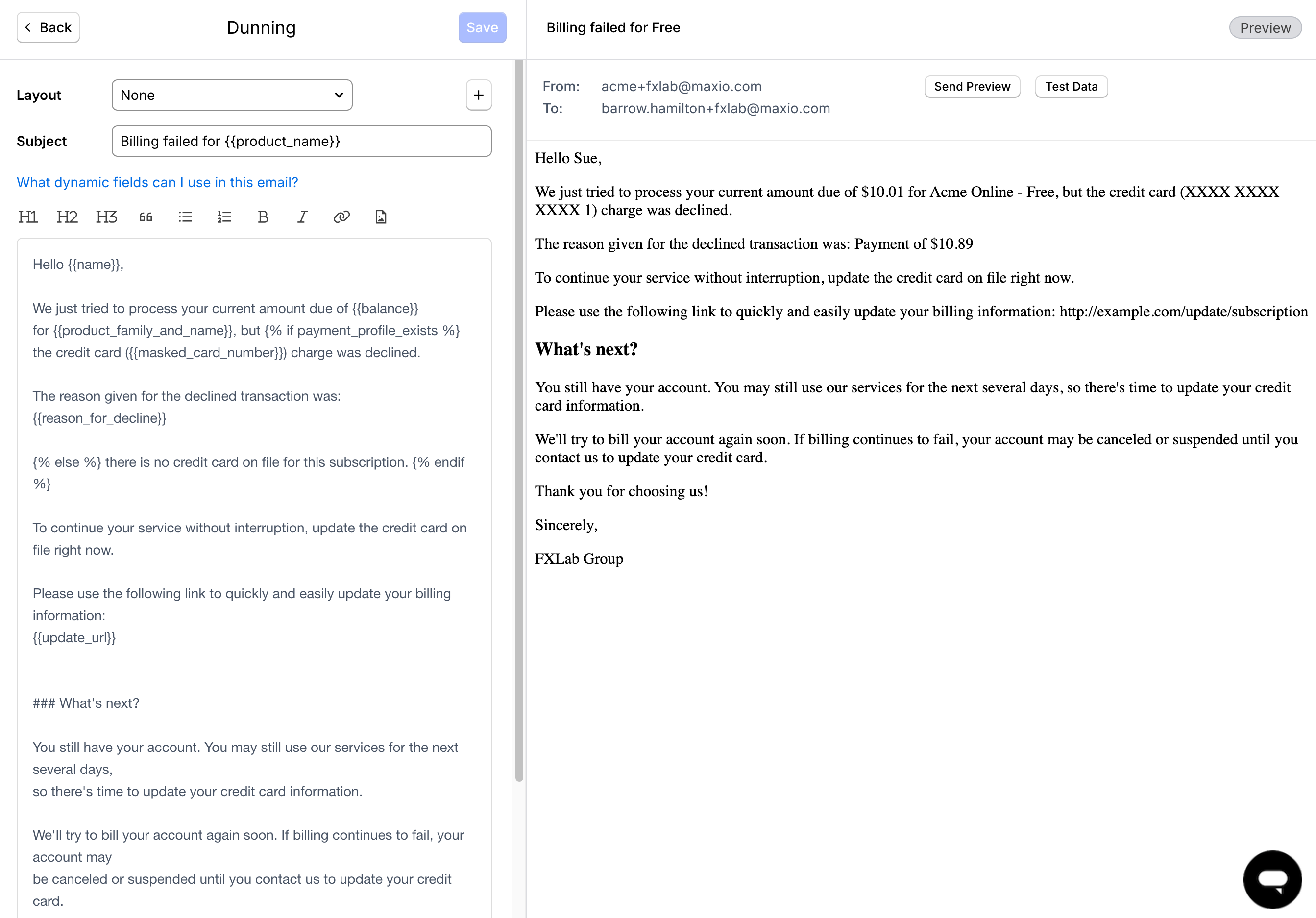
Each step in the schedule can send an email notification. Select Edit on a step, then move the Send Email slider to on to launch the email editor. Within the email editor, you can customize the subject and body of the email. You can also create a custom layout to personalize the look and feel of the email.
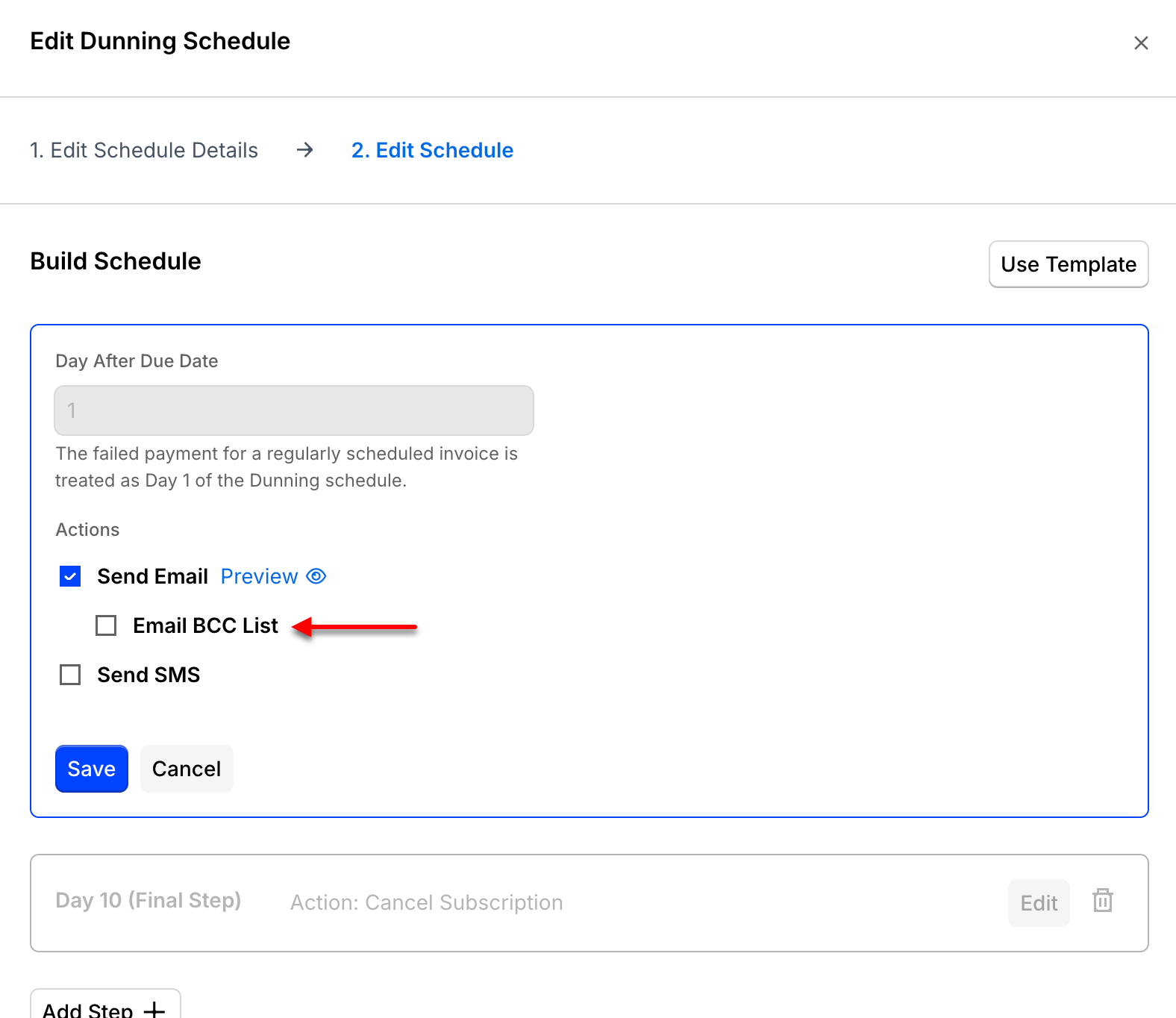
To BCC yourself on a given step's email, check Email BCC List for that step.
Include dynamic text to give the Subscriber the specific information they need, such as why their account is in dunning. See Dunning Email Parameters Reference for the full list of available parameters.
Related information
To change the address your dunning emails are sent from, or add a BCC address for your own records, see Set Dunning Email From Address and BCC.
For the equivalent ACH setup, see Configure ACH Dunning.
Still need help?
Reach out and our support team will take it from here.