
Configure ACH Dunning
Last updated on Sep 8, 2026
Advanced Billing lets you customize the information you send and the final action taken for Subscribers who pay via ACH. If you have ACH-based Subscribers, customize your emails to focus on updating banking information instead of card details.
Configure an ACH dunning schedule
ACH dunning is its own schedule type, separate from Credit Card, Direct Debit, and Remittance, so you build it from scratch rather than editing an existing schedule.
To configure an ACH dunning schedule
- Go to Config > Retries & Dunning, then select Create Schedule.
- Under Dunning Type, select ACH.
- Use the controls in the following sections to set your retry limits, final action, and dunning emails.
There are a few things to decide when setting up your dunning schedule for ACH:
- How many days the Subscriber should spend in dunning.
- What communications to send during the process and for the final action.
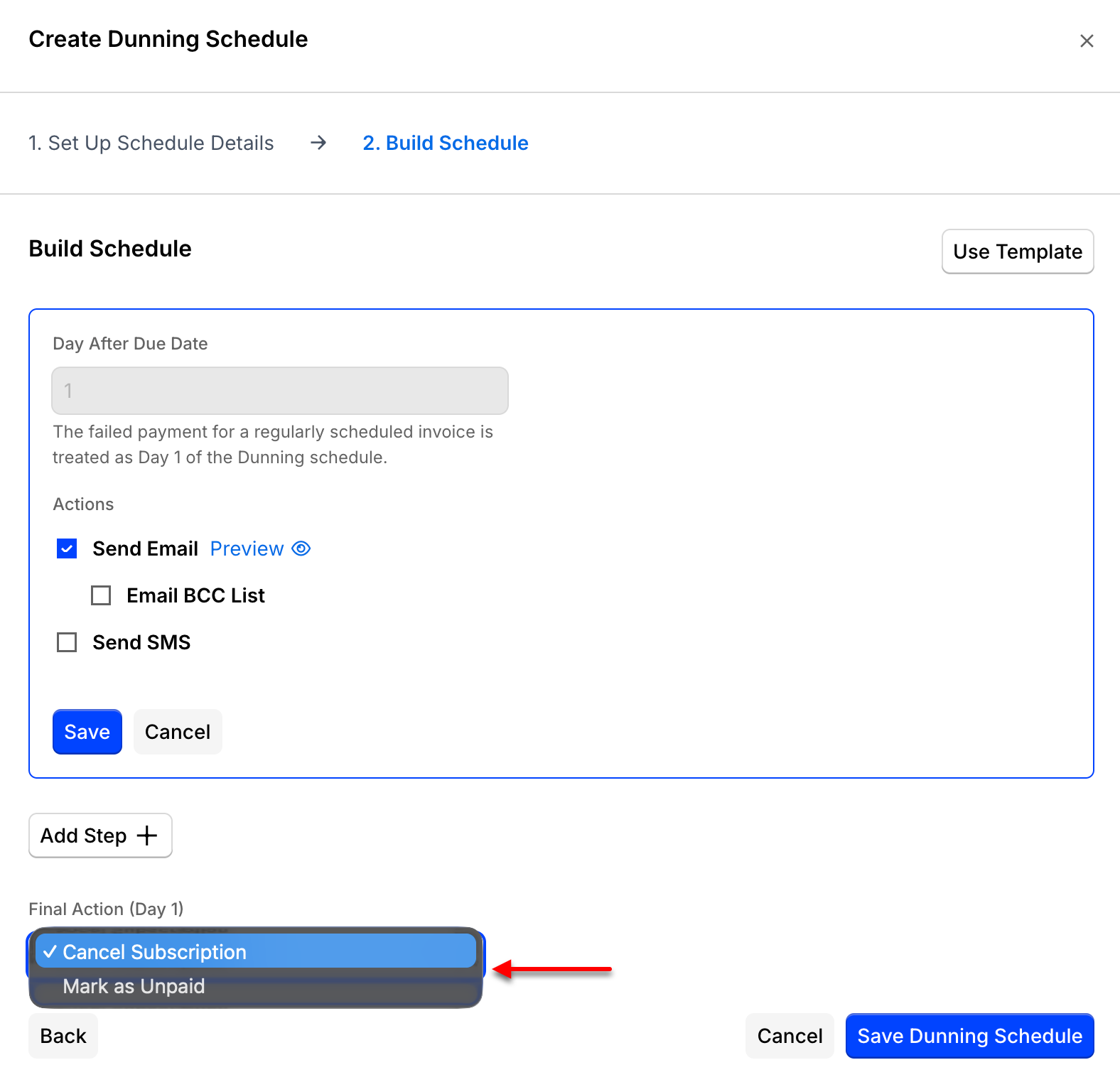
- Whether the Subscription's final action should be Cancel Subscription or Mark as Unpaid.
Retry attempts
Governing rules of the ACH/electronic payment system allow a total of 2 retry attempts for ACH-based payment methods on file. Advanced Billing abides by these rules and permits 2 retry attempts and 1 final action on the dunning strategy. The final action step does not contain a retry attempt.
Final actions
When constructing the final action for your dunning strategy, you have two options:
- Cancel Subscription: The Subscription cancels immediately.
- Mark as Unpaid: The Subscription continues to accrue charges, even though it's marked as unpaid.
Dunning emails
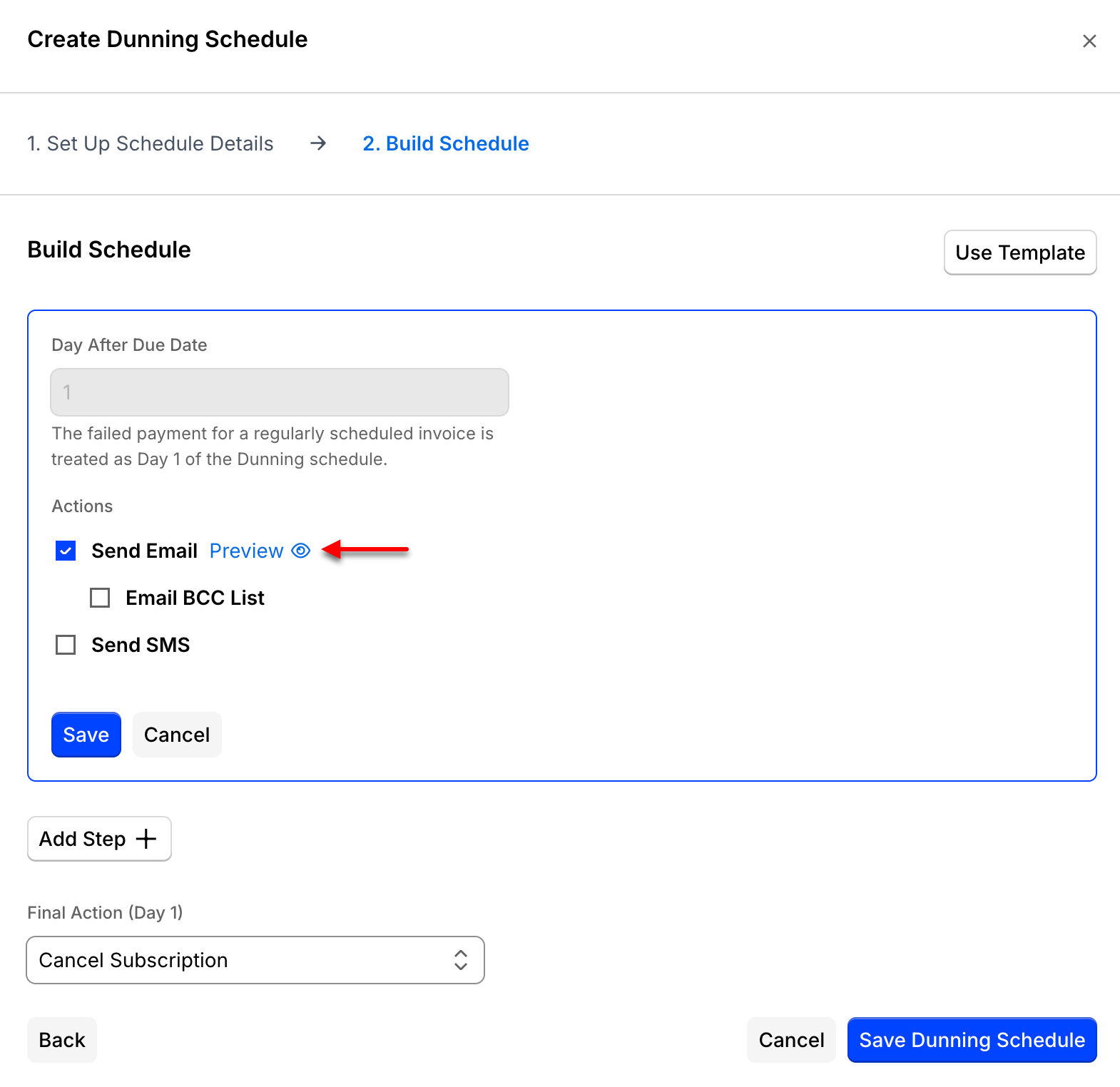
Add, edit, or remove emails for each step in your ACH dunning schedule.
Keep the following limitations in mind:
- Up to 2 emails can be sent for the retry attempts.
- The 2 retry attempts are followed by a final action that doesn't retry payment.
Dunning email body
Include dynamic text in your dunning emails to give the Subscriber the specific information they need, such as why their account is in dunning. See Dunning Email Parameters Reference for the full list of available parameters.
Reconcile a failed ACH payment
ACH payments can fail after the gateway returns a successful response, since bank transfers settle after the initial charge attempt. Use the methods below to re-collect the funds and reconcile the Subscription.
If the payment fails, the Subscription immediately transitions to Past Due status. From there, the dunning process begins attempting to collect the past-due funds.
You receive notification of a failed ACH payment directly in your Payment Gateway account, once it fails to post, typically several days after Advanced Billing originally submitted the payment. Advanced Billing itself doesn't receive this notification from the Payment Gateway, so it can't automatically flag the failure for you.
Once you've located a failed ACH payment, use one of the following methods to reconcile it.
Retry with a different payment method
Use this method when the Subscription has another active payment method on file besides the one that failed.
To retry with a different payment method
- Record an External Refund in Advanced Billing. This reduces the revenue in Advanced Billing by the given amount.
- If there's a different, active payment method on file for the Subscription, activate it, then attempt a one-time charge (Add Charge). Add Charge requires the Subscription to be in an Active state.
This method doesn't trigger any dunning emails, since a failed one-time payment doesn't move a Subscription into a Past Due state.
Retry the same payment method immediately
Use this method to attempt the same payment method again right away, instead of waiting for the next scheduled retry.
To retry the same payment method immediately
-
Record an External Refund in Advanced Billing. This reduces the revenue in Advanced Billing by the given amount.
-
As an alternative to a one-time charge, if needed, Adjust Balance on the Subscription to make the next billing amount match what you need to attempt to charge, then change the next billing date to the current timestamp.
Adjusting the balance doesn't charge right away. It increases the amount owed at the Subscription's next renewal. Changing the billing date to the current timestamp is what actually attempts to process the transaction immediately.
-
If the payment succeeds, move the next billing date back to the appropriate day the Subscription should renew.
If the payment fails instead, the Subscription moves into the Past Due state, which triggers the dunning process and sends an email to the Customer, assuming you have a Day 1 email configured in your dunning settings.
Use the API for programmatic ACH failure notifications
If Authorize.Net is configured to notify you of an ACH failure programmatically, or you listen for Stripe's webhook events, use the Advanced Billing API to follow the same reconciliation steps described above.
Stripe reports a failed ACH payment through one of two events, depending on which Stripe API Advanced Billing used to charge that particular bank account: charge.failed for a charge sent through Stripe's legacy Charges API, or payment_intent.payment_failed for one sent through Stripe's PaymentIntents API. Advanced Billing is moving stored ACH payment profiles from the legacy API to PaymentIntents over time, so a bank account that used to report failures as charge.failed can start reporting them as payment_intent.payment_failed instead. The profile migration itself is automatic, and your stored bank accounts are unchanged, but your integration still needs to subscribe to both events in Stripe so you don't miss a failure after a profile moves.
Related information
To decide whether ACH is the right collection method for a Subscription, see Choosing a Dunning Schedule.
For a full breakdown of Subscription lifecycle states, see Understand Subscription States.
Still need help?
Reach out and our support team will take it from here.