
Understand Subscription States
Last updated on Aug 29, 2026
A Subscription progresses through various states, from Trialing to Active, Past Due, On Hold, Unpaid, or Canceled, based on billing events and Customer actions. Understanding these states and how they transition helps you keep revenue tracking accurate and manage Customers on time.
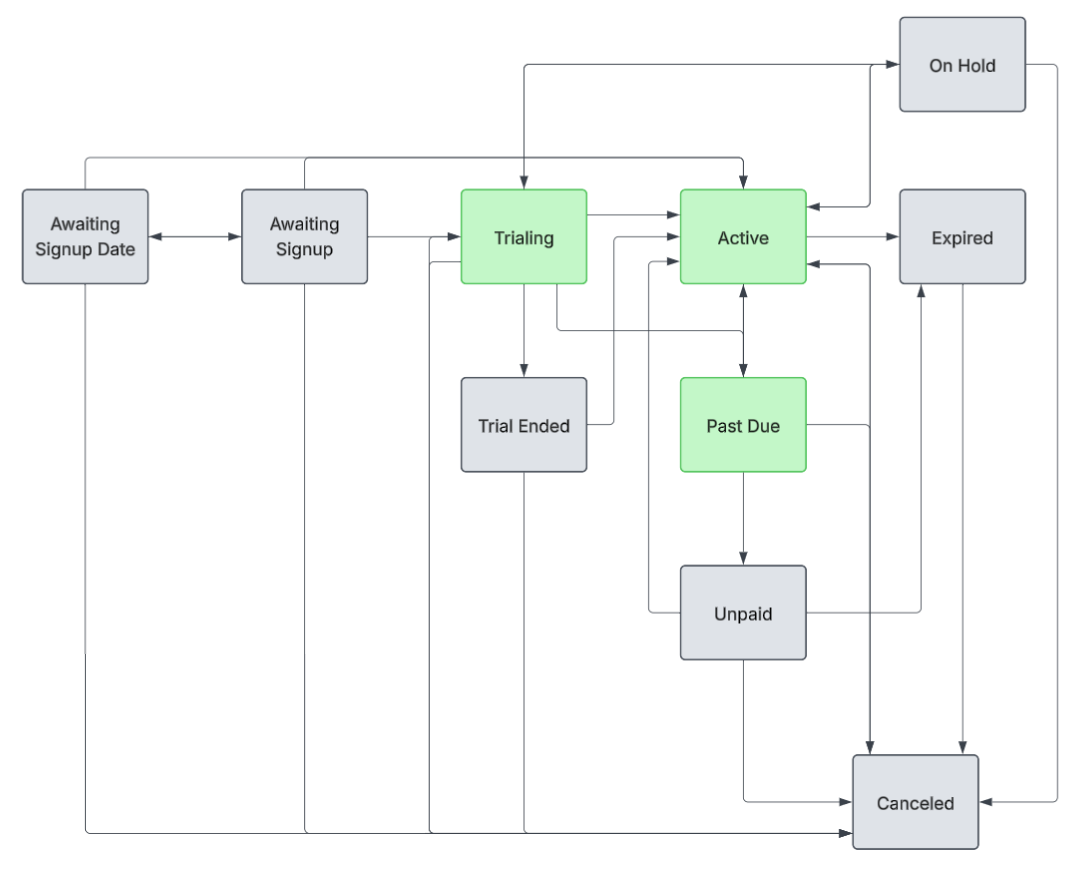
State definitions
Every Subscription is in exactly one state at a time. States fall into three groups: live, end-of-life, and setup or transient. The diagram above shows the common path; it doesn't include Suspended or Paused, both edge cases covered below.
Live states
A Subscription in one of these states is actively billing or being collected on:
| State | Description |
|---|---|
| Active | The Subscription is paid, current, and not in a trial. |
| Trialing | The Subscription is within a valid trial period. It moves to Active if payment is received, or to an inactive state if not. |
| Past Due | A payment failure has occurred. If automated dunning is enabled, the dunning process begins; otherwise, prompt the Customer to update their payment information. |
End-of-life states
A Subscription in one of these states has stopped its normal billing cycle:
| State | Description |
|---|---|
| Canceled | The Subscription is canceled, either manually or after the dunning process concludes without payment. Billing and collections stop immediately. |
| Expired | A Term Subscription has reached its configured term end date. Evergreen Subscriptions never expire. |
| Trial Ended | The Subscription's trial ended and the Subscription is inactive. |
| On Hold | Billing is temporarily paused. The Subscription can later return to Active. |
| Unpaid | The Subscription was marked unpaid after dunning. Charges accrue, but collections pause. You must collect or adjust the balance. |
| Suspended | A prepaid Subscription's balance ran out. Add a prepayment covering the overage to bring it back to Active. |
| Paused | Maxio Support has manually paused this individual Subscription. This is an internal action, distinct from On Hold, and isn't something you can set yourself. |
Setup and transient states
A Subscription in one of these states is still being created or is between processing steps:
| State | Description |
|---|---|
| Awaiting Signup | The Subscription was created, but the signup is incomplete. |
| Awaiting Signup Date | The Subscription has a future signup date and hasn't started. See Understand Awaiting Signup Date for what's hidden while a Subscription is in this state. |
| Pending | A transient internal state indicating the Subscription is being created. |
| Assessing | A transient internal state indicating periodic assessment. |
| Soft Failure | A transient failure occurred, such as a gateway timeout. Retries happen automatically. |
| Failed to Create | Signup failed due to a validation error or gateway issue. |
If a Subscription stays in Pending or Assessing longer than expected, open a support ticket.
State transitions
State transitions typically occur in response to signups, trials, payments, or expirations. Manual intervention is occasionally required, as outlined in the examples below.
Expired to Active
Scenario: A Subscription has expired. To reactivate it, first cancel it, then reactivate it.
Changing the Plan for an expired Subscription doesn't reactivate it; the Subscription remains Expired.
Past Due to Active
Scenario: A payment failed and the Subscription is Past Due. If payment succeeds on retry, the Subscription becomes Active.
Past Due to Trialing
Scenario: A Subscription completes its trial and then becomes Past Due because the expected payment failed. To extend the trial, first cancel the Subscription using Cancel Immediately, then reactivate it and include the trial. The balance resets by default, but you can opt out of resetting.
If needed, change the next billing date to adjust the trial end date automatically.
Trial Ended to Active
Scenario: A no-obligation trial ended without a card on file. Reactivate the Subscription to move it to Active.
Unpaid to Active
Scenario: The Subscription is Unpaid after dunning. Click Retry/Reactivate to collect payment, or, if that fails or you want to waive the balance, click Reset to $0. Either action returns the Subscription to Active.
Suspended to Active
Scenario: A prepaid Subscription has used all its balance and is Suspended. Add a prepayment covering the overage to bring it back to Active.
Related information
For the full reactivating and resuming procedure, see Reactivate or Resume a Subscription.
For how the On Hold state and resuming behave in detail, see Understand On Hold and Resume Scenarios.
For how the Pending Cancellation state works, see Clear a Pending Cancellation.
For why an option might be missing from the Subscription Actions menu, see Manage Subscription Actions Based on Status.
Still need help?
Reach out and our support team will take it from here.