
Viewing and Downloading Email Archives
Last updated on Sep 19, 2026
The Email Archives tab shows the notifications Advanced Billing has actually sent to this subscriber, so you can confirm what a customer received — and what it said — when a billing question comes up.
Where to find it
Click Email Archives on the side of the subscription summary. The tab requires subscriber notifications to be turned on in your email settings; with them off, no emails are generated to archive.
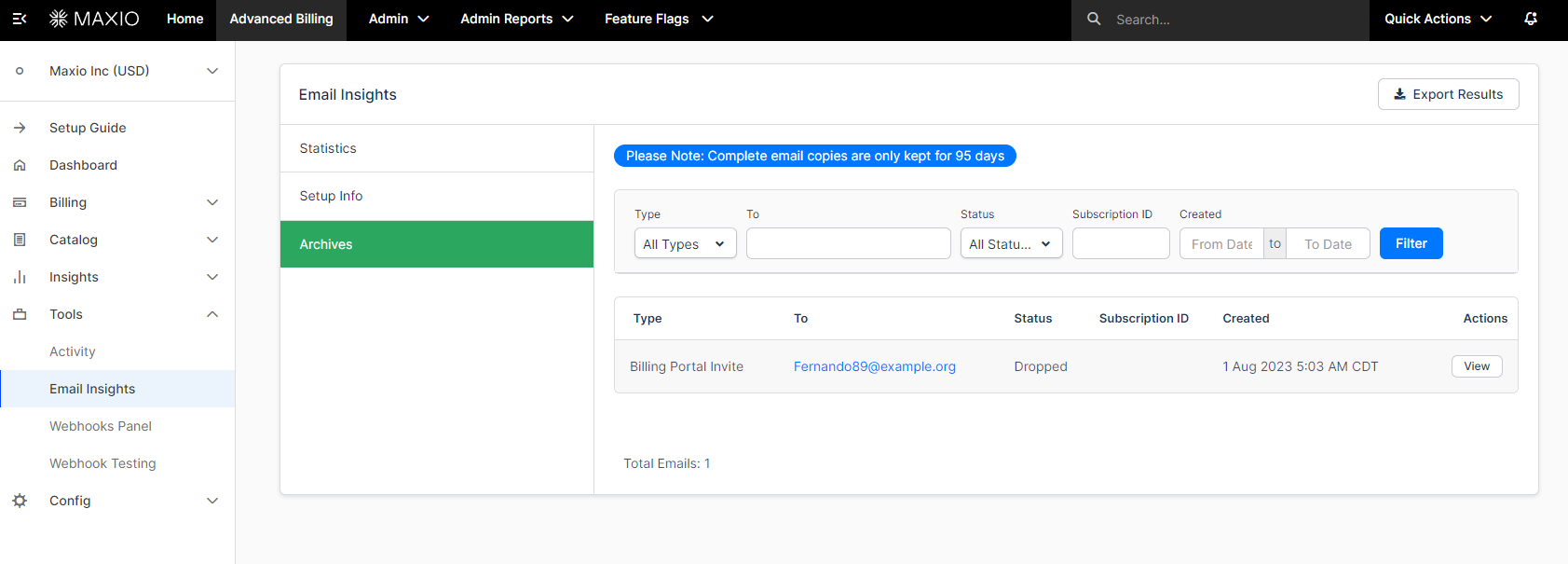
What the archive retains
The archive holds the past 95 days of communications to that subscriber. Anything older has aged out and cannot be retrieved from this tab.
Emails take a few moments to generate and appear. Please be patient — they will appear within 1–2 minutes of generation, so a message sent seconds ago may not be listed yet.
Download an archived email
Advanced Billing gives you the option to download the text or the HTML of an email. If the email was built with HTML contents, download the HTML file and drag it into a browser to see the fully rendered version as the subscriber saw it.
To review archived emails across the whole site rather than one subscription, see review email archives.
Please be aware that this article is related to Advanced Billing's Subscription Summary function. The subscription summary is the place to perform all tasks necessary to manage customers’ purchases through Advanced Billing.
You can learn more about the Subscription Summary by checking out this help article: Subscription Summary Overview.
Still need help?
Reach out and our support team will take it from here.