
Recording Prepayments
Last updated on Aug 27, 2026
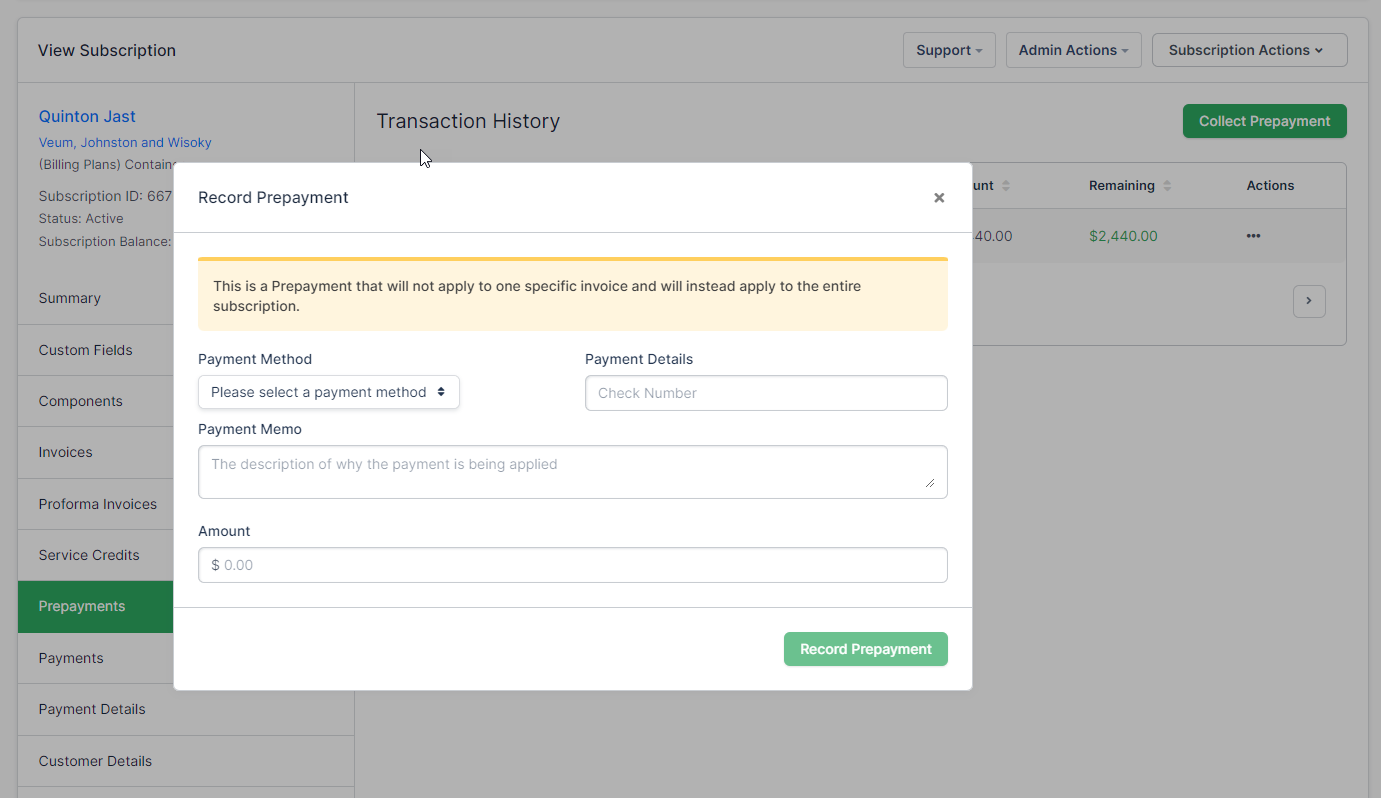
A prepayment is money a subscriber has paid ahead of being invoiced for it. Prepayments allow external payments to be added to a subscription without being tied to a specific invoice — they apply to the subscription as a whole, and draw down against invoices as those invoices are issued.
Where to find it
Click Prepayments on the side of the subscription summary. The tab shows the subscription's transaction history alongside the control for recording a new prepayment.
View balances across many subscriptions
Opening each subscription's Prepayments tab one at a time doesn't scale if you need to review balances across many subscriptions at once — for example, to forecast prepaid revenue. Instead, add the optional Prepayment Balance column to the Subscriptions list:
- From the Subscriptions list, open the column selector.
- Enable Prepayment Balance.
The column shows the same balance recorded here for every subscription that has a prepayment account, and you can sort the list by it by clicking the column header. It's off by default, so you won't see it until you turn it on.
See Also: Search and Filter Subscriptions
Record a prepayment
Recording a prepayment means choosing one of the available external payment methods and entering the details of the payment you received, along with a memo and an amount.
Because the payment is external, recording it here does not collect any money — it tells Advanced Billing about money you have already taken, so the subscription's balance reflects reality.
Prepayment refunds
When you refund a prepayment using Maxio Payments, the subscription's prepayment balance automatically updates to reflect the refunded amount.
Site-level prepayment settings
How prepayments behave across the site — including whether they apply automatically to new invoices — is controlled separately in prepayment settings.
Please be aware that this article is related to Advanced Billing's Subscription Summary function. The subscription summary is the place to perform all tasks necessary to manage customers’ purchases through Advanced Billing.
You can learn more about the Subscription Summary by checking out this help article: Subscription Summary Overview.
Still need help?
Reach out and our support team will take it from here.