
Add New Coupons
Last updated on Aug 27, 2026
A coupon applies a discount, either a set amount or a percentage, to a Subscription. Creating one takes three passes over a single form: naming the coupon, configuring the discount itself, and setting the advanced options that control where the discount applies and how long it lasts.
Before you start
| Requirement | Detail |
|---|---|
| Feature | Coupons |
| You need | Access to your company's price book |
| Code | No |
| Difficulty | Low |
Create a new coupon
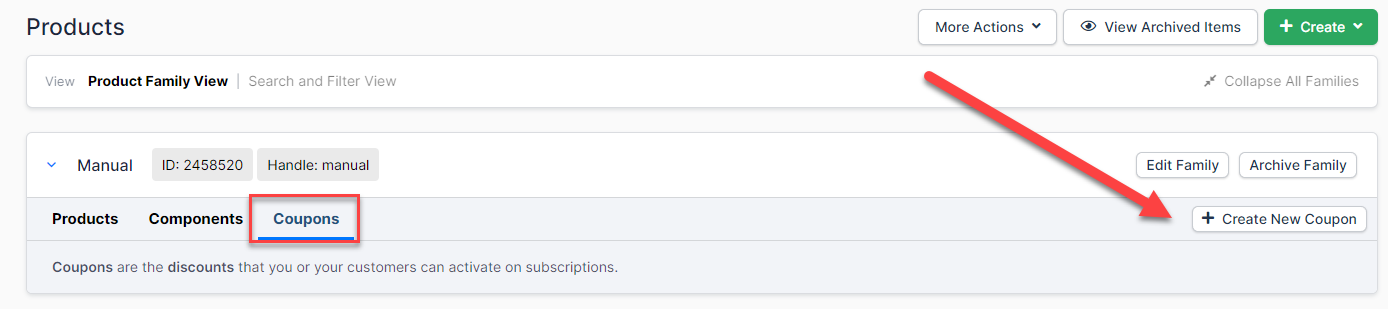
Coupons live alongside your catalog, on the same page as your Products.
To start a new coupon
- Go to the Products page and select the Coupons tab.
- Select Create New Coupon.
Set up the coupon details
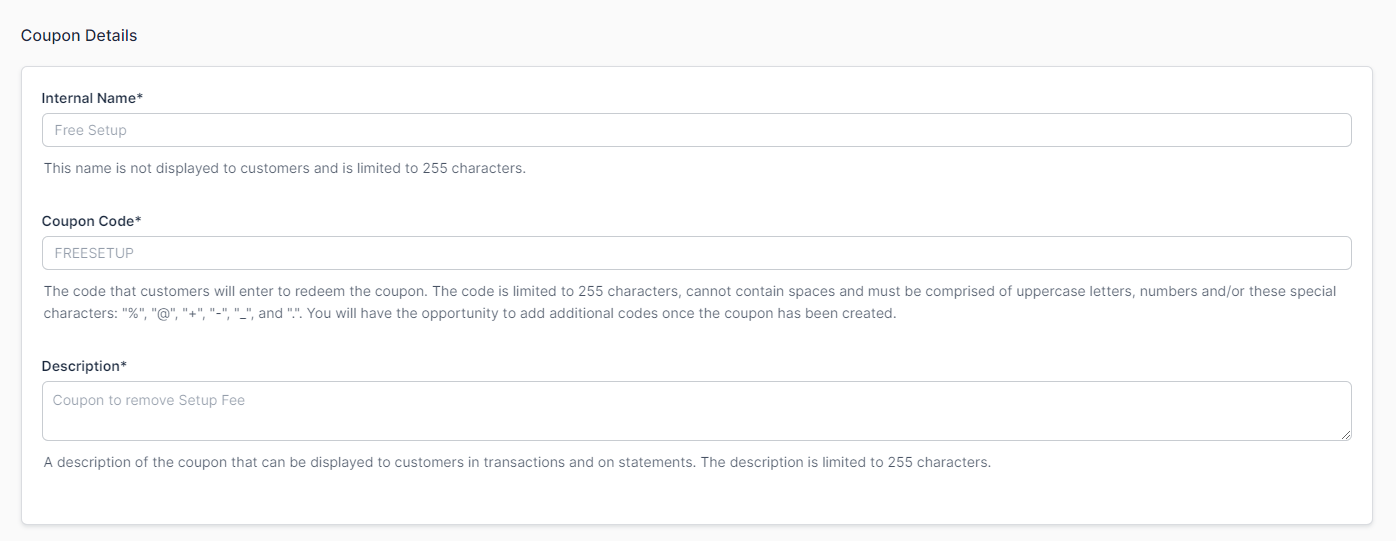
The Coupon Details block names the coupon and gives customers the code they redeem. All three fields are required.
| Field | Description |
|---|---|
| Internal Name | (Required) A name for the coupon that is not displayed to the customer. Use it to identify the coupon internally. |
| Coupon Code | (Required) The code a customer enters to redeem this coupon. You can add more codes after creating the coupon. |
| Description | (Required) A description of the coupon that can appear to customers in transactions and on statements. |
Set up the discount configuration
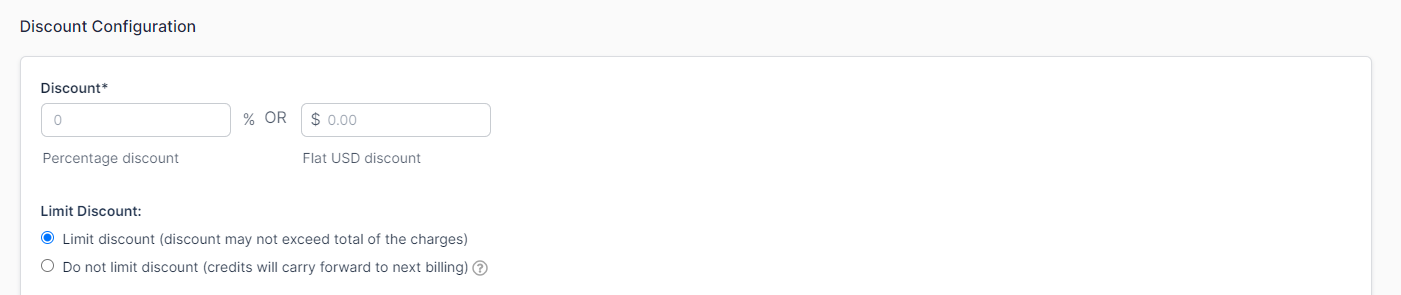
The Discount Configuration block sets the size of the discount and what happens to any unused portion of it.
| Field | Description |
|---|---|
| Discount | (Required) The amount taken off the price, as either a percentage or a flat amount. |
| Limit Discount | Controls what happens when a flat discount is larger than the charge.
|
Set up the advanced options
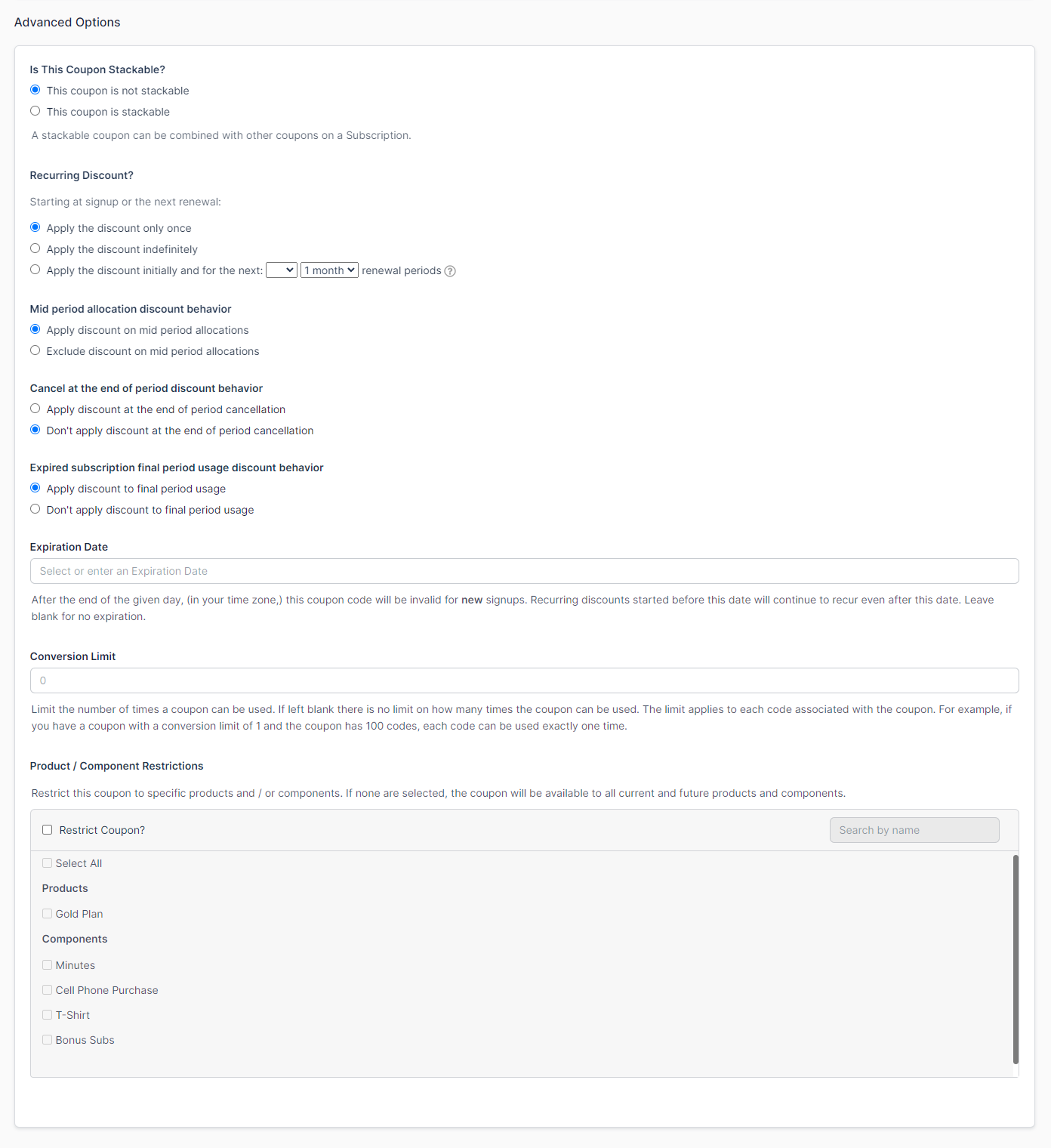
The Advanced Options block controls where the discount applies, how often, and when it stops.
| Field | Description |
|---|---|
| Is This Coupon Stackable? | Whether the coupon can be used alongside other coupons. |
| Recurring Discount? | Whether the discount applies only once, indefinitely, or for a set number of renewal periods. |
| Mid period allocation discount behavior | Whether the discount applies to mid-period allocations or is excluded from them. |
| Cancel at the end of period discount behavior | Whether the discount applies at an end-of-period cancellation. |
| Expired subscription final period usage discount behavior | Whether the discount applies to final-period usage on an expired Subscription. |
| Setup fee behavior | Whether the discount applies to Setup Fees. |
| Trial behavior | Whether the discount applies to trials. |
| Expiration Date | The date the coupon stops working. Leave blank to let it be used indefinitely. |
| Conversion Limit | The number of times each coupon code can be used before it expires. |
| Product / Component Restrictions | Which Products and Components this coupon can discount. |
Related information
To let customers redeem coupons themselves in the Billing Portal, enable the Allow Applying Coupons feature described in Configure the Billing Portal.
Still need help?
Reach out and our support team will take it from here.