
Configure the A/R Aging Report
Last updated on Sep 13, 2026
The A/R Aging Report helps you provide regular, repeatable reports on your outstanding A/R to outside parties, such as your board or your bank. The report builder lets you filter, group, and summarize your complete outstanding A/R list to fit different reporting needs.
How this report determines A/R
This report determines A/R using Payment records, not Invoice status alone. If an Invoice has a status of "Paid," but doesn't have an associated Payment record, the Invoice still appears on the A/R Aging Report. Payment records are created in Maxio Platform when you receive a Payment directly (manually, by import, or through Maxio Payments, Advanced Billing, or e-Invoicing), or when you sync Payments from a connected system: QuickBooks, Xero, NetSuite, Intacct, or Rillet (each gated by that system's own Payment sync step), or Stripe 1Way.
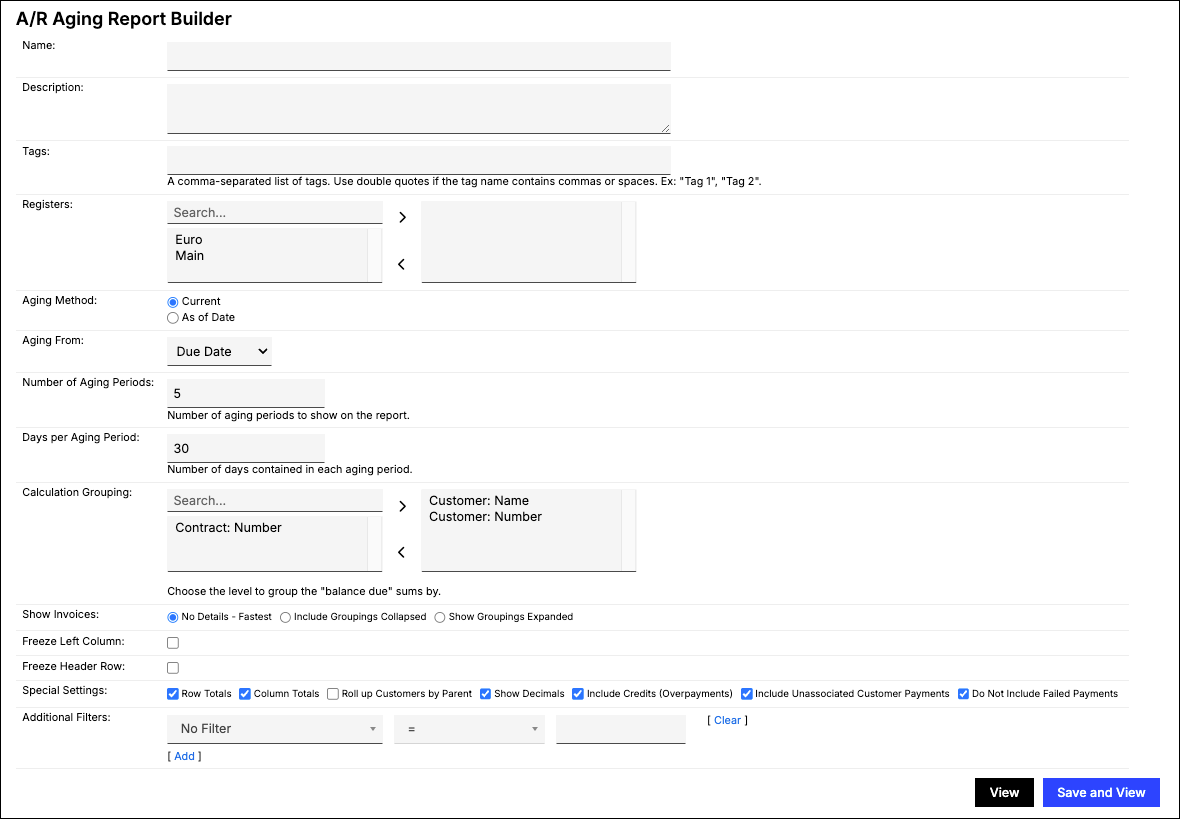
Configure options
Go to Reports > Add Report > Finance Reports > A/R Aging to open the report builder. This report includes the following configuration options.
| Option | Description |
|---|---|
| Aging Method | Choose how the report determines what's outstanding as of the report date:
|
| Aging From | Choose which date the report ages from:
|
| Number of Aging Periods | Determine the number of periods you want to use to divide your dataset. |
| Days per Aging Period | Determine the length of each aging period. |
| Calculation Grouping | Select how to group calculations: Customer: Name, Customer: Number, or Contract: Number. Multi-Entity Site is also available if multi-entity is enabled for your account. |
| Show Invoices | Choose how much Invoice-level detail to show: No Details - Fastest, Include Groupings Collapsed, or Show Groupings Expanded. The two grouped options list individual Invoices under each Customer and/or Contract row. |
| Additional Invoice Details | Select additional Invoice fields to include in the report output, such as Due Date, Applied Amount, Balance Due, Memo, PO Number, and portal activity (Last Emailed, Last Opened, Last Clicked). Custom fields on the Contract, Customer, or Invoice are also available. |
| Special Settings | Enable additional settings that affect the report's totals and which Payments are included:
|
Report results
The example below shows the current A/R aging from the Due Date, grouped by Customer: Name, Customer: Number, and Contract: Number, with groupings collapsed.

This represents the complete and current outstanding A/R dataset. When Aging From is set to Due Date, the report distinguishes between A/R that hasn't yet been paid but is current ("Current") and A/R that's overdue and outstanding (listed in the various day ranges by total amount); the Current distinction doesn't appear when Aging From is set to Invoice Date.
With groupings collapsed, you can expand an individual Customer/Contract instance to see which Invoices are overdue for specific amounts within each day range.
You can access the individual Customer, Contract, Invoice, and (when Include Credits is enabled) Payment records in Maxio Platform by selecting the hyperlink within the expanded record.
Related information
If you want to see how your A/R aging trends over time rather than as of a single point in time, see Track A/R Aging Health Over Time.
Not sure this is the report you need? Start from the question instead in Which Finance Report Answers Which Question.
Still need help?
Reach out and our support team will take it from here.